
1. Introduction
Welcome to the artfone CF241 flip phone user manual. This guide will help you understand the features and functions of your new phone, ensuring a smooth and enjoyable experience. The artfone CF241 is designed for ease of use, featuring large buttons, a clear display, and essential functions for communication.
Package Contents
Please check the box for the following items:
- 1 x artfone CF241 GSM Phone
- 1 x Battery
- 1 x Charging Dock
- 1 x Charging Cable (USB-C)
- 1 x Quick Start Guide

Image: The artfone CF241 flip phone in its open position, displaying the large keypad and the main screen with a simple interface. A pen is visible next to the phone, emphasizing its compact size.
2. Setup
2.1 Inserting SIM Cards and Battery
The artfone CF241 supports dual Micro SIM cards. Ensure the phone is powered off before inserting or removing SIM cards or the battery.
- Remove the back cover: Gently pry open the back cover of the phone.
- Insert SIM cards: Locate the SIM card slots. Insert your Micro SIM cards into the designated slots (SIM1 and SIM2) with the gold contacts facing down and the cut corner aligned as shown in the diagram.
- Insert Micro SD card (optional): If you wish to expand storage for photos or MP3s, insert a Micro SD card (up to 32GB) into its dedicated slot.
- Insert the battery: Place the battery into the battery compartment, ensuring the gold contacts on the battery align with the contacts in the phone.
- Replace the back cover: Press the back cover firmly until it clicks into place.

Image: A visual guide illustrating the USB-C charging port, the dual Micro SIM card slots, and the location of the flashlight on the side of the artfone CF241 phone.
2.2 Charging the Phone
Before first use, fully charge the phone battery. You can charge the phone using the included charging dock or directly with the USB-C cable.
- Using the Charging Dock: Connect the charging cable to the charging dock, then plug the adapter into a power outlet. Place the phone into the charging dock, ensuring it is seated correctly. The charging indicator on the phone will illuminate.
- Direct Charging: Connect the USB-C charging cable directly to the USB-C port on the phone and plug the adapter into a power outlet.
A full charge typically takes a few hours. The battery icon on the screen will indicate charging status.
2.3 Powering On/Off
- To Power On: Press and hold the End Call/Power button (red button) until the screen lights up.
- To Power Off: Press and hold the End Call/Power button until the power-off options appear on the screen, then select "Power off".
3. Operating Instructions
3.1 Basic Functions and Navigation
The artfone CF241 features a user-friendly interface with large, backlit buttons for easy operation.

Image: The artfone CF241 flip phone displaying its simple interface with large, easy-to-read buttons and a clear menu on the 2.4-inch screen.
- Navigation Keys: Use the directional keys (Up, Down, Left, Right) to navigate through menus.
- OK Button: Press the OK button (center button) to confirm selections or enter sub-menus.
- Back Button: Press the Back button to return to the previous screen or menu.
- Call Button: Press the Green Call button to make a call or answer an incoming call.
- End Call/Power Button: Press the Red End Call button to end a call or reject an incoming call. Long press to power the phone on/off.
3.2 Making and Receiving Calls
- To Make a Call:
- Enter the phone number using the keypad. The phone will announce the numbers as you type.
- Press the Green Call button.
- To Call from Contacts:
- Go to the "Contacts" menu.
- Select the desired contact using the navigation keys and press the Green Call button.
- To Answer a Call: When the phone rings, open the flip or press the Green Call button.
- To End a Call: Press the Red End Call button or close the flip.

Image: An animated diagram showing the artfone CF241 flip phone opening and closing, illustrating its robust hinge mechanism for answering or ending calls.
The phone's earpiece is designed to provide clear audio, offering additional assistance for users with hearing difficulties.
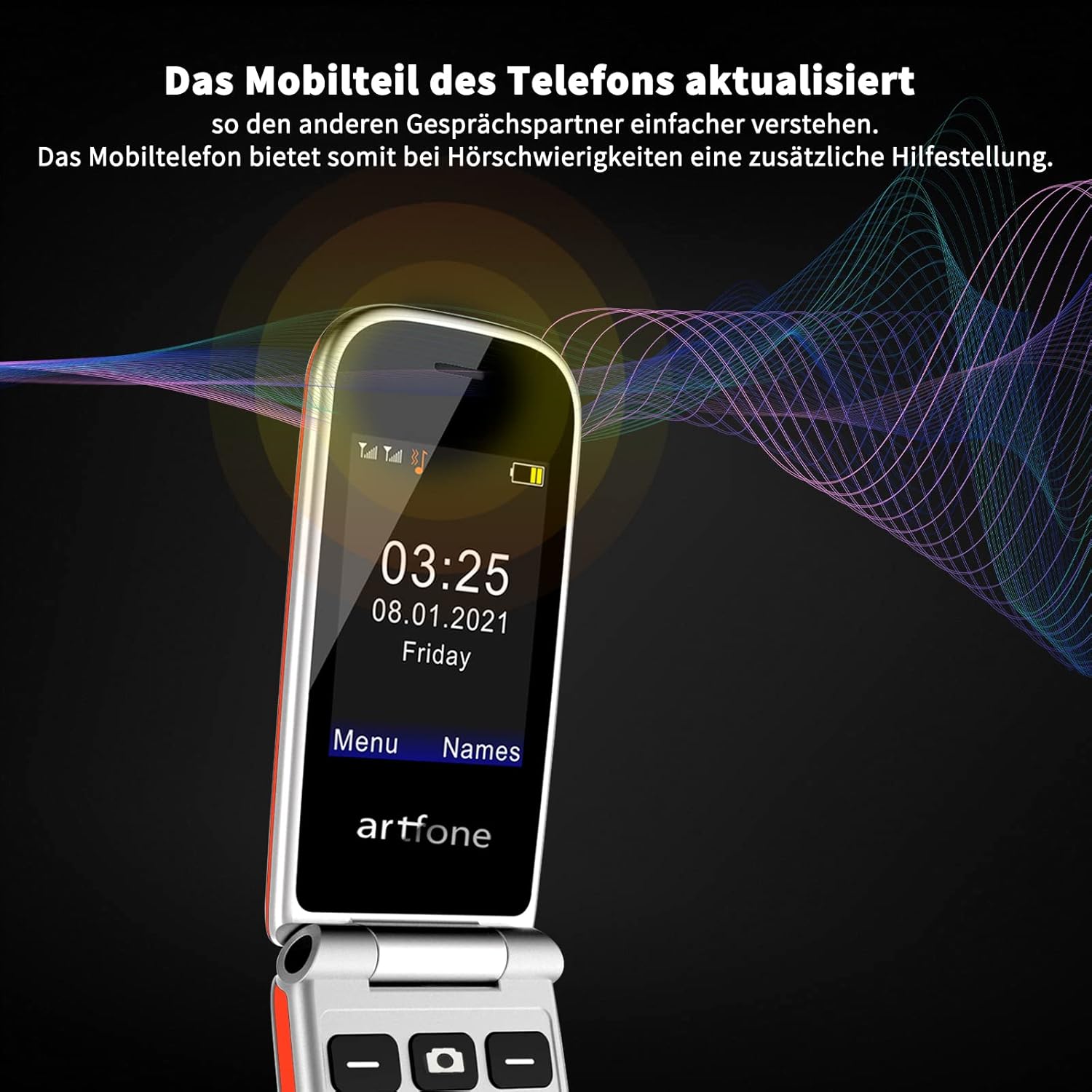
Image: The artfone CF241 phone screen with an overlay of sound waves, indicating its updated mobile part for clearer conversations, especially beneficial for those with hearing challenges.
3.3 SOS Emergency Button
The SOS button provides an emergency contact function for immediate assistance.
- Setting up SOS Numbers:
- Go to the "SOS Settings" menu.
- You can set up to 5 emergency contact numbers.
- Ensure these numbers are active and belong to people who can provide assistance.
- Using the SOS Function:
- In an emergency, press and hold the SOS button on the back of the phone for 3 seconds.
- The phone will automatically dial the emergency numbers in sequence until one is answered.
- It will also send a pre-set emergency text message to these contacts.

Image: An illustration demonstrating the SOS emergency call feature of the artfone CF241. The phone's SOS button is highlighted, and a scenario shows an emergency call being placed to a family member.
3.4 Speed Dial Keys (M1/M2)
The M1 and M2 keys allow for quick dialing of frequently contacted numbers.
- Setting up M1/M2:
- Go to "Settings" and then "Speed Dial".
- Assign a contact number to M1 and M2.
- Using M1/M2:
- From the idle screen, press and hold the M1 or M2 button to dial the assigned contact.
3.5 Other Features
- Flashlight: Activate the flashlight via the side button or through the menu for convenience in low-light conditions.
- FM Radio: Enjoy FM radio broadcasts. Headphones may be required to act as an antenna.
- MP3 Player: Play music files stored on your Micro SD card.
- Calculator: Perform basic arithmetic calculations.
- Alarm Clock: Set multiple alarms for reminders.
- Bluetooth: Connect to Bluetooth headsets or other compatible devices.
- Text Messaging: Send and receive SMS messages. Note that this phone does not support internet access or MMS.
4. Maintenance
4.1 General Care
- Keep the phone dry. Moisture can damage electronic circuits.
- Avoid extreme temperatures. High temperatures can shorten the life of electronic devices and warp or melt certain plastics.
- Do not use harsh chemicals, cleaning solvents, or strong detergents to clean the phone. Wipe it with a soft, damp cloth.
- Handle the phone gently. Do not drop, knock, or shake it. Rough handling can break internal circuit boards and fine mechanics.
4.2 Battery Care
- Use only artfone approved batteries and chargers.
- Do not short-circuit the battery.
- Do not expose the battery to high temperatures or dispose of it in fire.
- If the battery is damaged, contact customer support for a replacement.
5. Troubleshooting
If you encounter problems with your artfone CF241, please refer to the following common issues and solutions:
| Problem | Possible Cause / Solution |
|---|---|
| Phone does not turn on |
|
| No network signal |
|
| Cannot make/receive calls |
|
| Phone not charging |
|
| SOS button not working |
|
If the problem persists after trying these solutions, please contact artfone customer support.
6. Specifications
| Feature | Detail |
|---|---|
| Model Number | CF241 |
| Display | 2.4-inch Color Screen |
| Battery Capacity | 1000 mAh Lithium-ion |
| Standby Time | Up to 200 hours |
| SIM Card Support | Dual Micro SIM |
| Network Mode | 2G GSM (850/900/1800/1900 MHz) |
| Micro SD Card Support | Up to 32GB |
| Headphone Jack | 3.5 mm |
| Connectivity | Bluetooth |
| Special Features | SOS Button, M1/M2 Speed Dial, Flashlight, Calculator, MP3, FM Radio, Alarm Clock, Large Buttons, Voice Annunciation of Numbers |
| Languages Supported | English, German, French, Italian, Spanish, etc. |
| Operating System | Proprietary (Note: Not iOS, which is incorrectly listed in some product data.) |
7. Warranty and Support
artfone products are designed for reliability and performance. This product comes with a standard manufacturer's warranty. Please refer to the warranty card included in your package for specific terms and conditions.
For technical support, troubleshooting assistance, or warranty claims, please contact artfone customer service. Contact information can typically be found on the artfone website or in the quick start guide provided with your phone.
Online Support: Visit the official artfone website for FAQs and support resources.


