
1. Introduction
Thank you for choosing the GEEZER 2.4GHz Wireless Keyboard and Mouse Combo. This product is designed to provide a comfortable and efficient typing and navigation experience with its retro-inspired design and wireless convenience. This manual will guide you through the setup, operation, and maintenance of your new device.
2. Product Overview
The GEEZER Wireless Keyboard and Mouse Combo features a unique design with detachable keycaps and a quiet mouse, offering broad compatibility with various operating systems.
2.1 Components
- Wireless Keyboard
- Wireless Mouse
- 2-in-1 Nano USB Receiver
- AA & AAA Batteries (pre-installed or included)
- Cleaning Brush
2.2 Key Features
- 2.4GHz Wireless Technology: Provides a stable connection with a working range of up to 35 feet.
- Retro Round & Detachable Keycaps: Easy to clean and offers a unique typing feel.
- Quiet Operation: Bottom sealing film technology for the keyboard and silent mouse clicks.
- Ergonomic Design: Inclination angle for comfortable typing and reduced wrist pressure.
- Long Battery Life: Automatic sleep mode extends battery life up to 12 months.
- Wide Compatibility: Compatible with Windows 10/8/7/XP/Vista, PC, Mac, Desktop, Laptop, Notebook, Chrome-Book, Smart TVs, and more.

Image 2.1: The GEEZER 2.4GHz Wireless Keyboard and Mouse Combo in Pink, showcasing its design and included USB receiver.

Image 2.2: Detailed view of the keyboard and mouse highlighting the cat-themed design, including paw prints, cat ears, and whiskers.
3. Setup Instructions
Follow these steps to set up your GEEZER Wireless Keyboard and Mouse Combo:
- Install Batteries:
- Locate the battery compartments on the underside of both the keyboard and the mouse.
- Insert the provided AA battery into the keyboard and AAA batteries into the mouse, ensuring correct polarity.
- Locate USB Receiver: The 2-in-1 Nano USB receiver is typically stored in a compartment on the underside of the mouse for safekeeping. Gently remove it.
- Connect Receiver: Plug the Nano USB receiver into an available USB 2.0 port on your computer, PC, laptop, or compatible device.
- Power On Devices: Turn on the keyboard and mouse using their respective ON/OFF switches, usually located on the underside.
- Automatic Connection: The keyboard and mouse should automatically connect to your device. No additional software or drivers are typically required for basic functionality.

Image 3.1: Illustration of the 2-in-1 Nano USB receiver being plugged into a laptop, enabling wireless connection for both keyboard and mouse.
4. Operating Instructions
4.1 Keyboard Usage
- Typing: The keyboard features a standard QWERTY layout with 84 keys. The retro round keycaps provide a distinct tactile experience.
- Multimedia Hotkeys: Use the function (Fn) key in combination with the F1-F12 keys for multimedia controls such as volume, playback, and web browser shortcuts. Refer to the keycap legends for specific functions.

Image 4.1: The keyboard layout, indicating the location and function of the 13 multimedia hotkeys (F1-F12 and Esc).
4.2 Mouse Usage
- Navigation: The mouse provides precise and quiet cursor control.
- Buttons: Standard left-click, right-click, and scroll wheel functionality.
4.3 Power Saving Mode
Both the keyboard and mouse are equipped with an automatic sleep function. If idle for approximately 5 minutes, they will enter sleep mode to conserve battery. To wake them up, simply click any button on either device.
5. Maintenance and Care
Proper maintenance ensures the longevity and optimal performance of your wireless combo.
- Cleaning Keycaps: The individual keycaps are detachable. You can carefully remove them for thorough cleaning. They can be washed with water. Use the provided brush to remove dust and debris from between the keys. Ensure keycaps are completely dry before reattaching.
- General Cleaning: Wipe the surfaces of the keyboard and mouse with a soft, damp cloth. Avoid using harsh chemicals or abrasive materials.
- Battery Replacement: When performance degrades, replace the batteries. The keyboard uses one AA battery, and the mouse uses two AAA batteries.
- Storage: When not in use for extended periods, turn off both devices using their ON/OFF switches to further conserve battery life. Store the USB receiver in the mouse's compartment.

Image 5.1: Illustration demonstrating the detachable nature of the keycaps, allowing for easy cleaning and maintenance.
6. Troubleshooting
If you encounter issues with your GEEZER Wireless Keyboard and Mouse Combo, refer to the following common solutions:
| Problem | Possible Solution |
|---|---|
| Keyboard/Mouse not responding |
|
| Mouse disconnects intermittently |
|
| Keys are sticky or unresponsive |
|
7. Specifications
| Feature | Detail |
|---|---|
| Model Number | Cat001 |
| Connectivity | 2.4GHz Wireless (USB Receiver) |
| Keyboard Dimensions | 13.54 x 5.91 x 1.06 inches |
| Item Weight | 1.1 pounds (Keyboard & Mouse combined) |
| Keyboard Battery | 1 x AA battery (included) |
| Mouse Battery | 2 x AAA batteries (included) |
| Compatible Devices | Windows 10/8/7/XP/Vista, Android, Linux, iMac, PC, Desktop, Laptop, Notebook, Chrome-Book, Smart TVs |
| Special Feature | Ergonomic Design, Detachable Keycaps |
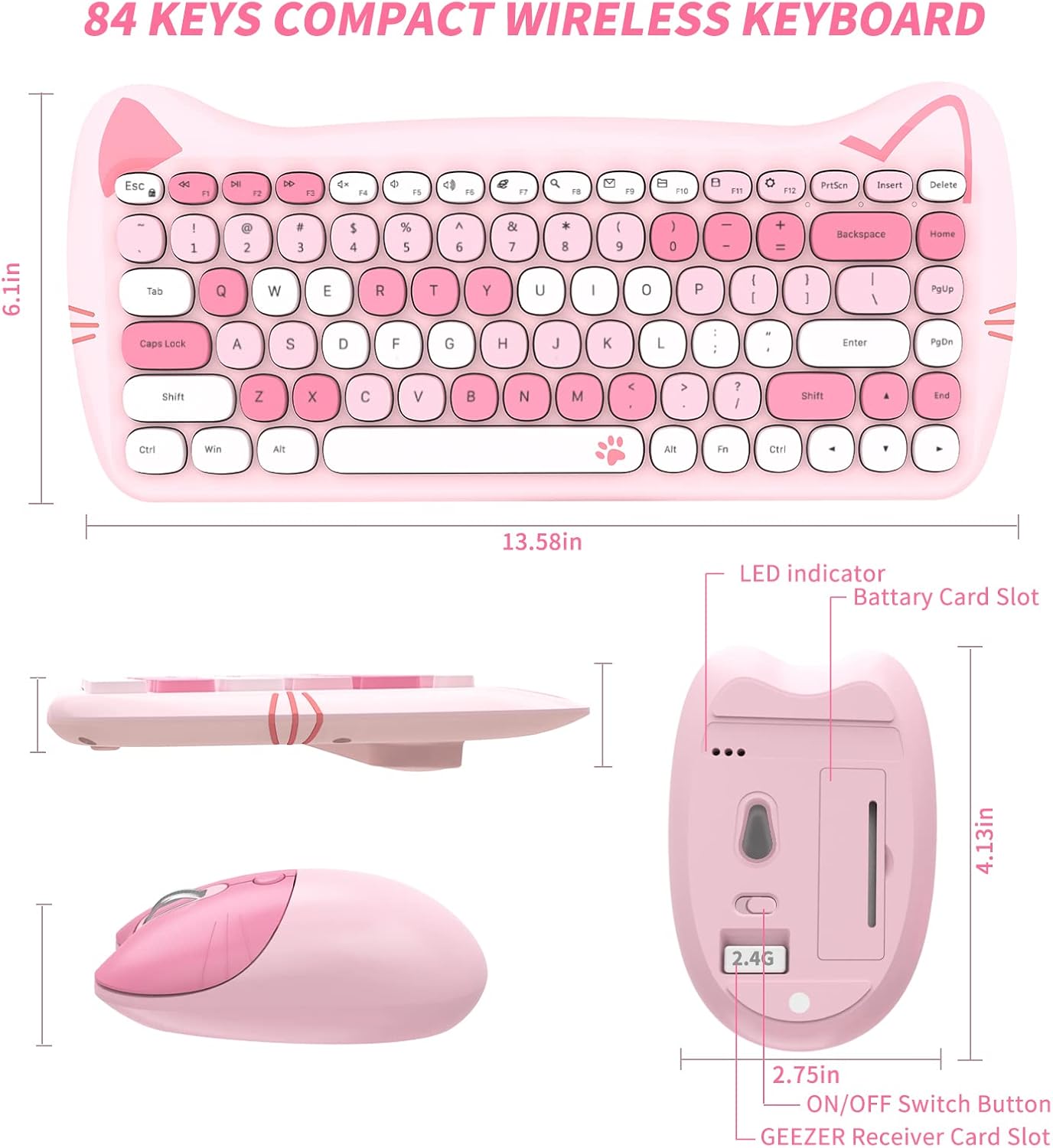
Image 7.1: Technical diagram illustrating the dimensions of the GEEZER wireless keyboard and mouse.
8. Warranty and Support
This product comes with a standard manufacturer's warranty. For specific warranty details, please refer to the product packaging or contact GEEZER customer support. If you require further assistance or have questions not covered in this manual, please reach out to the seller or manufacturer's support channels.


