
1. Introduction
This manual provides essential information for setting up, operating, maintaining, and troubleshooting your AVITA PURA E NS14A6 laptop. Please read this guide thoroughly to ensure proper use and to maximize the lifespan of your device.
The AVITA PURA E NS14A6 is a thin and light 14-inch laptop designed for versatile use, featuring an AMD Ryzen 5 - 3500U processor, 8GB DDR4 RAM, and a 512GB SSD for efficient performance. It comes pre-loaded with Windows 10 Home and includes Radeon Vega 8 Graphics.

Image 1.1: The AVITA PURA E NS14A6 laptop, open and displaying the Windows 10 operating system on its screen.
2. Setup
2.1 Unboxing and Initial Inspection
Carefully remove the laptop and all accessories from the packaging. Verify that the following items are included:
- AVITA PURA E NS14A6 Laptop
- AC Adapter
- Quick Start Guide
Inspect the laptop for any physical damage. If any damage is found, contact your retailer immediately.
2.2 Connecting the Power Adapter
Before first use, ensure the laptop is fully charged. Connect the AC adapter to the power jack on the side of the laptop and then plug the adapter into a power outlet.

Image 2.1: Right side of the AVITA PURA E NS14A6 laptop, featuring the power input port, HDMI port, and USB-A ports.
2.3 Initial Power On and Operating System Setup
- Open the laptop lid.
- Press the power button, typically located on the keyboard deck.
- Follow the on-screen instructions to complete the Windows 10 Home setup process. This includes selecting your region, language, creating a user account, and connecting to a Wi-Fi network.
2.4 Connecting Peripherals
The laptop offers various ports for connecting external devices:
- USB 3.0 Type-A: Two ports for connecting USB devices like mice, keyboards, or external drives.
- USB 3.0 Type-C: One port for data transfer only.
- HDMI: One full-size HDMI port for connecting to external displays or projectors.
- 3.5mm Headphone Jack: For connecting headphones or external speakers.

Image 2.2: Left side of the AVITA PURA E NS14A6 laptop, featuring a USB-A port and the 3.5mm headphone jack.
3. Operating Instructions
3.1 Power On/Off and Sleep Mode
- Power On: Press the power button.
- Shut Down: Click the Windows Start button, then Power > Shut down.
- Sleep Mode: Close the laptop lid or click the Windows Start button, then Power > Sleep.
3.2 Display
The laptop features a 14-inch HD TFT anti-glare screen with a resolution of 1366 x 768 pixels. Adjust brightness using the function keys (Fn + Fx, where Fx is the brightness control key) or through Windows display settings.
3.3 Keyboard and Touchpad
The integrated keyboard and touchpad provide input functionality. The touchpad supports multi-touch gestures for navigation. Ensure your hands are clean and dry for optimal touchpad responsiveness.
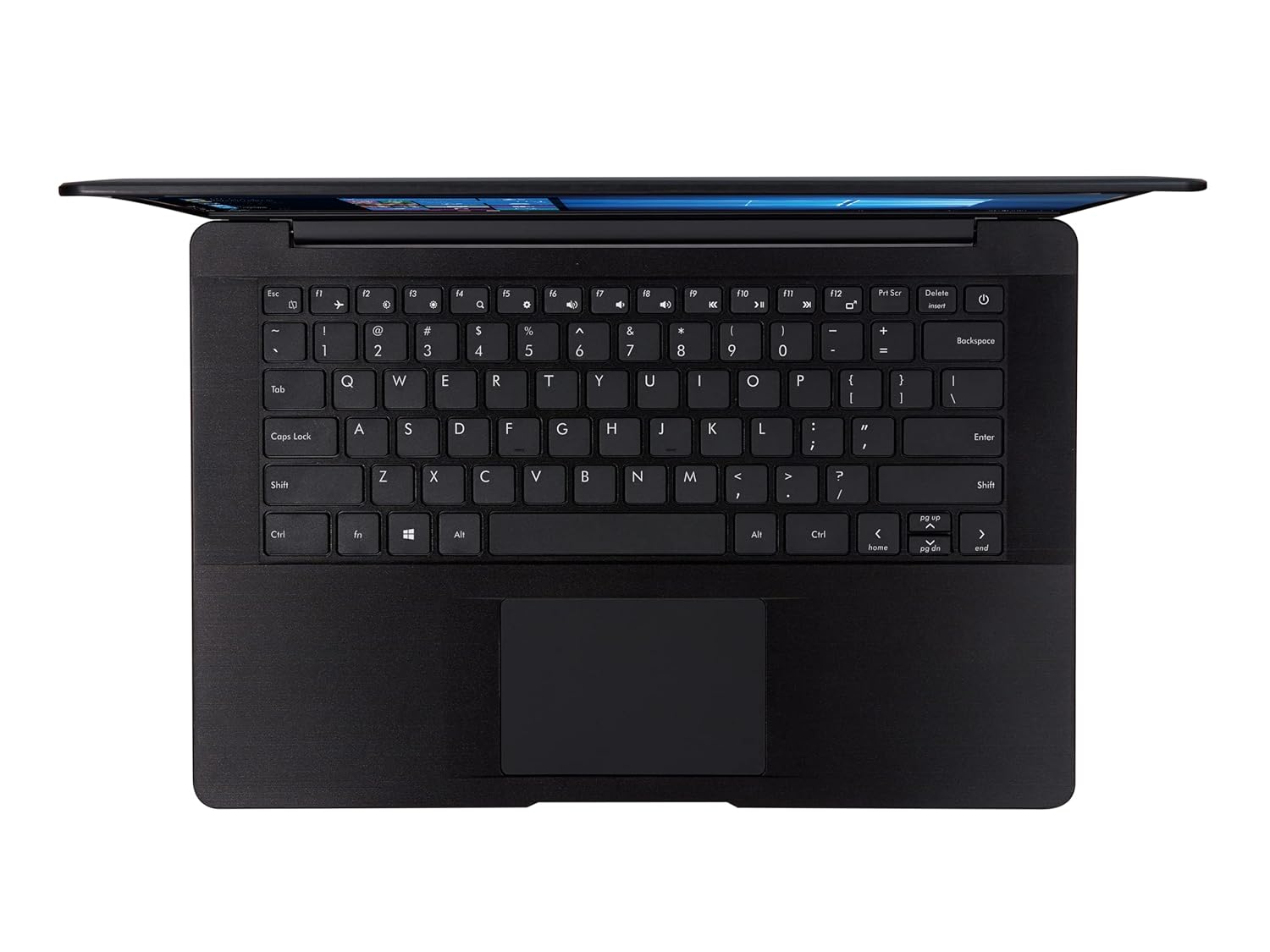
Image 3.1: Top-down view of the AVITA PURA E NS14A6 laptop, highlighting the full-size keyboard and integrated touchpad.
3.4 Wireless Connectivity
- Wi-Fi: The laptop supports 802.11bgn wireless standards. To connect, click the Wi-Fi icon in the taskbar, select your network, and enter the password if required.
- Bluetooth: Bluetooth 4.2 is integrated for connecting wireless peripherals such as headphones or speakers. Enable Bluetooth via Windows settings to pair devices.
3.5 Audio
The laptop includes dual 0.8W speakers for audio output. For private listening, connect headphones to the 3.5mm audio jack.
4. Maintenance
4.1 Cleaning the Laptop
- Use a soft, lint-free cloth slightly dampened with water or a screen cleaner to clean the display.
- For the keyboard and chassis, use a soft, dry cloth. Avoid harsh chemicals or abrasive materials.
- Regularly clean dust from vents to ensure proper airflow.
4.2 Software Updates
Keep your Windows 10 Home operating system and device drivers updated to ensure optimal performance and security. Windows Update typically handles this automatically, but you can manually check for updates via Settings > Update & Security > Windows Update.
4.3 Storage Management
The laptop is equipped with a 512GB SSD. Regularly manage your storage by deleting unnecessary files, uninstalling unused applications, and utilizing cloud storage if needed. This helps maintain system speed and responsiveness.
4.4 Battery Care
To prolong battery life:
- Avoid fully discharging the battery frequently.
- Store the laptop in a cool, dry place when not in use for extended periods.
- If storing for a long time, charge the battery to about 50-60% before storage.
5. Troubleshooting
This section addresses common issues you might encounter with your AVITA PURA E NS14A6 laptop.
5.1 Laptop Does Not Power On
- Ensure the AC adapter is securely connected to both the laptop and a working power outlet.
- Verify the power outlet is functional by plugging in another device.
- If the battery is completely drained, allow it to charge for at least 30 minutes before attempting to power on again.
5.2 Display Issues
- If the screen is blank, try pressing the brightness up function key.
- If connected to an external monitor, ensure the correct display output is selected (Fn + Fx key, usually F7 or F8, to cycle display modes).
- Restart the laptop.
5.3 Wi-Fi Connectivity Problems
- Check if Wi-Fi is enabled in Windows settings.
- Restart your Wi-Fi router and the laptop.
- Ensure you are within range of the Wi-Fi network and have the correct password.
5.4 Slow Performance
- Close unnecessary applications running in the background.
- Check for and install any pending Windows updates.
- Ensure your SSD has sufficient free space.
- Run a virus scan.
6. Specifications
Detailed technical specifications for the AVITA PURA E NS14A6 laptop:
| Feature | Specification |
|---|---|
| Model Name | Pura E - Picasso R5 (NS14A6) |
| Processor | AMD Ryzen 5 3500U (2.1 GHz base, up to 3.7 GHz max) |
| RAM | 8 GB DDR4 |
| Storage | 512 GB SSD |
| Display | 14-inch HD TFT Anti-Glare (1366 x 768 pixels) |
| Graphics | AMD Radeon Vega 8 Graphics (Integrated) |
| Operating System | Windows 10 Home |
| Weight | 1.344 kg |
| Battery Life | Up to 7 hours |
| Connectivity | Wi-Fi 802.11bgn, Bluetooth 4.2 |
| Ports | 1x USB 3.0 Type-C (data only), 2x USB 3.0 Type-A, 1x Full Size HDMI, 1x 3.5mm Headphone Jack, Power Jack |
| Audio | 0.8W x 2 Speakers |
7. Warranty and Support
7.1 Warranty Information
Your AVITA PURA E NS14A6 laptop comes with a 2-year warranty. Please retain your proof of purchase for warranty claims. The warranty covers manufacturing defects under normal use conditions. For specific terms and conditions, refer to the warranty card included with your product or visit the official AVITA website.
7.2 Customer Support
For technical assistance, service inquiries, or further information, please visit the official AVITA support website or contact their customer service. Contact details can typically be found in the Quick Start Guide or on the manufacturer's website.
