
1. Introduction
Thank you for choosing the LNMBBS K110 Tablet. This manual provides essential information for setting up, operating, maintaining, and troubleshooting your device. The K110 is a versatile 10-inch Android tablet designed for both productivity and entertainment, featuring an octa-core processor, 4GB RAM, 64GB internal storage, 4G LTE connectivity, and a comprehensive accessory kit.
2. Package Contents
Please verify that all items listed below are included in your package. If any items are missing or damaged, please contact customer support.
- LNMBBS K110 Tablet
- Tablet Cover
- Wireless Bluetooth Keyboard
- Wireless Mouse
- Capacitive Stylus
- OTG Cable
- Charger Cable (USB-C)
- European Charger
- User Manual
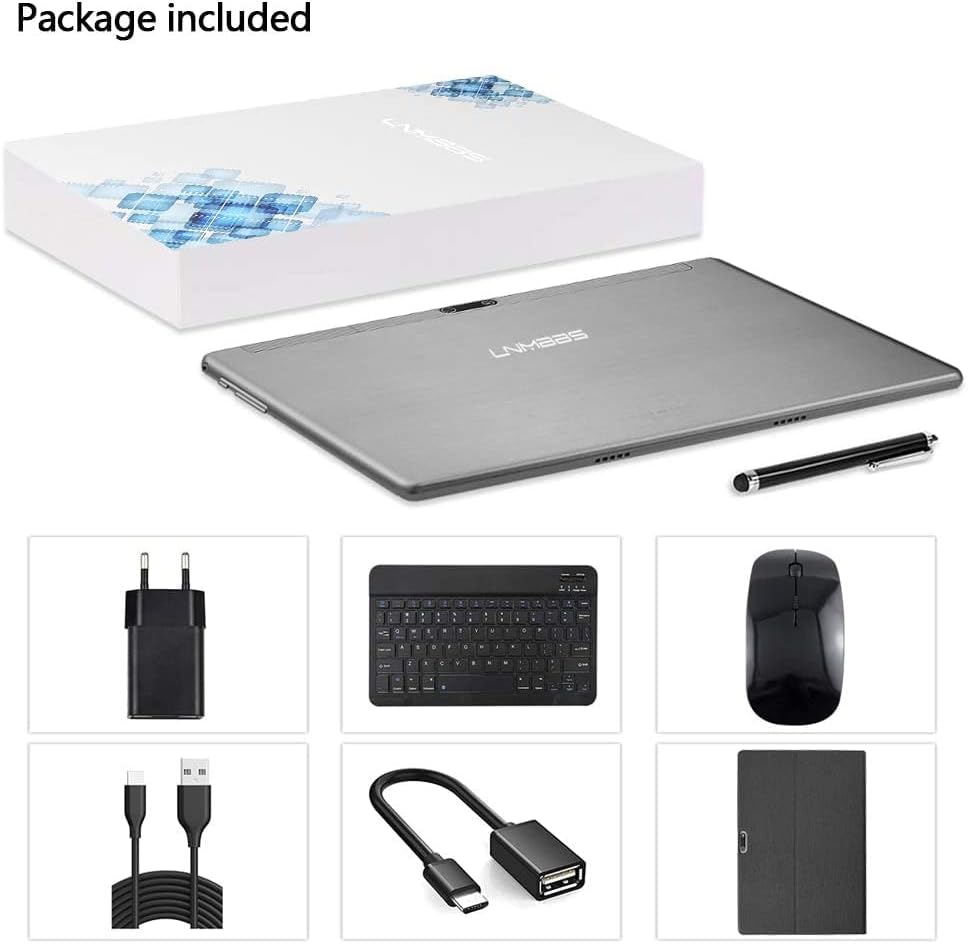
Image: The LNMBBS K110 Tablet alongside its complete accessory package, including the keyboard, mouse, stylus, charger, and protective case.
3. Product Overview
Familiarize yourself with the physical components of your LNMBBS K110 Tablet.

Image: The LNMBBS K110 Tablet displayed with its detachable keyboard, wireless mouse, and stylus, showcasing its full desktop-like setup.
Tablet Components
- Front Camera: Located above the screen, used for video calls and selfies.
- Rear Camera: Located on the back panel, used for taking photos and videos.
- Power Button: Used to turn the tablet on/off or put it to sleep/wake it up.
- Volume Buttons: Used to adjust the tablet's volume.
- USB-C Port: For charging and data transfer.
- 3.5mm Headphone Jack: For connecting wired headphones or external speakers.
- Speaker Grilles: For audio output.
- SIM/MicroSD Card Slot: For inserting SIM cards and a MicroSD card for expandable storage.

Image: A visual representation of the LNMBBS K110 Tablet's core features, including Android 10.0, Octa-core processor, 4GB RAM, 64GB ROM, Dual SIM support, 5MP and 2MP cameras, 10-inch display, 1280x800 resolution, and 5000 mAh battery.
4. Setup
4.1 Initial Charging
Before first use, fully charge your tablet. Connect the provided USB-C cable to the tablet's USB-C port and the other end to the European charger. Plug the charger into a power outlet. The battery indicator on the screen will show charging status.
4.2 Power On/Off
- To Power On: Press and hold the Power button until the LNMBBS logo appears on the screen.
- To Power Off: Press and hold the Power button until a power options menu appears. Select "Power off" and confirm.
- To Sleep/Wake: Briefly press the Power button to put the tablet into sleep mode or wake it up.
4.3 SIM Card and MicroSD Card Installation
The LNMBBS K110 supports dual standard SIM cards for 4G LTE connectivity and a MicroSD card for storage expansion up to 1TB.
- Locate the SIM/MicroSD card slot on the side of the tablet.
- Use the provided SIM ejector tool (if included) or a small paperclip to gently press into the small hole next to the tray to eject it.
- Carefully place your SIM card(s) and/or MicroSD card into the designated slots on the tray, ensuring correct orientation.
- Gently push the tray back into the tablet until it clicks into place.
4.4 Connecting Accessories (Keyboard & Mouse)
The included keyboard and mouse connect via Bluetooth.
- Ensure the keyboard and mouse are powered on and in pairing mode (refer to their individual manuals for specific instructions).
- On your tablet, go to Settings > Connected devices > Bluetooth.
- Turn on Bluetooth and scan for available devices.
- Select the keyboard and mouse from the list of available devices to pair them. Follow any on-screen prompts.
5. Operating Your Tablet
5.1 Android 10.0 Basics
Your tablet runs on Android 10.0, offering a secure and user-friendly experience. Navigate using touch gestures:
- Tap: Select an item or open an app.
- Swipe: Scroll through screens or lists.
- Pinch-to-Zoom: Zoom in or out on images and web pages.
- Long Press: Access contextual menus or move icons.
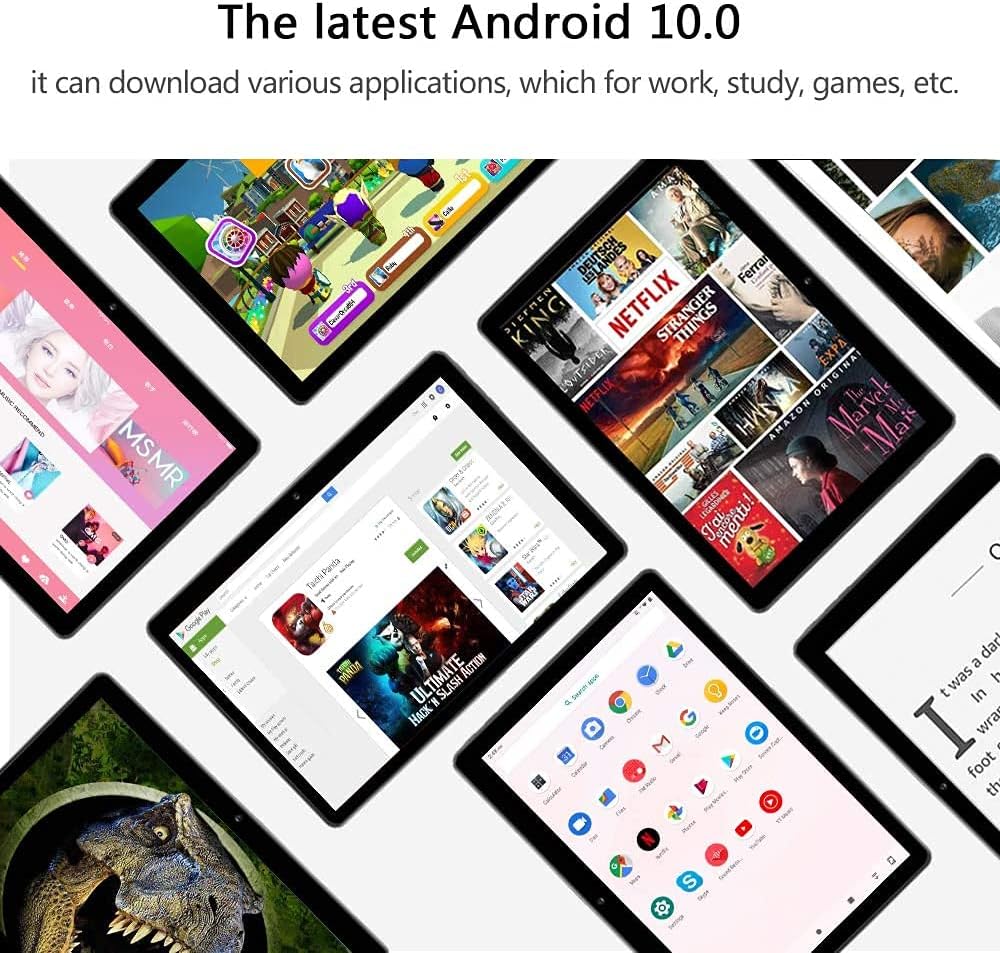
Image: The tablet screen displaying a variety of applications, highlighting the versatility of the Android 10.0 operating system for work, study, and entertainment.
5.2 Wi-Fi Connection
To connect to a Wi-Fi network:
- Go to Settings > Network & internet > Wi-Fi.
- Turn on Wi-Fi.
- Select your desired network from the list and enter the password if prompted.
5.3 Mobile Data (4G LTE)
If you have a SIM card with a data plan installed, you can use 4G LTE for internet access.
- Go to Settings > Network & internet > Mobile network.
- Ensure "Mobile data" is toggled on.
- Configure APN settings if necessary (your mobile carrier can provide these).
5.4 Camera Usage
The tablet features a 2MP front camera and a 5MP rear camera.
- Open the Camera app.
- Tap the camera icon to switch between front and rear cameras.
- Tap the shutter button to take a photo or start/stop video recording.

Image: The tablet displaying its camera interface, highlighting the 5MP+2MP camera capabilities, 10.1-inch IPS screen, and 1280x800 resolution.
5.5 Google Play Store
Access millions of apps, games, movies, and books through the Google Play Store.
- Ensure you are connected to the internet.
- Open the Play Store app.
- Sign in with your Google account or create a new one.
- Browse or search for apps and content, then tap "Install" to download.

Image: The tablet's display showcasing the Google Play Store icon prominently, surrounded by other common applications like YouTube and Google search, indicating full access to the Android ecosystem.
5.6 Display Settings
Adjust screen brightness and other display options for optimal viewing.
- Go to Settings > Display.
- Adjust the brightness slider.
- Enable "Adaptive brightness" for automatic adjustment.
- Explore options like "Dark theme" for reduced eye strain.

Image: A close-up of the tablet screen displaying text, illustrating the adjustable brightness feature designed to protect users' eyes during extended reading or viewing.
6. Maintenance
6.1 Cleaning Your Tablet
To keep your tablet clean and in good condition:
- Use a soft, lint-free cloth to wipe the screen and body.
- For stubborn smudges, slightly dampen the cloth with water or a screen cleaner designed for electronics.
- Avoid using harsh chemicals, abrasive materials, or excessive moisture.
6.2 Battery Care
To maximize battery life and longevity:
- Avoid extreme temperatures (hot or cold).
- Do not let the battery completely drain frequently.
- Use the original charger and cable provided.
- If storing the tablet for a long period, charge it to about 50% before turning it off.
6.3 Software Updates
Keep your tablet's software updated for improved performance and security.
- Connect your tablet to a Wi-Fi network.
- Go to Settings > System > System update.
- Check for available updates and follow the on-screen instructions to install them.
6.4 Storage Management
Regularly manage your tablet's storage to ensure smooth operation.
- Go to Settings > Storage to view storage usage.
- Uninstall unused apps.
- Clear cache data for apps.
- Move large files (photos, videos) to the MicroSD card or cloud storage.
7. Troubleshooting
This section addresses common issues you might encounter with your LNMBBS K110 Tablet.
7.1 Common Issues and Solutions
- Tablet won't turn on: Ensure the battery is charged. Connect the charger and wait a few minutes before attempting to power on again. If it still doesn't turn on, try a forced restart by holding the Power button for 10-15 seconds.
- Tablet is slow or unresponsive: Close unnecessary apps running in the background. Clear app caches. Restart the tablet. Ensure you have sufficient free storage space.
- Wi-Fi connection issues: Ensure Wi-Fi is enabled on the tablet. Restart your Wi-Fi router. Forget the network in tablet settings and reconnect.
- Apps crashing or freezing: Update the app to its latest version. Clear the app's cache and data (Settings > Apps & notifications > See all apps > [App Name] > Storage & cache). Reinstall the app if the issue persists.
- Battery drains quickly: Reduce screen brightness. Turn off Wi-Fi, Bluetooth, and GPS when not in use. Close background apps. Check battery usage in Settings to identify power-hungry apps.
7.2 Factory Reset
If your tablet experiences persistent issues that cannot be resolved by other troubleshooting steps, a factory reset may be necessary. Warning: A factory reset will erase all data on your tablet, including apps, photos, and user settings. Back up important data before proceeding.
- Go to Settings > System > Reset options.
- Select Erase all data (factory reset).
- Confirm your decision and follow the on-screen prompts.
8. Specifications
Detailed technical specifications for the LNMBBS K110 Tablet.

Image: An infographic highlighting the tablet's fast and responsive performance, showcasing its 5000 mAh battery, 64GB storage, Android 10.0, 1280x800 HD display, 2.4GHz WiFi, 4GB RAM, Bluetooth 4.2, and 5MP+8MP camera (note: actual camera is 5MP rear, 2MP front).
| Feature | Specification |
|---|---|
| Model Number | K110 |
| Operating System | Android 10.0 |
| Processor | Octa-Core CPU (1.60 GHz), SC 9863 |
| RAM | 4 GB |
| Internal Storage | 64 GB |
| Expandable Storage | Up to 1 TB via MicroSD card |
| Display Size | 10 inches |
| Display Resolution | 800 x 1280 G+G (IPS) |
| Rear Camera | 5 MP |
| Front Camera | 2 MP |
| Connectivity | 4G LTE Dual SIM, 2.4 GHz Wi-Fi (802.11n), Bluetooth 4.2 |
| GPU | Mali-G50 MP2 |
| Ports | USB-C, 3.5mm Headphone Jack |
| Battery | 5000 mAh Lithium Metal |
| Dimensions (L x W x H) | 17 x 1.5 x 24 cm |
| Weight | 1.44 kg |
9. Warranty and Support
Your LNMBBS K110 Tablet comes with a standard manufacturer's warranty. Please refer to the warranty card included in your package for specific terms and conditions, including warranty period and coverage details.
9.1 Customer Support
For technical assistance, troubleshooting beyond this manual, or warranty claims, please contact LNMBBS customer support through their official website or the contact information provided with your purchase. When contacting support, please have your tablet's model number (K110) and purchase details ready.
For the most up-to-date support information and FAQs, please visit the official LNMBBS website.