
Keychron K10 Pro
Keychron K10 Pro Wireless Custom Mechanical Keyboard User Manual
Model: K10 Pro | Brand: Keychron
Introduction
The Keychron K10 Pro is a premium full-size wireless mechanical keyboard designed for an enhanced typing experience. It features QMK/VIA programmability, hot-swappable switches, and versatile connectivity options for Mac, Windows, and Linux systems. This manual provides detailed instructions for setting up, operating, maintaining, and troubleshooting your K10 Pro keyboard.

Figure 1: Keychron K10 Pro Wireless Custom Mechanical Keyboard
Setup
Package Contents
Before you begin, ensure all items are present in the package:
- 1x Fully Assembled Keyboard (including PCB, Steel Plate, Sound Absorbing Foam, Silicone Bottom Pad, 8 Sets of Stabilizers (PCB Screw-In), 1 Set of Keycaps (Double-Shot PBT), 1 Set of Switches (Keychron K Pro))
- 1x Type-A to Type-C Cable
- 1x Keycap Puller
- 1x Switch Puller
- 1x Screwdriver

Figure 2: Contents included with the Keychron K10 Pro keyboard.
Connectivity
The K10 Pro supports both wireless (Bluetooth 5.1) and wired (USB Type-C) connections, and is compatible with Mac, Windows, and Linux operating systems.
- Operating System Switch: Locate the switch on the back of the keyboard to select between "Win/Android" and "macOS" layouts. This ensures proper key mapping for your system.
- Connection Mode Switch: Adjacent to the OS switch, select your preferred connection mode:
- BT (Bluetooth): For wireless connection. The keyboard can connect to up to 3 devices wirelessly.
- OFF: Powers off the keyboard.
- Cable: For wired USB Type-C connection.
- Bluetooth Pairing: If using Bluetooth, ensure the keyboard is in "BT" mode. On your device, search for "Keychron K10 Pro" in Bluetooth settings and pair.
- Wired Connection: Connect the provided USB Type-A to Type-C cable from your computer to the keyboard. Ensure the keyboard is in "Cable" mode.

Figure 3: Rear switches for operating system and connection mode selection.

Figure 4: The K10 Pro can connect to up to three devices simultaneously via Bluetooth.
Initial Charge
For optimal performance, it is recommended to fully charge the keyboard before first use. Connect the USB Type-C cable to a power source or your computer. The keyboard features a 4000 mAh battery, providing up to 100 hours of use at the lowest brightness setting.
Operating Instructions
QMK/VIA Programmability
The Keychron K10 Pro is fully programmable with QMK/VIA firmware, allowing you to remap any key, create macro commands, shortcuts, or combination keys. This customization is performed via a wired connection, but the remapped keymap will function in both wired and wireless modes.
- VIA Software: Download the VIA software from the official Keychron website.
- Remapping Keys: Connect the K10 Pro to your device via USB-C cable. Open the VIA software, and drag and drop your desired keys or macro commands to remap any key.
- Macro Creation: Utilize the macro functionality within VIA to automate complex sequences of commands.

Figure 5: The VIA software interface for key remapping and macro creation.
Hot-swappable Switches
The K10 Pro features hot-swappable sockets, allowing you to change mechanical switches without soldering. This provides flexibility for customizing your typing feel.
- Compatibility: Compatible with almost all 3-pin and 5-pin MX mechanical switches (e.g., Cherry, Gateron, Kailh, Panda).
- Switch Removal: Use the provided switch puller to carefully remove existing switches.
- Switch Installation: Align the pins of the new switch with the holes on the PCB and gently press down until it clicks into place. Ensure pins are not bent.

Figure 6: Using the switch puller to remove a hot-swappable switch.

Figure 7: Close-up view of installed hot-swappable switches with backlight.
RGB Backlight Customization
The K10 Pro features a south-facing white backlight designed for optimal illumination. You can customize the lighting effects and brightness directly from the keyboard.
- Brightness Adjustment: Use the dedicated function keys (e.g., Fn + F5/F6) to adjust backlight brightness.
- Lighting Modes: Cycle through various pre-programmed lighting effects using specific key combinations (refer to the keyboard's quick start guide for exact key combinations).
- Single Color Mode: Some lighting modes allow for a single, static color.
Adjustable Feet
The keyboard is equipped with adjustable feet at the back, allowing you to set the typing angle to your preference. There are two different height modes in addition to the flat mode.
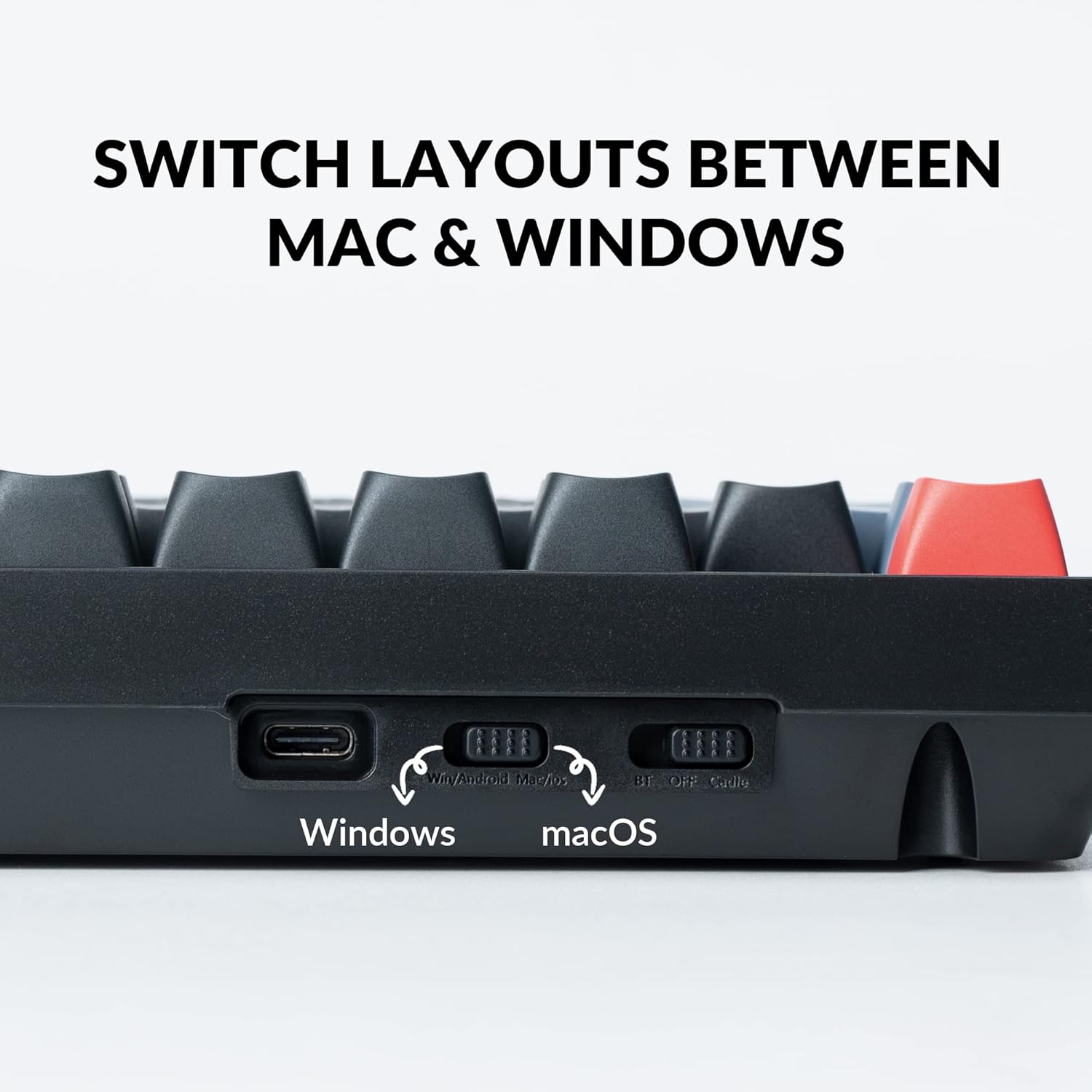
Figure 8: Side view illustrating the adjustable feet for ergonomic angling.
Maintenance
- Cleaning: Regularly clean the keyboard with a soft, dry cloth. For deeper cleaning, remove keycaps and use compressed air to clear debris from between switches.
- Keycap Replacement: The K10 Pro comes with double-shot PBT keycaps for durability and a comfortable feel. Use the provided keycap puller to safely remove and replace keycaps.
- Switch Maintenance: While hot-swappable, occasional lubrication of switches can enhance their smoothness and lifespan.

Figure 9: Close-up of the durable double-shot PBT keycaps.
Troubleshooting
| Issue | Possible Cause | Solution |
|---|---|---|
| Keyboard not connecting via Bluetooth | Incorrect mode selected, low battery, interference, device not in pairing mode. | Ensure keyboard is in "BT" mode. Charge the keyboard. Move closer to the device. Re-initiate pairing on both keyboard and device. |
| Keys not responding or incorrect input | Incorrect OS switch setting, loose switch, VIA remapping issue. | Verify OS switch (Win/Android or macOS). Check if switches are fully seated. Reset VIA keymap or re-program. |
| Backlight not working or dim | Low battery, brightness set too low, specific lighting mode. | Charge the keyboard. Increase brightness using function keys. Cycle through lighting modes. |
| Keyboard unstable on desk | Adjustable feet not properly deployed or uneven. | Ensure both adjustable feet are fully extended or retracted evenly. |
Specifications
| Feature | Detail |
|---|---|
| Product Dimensions | 17.52 x 5.43 x 1.59 inches |
| Item Weight | 4.39 pounds |
| Item Model Number | K10 Pro |
| Batteries | 1 Lithium Polymer battery required (included) |
| Brand | Keychron |
| Compatible Devices | Laptop, PC, Tablet, Smartphone |
| Connectivity Technology | Bluetooth, USB Type-C |
| Keyboard Description | Mechanical, Gaming |
| Recommended Uses | Personal, Gaming, Business |
| Special Features | QMK/VIA, Fully Customizable, Wireless, Hot-swappable |
| Color | Hot-swap Keychron K Pro Brown Switch (variant) |
| Number of Keys | 108 |
| Keyboard Backlighting | Single Color (White) |
| Style | Modern |
Warranty and Support
For warranty information and technical support, please refer to the official Keychron website or contact Keychron customer service directly. A detailed user guide in PDF format is also available for download from the product's Amazon page or the Keychron support section.
Official User Guide (PDF): Download User Guide
Related documentsK10 Pro


Ask a question about this manual
Ask about setup, troubleshooting, compatibility, parts, safety, or missing instructions. Manuals+ will review the question and use this page’s manual context to help answer it.