1. Introduction
This manual provides detailed instructions for the BENFEI Universal Docking Station, Model 000340black. This device is designed to expand the connectivity of your laptop or computer, offering dual monitor support (HDMI and VGA), multiple USB ports, and Gigabit Ethernet connectivity through a single USB 3.0 or USB-C connection.

Image 1.1: BENFEI Universal Docking Station. This image displays the docking station in a vertical orientation, showcasing its compact design and silver and black finish.
2. Package Contents
Please verify that all items are present in the package:
- 1 x BENFEI Universal Docking Station (Model 000340black)
- 1 x AC Power Adapter
- 1 x USB Cable (USB-A to USB-B, 1.5 meters)
- 1 x USB-A to USB-C Adapter
- 1 x Detachable Aluminum Alloy Stand
- 1 x User Manual
- 1 x Installation Driver CD (Drivers can also be downloaded from the official BENFEI website)
3. Product Specifications and Features
3.1. Device Ports

Image 3.1: Labeled ports on the BENFEI Universal Docking Station. This image shows the front and rear views of the docking station with labels for each port, including USB 2.0, VGA, HDMI, Ethernet, To Host, and Power In.
- Video Outputs: 1 x HDMI (up to 3840x2160@30Hz single, 1920x1200@60Hz dual), 1 x VGA (up to 1920x1200@60Hz single/dual)
- USB Ports: 2 x USB 3.0 (5Gbps), 2 x USB 2.0 (480Mbps)
- Network: 1 x Gigabit Ethernet (10/100/1000 Mbps)
- Input: 1 x USB-B (connects to host via USB-A to USB-B cable or USB-A to USB-C adapter)
- Power: 1 x DC 5V/4A Power Input
3.2. Compatibility
- Operating Systems: Windows 7/8.1/10 (32-bit & 64-bit), macOS 10.10 (Yosemite) to 11 (Big Sur), including Apple M1 MacBooks.
- Host Connection: Laptops with USB 3.0 or USB Type-C slot. USB Type-C Alt mode is not required.

Image 3.2: Operating System and Laptop Compatibility. This graphic illustrates the docking station's compatibility with various Windows and macOS versions, as well as popular laptop brands like MacBook, Dell XPS, Lenovo, and HP Envy.
4. Setup Instructions
4.1. Driver Installation
The BENFEI Universal Docking Station requires a driver installation for full functionality. This is a one-time process.
- Do not connect the docking station to your computer yet.
- Insert the provided Installation Driver CD into your computer's CD drive. If your computer does not have a CD drive, download the latest driver from the official BENFEI website. The website address is provided in the user manual and on the base of the docking station.
- Follow the on-screen instructions to install the driver.
- Restart your computer after the driver installation is complete.
4.2. Hardware Connection
- Connect the AC Power Adapter to the docking station's DC 5V/4A Power Input port and then plug it into a power outlet. The docking station requires external power to operate.
- Connect the USB-A end of the provided USB cable (USB-A to USB-B) to your laptop's USB 3.0 port. If your laptop only has USB-C ports, use the included USB-A to USB-C adapter. Connect the USB-B end of the cable to the To Host port on the docking station.
- Connect your external monitors to the HDMI and/or VGA ports on the docking station using appropriate cables.
- Connect any USB peripherals (keyboard, mouse, external drives) to the available USB 3.0 or USB 2.0 ports.
- For wired internet access, connect an Ethernet cable from your router/modem to the Gigabit Ethernet port on the docking station.

Image 4.1: Connection diagram for the BENFEI Universal Docking Station. This image visually guides the user on connecting the docking station to a laptop and various peripherals, highlighting the different port types.
5. Operating Instructions
5.1. Display Configuration
After connecting your monitors, you can configure your display settings through your operating system.
- Windows: Right-click on your desktop, select "Display settings," and arrange your monitors. You can choose between "Duplicate these displays" (Mirror Mode) or "Extend these displays" (Extended Mode).
- macOS: Go to "System Preferences" > "Displays" > "Arrangement" to configure your monitors. You can enable or disable "Mirror Displays" for mirroring or extending your desktop.

Image 5.1: Illustration of Mirror Mode and Extended Mode. This image demonstrates how the docking station can be used to either duplicate the laptop screen onto an external monitor (Mirror Mode) or extend the desktop across multiple screens (Extended Mode).
Note on M1 MacBooks: The docking station supports dual extended displays for MacBooks with M1 chipsets, which is a key feature for users requiring multiple independent displays.
5.2. USB Device Usage
- The USB 3.0 ports offer data transfer speeds up to 5Gbps, suitable for external hard drives, flash disks, and other high-speed peripherals.
- The USB 2.0 ports offer data transfer speeds up to 480Mbps, ideal for connecting keyboards, mice, and other low-bandwidth devices.
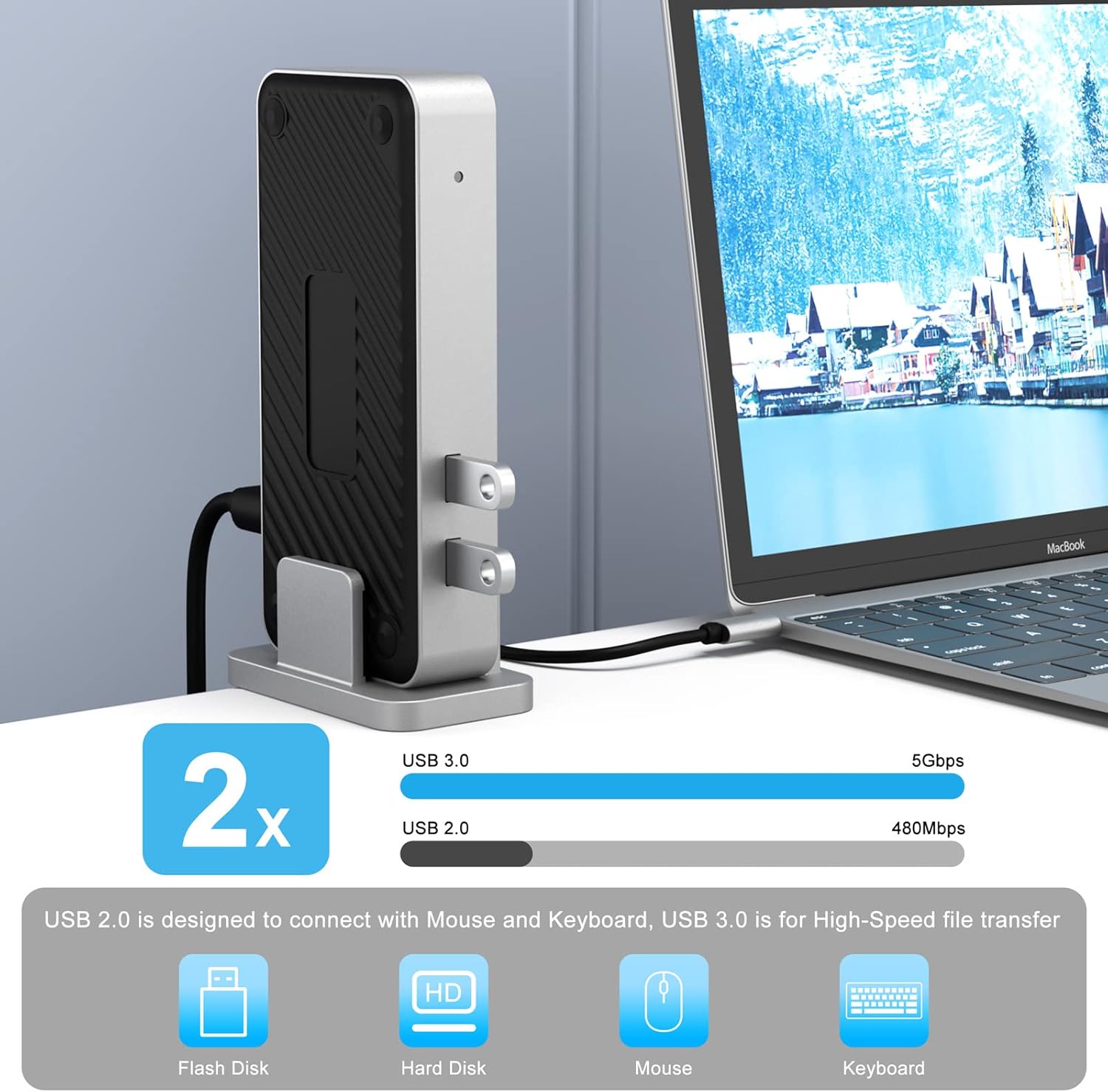
Image 5.2: USB 3.0 and USB 2.0 port speed comparison. This graphic highlights the data transfer speeds of the USB 3.0 (5Gbps) and USB 2.0 (480Mbps) ports, indicating their suitable uses for various peripherals.
5.3. Gigabit Ethernet
The integrated Gigabit Ethernet port provides a stable and high-speed wired network connection (10/100/1000 Mbps), which is often more reliable than Wi-Fi for critical tasks.

Image 5.3: Close-up of the Gigabit Ethernet port. This image emphasizes the Ethernet port and its 10/100/1000Mbps capability, illustrating a stable wired connection.
6. Troubleshooting
- No Display Output:
- Ensure the docking station is powered on and the power adapter is securely connected.
- Verify that the USB cable connecting the docking station to your laptop is securely plugged in.
- Confirm that the display drivers are correctly installed. Reinstall if necessary.
- Check monitor input settings to ensure the correct input source (HDMI/VGA) is selected.
- Test with different HDMI/VGA cables and monitors if possible.
- USB Devices Not Recognized:
- Ensure the docking station is powered on.
- Try connecting the USB device to a different port on the docking station.
- Connect the USB device directly to your laptop to confirm it functions independently.
- Ensure the docking station drivers are installed.
- No Ethernet Connection:
- Verify the Ethernet cable is securely connected to both the docking station and your router/modem.
- Check the network status on your computer.
- Ensure the docking station drivers are installed.
- Test with a different Ethernet cable.
- Intermittent Connectivity:
- Ensure all cables are firmly connected.
- Avoid placing the docking station near strong electromagnetic interference sources.
- Ensure your laptop's power settings are not causing USB ports to power down.
7. Maintenance
- Keep the docking station in a clean, dry environment.
- Avoid exposing the device to extreme temperatures or direct sunlight.
- Clean the exterior with a soft, dry cloth. Do not use liquid cleaners or aerosols.
- Ensure proper ventilation around the device to prevent overheating.
8. Warranty and Support
The BENFEI Universal Docking Station (Model 000340black) comes with an 18-month warranty from the date of purchase. This warranty covers manufacturing defects and ensures long-term satisfaction with your product.
For technical support, warranty claims, or any inquiries, please contact BENFEI customer service through their official website or the contact information provided in your product packaging. Please have your model number (000340black) and proof of purchase ready when contacting support.


