
1. Introduction
Thank you for choosing the RAZEAK RM-X18 Wired Gaming Mouse. This manual provides detailed instructions for setting up, operating, and maintaining your new gaming mouse. Please read this manual thoroughly before use to ensure optimal performance and longevity of your device.
2. Product Features
- Programmable 8 Buttons: Customize button functions, DPI settings, RGB lighting, and record macros using the dedicated software.
- Dual Usage Modes: Switch between gaming and office modes by simultaneously pressing the middle and right buttons.
- 9 RGB Backlight Modes: Enhance your gaming environment with 9 distinct backlight modes and 16 million customizable colors.
- 6 Adjustable DPI Levels: Default DPI settings include 500, 1000, 1500, 2000, 3000, and 4000. These values and their indicator colors can be customized via software.
- Ergonomic Design: Engineered for comfortable grip during extended use.
- High Precision Optical Sensor: Equipped with an Avago 3050 sensor for accurate tracking.
3. Package Contents
- RAZEAK RM-X18 Wired Gaming Mouse
- User Manual
4. Setup Guide
- Connect the Mouse: Plug the USB connector of the RAZEAK RM-X18 mouse into an available USB port on your computer.
- Driver Installation: The mouse is plug-and-play for basic functionality. For advanced features such as button programming, DPI customization, and RGB lighting effects, please download and install the official RAZEAK software from the manufacturer's website.

Image: The RAZEAK RM-X18 mouse connected to a computer, showcasing its RGB lighting and ergonomic design alongside a keyboard.
5. Operating Instructions
5.1 Button Layout and Functions
The RAZEAK RM-X18 mouse features 8 buttons, all of which can be customized using the dedicated software.
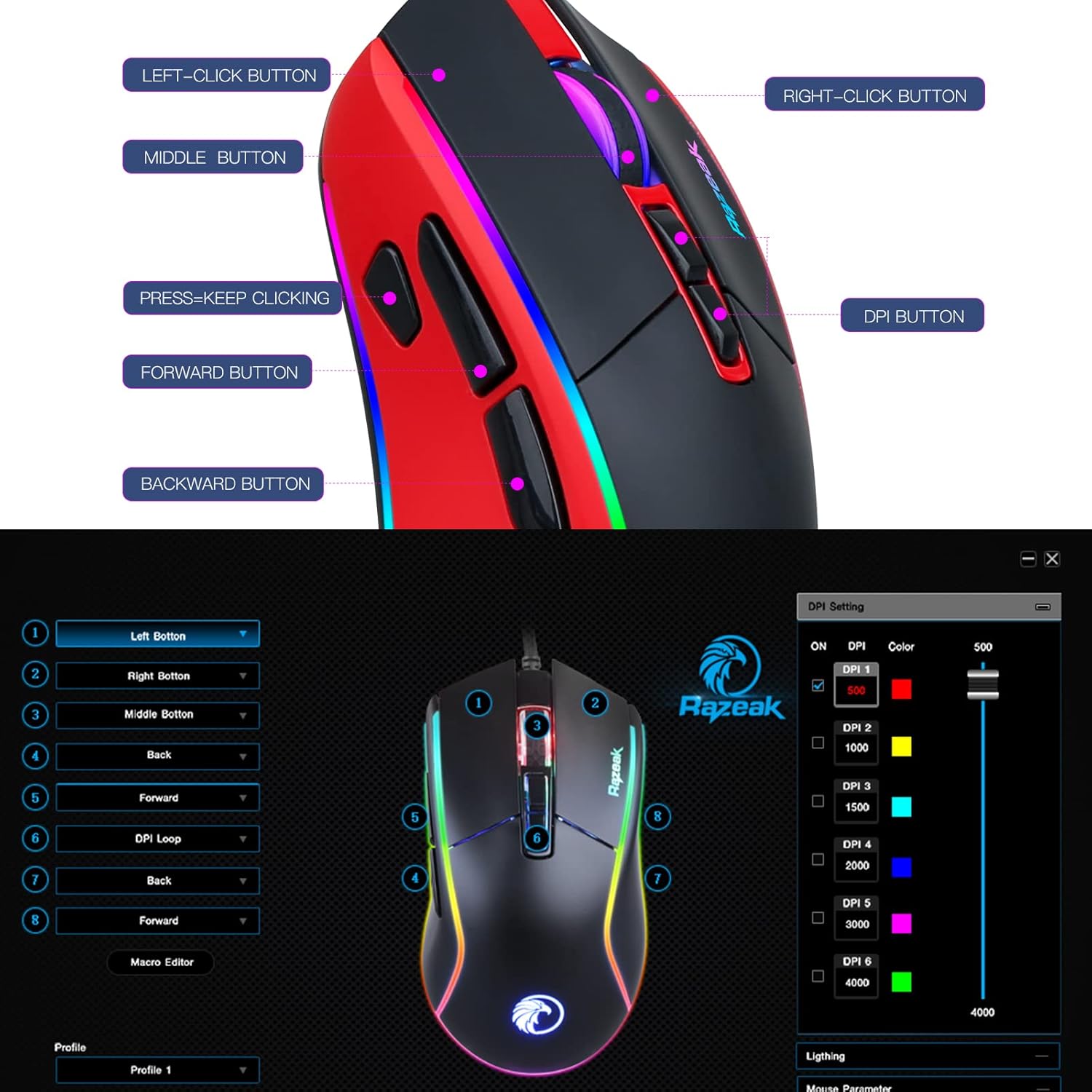
Image: A diagram illustrating the location and labels of the Left-Click, Right-Click, Middle Button, DPI Button, Press=Keep Clicking, Forward, and Backward buttons on the RAZEAK RM-X18 mouse.
- Left-Click Button: Standard primary click function.
- Right-Click Button: Standard secondary click function.
- Middle Button (Scroll Wheel Click): Standard middle click function.
- DPI Button: Cycles through DPI settings.
- Forward Button: Navigates forward in web browsers or file explorers.
- Backward Button: Navigates backward in web browsers or file explorers.
- "Press=Keep Clicking" Button: A dedicated button for rapid, continuous clicks, often referred to as a "fire button" in gaming. This button can be programmed to perform multiple left clicks with a single press.
5.2 DPI Adjustment
The mouse offers 6 adjustable DPI levels to suit various tasks and gaming preferences. Press the DPI Button (located behind the scroll wheel) to cycle through the preset DPI levels: 500, 1000, 1500, 2000, 3000, and 4000.
For advanced customization, including setting specific numerical values for each DPI level and assigning indicator colors, use the RAZEAK software.

Image: A close-up of the RAZEAK RM-X18 mouse highlighting the DPI button and a graphic representation of the six adjustable DPI levels.
5.3 Button Programming and Macros
All 8 buttons on the RM-X18 mouse are programmable. To customize button functions, record macros, or assign specific actions, you must use the RAZEAK software. The software allows you to create profiles for different applications or games.

Image: Screenshot of the RAZEAK software interface, showing options to program each of the 8 mouse buttons and manage profiles.
5.4 RGB Lighting Control
The RM-X18 mouse features dynamic RGB lighting with 9 backlight modes and 16 million colors. You can adjust the lighting effects directly on the mouse or through the RAZEAK software.
- On-Mouse Adjustment: Press the Left-Click Button and the DPI Button simultaneously to cycle through different lighting effects.
- Software Customization: Use the RAZEAK software for full control over lighting modes, colors, brightness, and speed.

Image: A close-up of the RAZEAK RM-X18 mouse, indicating the combination of the Left Key and DPI button to adjust lighting effects.

Image: The RAZEAK RM-X18 mouse displaying vibrant RGB lighting effects.
5.5 Switching Between Gaming and Office Modes
The mouse supports two distinct usage modes: Gaming and Office. To switch between these modes, simultaneously press the Middle Button (scroll wheel click) and the Right-Click Button.
6. Software Installation and Usage
To unlock the full potential of your RAZEAK RM-X18 mouse, including advanced button programming, macro recording, and detailed RGB lighting customization, download the official software from the RAZEAK website. Follow the on-screen instructions for installation.
The software interface allows you to:
- Assign custom functions to all 8 buttons.
- Create and manage multiple user profiles.
- Adjust DPI levels and their corresponding indicator colors.
- Configure RGB lighting effects, colors, and speed.
- Record and edit macros for complex command sequences.
Video: An official RAZEAK video demonstrating the features and customization options of the RM-X18 Wired Gaming Mouse, including RGB lighting, DPI settings, and programmable buttons.
7. Maintenance
To ensure the longevity and optimal performance of your RAZEAK RM-X18 mouse, follow these maintenance guidelines:
- Cleaning: Use a soft, dry cloth to wipe the surface of the mouse. For stubborn dirt, slightly dampen the cloth with water. Avoid using harsh chemicals or abrasive materials.
- Sensor Care: Keep the optical sensor on the underside of the mouse clean and free from dust or debris to ensure accurate tracking.
- Cable Management: Avoid sharp bends or excessive pulling on the USB cable to prevent damage.
- Storage: Store the mouse in a clean, dry environment when not in use.
8. Troubleshooting
| Problem | Possible Cause | Solution |
|---|---|---|
| Mouse not responding | Loose USB connection, faulty USB port, driver issue. |
|
| Inaccurate tracking or cursor lag | Dirty optical sensor, unsuitable mouse pad surface, incorrect DPI setting. |
|
| RGB lighting not working or incorrect | Software settings, mode conflict. |
|
| Buttons not programmable | Software not installed or not running, incorrect profile selected. |
|
9. Specifications
| Feature | Detail |
|---|---|
| Brand | RAZEAK |
| Model Name | RM-X18 |
| Connectivity Technology | USB Wired |
| Movement Detection Technology | Optical (Avago 3050 Sensor) |
| DPI Levels | 500/1000/1500/2000/3000/4000 (Adjustable) |
| Number of Buttons | 8 (Programmable) |
| RGB Backlight | 9 Modes, 16.8 Million Colors |
| Hand Orientation | Right |
| Compatible Devices | Personal Computer |
| Hardware Platform | PC |
| Item Weight | 137 Grams |
10. Warranty and Support
RAZEAK offers a one-year manufacturer warranty for the RM-X18 Wired Gaming Mouse. For any product inquiries, technical support, or warranty claims, please contact RAZEAK customer service. We aim to respond to messages within 24 hours.
Please retain your proof of purchase for warranty validation.


