Introduction
This manual provides comprehensive instructions for the installation, operation, and maintenance of your Kensington SD4839P USB-C Triple Video Dock. Please read this manual thoroughly before using the product to ensure proper functionality and to prevent damage.
Safety Information
- Do not expose the device to water or excessive humidity.
- Do not attempt to disassemble or modify the device. This will void the warranty and may cause damage.
- Use only the power adapter supplied with the dock.
- Ensure proper ventilation around the dock to prevent overheating.
- Keep out of reach of children.
Package Contents
Verify that all items are present in the package:
- Kensington SD4839P USB-C Triple Video Dock
- USB-C to USB-C Cable
- Power Adapter
- Quick Start Guide (not included in this digital manual)
Product Overview
The Kensington SD4839P is a USB-C triple video docking station designed to expand the connectivity of your laptop. It provides multiple video outputs, USB ports, and power delivery through a single USB-C connection.
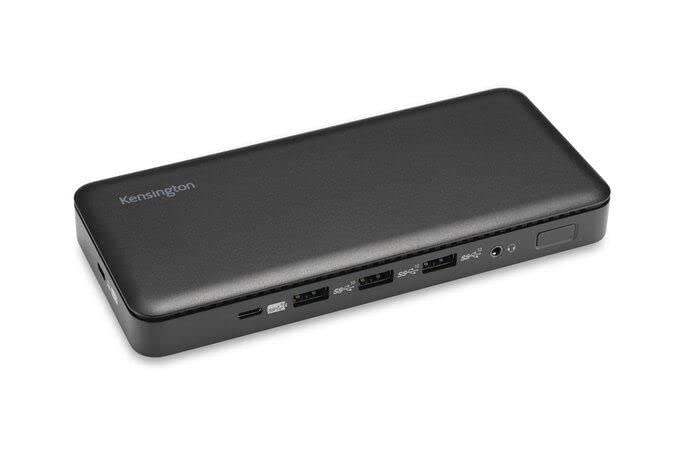
Image 1: Front view of the Kensington SD4839P USB-C Triple Video Dock. This image displays the compact design of the docking station, highlighting its various ports for connecting peripherals and displays.
Port Layout:
- Front: USB-A ports, USB-C data port.
- Rear: Power input, USB-C host port (with power delivery), DisplayPort outputs, HDMI output, USB-A ports, Ethernet port, Audio jack.
Setup
- Connect Power: Connect the included power adapter to the DC-in port on the back of the dock, then plug the adapter into a power outlet.
- Connect to Host Device: Connect one end of the supplied USB-C to USB-C cable to the USB-C host port on the back of the dock and the other end to a compatible USB-C port on your laptop. Ensure your laptop's USB-C port supports DisplayPort Alternate Mode and Power Delivery for full functionality.
- Connect Displays:
- Connect your monitors to the available DisplayPort and/or HDMI ports on the dock using appropriate cables.
- The dock supports up to three external displays, depending on your host device's capabilities and operating system.
- Connect Peripherals: Connect your USB devices (keyboard, mouse, external drives, etc.) to the USB-A and USB-C data ports on the dock.
- Connect Network (Optional): For a wired network connection, connect an Ethernet cable from your router or network switch to the Ethernet port on the dock.
Operating
Initial Connection:
Upon initial connection, your operating system (Windows, macOS, Chrome OS) should automatically detect the dock and connected devices. The SD4839P is designed to be driverless for most basic functions.
Display Configuration:
- Windows: Right-click on the desktop and select "Display settings" to arrange your monitors, change resolution, and set display modes (extend, duplicate, second screen only).
- macOS: Go to System Settings (or System Preferences) > Displays to configure your external monitors.
Power Delivery:
The dock provides power delivery to your connected laptop through the USB-C host cable, charging it while you work. The wattage provided is listed in the specifications section.
Maintenance
- Cleaning: Disconnect the dock from power and all devices before cleaning. Use a soft, dry, lint-free cloth to wipe the exterior. Do not use liquid cleaners or aerosols.
- Storage: Store the dock in a cool, dry place away from direct sunlight and extreme temperatures when not in use for extended periods.
- Cable Management: Avoid sharp bends or kinks in cables to prevent damage.
Troubleshooting
| Problem | Possible Solution |
|---|---|
| No power to the dock or laptop. |
|
| No display on external monitors. |
|
| USB devices not recognized. |
|
| Network connection issues. |
|
Specifications
- Model Number: K33480EU
- Product Dimensions: 19.69 x 19.69 x 11.02 inches
- Item Weight: 2.29 pounds (1.04 Kilograms)
- Brand: Kensington
- Hardware Interface: USB Type C
- Total USB Ports: 3 (plus 1 USB-C data port)
- Number of Ports: 5 (referring to primary functional ports)
- Total HDMI Ports: 1
- DisplayPort Outputs: 2 (for triple video output capability)
- Wattage (Power Delivery): 85 watts
- Compatible Devices: Dell Precision 5510, Google Pixelbook, HP EliteBook Folio 9470m, MacBook Air, MacBook Pro, Microsoft Surface series, iPad, iPhone series, iPod series (See product page for full list)
Warranty and Support
Kensington products are designed for reliability and performance. For warranty information, technical support, or to register your product, please visit the official Kensington website or contact their customer support directly. Keep your proof of purchase for warranty claims.
Official Kensington Website: www.kensington.com


