1. Introduction
The Meliconi Easy 4.1 is a universal 4-in-1 infrared remote control designed to simplify your home entertainment experience by consolidating up to four original remote controls. It is compatible with a wide range of devices including TVs, Smart TVs, Digital Terrestrial (DTT) decoders, Satellite receivers, TV Boxes, DVD players, Blu-Ray players, and Media Centers. Its full keyboard is particularly well-suited for Smart TV functionalities.
This manual provides detailed instructions for setting up, operating, and maintaining your Meliconi Easy 4.1 remote control. Please read it carefully before use.
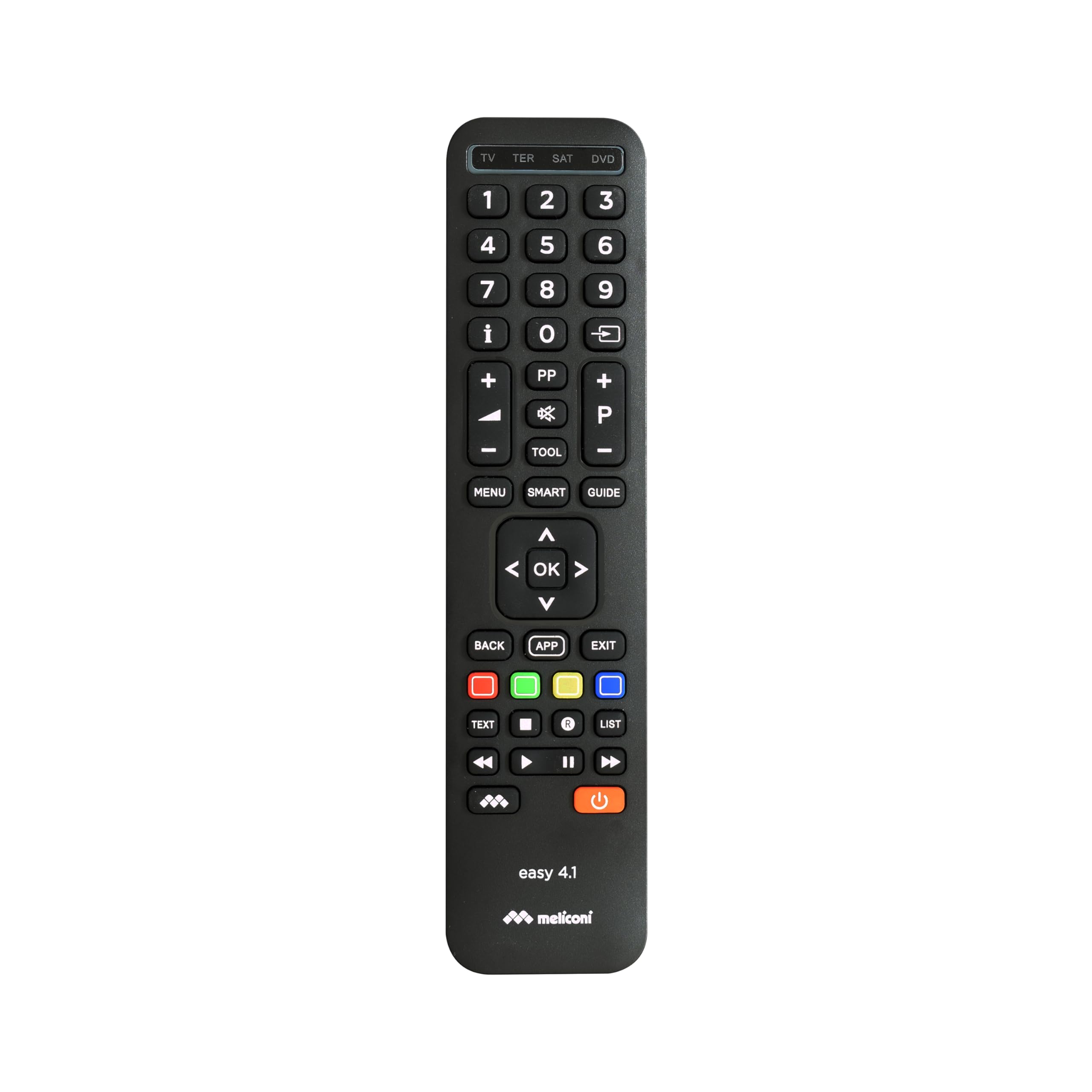
Image 1.1: The Meliconi Easy 4.1 Universal Remote Control.
2. Safety Information
- Do not expose the remote control to direct sunlight, heat sources, or extreme humidity.
- Avoid dropping the remote control or subjecting it to strong impacts.
- Do not attempt to disassemble or modify the remote control. This will void the warranty.
- Keep batteries out of reach of children. If swallowed, seek immediate medical attention.
- Dispose of used batteries according to local regulations. Do not mix old and new batteries, or different types of batteries.
3. Package Contents
Please check that the following items are included in your package:
- Meliconi Easy 4.1 Universal Remote Control
- Instruction Manual (this document)
Note: 2 AAA batteries are required and are not included in the package.
4. Setup
4.1. Inserting Batteries
- Open the battery compartment cover on the back of the remote control.
- Insert two AAA batteries, ensuring the correct polarity (+ and -) as indicated inside the compartment.
- Close the battery compartment cover securely.

Image 4.1: Rear view of the remote control, indicating the battery compartment.
4.2. Programming Your Remote Control
The Meliconi Easy 4.1 can be programmed using an automatic code search or by manually entering a code. For detailed code search software, key/function correspondence tables, and video tutorials, please visit the official Meliconi support website: cme.it.
4.2.1. Automatic Code Search (Recommended)
This method allows the remote to automatically find the correct code for your device.
- Turn on the device you wish to control (e.g., TV).
- Press and hold the desired device button on the remote (e.g., TV, SAT, DVD, TER) until the indicator light illuminates.
- While holding the device button, press and hold the POWER button. The indicator light will start flashing.
- Release both buttons. The remote is now in automatic search mode.
- Point the remote at your device and press the POWER button repeatedly (approximately every 2 seconds) until your device turns off.
- Once the device turns off, immediately press the device button (e.g., TV) to save the code. The indicator light will flash twice to confirm.
- Test the remote's functions. If some functions do not work correctly, repeat the process as the remote may have found a partial match.
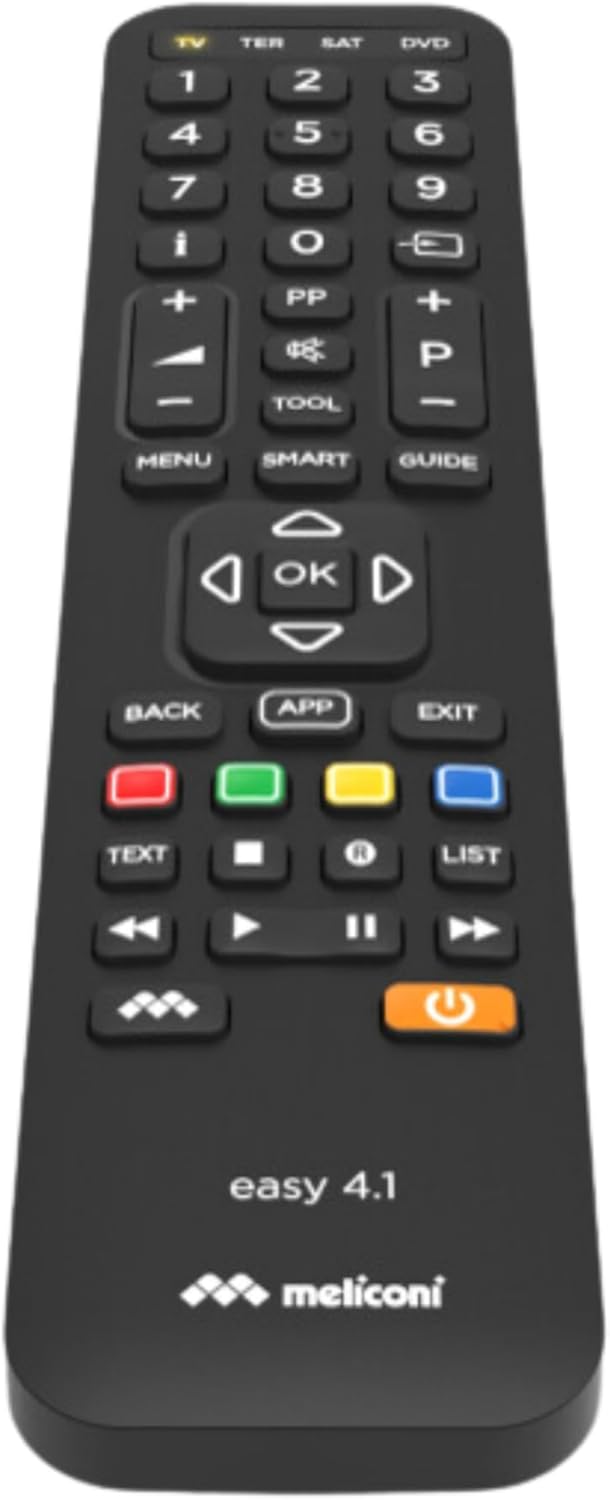
Image 4.2: Close-up of the Meliconi Easy 4.1 remote control buttons.
4.2.2. Manual Code Entry
If you know the specific code for your device, you can enter it directly. Codes can be found on the cme.it website.
- Turn on the device you wish to control.
- Press and hold the desired device button (e.g., TV) until the indicator light illuminates.
- Enter the 4-digit code for your device using the numeric keypad.
- After entering the last digit, the indicator light will flash twice to confirm the code has been saved.
- Test the remote's functions. If it does not work, try another code from the list for your device.
4.3. Learning Function
The learning function allows you to copy specific functions from your original remote control to the Meliconi Easy 4.1. This is useful for functions not covered by the pre-programmed codes. The remote can learn up to 63 signals.
- Place the Meliconi Easy 4.1 and your original remote control on a flat surface, facing each other, with a distance of about 2-5 cm.
- Press and hold the SETUP button on the Meliconi remote until the indicator light illuminates.
- Press the device button (e.g., TV) for which you want to learn a function. The indicator light will flash slowly.
- Press the button on the Meliconi remote where you want to store the new function. The indicator light will flash rapidly.
- Press and hold the corresponding button on your original remote control until the Meliconi remote's indicator light flashes twice, indicating successful learning.
- Repeat steps 4 and 5 for any other functions you wish to learn.
- To exit learning mode, press the SETUP button. The indicator light will turn off.
5. Operating Instructions
5.1. Switching Between Devices
To control a specific device, simply press the corresponding device button at the top of the remote (e.g., TV, TER, SAT, DVD). The indicator light will briefly illuminate to confirm the selection.
5.2. Basic Functions
- POWER: Turns the selected device on or off.
- Numeric Keypad (0-9): For direct channel selection or numerical input.
- Volume Up/Down (+/-): Adjusts the volume of the selected device.
- Channel Up/Down (P+/-): Changes channels on the selected device.
- MUTE: Mutes the audio.
- OK / Navigation Arrows: For menu navigation and selection.
- MENU: Accesses the device's main menu.
- BACK / EXIT: Returns to the previous screen or exits a menu.
- Colored Buttons (Red, Green, Yellow, Blue): These typically correspond to specific functions within menus or interactive services (e.g., Teletext, Smart TV apps).

Image 5.1: Front view of the remote control, highlighting the button layout.
5.3. Smart TV Features
The Meliconi Easy 4.1 features a comprehensive keyboard layout, making it ideal for navigating Smart TV interfaces and applications. Buttons such as APP, SMART, and dedicated colored buttons are designed to interact with modern Smart TV functions. Refer to your TV's manual for specific Smart TV button functionalities.
5.4. Memory and Security Functions
- Security Mode (Key Lock): You can activate a security mode to lock non-essential keys, preventing accidental presses. Consult the cme.it website for instructions on enabling and disabling this feature.
- Freeze Initial Settings: This function allows you to lock the initial programming settings, ensuring they cannot be inadvertently modified. Details on how to use this feature are available on the cme.it support page.
6. Maintenance
6.1. Cleaning the Remote Control
To clean the remote control, use a soft, dry cloth. For stubborn dirt, slightly dampen the cloth with water or a mild cleaning solution. Do not use abrasive cleaners, alcohol, or solvents, as these can damage the surface.
6.2. Battery Replacement
When the remote control's range decreases or it becomes unresponsive, it's time to replace the batteries. Follow the steps in Section 4.1 "Inserting Batteries" to replace the two AAA batteries. Always replace both batteries at the same time with new ones of the same type.
7. Troubleshooting
| Problem | Possible Cause | Solution |
|---|---|---|
| Remote control does not work. | Batteries are dead or inserted incorrectly. No code programmed for the device. | Check battery polarity and replace if necessary. Program the remote control using the automatic code search or manual code entry (Section 4.2). |
| Only some functions work. | Incorrect code programmed. Device not fully compatible. | Repeat the programming process (Section 4.2) to find a more suitable code. Use the learning function (Section 4.3) for missing functions. |
| Learning function fails. | Original remote batteries are low. Remotes are not aligned correctly. | Ensure original remote has fresh batteries. Adjust the distance and alignment between the two remotes. Try again in a dimly lit room to avoid interference. |
| Remote range is poor. | Low batteries. Obstruction between remote and device. | Replace batteries. Ensure a clear line of sight between the remote and the device's IR receiver. |
8. Specifications
| Brand | Meliconi |
| Model | Easy 4.1 |
| Color | Black |
| Connectivity Technology | Infrared |
| Special Features | Universal, 4-in-1, Learning Function, Full Keyboard for Smart TV |
| Compatible Devices | Television, Digital Terrestrial and Satellite Decoders, DVD/Blu-ray Players, Media Centers, TV-Boxes, etc. |
| Power Source | 2 x AAA Batteries (not included) |
| Maximum Range | 10 Meters |
| Manufacturer Model Number | 8006023299836 |
| Country of Origin | China |
9. Warranty
The Meliconi Easy 4.1 Universal Remote Control comes with a manufacturer's warranty of 2 years. This warranty covers defects in materials and workmanship under normal use. Please retain your proof of purchase for warranty claims. The warranty does not cover damage caused by misuse, accidents, unauthorized modifications, or normal wear and tear.
10. Support
For comprehensive web support, including code search software, key/function correspondence tables, image search, a full instruction manual, video tutorials, and frequently asked questions (FAQs), please visit the official Meliconi website:
You can also contact Meliconi customer service for further assistance. Refer to the website for contact details specific to your region.


