1. Introduction
The GLEDOPTO GL-C-001W is a versatile WiFi 5-in-1 LED Strip Controller designed to manage various types of LED strips, including DIMMER, WW/CW, RGB, RGBW, and RGBCCT. This controller offers intelligent remote control via the SmartLife or Tuya APP, voice control compatibility with Amazon Alexa and Google Home, and support for RF remote controls. It operates on DC12-24-48V power input.

Figure 1: GLEDOPTO WiFi 5-in-1 LED Strip Controller highlighting its compatibility with five different light strip types: RGBCCT, RGBW, RGB, WW/CW, and DIMMER.
2. Setup and Installation
2.1. Product Overview
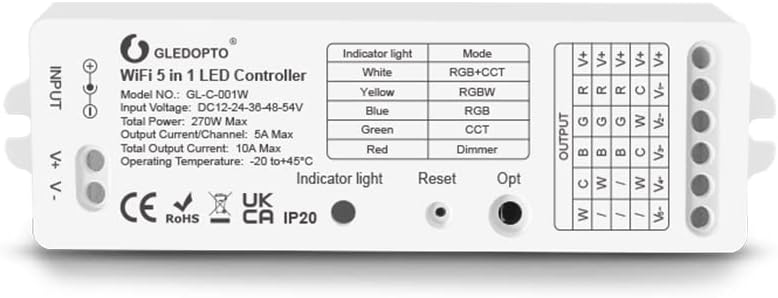
Figure 2: Detailed view of the GLEDOPTO GL-C-001W controller, showing input (V+, V-), output terminals (C, W, B, G, R, V+), indicator light, Reset button, and Opt button. The label also specifies Model NO.: GL-C-001W, Input Voltage: DC12-24-36-48-54V, Total Power: 270W Max, Output Current/Channel: 5A Max, Total Output Current: 10A Max, Operating Temperature: -20 to +45°C.
2.2. Power Supply Connection
Connect your DC12-24-48V power supply to the INPUT terminals (V+ and V-) of the controller. Ensure the voltage matches the requirements of your LED strip. The maximum current varies with different voltages. The total maximum current should not exceed 10A.
- 12V: Total max 10A
- 24V: Total max 10A
- 36V: Total max 7.5A
- 48V: Total max 5.6A
- 54V: Total max 5A
For example, a 12V LED strip requires a 12V power supply, and a 24V LED strip requires a 24V power supply.
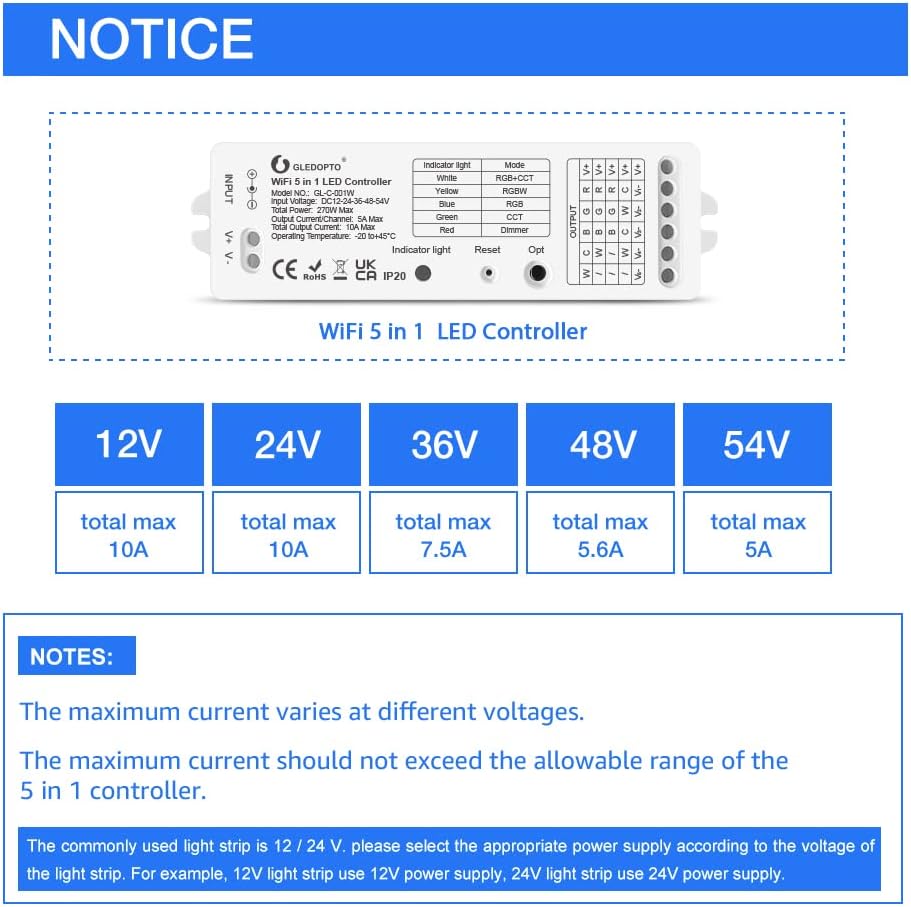
Figure 3: Voltage and maximum current specifications for the GLEDOPTO controller, emphasizing that maximum current varies with voltage and should not exceed the controller's allowable range.
2.3. LED Strip Connection
Connect your LED strip to the OUTPUT terminals. The controller supports five types of LED strips. Adjust the strip type using the "OPT" button on the controller:
| Indicator Light Color | Mode |
|---|---|
| White | RGB+CCT |
| Yellow | RGBW |
| Blue | RGB |
| Green | CCT (WW/CW) |
| Red | Dimmer |
2.4. WiFi Connection (2.4GHz)
The controller connects directly to your 2.4GHz WiFi network. A separate Zigbee gateway is not required. Ensure your router is set to 2.4GHz as 5G WiFi is not supported.
- Download the SmartLife or Tuya APP from your mobile app store.
- Register or log in to your account.
- Follow the in-app instructions to add a new device. The controller should be in pairing mode (indicator light blinking).
- Select the appropriate device type (e.g., Lighting -> Light Strip (Wi-Fi)).
- Enter your 2.4GHz WiFi network credentials.
- Once connected, the indicator light will stop blinking, and the device will appear in your APP.
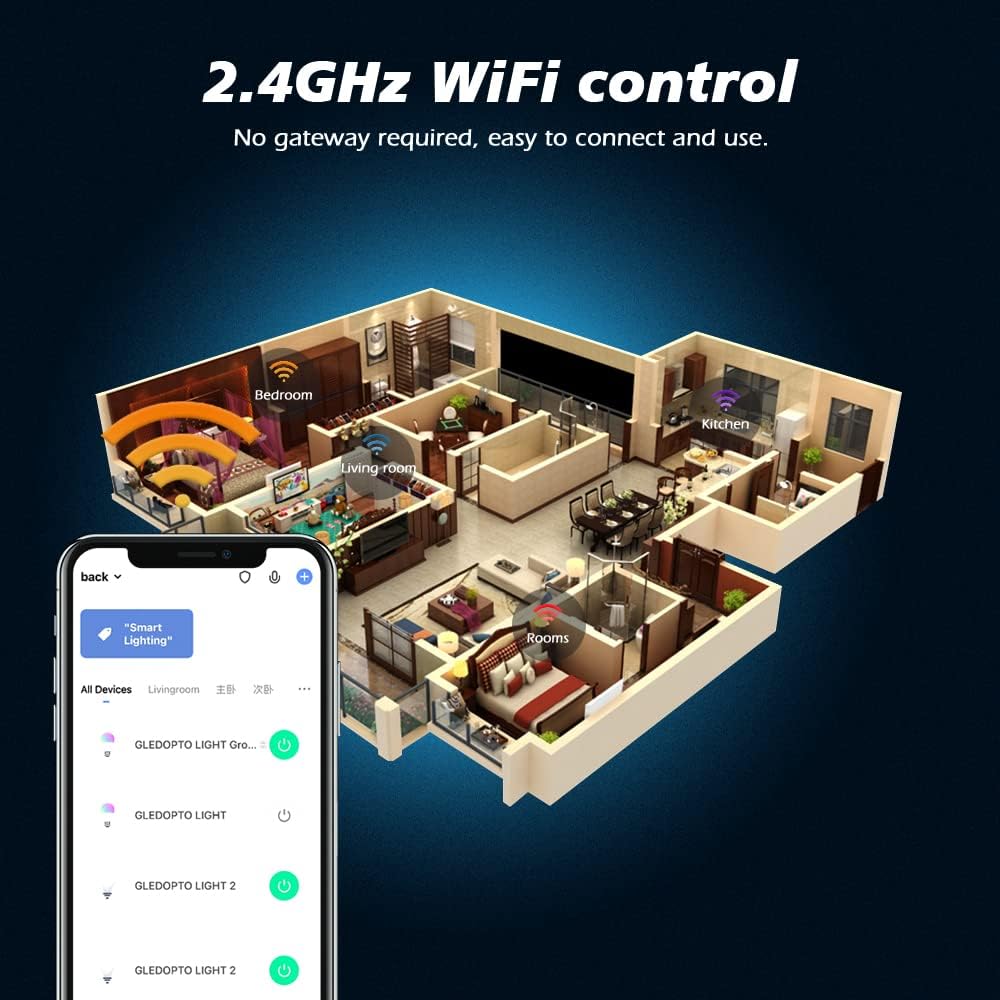
Figure 4: Illustration of 2.4GHz WiFi control, demonstrating how the controller integrates into a smart home environment without requiring a separate gateway, controlled via a mobile application.
3. Operating Instructions
3.1. APP Control (SmartLife/Tuya)
After successful WiFi connection, use the SmartLife or Tuya APP to control your LED strips. The APP allows for:
- Turning lights on/off.
- Changing colors (for RGB, RGBW, RGBCCT strips).
- Adjusting brightness.
- Setting color temperature (for WW/CW, RGBCCT strips).
- Creating custom scenes and schedules.
- Automating lighting based on conditions.
3.2. Voice Control (Amazon Alexa / Google Home)
Integrate the GLEDOPTO controller with Amazon Alexa or Google Home for convenient voice commands. Ensure your SmartLife/Tuya account is linked to your Alexa/Google Home app.
Common voice commands include:
- "Alexa, turn on the [light name]."
- "Hey Google, turn off the [light name]."
- "Alexa, set [light name] to red."
- "Hey Google, change [light name] to warm white."
- "Alexa, dim [light name] to 50%."
- "Hey Google, brighten [light name]."

Figure 5: Example of voice control integration with Amazon Alexa, demonstrating commands like "Alexa, turn the light to red," "Alexa, turn off the light," "Alexa, set to warm white," and "Alexa, increase to 70%."
3.3. RF Remote Control Compatibility
The controller is compatible with GLEDOPTO RF remotes (e.g., GL-RC-006Z) and wall controls (e.g., GL-W-003Z). It also supports miboxer FUT089 and FUT092 remotes. Refer to your specific remote's manual for pairing instructions.
3.4. Mode Selection (OPT Button)
Press the "OPT" button on the controller to cycle through the five different LED strip modes (DIMMER, WW/CW, RGB, RGBW, RGBCCT). The indicator light color will change to reflect the selected mode (refer to Table 1 in Section 2.3).
3.5. Power-On State Setting
The controller offers two optional power-on states:
- Remember last state: The controller will return to the state (on/off, color, brightness) it was in before a power failure.
- Lights up by default: The controller will turn on to a default setting when power is restored.
To toggle this function, long press the "OPT" key for 2 seconds. The light strip will flash 2 times to indicate the function has been toggled.
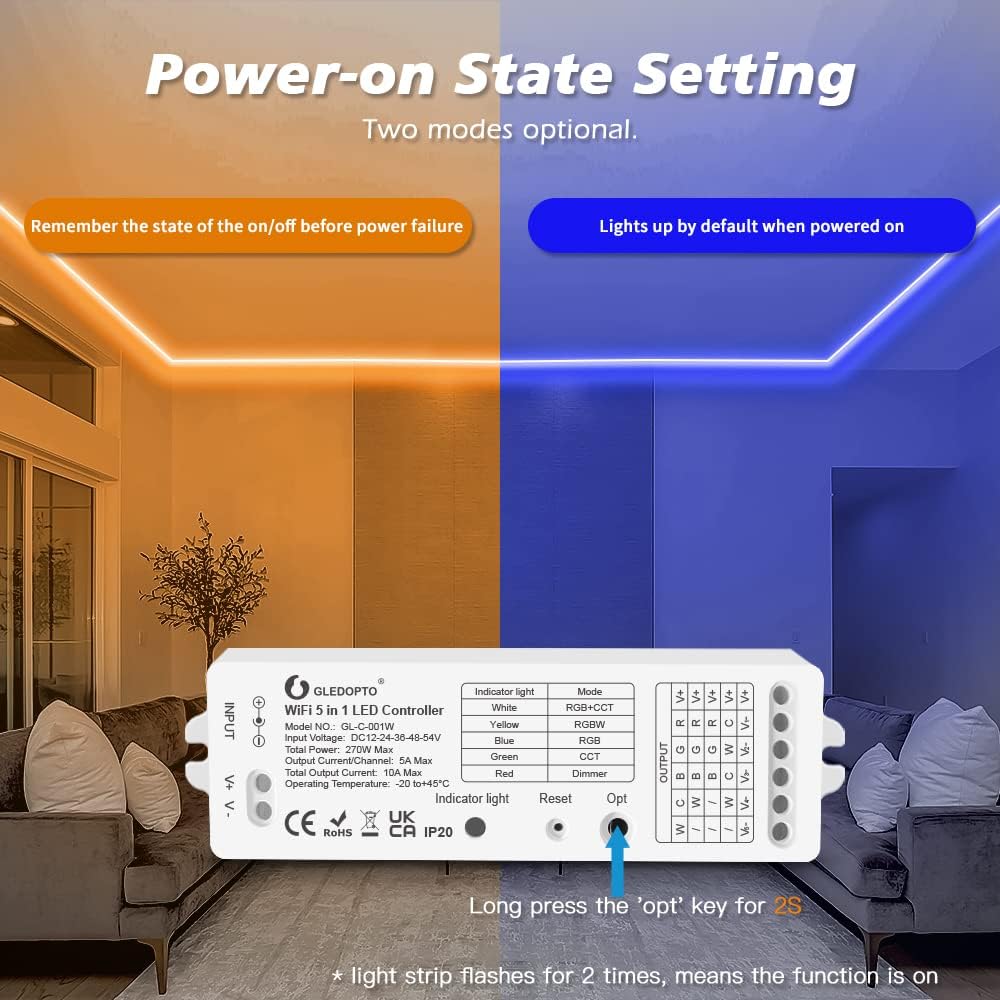
Figure 6: Illustration of the two power-on state settings: remembering the state before power failure or lighting up by default when powered on. Long pressing the 'opt' key for 2 seconds toggles this feature.
4. Maintenance
The GLEDOPTO LED Strip Controller requires minimal maintenance. Follow these guidelines to ensure optimal performance and longevity:
- Cleaning: Gently wipe the controller with a dry, soft cloth. Do not use liquid cleaners or abrasive materials.
- Environment: Ensure the controller is installed in a dry environment, away from direct sunlight, high temperatures, and excessive humidity. The operating temperature range is -20°C to +45°C.
- Connections: Periodically check all wire connections to ensure they are secure and free from corrosion.
- Firmware Updates: Check the SmartLife or Tuya APP regularly for any available firmware updates for the controller. Updates can improve performance and add new features.
5. Troubleshooting
If you encounter issues with your GLEDOPTO controller, refer to the following common problems and solutions:
| Problem | Possible Cause / Solution |
|---|---|
| Controller not connecting to WiFi. |
|
| LED strip not lighting up or incorrect colors. |
|
| Voice control not working. |
|
| RF remote not controlling the lights. |
|
If the problem persists, please contact GLEDOPTO customer support for further assistance.
6. Specifications
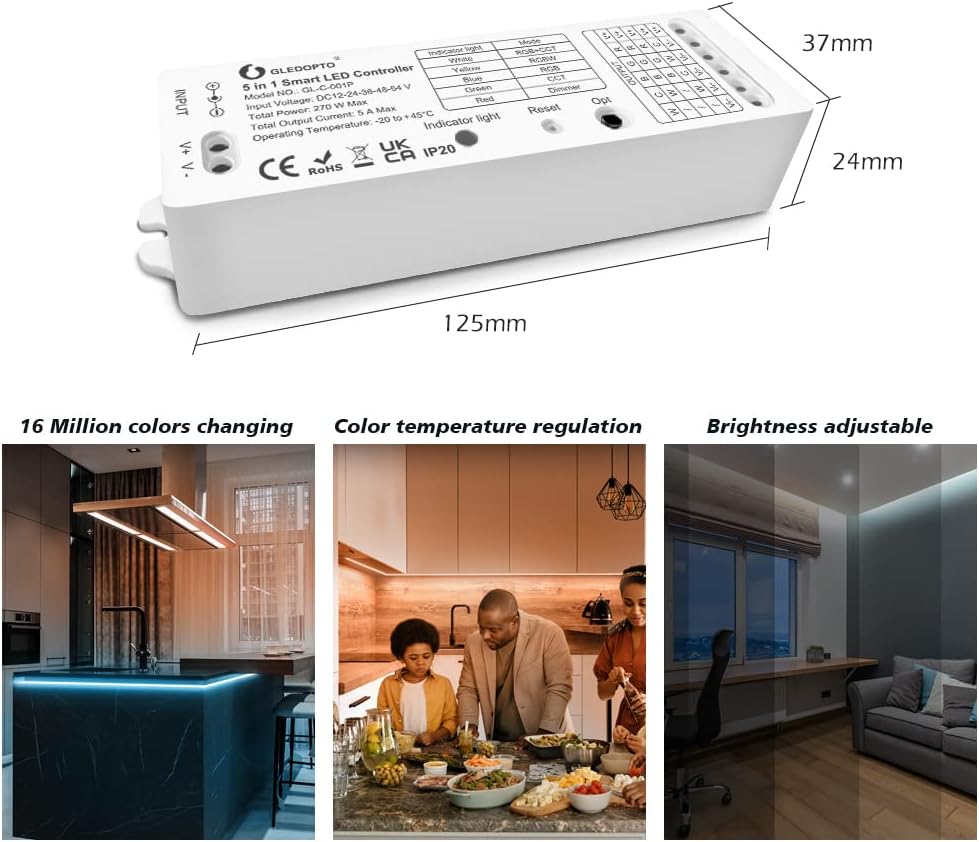
Figure 7: Dimensions of the GLEDOPTO 5-in-1 Smart LED Controller: 125mm (length) x 37mm (width) x 24mm (height).
| Feature | Detail |
|---|---|
| Brand | GLEDOPTO |
| Model Number | GL-C-001W |
| Product Dimensions (L x W x H) | 12.5 x 3.7 x 2.4 cm |
| Item Weight | 80 grams |
| Input Voltage | DC12-24-36-48-54V |
| Total Power Max | 270W |
| Output Current/Channel Max | 5A |
| Total Output Current Max | 10A |
| Operating Temperature | -20°C to +45°C |
| Special Features | WIFI 5 in 1 DIMMER WW/CW RGB RGBW RGBCCT, Amazon Alexa Google Home compatible |
| Connectivity Protocol | Wi-Fi 2.4G |
| Control Method | Application, Voice, RF Remote, OPT button |
| Type of Light Source | LED |
| Power Source | Electric Cable |
7. Warranty and Support
Information regarding specific warranty terms and conditions is not provided in the product details. For warranty claims, technical support, or further inquiries, please contact GLEDOPTO customer service through their official website or the retailer from whom the product was purchased.
8. Additional Information
8.1. Scene Display
The GLEDOPTO controller is suitable for various indoor lighting applications, allowing for diverse ambiance creation.

Figure 8: Examples of indoor lighting applications, showcasing the versatility of the GLEDOPTO controller in creating different lighting moods in bedrooms, kitchens, and living spaces.


