
Phelinta XF-C01
Phelinta 3-in-1 Wireless Charging Station User Manual
Brand: Phelinta | Model: XF-C01
Product Overview
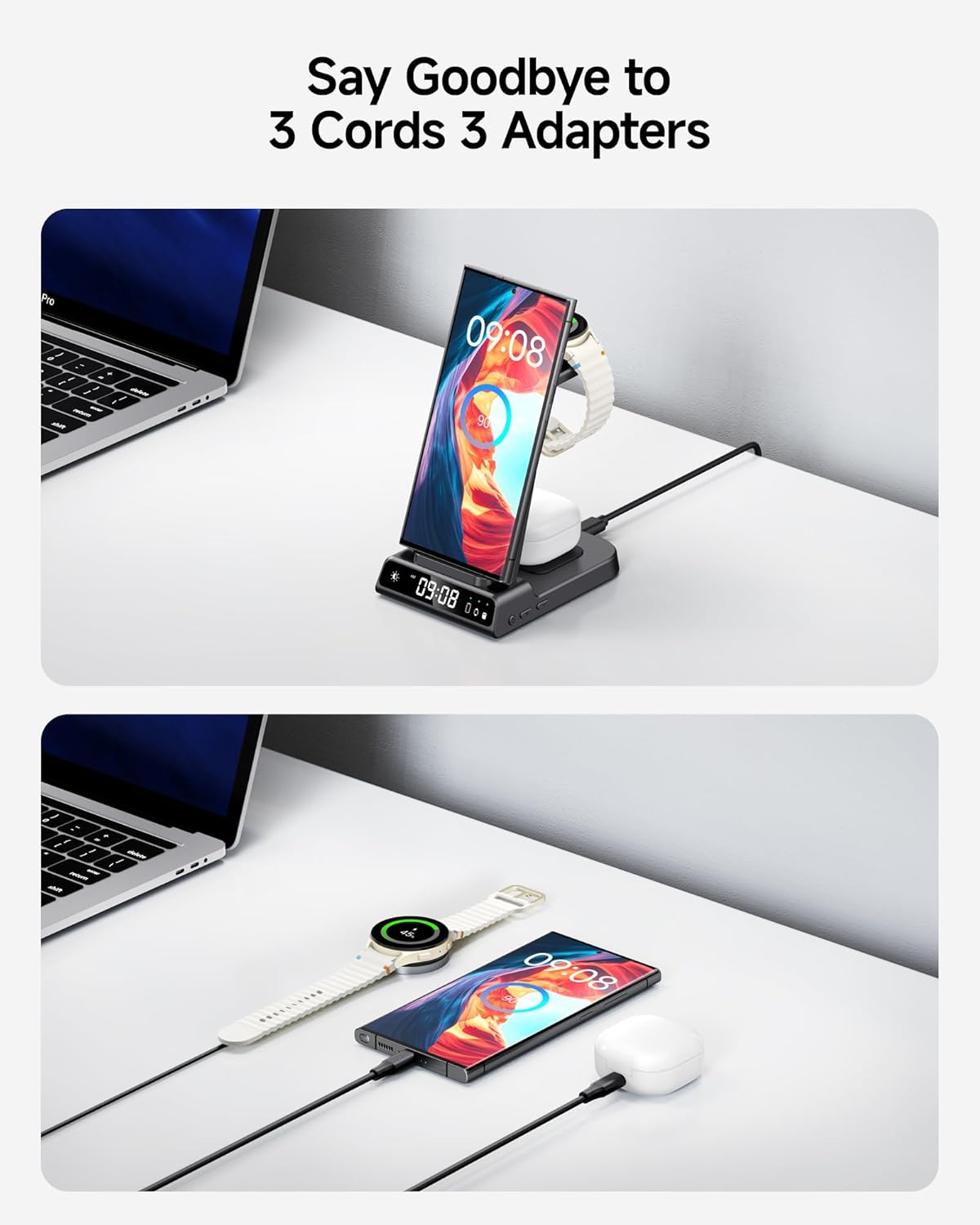
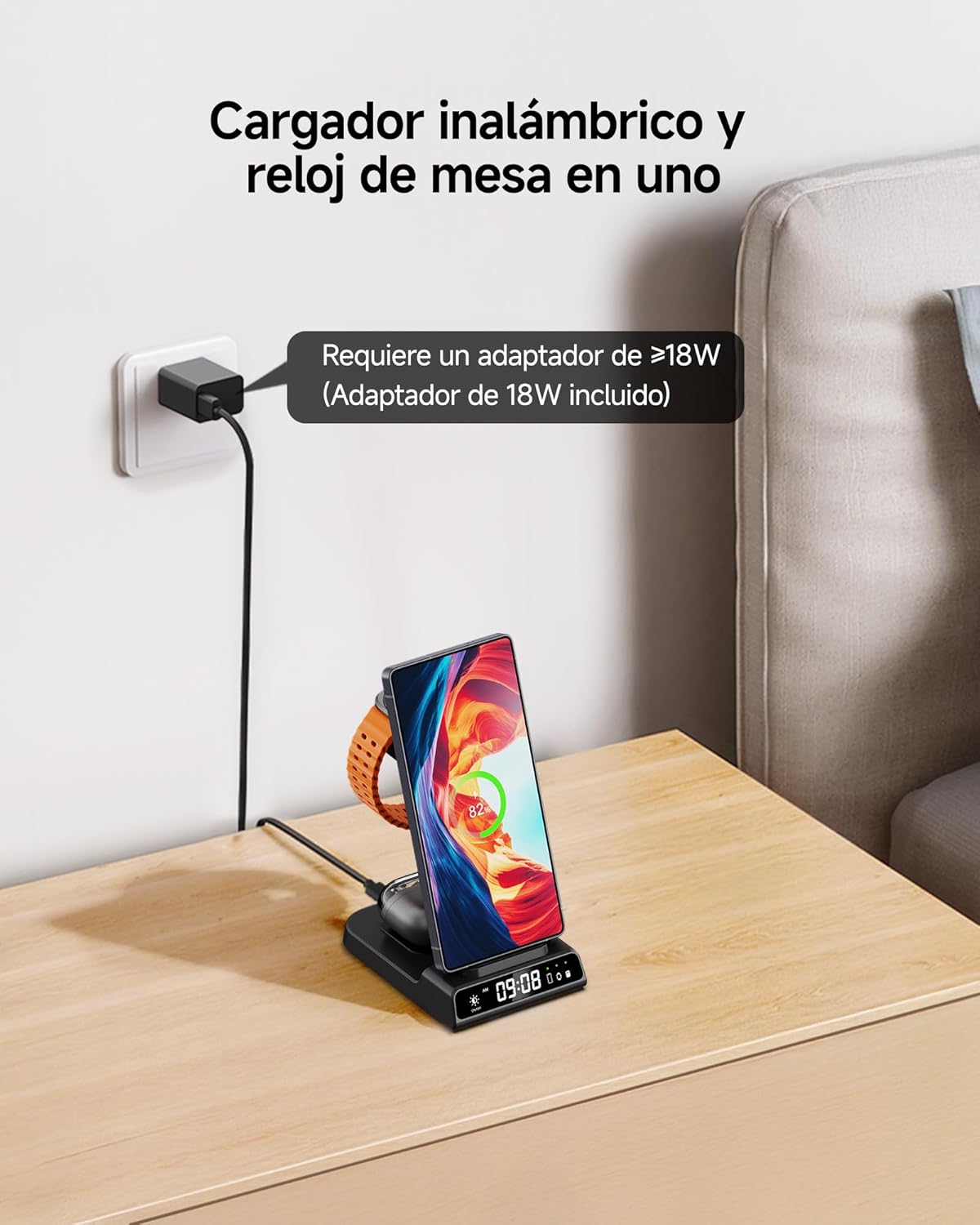
The Phelinta 3-in-1 Wireless Charging Station is designed to efficiently charge your Samsung Galaxy phone, watch, and earbuds simultaneously. It features a sleek, space-saving design that helps reduce cable clutter on your desk or nightstand. This charging station also includes a dimmable digital clock for added convenience.
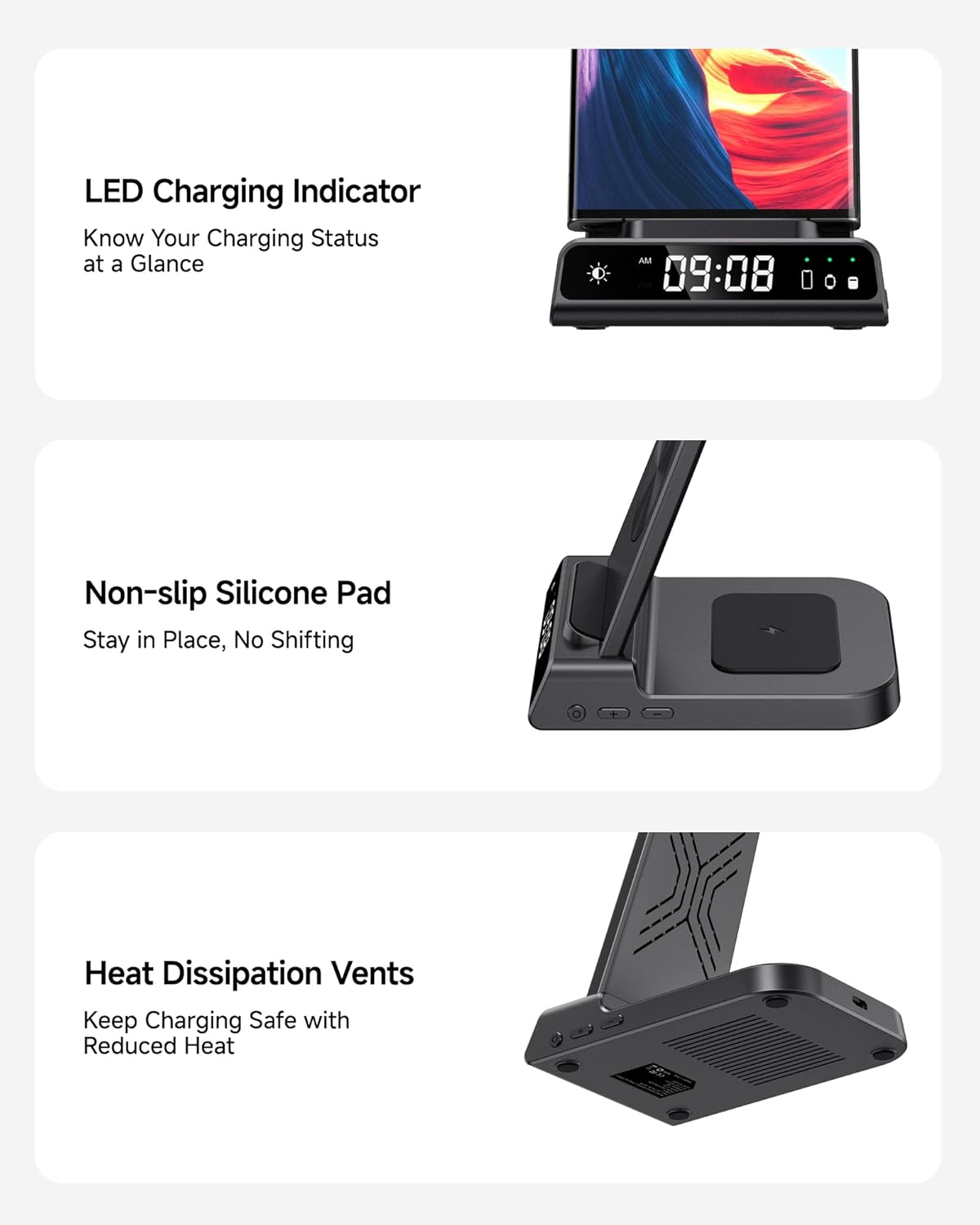
- Dimmable Digital Clock: Features a customizable 12/24 hour format and four adjustable brightness levels, allowing for comfortable viewing day or night.
- Space-Saving Design: Consolidates charging for multiple devices into one compact unit, eliminating the need for multiple cables and separate clocks.
- Wide Compatibility: Specifically designed for Samsung Galaxy Watch series, and compatible with a broad range of wireless charging phones (Samsung Galaxy S/Note/Z Flip/Fold series, iPhone series, Google Pixel series) and earbuds (Galaxy Buds series, AirPods series).
- Multiple Charging Protections: Constructed from fire-resistant materials with heat dissipation features, and includes built-in protections against over-voltage, over-current, overload, and foreign object detection for safe charging.

Setup Guide
Follow these steps to set up your Phelinta 3-in-1 Wireless Charging Station:
- Unpack Contents: Carefully remove all items from the packaging. The package includes:
- 1 x 3-in-1 Wireless Charger Stand
- 1 x QC 3.0 Adapter
- 1 x USB C to C Charging Cable (1.5m/4.92ft)
- 1 x Instruction Manual (this document)
- Connect Power: Insert the USB-C end of the provided charging cable into the charging port on the back of the wireless charging station. Plug the USB-A end of the cable into the QC 3.0 Adapter, then plug the adapter into a standard wall outlet.
- Placement: Place the charging station on a flat, stable surface, such as a desk or nightstand. Ensure there is adequate space around the unit for proper ventilation.

Operating Instructions
This section details how to use your Phelinta 3-in-1 Wireless Charging Station.
Charging Devices
The charging station provides three dedicated wireless charging areas:
- Phone Charging: Place your wireless charging compatible phone vertically or horizontally on the main charging pad. The LED indicator on the base will illuminate to confirm charging.
- Watch Charging: Hang your Samsung Galaxy Watch on the dedicated watch charging stand. Ensure the back of the watch aligns with the charging coil. The LED indicator will confirm charging.
- Earbuds Charging: Place your wireless charging compatible earbuds case on the flat charging area at the base. The LED indicator will confirm charging.


Using the Digital Clock
The integrated digital clock can be adjusted for time format and brightness.
- Setting Time Format (12/24 hour): Press the Time Setting Button (usually a circular button near the clock display) quickly to toggle between 12-hour and 24-hour formats.
- Setting Time (Hours/Minutes): Press and hold the Time Setting Button for 3 seconds to enter setting mode. Use the "+" and "-" buttons to adjust the hours and minutes. After setting, wait for 5 seconds for the device to exit setting mode automatically.
- Adjusting Brightness: The clock display has four adjustable brightness levels (100%, 50%, 20%, and OFF). Use the Brightness Touch Button (often indicated by a sun icon) to cycle through these levels.


Flexible Charging Orientation
The phone charging area supports both portrait and landscape orientations, allowing you to use your device while it charges.
- Landscape Charging: Ideal for watching videos or studying.
- Portrait Charging: Suitable for video calls or browsing news.

Maintenance
Proper maintenance ensures the longevity and optimal performance of your charging station.
- Cleaning: Disconnect the power adapter before cleaning. Use a soft, dry cloth to wipe the surface of the charging station. Do not use abrasive cleaners or solvents.
- Heat Dissipation: The charging station is designed with multiple heat dissipation holes to prevent overheating. Ensure these vents are not blocked by dust or other objects.
- Non-slip Silicone Pad: The base features a non-slip silicone pad to keep the unit stable. Keep this area clean to maintain its effectiveness.
Troubleshooting
If you encounter issues with your charging station, refer to the following common solutions:
| Problem | Possible Cause | Solution |
|---|---|---|
| Device not charging. |
|
|
| Digital clock not displaying or incorrect time. |
|
|
| Charging is slow. |
|
|
Specifications
| Feature | Detail |
|---|---|
| Model Number | XF-C01 |
| Product Dimensions | 5.43 x 4.88 x 3.62 inches |
| Item Weight | 12 ounces |
| Connectivity Technology | Wireless |
| Connector Type | USB Type A (for adapter), USB Type C (for station input) |
| Input Voltage | 9 Volts (requires QC 3.0 adapter) |
| Special Features | Charging Indicator, Multi Device Charging, Wireless Charging, Digital Clock |
| Color | Black |
| Mounting Type | Tabletop Mount |
| Included Components | 3-in-1 Wireless Charger Station, QC 3.0 Brick, Type C Cable (4.92ft), User Manual |
Compatibility
This charging station is designed for wide compatibility with various devices:
- Smartwatches: ONLY Compatible with Samsung Galaxy Watch Ultra/8/8 Classic/7/6/6 Classic/5/5 Pro/4/4 Classic/3/Active 1/2. Not compatible with Apple Watch, Google Pixel Watch, Fossil Watches, or other brands.
- Phones: Compatible with Samsung Galaxy S25 Ultra/S25+/S25/S24 Ultra/S24+/S24/S23 Ultra/S23+/S23/S22/S22+/S22 Ultra/S21 FE/Z Flip 7/Z Fold 6/Z Flip 6/Z Fold 5/Z Flip 5/Z Fold 4/Z Flip 4/Z Fold 3/Z Flip 3/S21/S21 Ultra/S20/S20 Ultra/S10/Note 10/Note 9, iPhone 16/16 Pro/16 Plus/16 Pro Max/iPhone 15/15 Pro Max/15 Plus/15 Pro/iPhone 14/14 Pro Max/14 Plus/14 Pro/iPhone 13/13 Pro/13 Pro Max/13 Mini/12/12 Pro/12 Pro Max/12 Mini/11/11 Pro/11 Pro Max/SE/XS MAX/X/XR/8/8 Plus, Google Pixel 8/8 Pro/7/7 Pro/6/6 Pro, and other phones that support wireless charging. Not compatible with Samsung Galaxy A series.
- Earbuds: Compatible with Samsung Galaxy Buds 3 Pro/Galaxy Bud 3/Galaxy Buds 2 Pro/Galaxy Bud 2/Galaxy Bud Pro/Galaxy Buds FE/Galaxy Buds+/Galaxy Buds Live, AirPods 3rd generation 2021/Airpods 2/1/AirPods Pro, and all other earbuds that support wireless charging cases.


Warranty and Support
Your Phelinta 3-in-1 Wireless Charging Station comes with a 1-year warranty from the date of purchase.
For any questions, technical support, or warranty claims, please contact Phelinta customer service. Our team is committed to providing friendly and responsive assistance within 24 hours.
Please refer to the contact information provided on the product packaging or the official Phelinta website for the most up-to-date support channels.
Ask a question about this manual
Ask about setup, troubleshooting, compatibility, parts, safety, or missing instructions. Manuals+ will review the question and use this page’s manual context to help answer it.