
1. Introduction
Thank you for choosing the TQQ iPad Keyboard Case. This manual provides essential information for setting up, operating, and maintaining your new keyboard case. Please read it thoroughly to ensure optimal performance and longevity of your device.
This keyboard case is designed for enhanced productivity and protection, transforming your iPad into a versatile laptop-like device. It features a multi-touch trackpad, 360-degree rotatable design, and smart protection features.
Compatibility
The TQQ iPad Keyboard Case is compatible with the following iPad models:
- iPad 9th Gen 10.2 inch 2021 (Models: A2602, A2603, A2604, A2605)
- iPad 8th Gen 10.2 inch 2020 (Models: A2270, A2428, A2429, A2430)
- iPad 7th Gen 10.2 inch 2019 (Models: A2197, A2200, A2198)
Please verify your iPad model number on the back of your device before use.

Image: Compatibility notice showing supported iPad models (9th, 8th, 7th Gen 10.2-inch) and how to verify your iPad model number.
2. Package Contents
Ensure all items are present in your package:
- 1 x TQQ Keyboard Case
- 1 x USB Cable
- 1 x Instruction Manual
3. Setup
3.1 Installing Your iPad
To install your iPad into the TQQ Keyboard Case:
- Align your iPad with the case, ensuring the camera and ports match the cutouts.
- Gently press the iPad into the case, starting from one corner and working your way around until it is securely seated.

Image: Visual guide for installing the iPad into the keyboard case.
3.2 Bluetooth Connection
Follow these steps to connect your keyboard case via Bluetooth:
- Switch the ON/OFF switch on the keyboard to the ON position.
- Press and hold the 'Pair' button for 3 seconds. The Bluetooth indicator light will start blinking.
- On your iPad, go to Settings > Bluetooth and toggle Bluetooth ON.
- Tap 'Bluetooth Keyboard' under 'MY DEVICES' in the Bluetooth section. The device is connected when the Bluetooth indicator stops flashing.
Important Note: Ensure your iPad's iOS system is 13.2.2 or above and the Assistive Touch toggle function is on for full trackpad functionality.

Image: Detailed steps for pairing the keyboard via Bluetooth, showing the ON/OFF switch, Pair button, and indicator lights.
3.3 Charging the Keyboard
The keyboard has a 500mAh battery capacity. To charge:
- Connect the provided USB cable to the charging port on the keyboard.
- Connect the other end of the USB cable to a power source (e.g., USB wall adapter, computer USB port).
- Charging time is approximately 2-3 hours. A full charge provides up to 100 hours of working time.

Image: Illustration of the keyboard charging via USB-C, highlighting battery capacity and charging times.
4. Operating Instructions
4.1 Adjustable Viewing Angles
The TQQ Keyboard Case offers versatile viewing options:
- The case allows for 360° rotation of your iPad.
- It also supports a 180° flip, enabling you to use your iPad in tablet mode without the keyboard exposed.
- Adjust the screen to various angles for typing, viewing, FaceTime, or reading.

Image: The keyboard case demonstrating 360-degree rotation and various viewing angles for the iPad.

Image: Diagram illustrating seven unique modes including Laptop, Stand, Tent, Tablet, Corner, Share, and Protect.
4.2 Multi-Touch Trackpad
The integrated multi-touch trackpad allows for precise navigation and gestures, turning your iPad into a highly functional laptop. Common gestures include:
- Click: Single tap.
- Scroll: Two-finger swipe up/down.
- Zoom: Pinch with two fingers.
- Go Home: Swipe up with three fingers.
To lock the touchpad function, press the 'Fn + A' keys simultaneously.
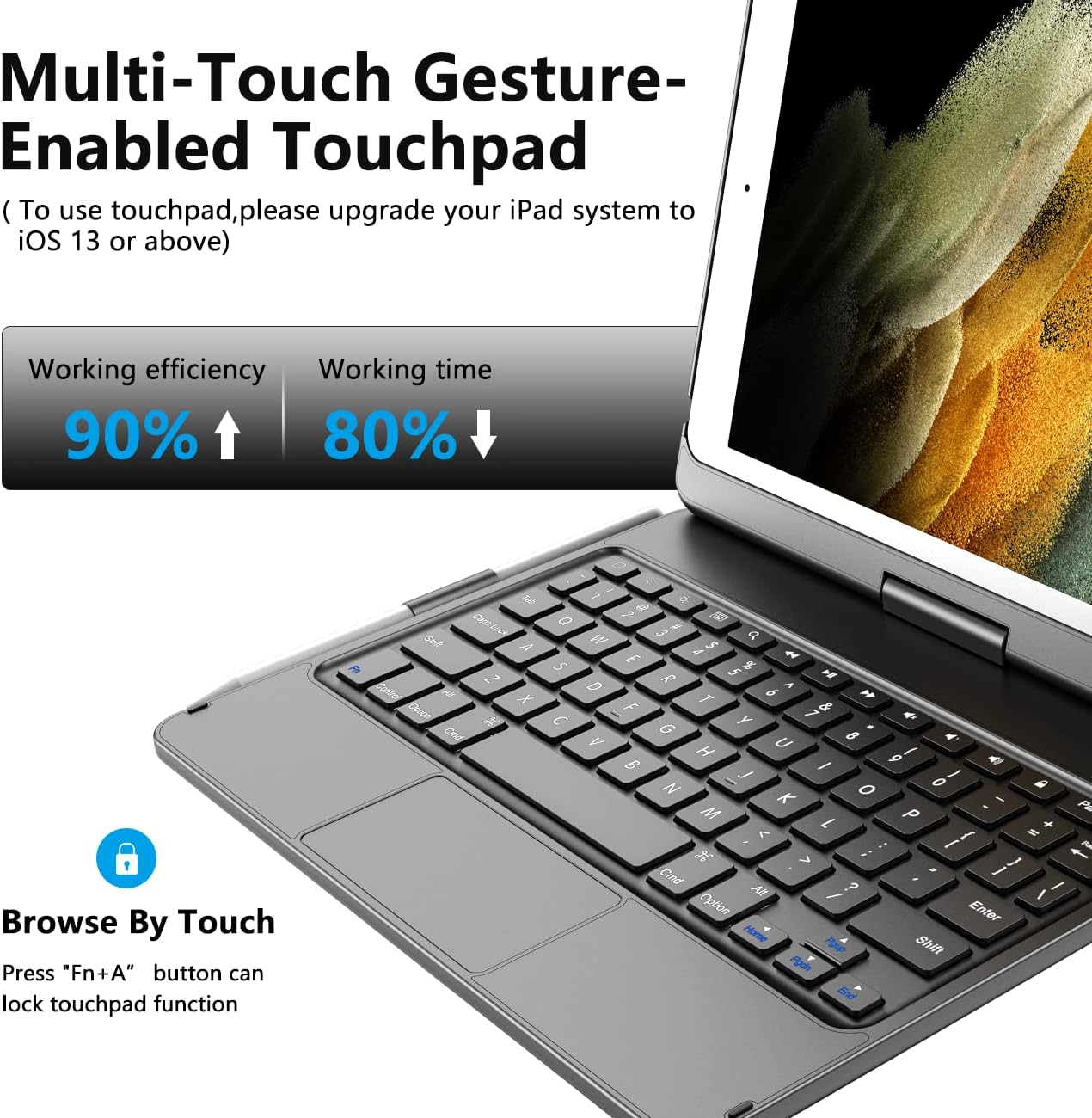
Image: Close-up of the keyboard and multi-touch trackpad, highlighting its gesture capabilities and the Fn+A shortcut to lock the touchpad.
4.3 Keyboard Features
The keyboard provides a comfortable typing experience with responsive keys. It also includes a full row of iPadOS shortcut keys for quick access to functions like:
- Home screen
- Search
- Media controls (play/pause, volume)
- Screen lock

Image: The keyboard layout showing the dedicated row of iPadOS shortcut keys for quick access to various functions.
4.4 Built-in Pencil Holder
The case includes a convenient pencil holder to securely store your Apple Pencil, ensuring it's always ready for use.

Image: The TQQ Keyboard Case showcasing the integrated pencil holder, designed to keep your Apple Pencil secure.
4.5 Smart Protection & Auto Sleep/Wake
The case provides enhanced protection against scratches, bumps, and dents. It also features an auto sleep/wake function to conserve your iPad's battery life:
- Closing the case automatically puts your iPad to sleep.
- Opening the case wakes your iPad.
- The keyboard will enter sleep mode if inactive for 10 minutes and disconnect from your iPad. Pressing any key will wake it up and reconnect.

Image: The iPad in the TQQ Keyboard Case demonstrating the auto sleep and wake functionality, showing the iPad screen turning off when closed and on when opened.
5. Troubleshooting
5.1 Bluetooth Connection Issues
If your Bluetooth link is not working, try the following steps:
- If the keyboard is connected to another device, please 'Forget this Device' first. Note: Clicking Disconnect is not effective.
- On your iPad, go to Settings > Bluetooth and 'Forget this Device' for the keyboard.
- Restart the keyboard by toggling the On/Off switch.
- Press the Pair button again. The BT button will light up and reconnect.

Image: A visual guide for troubleshooting Bluetooth connection issues, detailing steps to re-pair the keyboard.
6. Specifications
| Feature | Detail |
|---|---|
| Product Dimensions | 11.42 x 8.15 x 1.3 inches |
| Item Weight | 1.5 pounds |
| Manufacturer | TQQ |
| Item Model Number | TQQ-TP-KBC-IP10.2-987 |
| Batteries | 1 Lithium Ion battery required (included) |
| Connectivity Technology | Bluetooth |
| Keyboard Description | Multi Functional |
| Recommended Uses | Business, Education, Everyday Use |
| Special Features | Case with Keyboard, Trackpad, Protective, Smart, 360 Rotate |
| Keyboard Backlighting Color Support | RGB |
7. Warranty & Support
For any questions regarding your TQQ iPad Keyboard Case, including product model or function, please do not hesitate to contact our customer service team. We are eager to assist you.
Please refer to your purchase documentation for specific warranty details.
8. Product Videos
TQQ Touchpad Keyboard Case Overview
Video: An official overview of the TQQ Touchpad Keyboard Case for iPad 10.2 9th/8th/7th Gen, demonstrating its features and functionality.
Features of the Touchpad Keyboard for iPad
Video: A demonstration highlighting various features of the TQQ Touchpad Keyboard Case for iPad, including its touchpad and keyboard functions.