
1. Product Overview
The TQQ Touchpad Keyboard Case is designed to enhance your iPad experience, transforming it into a versatile laptop-like device. It features a multi-touch trackpad, a 360° rotatable protective cover, and a convenient pencil holder.

Image: The TQQ keyboard case with an iPad, illustrating its auto sleep/wake function and various viewing angles, including a 360-degree rotation capability.
2. Compatibility Notice
This ultra-slim keyboard case is compatible with the following iPad models:
- iPad 9th Gen 10.2 inch 2021: Models A2602, A2603, A2604, A2605
- iPad 8th Gen 10.2 inch 2020: Models A2270, A2428, A2429, A2430
- iPad 7th Gen 10.2 inch 2019: Models A2197, A2200, A2198
Please verify your iPad model number (starting with "A") on the back of your device before use. Ensure your iPadOS system is version 13.2.2 or above, and the Assistive Touch toggle function is enabled for full trackpad functionality.

Image: A visual guide detailing compatible iPad models (9th, 8th, 7th Gen 10.2-inch) and instructions on how to locate your iPad's model number for verification.
3. Setup and Installation
3.1 Installing Your iPad into the Case
- Align your iPad with the case, ensuring all ports and buttons are accessible.
- Gently press your iPad into the protective frame until it snaps securely into place.
To remove your iPad:
- Hold the iPad on both sides of the upper corner.
- Use your thumbs to gently push off the back cover. It is held in place by two tabs.
- Repeat for the second upper corner.
- Peel away the upper part completely.
- Pull up to remove the iPad from the case.
Video: This video demonstrates the easy installation process of the iPad into the TQQ keyboard case, showing how to securely fit the device and remove it when needed. It also covers Bluetooth connection, typing, shortcuts, and touchpad use.
3.2 Bluetooth Connection
- Switch the ON/OFF switch on the keyboard to the ON position.
- Press and hold the 'Pair' button for 3 seconds; the Bluetooth indicator light will start blinking.
- Toggle Bluetooth ON in the iPad's Settings app (the device is connected when the Bluetooth indicator stops flashing).
- Tap 'Bluetooth Keyboard' under 'MY DEVICES' in the Bluetooth section of the Settings app.

Image: A step-by-step guide illustrating how to establish a Bluetooth connection between the TQQ keyboard case and your iPad.
4. Operating Instructions
4.1 Versatile Viewing Angles and Rotation
The unique design allows for 360° rotation and 180° flip, providing multiple viewing angles to suit your needs. Easily transform your iPad into a small laptop for work, viewing, FaceTime, or reading.

Image: The TQQ keyboard case showcasing its 360-degree rotation and 180-degree flip capabilities, enabling diverse viewing angles for different tasks.

Image: An illustration of the 7 unique usage modes supported by the TQQ keyboard case, including Laptop, Stand, Tent, Tablet, Corner, Share, and Protect modes.
4.2 Multi-Touch Trackpad
The integrated multi-touch trackpad supports plentiful gestures, allowing you to navigate your iPad faster and more efficiently, similar to a laptop. Click, swipe, and scroll through content effortlessly.
To use the touchpad, please upgrade your iPad system to iOS 13 or above.
To lock the touchpad function, press the "Fn + A" buttons simultaneously.
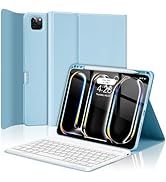
Image: The TQQ keyboard case featuring its multi-touch gesture-enabled touchpad, with an overlay indicating improved working efficiency and reduced working time.
4.3 Keyboard Features
The keyboard provides a comfortable typing experience with responsive keys. It also includes a full row of iPadOS shortcuts for quick access to common functions.

Image: The TQQ keyboard case highlighting its full row of iPadOS shortcuts, designed for quick and efficient access to various iPad functions.
4.4 Auto Sleep and Wake Function
The case features an auto sleep and wake function to protect your iPad's battery life. When the keyboard is not used for 10 minutes, it will enter sleep mode and disconnect from your iPad. Pressing any key will wake it up and reconnect it.

Image: The TQQ keyboard case demonstrating its auto sleep and wake function, which helps conserve iPad battery life by putting the device to sleep when the case is closed or inactive.
5. Charging
The keyboard has a 500mAh battery capacity. Charging time is approximately 2-3 hours, providing up to 100 hours of working time.

Image: The TQQ keyboard case highlighting its 500mAh battery capacity, with details on charging time (2-3 hours) and working time (100 hours).
6. Troubleshooting
6.1 Bluetooth Link Not Working
- If the keyboard is connected to another device, please "Forget this Device" first. Note: Clicking Disconnect is not effective.
- Turn the Bluetooth Keyboard on your iPad to "Forget this Device".
- Restart the keyboard On/Off key.
- Press the pair button again; the BT button will light up and reconnect.

Image: A visual guide providing troubleshooting steps for resolving Bluetooth connection issues with the TQQ keyboard case.
7. Specifications
- Product Dimensions: 11.42 x 8.15 x 1.3 inches
- Item Weight: 1.5 pounds
- Material: Acrylonitrile Butadiene Styrene
- Connectivity Technology: Bluetooth
- Battery: 1 Lithium Ion battery required (included)
- Special Feature: Case with Keyboard, Trackpad, Protective, Smart, 360 Rotate
8. What's in the Box
- USB Cable
- Keyboard Case
- Instruction manual
9. Customer Service
If you have any questions about our product model or function, please feel free to contact us. We are eager to solve your problem.