
1. Introduction
This manual provides detailed instructions for the safe and effective use of your Yoidesu Kids Digital Camera. Please read this manual thoroughly before operating the camera and retain it for future reference. This camera is designed for children, featuring a durable, child-friendly design and simple controls for capturing photos and videos.
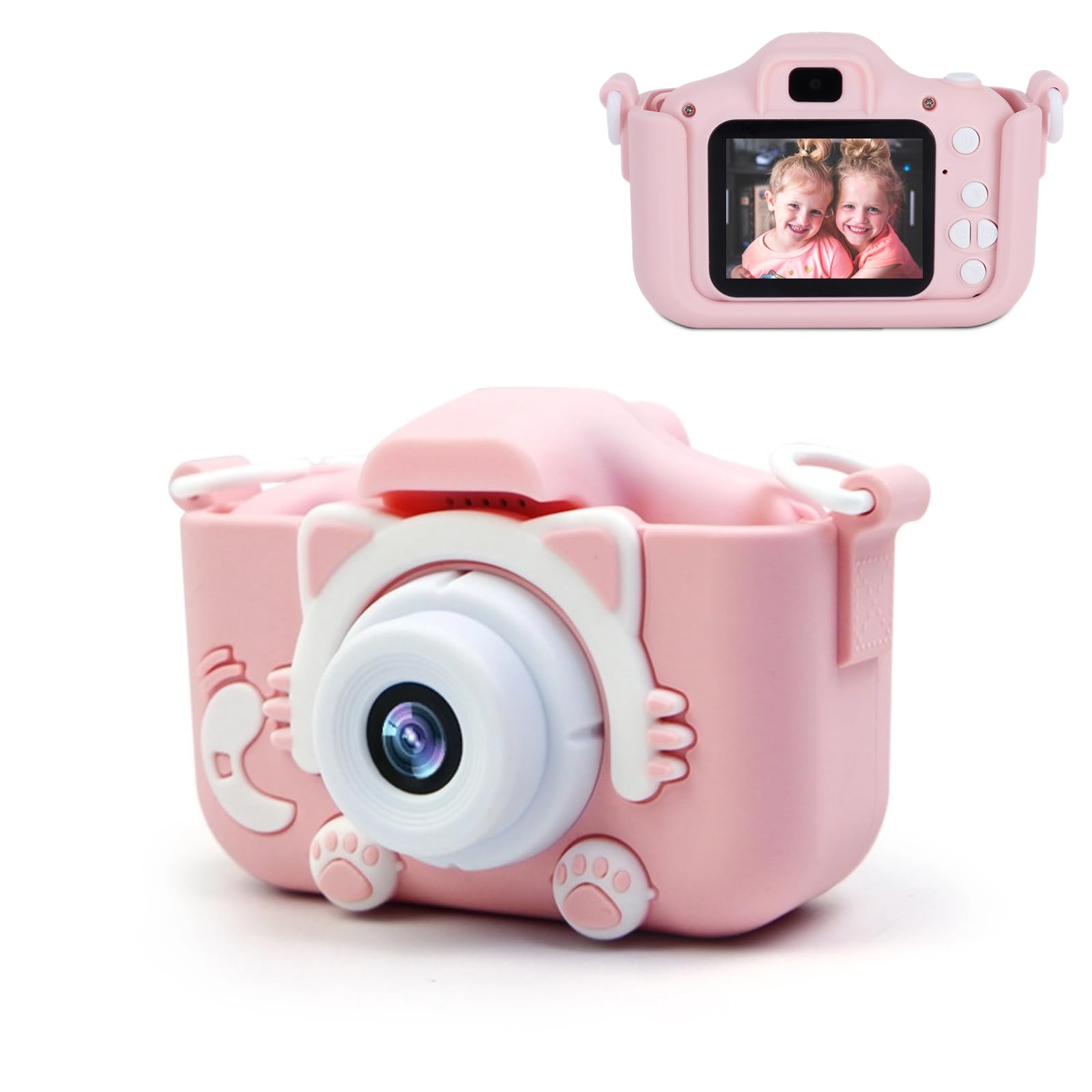
A front view of the Yoidesu Kids Digital Camera in pink, featuring a cat-themed design.
2. Product Features
- Dual Cameras: Equipped with front and rear 40MP cameras for both regular photos and selfies.
- Video Recording: Supports one-button intelligent focus with video recording functionality.
- Eye-Protection Screen: Features a large 2.0-inch screen designed to minimize eye strain.
- Durable Material: Constructed from high-quality ABS and silicone, offering a soft, skin-friendly, and environmentally safe design.
- Built-in Battery: Integrated 600mAh battery allows for continuous shooting of over 3000 photos.
- Cornerless Design: Rounded corners provide a comfortable grip and prevent scratches.
- Creative Options: Includes a variety of cartoon stickers and frames for photo customization.

This image displays the Yoidesu Kids Camera, highlighting its front and rear dual camera design, with clear labels pointing to each lens.

This image showcases the camera's cornerless design, featuring both pink and blue models, emphasizing the smooth, rounded edges for a comfortable grip and child safety.
3. Setup
3.1 Charging the Camera
- Connect the camera to a USB power source (e.g., computer, wall adapter) using the provided USB cable.
- The charging indicator light will illuminate.
- Once fully charged, the indicator light will change or turn off. A full charge typically takes 2-3 hours.
3.2 Inserting a Memory Card (Not Included)
The camera requires a microSD card (not included) to store photos and videos. Ensure the camera is powered off before inserting or removing the card.
- Locate the memory card slot on the side or bottom of the camera.
- Gently insert the microSD card with the metal contacts facing down until it clicks into place.
- To remove, push the card in slightly until it springs out.
4. Operating Instructions
4.1 Button Functions

This close-up image provides a detailed view of the Yoidesu Kids Camera's buttons, clearly labeling each function for easy operation.
- On/Off Button (1): Press and hold to power the camera on or off.
- Shutter Button (2): Press to take a photo or start/stop video recording.
- Back Button (3): Used to go back to the previous menu or exit a function.
- Flip Up Button (4): Navigates up in menus or scrolls through options.
- Switch Mode/Conversion Button (5): Changes between photo, video, and playback modes.
- Scroll Down Button (6): Navigates down in menus or scrolls through options.
- Tools Page (7): Accesses settings and other tools.
4.2 Taking Photos
- Power on the camera. It will typically default to photo mode.
- Frame your shot using the screen. The camera features one-button intelligent focus.
- Press the Shutter Button to capture the photo.

This image illustrates the camera's one-touch smart focus feature, showing a child holding the camera with two other children visible on its screen, indicating automatic focusing for easy photo capture.
4.3 Recording Videos
- Press the Switch Mode Button until the camera enters video recording mode.
- Press the Shutter Button once to start recording. A timer or indicator will show recording is active.
- Press the Shutter Button again to stop recording.

This image highlights the camera's video recording capability, showing a joyful child running in a field, with a play button overlay, and a blue camera model displayed below.
4.4 Using Front and Rear Cameras
The camera automatically switches between front and rear lenses depending on the orientation or mode. For selfies, ensure the camera is facing you.
4.5 Applying Stickers and Frames
- In photo mode, navigate to the 'Tools Page' or a dedicated 'Sticker/Frame' option using the navigation buttons.
- Select from the available cartoon stickers or frames.
- Confirm your selection, and the chosen effect will be applied to your photos.

This image illustrates the fun feature of various cartoon stickers and photo frames that can be applied to pictures taken with the Yoidesu Kids Camera, shown with a pink camera model.
5. Maintenance
- Cleaning: Use a soft, dry cloth to clean the camera body. For the lens, use a specialized lens cleaning cloth. Do not use liquid cleaners or abrasive materials.
- Storage: Store the camera in a cool, dry place away from direct sunlight and extreme temperatures.
- Battery Care: To prolong battery life, avoid fully discharging the battery frequently. Charge the camera regularly, even if not in use for extended periods.
- Water Exposure: This camera is not waterproof. Avoid exposure to water or high humidity.
6. Troubleshooting
| Problem | Possible Solution |
|---|---|
| Camera does not turn on. | Ensure the battery is charged. Connect to a charger and try again. |
| Cannot take photos/videos. | Check if a memory card is inserted correctly and has sufficient space. The camera may also be in the wrong mode. |
| Images are blurry. | Ensure the lens is clean. Hold the camera steady when taking pictures. |
| Camera freezes or is unresponsive. | Try resetting the camera by pressing and holding the power button for 10 seconds, or if available, use a small pin to press the reset button. |
| Battery drains quickly. | Reduce screen brightness. Ensure the camera is fully powered off when not in use. |
7. Specifications
| Feature | Detail |
|---|---|
| Brand | Yoidesu |
| Model Number | Yoidesuysn86zeiwx8079 |
| Photo Sensor Technology | CMOS |
| Effective Still Resolution | 40 MP |
| Video Resolution | 40 MP |
| Screen Size | 2.0 Inches |
| Display Type | LCD |
| Connectivity Technology | USB |
| Image Stabilization | Digital |
| Supported File Format | JPEG |
| Exposure Control Type | Automatic |
| Battery Capacity | 600mAh (Built-in) |
| Age Range Description | Kid |
8. Warranty and Support
For warranty information and customer support, please refer to the product packaging or contact the retailer where the product was purchased. Keep your proof of purchase for any warranty claims.