
1. Setup Guide
This section provides instructions for the initial setup of your Jectse 8 Pro Unlocked Cell Phone.
1.1 Package Contents
Before beginning, please verify that all items are present in the package:
- Jectse 8 Pro Smartphone
- Earphone
- USB Cable
- Protective Case
- Protective Film
- English Manual (this document)

Image: Jectse 8 Pro phone with included accessories.
1.2 SIM Card and Memory Card Installation
The Jectse 8 Pro supports dual nano SIM cards and one small memory card for expanded storage.
- Locate the SIM card tray on the side of the device.
- Use the provided SIM ejector tool (if included) or a small pin to open the tray.
- Carefully place your nano SIM cards into the designated slots. Ensure the gold contacts face downwards.
- If using a memory card, insert it into the dedicated small memory card slot. The device supports up to 128GB expansion.
- Gently push the tray back into the phone until it is flush with the device body.
1.3 Initial Power On
To power on your device for the first time:
- Press and hold the power button located on the upper right side of the phone.
- The phone will vibrate and the Jectse logo will appear on the screen.
- Follow the on-screen instructions to complete the initial setup, including language selection, Wi-Fi connection, and Google account setup.

Image: Front and back view of the Jectse 8 Pro Unlocked Cell Phone.
2. Operating Instructions
This section details the basic operation and features of your Jectse 8 Pro smartphone.
2.1 Power On/Off
- Power On: Long press the power button on the upper right side until the screen lights up.
- Power Off: Long press the power button, then select 'Power off' from the options displayed on the screen.
2.2 Navigation and Interface
The Jectse 8 Pro runs on Android 6. Navigate the interface using touch gestures:
- Tap: Select an item or open an application.
- Swipe: Scroll through lists or switch between home screens.
- Pinch: Zoom in or out on images and web pages.

Image: Jectse 8 Pro displaying its 5.0-inch HD full screen.
2.3 Camera Functions
The device is equipped with a 2MP front camera and a 5MP rear camera.
- Open the 'Camera' application from the home screen or app drawer.
- Tap the camera icon to switch between front and rear cameras.
- Tap the shutter button to capture photos.
- Access various camera modes and settings within the application.
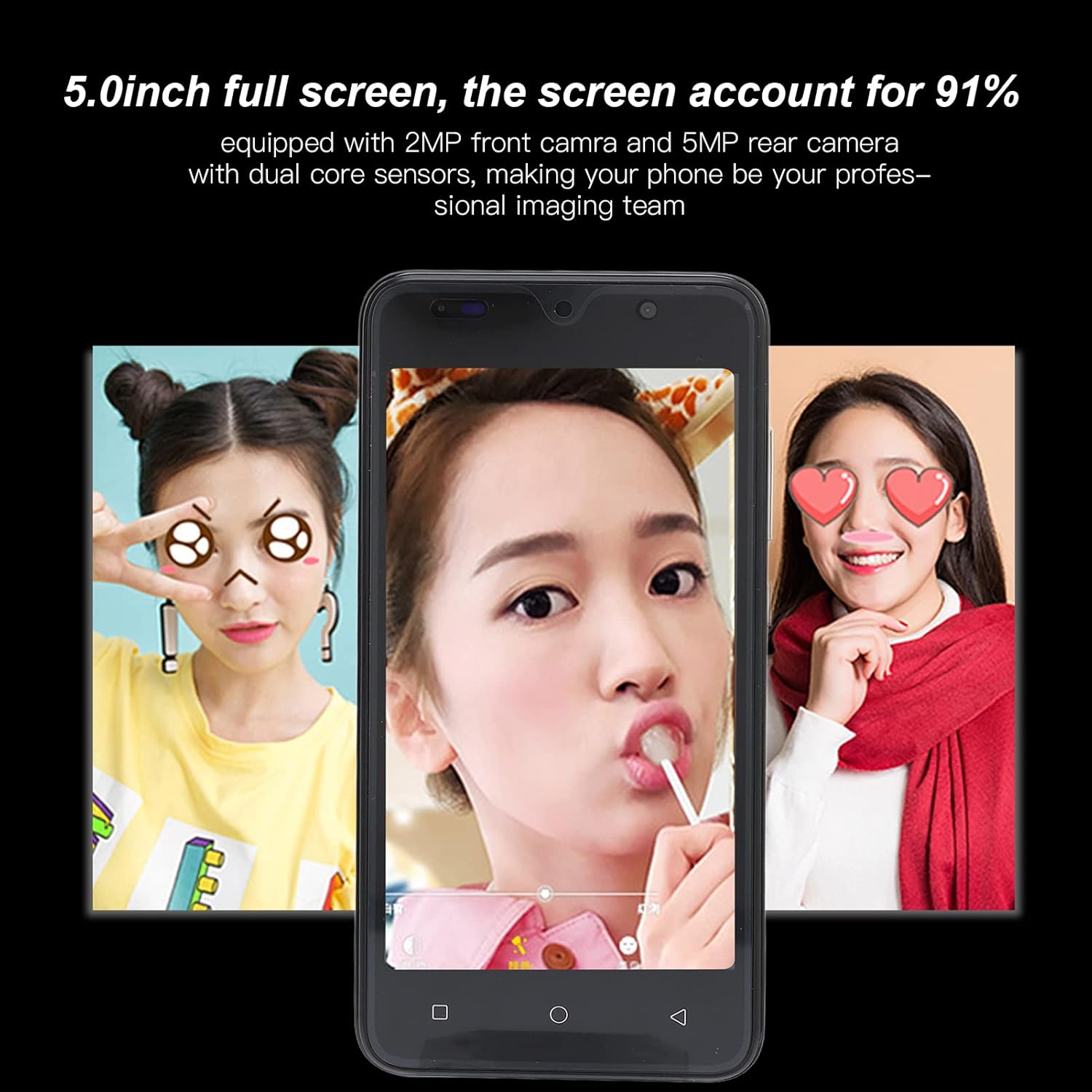
Image: Camera interface example on the Jectse 8 Pro.
2.4 Face Recognition
The Jectse 8 Pro features face recognition for unlocking the device.
- Go to 'Settings' > 'Security' > 'Face Recognition'.
- Follow the on-screen prompts to register your face.
- Once registered, you can unlock your phone by looking at the front camera.
2.5 Connectivity
The phone supports various connectivity options:
- Wi-Fi: Connect to wireless networks for internet access.
- Bluetooth: Pair with other Bluetooth-enabled devices like headphones or speakers.
- Mobile Data: Utilize 2G/3G networks (WCDMA 850/2100, GSM 850/900/1800/1900) for internet access when Wi-Fi is unavailable.
- FM Radio: Listen to local radio stations.
3. Maintenance and Care
Proper care ensures the longevity and optimal performance of your device.
3.1 Battery Care
- Avoid fully discharging the 2200mAh lithium battery frequently.
- Use only the provided USB cable and a compatible charger.
- Do not expose the phone to extreme temperatures, as this can degrade battery performance.
3.2 Cleaning the Device
- Use a soft, lint-free cloth to clean the screen and body of the phone.
- Avoid using harsh chemicals or abrasive materials.
- Do not spray cleaners directly onto the phone.
3.3 General Device Protection
- Utilize the provided protective case and screen film to guard against scratches and minor impacts.
- Keep the phone away from water and excessive moisture.
- Avoid dropping the device.
4. Troubleshooting
This section addresses common issues you might encounter with your Jectse 8 Pro.
4.1 Device Not Powering On
- Ensure the battery is charged. Connect the phone to a charger and wait a few minutes before attempting to power it on again.
- If the battery is extremely low, it may take several minutes of charging before the device responds.
4.2 Network Connectivity Issues
- Verify that your SIM card is correctly inserted and activated with your carrier.
- Check that your phone card supports the device's frequency bands: GSM 850/900/1800/1900MHz and WCDMA 850/2100MHz for 3G.
- Restart the phone.
- Toggle Airplane Mode on and off.
4.3 Slow Performance or App Crashes
- Close unnecessary background applications.
- Clear cache for problematic applications in 'Settings' > 'Apps'.
- Ensure sufficient storage space is available. The phone has 32GB ROM, expandable up to 128GB.
- Restart the device periodically to refresh the system.
4.4 Face Recognition Not Working
- Ensure adequate lighting conditions.
- Clean the front camera lens.
- Re-register your face in the security settings.
5. Product Specifications
Detailed technical specifications for the Jectse 8 Pro Unlocked Cell Phone.
| Feature | Specification |
|---|---|
| Model | 8 Pro |
| Screen | 5.0 inch HD+ Full Screen |
| Resolution | 854x480 |
| Operating System | For Android 6 |
| CPU | MTK6799 Quad Core |
| RAM | 2GB |
| ROM | 32GB |
| Expandable Storage | Supports up to 128GB (Small Memory Card Slot) |
| SIM Card Type | 2x nano SIM Card Slots |
| Network Standard | 2G/3G (WCDMA 850/2100, GSM 850/900/1800/1900) |
| Front Camera | 2MP, f/2.0 Aperture, Fixed Focus |
| Rear Camera | 5MP, f/1.8 Aperture, Auto Focus |
| Battery | 2200mAh Lithium Battery (Built-In) |
| Interface Type | 1x microUSB (Charging), 1x 3.5mm (Audio) |
| Connectivity | Wi-Fi, Bluetooth, FM |
| Security Features | Face Recognition |
| Material | ABS, Glass |
| Item Weight | Approx. 295g (10.41oz) |
| Color | Green |

Image: Rear view of Jectse 8 Pro phones in multiple colors.
6. Warranty and Support
For any questions or issues not covered in this manual, please refer to the following support information.
6.1 Customer Support
Jectse is committed to providing quality support. If you encounter any problems with your unlocked mobile phone, please contact the seller or manufacturer directly. They will assist you within 24 hours and provide a comprehensive solution.
6.2 Warranty Information
Specific warranty details are typically provided at the point of purchase or within separate warranty documentation. Please retain your proof of purchase for any warranty claims.