
1. Introduction
This manual provides detailed instructions for the proper use, setup, operation, and maintenance of your Jectse Mini Integrated 2D USB Wired Barcode Scanner. Please read this manual thoroughly before using the device to ensure optimal performance and longevity. Keep this manual for future reference.
2. Product Overview and Features
The Jectse Mini Integrated 2D USB Wired Barcode Scanner is a compact and efficient device designed for various point-of-sale and inventory management applications. It features advanced scanning technology and user-friendly operation.
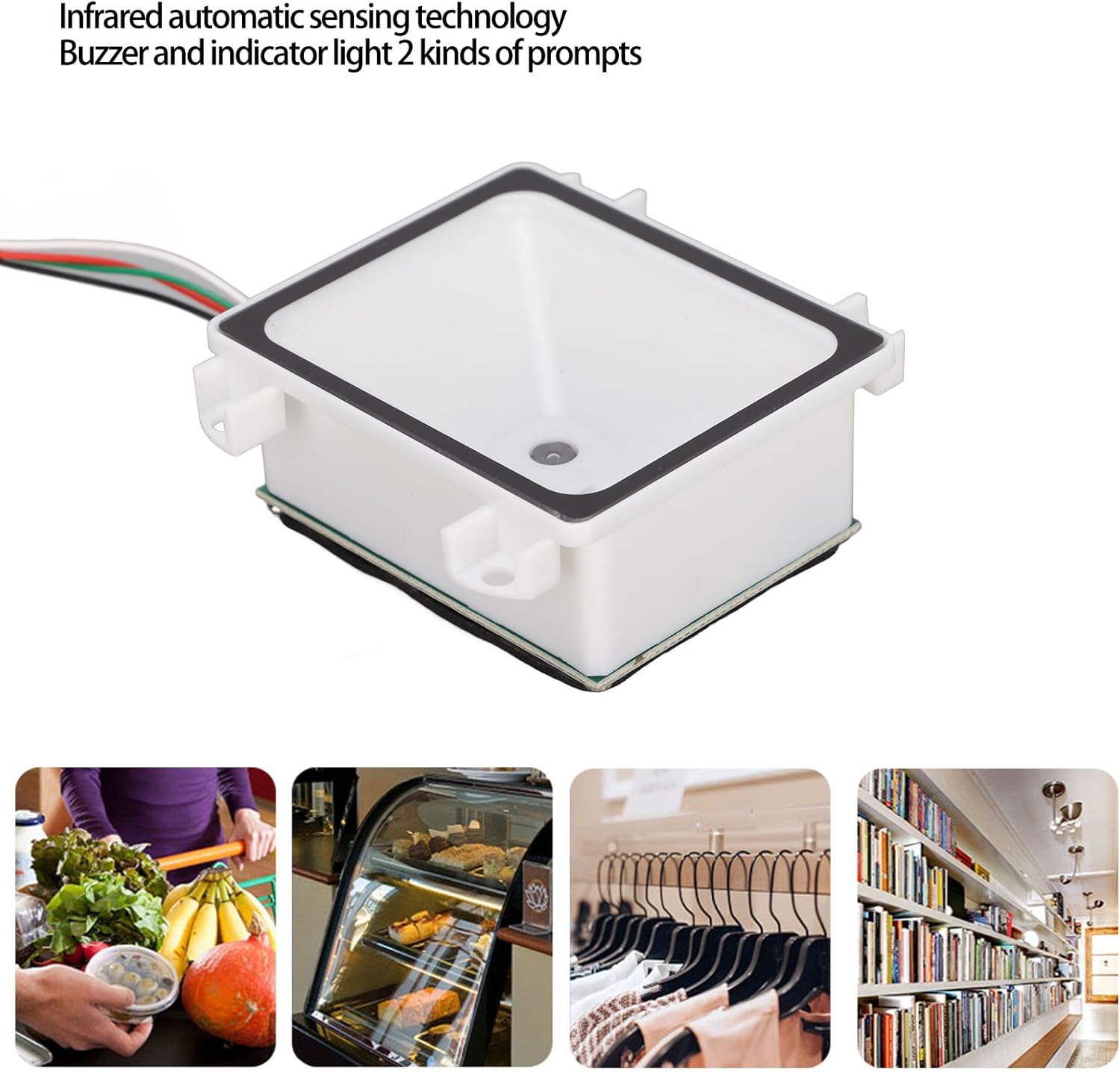
Image: The Jectse Mini Barcode Scanner highlighting its infrared automatic sensing technology and dual prompt system (buzzer and indicator light).
Key Features:
- Infrared Automatic Detection: The scanner utilizes infrared automatic detection technology. It activates automatically from standby mode when an item is moved into its scanning window, then reads and transmits the barcode data to your connected device.
- Wide Compatibility: Connects via a standard USB cable and is compatible with various operating systems including Windows XP, Windows 7, Windows 8, Windows 10, OS X, and Linux.
- Extensive Barcode Support: Supports a broad range of 1D and 2D barcode types, including EAN, UPC, Codabar, Interleaved 2 of 5, ITF 6, ITF 14, ISBN, ISSN, Plessey, GS1 Databar, Standard 25, QR Coding, and PDF417.
- Plug and Play: Designed for ease of use, the scanner is plug and play, requiring no software or application installation.
- Durable Construction: Constructed from ABS material for durability.
- User Feedback: Provides feedback through a built-in buzzer and an indicator light for successful scans and operational status.
3. Specifications
Refer to the following table for detailed technical specifications of the Jectse Mini Integrated 2D USB Wired Barcode Scanner.

Image: Dimensional diagram of the Jectse Mini Barcode Scanner.
| Feature | Specification |
|---|---|
| Item Type | Barcode Scanner |
| Material | ABS |
| Size (L x W x H) | Approx. 61 x 48 x 24 mm (2.4 x 1.9 x 0.9 inches) |
| Interface | USB |
| Decoding Accuracy | 4 mil |
| Sensor | CMOS 640 x 480 |
| Screen Barcode Reading | Supported |
| Scanning Speed | 500 times per second |
| Print Contrast | 25% |
| Prompt Mode | Buzzer, Indicator Light |
| Scanning Method | Continuous Automatic, Automatic Induction |
| Decoding Capability | Standard one-dimensional coding, QR coding, PDF417 |
| Manufacturer | Jectse |
| Model Number | Jectseeswgkbu18d2183 |
| Connectivity Technology | USB |
| Power Source | Electric Cable |
| Country of Origin | China |
4. Setup Instructions
Follow these steps to set up your Jectse Mini Barcode Scanner:
- Unpack the Scanner: Carefully remove the barcode scanner and its USB cable from the packaging.
- Connect the USB Cable: Insert the USB cable into the designated port on the barcode scanner.
- Connect to Computer: Plug the other end of the USB cable into an available USB port on your computer or host device.
- System Recognition: The scanner is designed for plug-and-play operation. Your operating system (Windows XP/7/8/10, OS X, Linux) should automatically detect and install the necessary drivers. No additional software installation is typically required.
- Verify Connection: Once connected, the scanner's indicator light may illuminate, signaling it is powered on and ready for use.

Image: The barcode scanner in a retail environment, demonstrating its compatibility with various operating systems.
5. Operating Instructions
The Jectse Mini Barcode Scanner is designed for simple and efficient barcode reading.
- Automatic Induction: The scanner features an infrared automatic detection module. When an object (e.g., a product with a barcode) is placed within the scanning window, the scanner will automatically activate from standby mode.
- Positioning the Barcode: Place the barcode directly in front of the scanner's window. Ensure the entire barcode is visible to the scanner's sensor.
- Scanning: The scanner will automatically read the barcode. A successful scan will be indicated by a short beep from the buzzer and a flash of the indicator light. The decoded data will be transmitted to your connected computer or POS system as keyboard input.
- Scanning from Screens: The scanner supports reading barcodes directly from digital displays, such as mobile phone screens or computer monitors. Position the screen barcode clearly in front of the scanner's window.
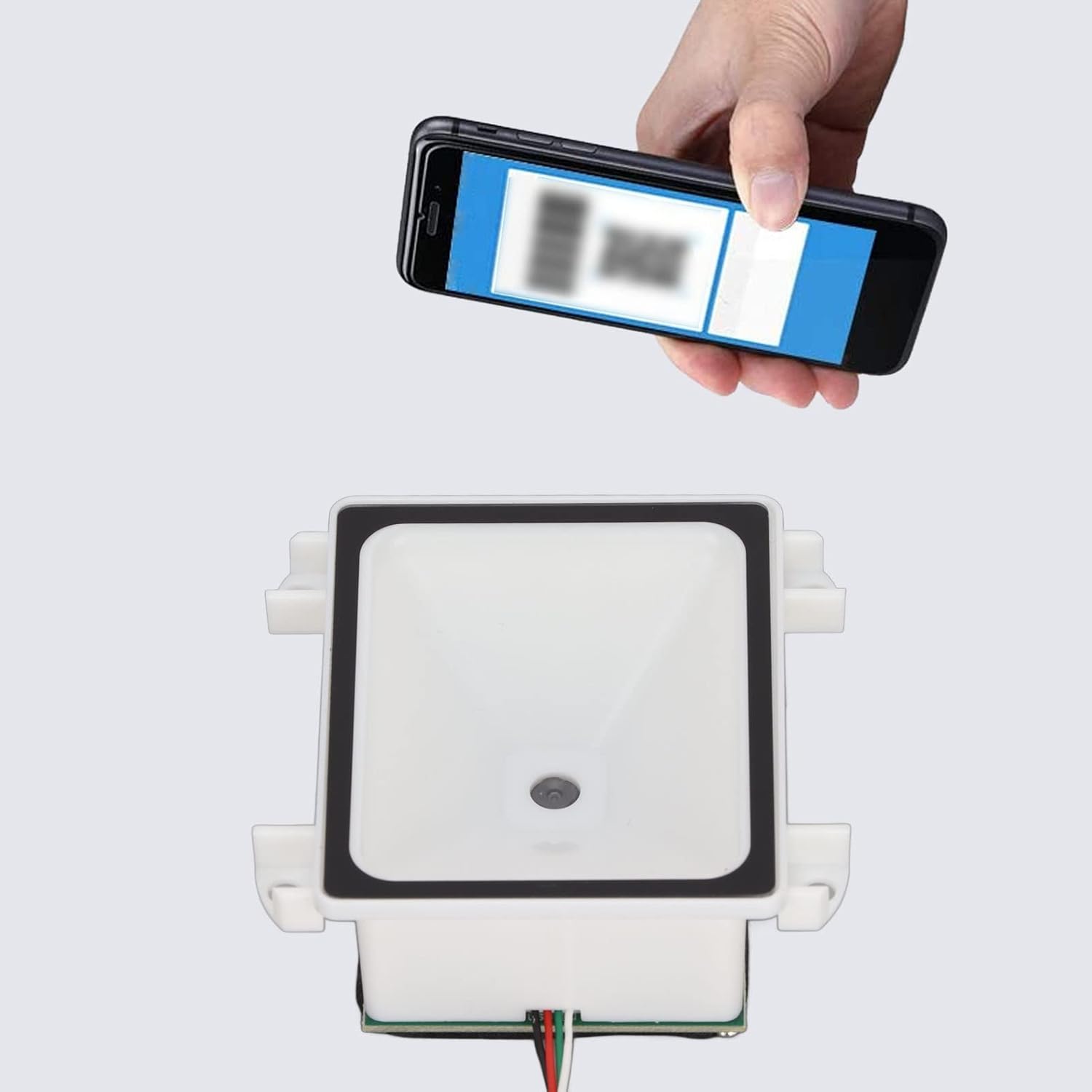
Image: Demonstrating the scanner's ability to read barcodes from a mobile phone screen.
6. Maintenance
Proper maintenance ensures the longevity and optimal performance of your barcode scanner.
- Cleaning: Regularly clean the scanning window with a soft, lint-free cloth. For stubborn dirt, slightly dampen the cloth with water or a mild, non-abrasive cleaner. Avoid using harsh chemicals or abrasive materials that could scratch the window.
- Storage: When not in use, store the scanner in a clean, dry environment away from direct sunlight, extreme temperatures, and excessive dust.
- Cable Care: Avoid bending or twisting the USB cable excessively. Do not pull the cable to disconnect the scanner; always grasp the plug.
- Avoid Drops and Impacts: While the scanner is made of durable ABS material, avoid dropping it or subjecting it to strong impacts, which could damage internal components.
7. Troubleshooting
If you encounter issues with your Jectse Mini Barcode Scanner, refer to the following common troubleshooting steps:
- Scanner Not Powering On:
- Ensure the USB cable is securely connected to both the scanner and the computer.
- Try connecting the scanner to a different USB port on your computer.
- Test the scanner on another computer to rule out a computer-specific issue.
- Scanner Not Reading Barcodes:
- Ensure the barcode is clean, undamaged, and clearly printed.
- Verify the barcode is positioned correctly within the scanning window.
- Check if the scanning window is clean and free from obstructions or smudges.
- Confirm that the barcode type is supported by the scanner (refer to Section 2: Product Overview and Features).
- Adjust the distance between the barcode and the scanner.
- No Data Transmission to Computer:
- Ensure the scanner is properly recognized by your operating system (check Device Manager on Windows or System Information on OS X/Linux).
- Confirm that the application you are using (e.g., text editor, POS software) is active and ready to receive input.
- Buzzer or Indicator Light Not Working:
- If the scanner is otherwise functioning, this may indicate a minor issue with the feedback system. If it affects usability, contact support.
If these steps do not resolve the issue, please contact customer support for further assistance.
8. Warranty and Support
Information regarding specific warranty coverage for the Jectse Mini Integrated 2D USB Wired Barcode Scanner is not available in this document. Please refer to your purchase documentation or contact the retailer for details on warranty terms and conditions.
For technical support or inquiries, please contact the vendor or retailer from whom you purchased the product. Keep your purchase receipt and model number (Jectseeswgkbu18d2183) readily available when seeking support.