1. Introduction
This manual provides detailed instructions for the setup, operation, and maintenance of your Generic G20S PRO BT Universal Voice Remote Control. This device is designed to enhance your control experience for Android TV boxes, media players, and other compatible devices through both 2.4G wireless and Bluetooth 5.0 connectivity.

Figure 1: G20S PRO BT Remote Control
Key Features:
- Voice Input: Integrated high-fidelity microphone for voice search and input.
- Dual Connectivity: Supports 2.4G wireless (via USB dongle) and Bluetooth 5.0.
- Air Mouse Function: Built-in 6-axis gyroscope for intuitive cursor control.
- Backlight: Illuminated buttons for visibility in low-light conditions.
- IR Learning: Two programmable infrared learning buttons to control other devices.

Figure 2: G20S PRO BT Feature Overview
2. Setup
2.1 Package Contents
Before proceeding, ensure all items are present:
- G20S PRO BT Universal Voice Remote Control
- USB Nano Receiver (for 2.4G wireless connection)
- User Manual

Figure 3: Product Package Contents
2.2 Battery Installation
- Open the battery compartment cover on the back of the remote control.
- Insert two AAA batteries (not included), ensuring correct polarity (+/-).
- Close the battery compartment cover securely.
2.3 Connecting via 2.4G Wireless
- Insert the USB Nano Receiver into an available USB port on your Android TV box, media player, or compatible device.
- The system should automatically detect and install the necessary drivers.
- The remote control is now ready for use via 2.4G wireless.
2.4 Connecting via Bluetooth 5.0
For Bluetooth connection, ensure your device supports Bluetooth 5.0.
- On your device (e.g., Android TV box), navigate to the Bluetooth settings menu.
- Enable Bluetooth and search for new devices.
- On the G20S PRO BT remote, press and hold the OK button and the Return button simultaneously for a few seconds until the indicator light flashes rapidly. This clears previous pairing information and puts the remote into pairing mode.
- Select "G20S Pro" from the list of available devices on your screen.
- Confirm the pairing. The indicator light on the remote will stop flashing and remain solid for a moment, then turn off, indicating a successful connection.
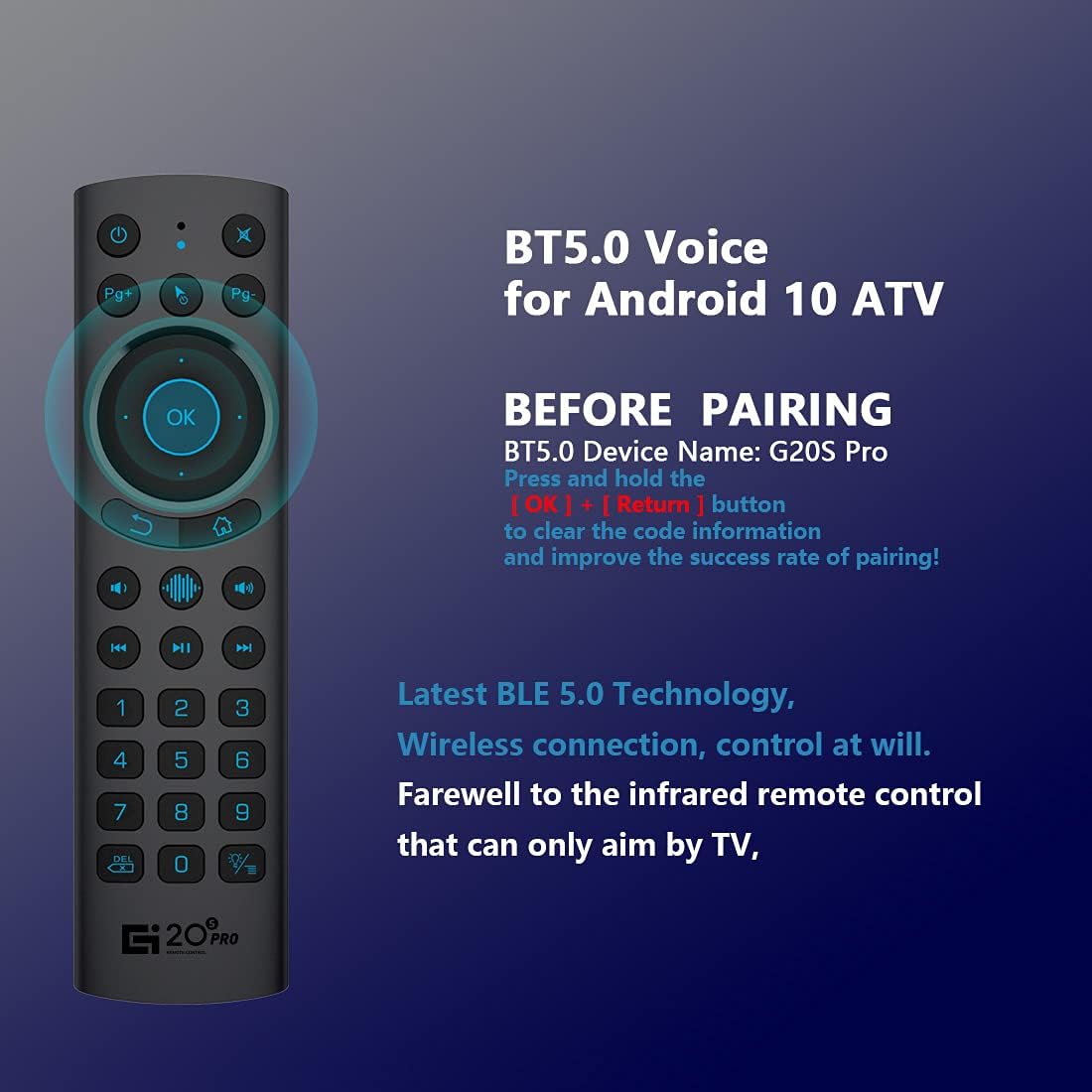
Figure 4: Bluetooth Pairing Instructions
2.5 IR Learning Function
The remote features two IR learning buttons (Power and Mute) to control other infrared devices.
- Press and hold the Power button on the G20S PRO BT remote for 3 seconds. The indicator light will flash rapidly, then remain solid.
- Position the G20S PRO BT remote and your original IR remote control head-to-head, approximately 1-3 cm apart.
- Press the button on your original IR remote that you wish to learn (e.g., Power button). The indicator light on the G20S PRO BT remote will flash three times and then remain solid, indicating successful learning.
- Repeat for the Mute button if desired.
- Press any other button on the G20S PRO BT remote to exit IR learning mode.
3. Operating Instructions
3.1 Button Functions Overview

Figure 5: G20S PRO BT Button Layout and Functions
- Power: Turns the device on/off (IR learning).
- Mute: Mutes/unmutes audio (IR learning).
- Mic: Activates voice input.
- Indicator: Status light.
- Mouse On/Off: Toggles air mouse function.
- Pg+ / Pg-: Page Up / Page Down.
- Navigation Keys (Up/Down/Left/Right): Navigates menus.
- OK: Enter / Mouse Left Click.
- Return: Back / Mouse Right Click.
- Home: Returns to the home screen.
- Open Google Voice Assistant: Dedicated button for voice assistant.
- Volume - / Volume +: Adjusts volume.
- Play/Pause: Controls media playback.
- Previous / Next: Skips media tracks.
- Number Pad (0-9): Numeric input.
- DEL: Backspace.
- Menu: Press and hold to turn the backlight on/off.
3.2 Voice Input Function
Press the Mic button to activate the voice input function. Speak clearly into the remote's microphone. This function is primarily designed for the built-in voice input search box or compatible applications on your device. It does not function as a universal voice assistant across all applications.
3.3 Air Mouse Function
The G20S PRO BT remote features a 6-axis gyroscope, allowing you to control the on-screen cursor by moving the remote in the air. Press the Mouse On/Off button to activate or deactivate the air mouse.
Adjusting Cursor Speed:
To adjust the air mouse cursor speed:
- Press and hold the OK button.
- While holding OK, press the Volume + button to increase speed or Volume - button to decrease speed.
- Release the OK button.
3.4 Backlight Operation
To turn the button backlight on or off, press and hold the Menu button (located below the '0' key) for approximately 3 seconds.
4. Maintenance
- Keep the remote control dry. Avoid exposure to moisture or liquids.
- Clean the remote with a soft, dry cloth. Do not use abrasive cleaners or solvents.
- If the remote will not be used for an extended period, remove the batteries to prevent leakage.
- Replace batteries when the low battery indicator appears or when functionality degrades. The remote indicates low battery when power is below 2V.

Figure 6: Remote Control Construction
5. Troubleshooting
- Remote not responding: Ensure batteries are correctly installed and charged. Check if the USB Nano Receiver is securely plugged in for 2.4G mode, or if Bluetooth is paired correctly.
- Voice search not working: The voice search function is designed for the built-in voice input search box or specific applications. It does not function across all apps or as a universal voice assistant like Alexa.
- Compatibility issues: This remote is generally compatible with Android OS devices, including Android TV boxes and mini projectors. However, some specific brands of Android TV and Google-certified TV boxes may have compatibility limitations. Please verify compatibility with your device's manufacturer if issues arise.
- Incorrect button mapping: In some specific device configurations (e.g., certain Google TV setups), buttons like 'OK' or 'Voice' may perform unexpected actions. This can be due to device-specific software interpretations. Check your device's settings for remote control customization options.
- Air mouse erratic or unresponsive: Ensure the remote has a clear line of sight and is not obstructed. Recalibrate by turning the air mouse off and on. Check battery level.
- Low battery indication: If the indicator light flashes or the remote becomes unresponsive, replace the AAA batteries.
6. Specifications
| Feature | Specification |
|---|---|
| Product Dimensions | 6.3 x 1.65 x 0.71 inches (160 x 42 x 18 mm) |
| Item Weight | 2.08 ounces (55g) |
| Connectivity Mode | 2.4G Wireless & Bluetooth 5.0 |
| Frequency | 2400-2483.5MHz |
| Working Current | <15mA |
| Standby Current | <20uA |
| Operating Voltage | 3.0V |
| Battery Type | 2 x AAA batteries (not included) |
| Control Distance | >10M |
| Compatible Devices | Android TV Box, Mini Projector, Set Top Box |
| Supported System | Android OS |

Figure 7: Product Dimensions and Specifications

Figure 8: Product Application Examples
7. Warranty and Support
The Generic G20S PRO BT Universal Voice Remote Control comes with an unconditional 30-day money-back guarantee and lifetime after-sales service. For any questions, concerns, or support needs, please contact the seller or manufacturer directly.


