
1. Introduction
Thank you for choosing the VANBAR 4K+1080P Split Mirror Dash Cam. This advanced device is designed to provide comprehensive vehicle monitoring and driving assistance, ensuring your safety and peace of mind on the road. Please read this manual carefully before using the product to ensure proper installation and operation.
2. Key Features
- Ultra HD 4K Front & 1080P Rear Recording: Captures crystal-clear footage with a 4K (3840*2160P) front camera and 1080P rear camera, providing detailed evidence.
- 11-inch Digital Inner Mirror: Offers a wide field of view, approximately 3 times wider than traditional rearview mirrors, reducing blind spots.
- Super Night Vision with IMX415 Sensor: Equipped with an F1.4 bright lens and industry-leading IMX415 sensor for superior low-light performance and clear night recordings.
- HDR (High Dynamic Range) Technology: Enhances visibility in challenging lighting conditions, capturing both bright and dark areas clearly.
- BSD (Blind Spot Detection) System: Detects obstacles in blind spots and alerts the driver with visual frames (blue for safe, yellow for dangerous) and audible warnings.
- LCA (Lane Change Assist) System: Alerts the driver to rapidly approaching vehicles in adjacent lanes with orange indicators on the monitor and audible warnings.
- Built-in GPS Function: Records driving speed and direction, allowing for playback of driving trajectories on a computer.
- 24-Hour Parking Monitoring: Automatically records when an impact is detected while parked, protecting against vandalism and hit-and-runs.
- G-Sensor & Loop Recording: Automatically saves impact footage to a dedicated folder and overwrites the oldest files when the memory card is full.
- Voice Control: Conveniently operate various functions using voice commands.
- Reverse Interlock Function: Automatically displays the rear camera view with adjustable guidelines when reversing.
- 128GB Micro SD Card Included: High-durability Class 10 card for reliable recording without storage worries.
- Type-C Power Connection: Ensures faster charging, improved stability, and enhanced durability.
3. Package Contents
Please check the contents of your package. If any items are missing or damaged, please contact customer support.
- VANBAR 4K Drive Recorder Main Unit (Mirror Type)
- Waterproof Rear Camera
- 4K Front Camera
- 128GB Micro SD Card (Class 10)
- Cigarette Lighter Power Cable
- Step-down Cable (for 24-hour parking monitoring)
- GPS Module
- Fixing Bands (2 sizes)
- Anti-Glare Film
- Cleaning Set
- User Manual
- Warning Label
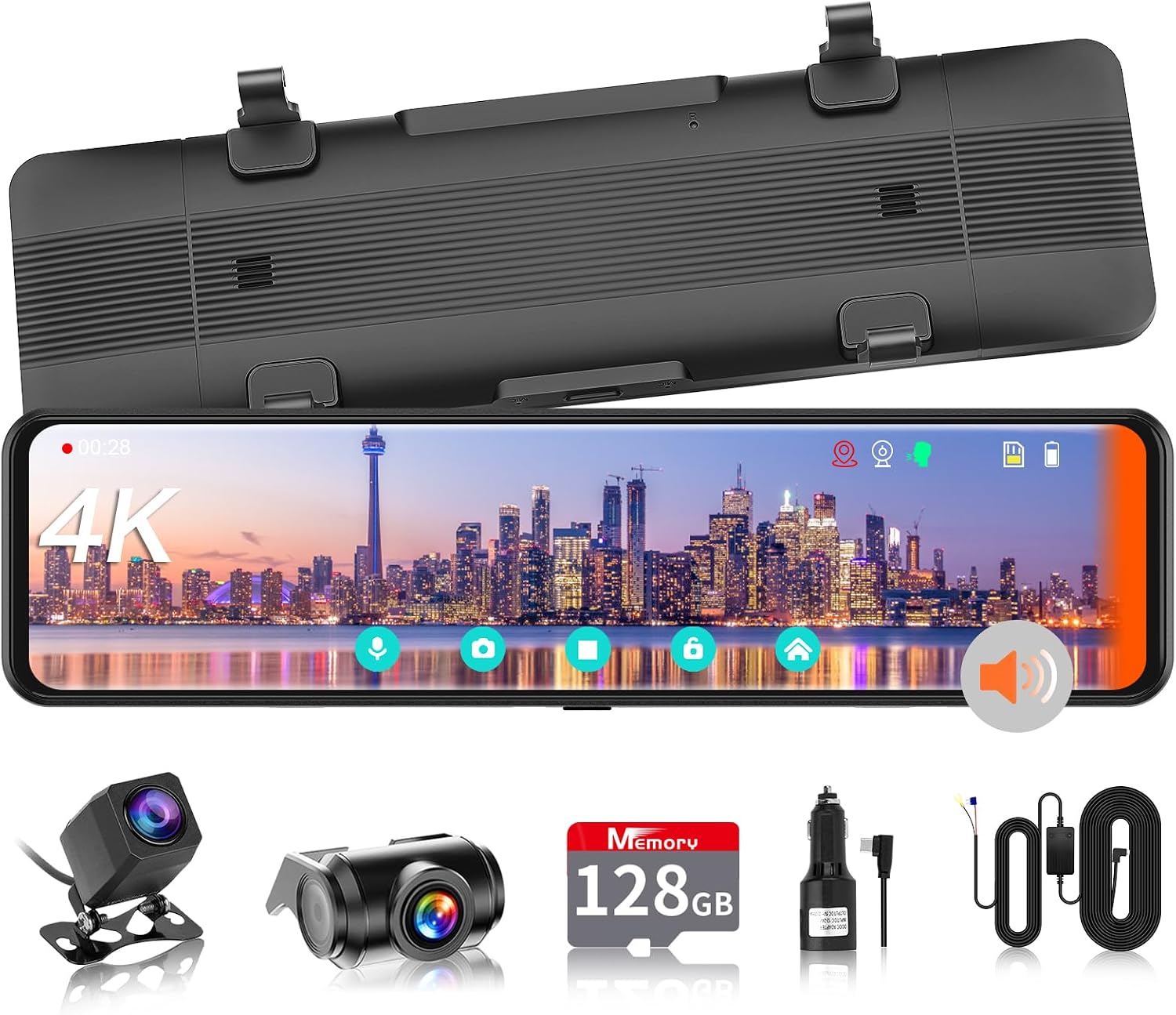
Figure 3.1: Main unit, front camera, rear camera, 128GB SD card, car charger, and cables.

Figure 3.2: Comprehensive view of all components included in the package.
4. Setup
4.1 Installation Overview
The VANBAR dash cam is a mirror-type split system, allowing flexible installation of the front camera to avoid interference with vehicle ADAS systems or other obstructions.

Figure 4.1: Front camera split design for optimal placement.
4.2 Basic Installation Steps
- Mount the Main Unit: Securely attach the mirror dash cam unit over your existing rearview mirror using the provided fixing bands. Ensure it is centered and stable.
- Install the Front Camera: Connect the front camera to the main unit. Mount the front camera on your windshield, ideally near the top center, ensuring it has a clear view of the road ahead. Route the cable neatly along the windshield trim.
- Install the Rear Camera: Connect the rear camera to the main unit. Mount the rear camera on the rear windshield or outside the vehicle (if waterproof) for a clear view of the rear. Route the cable carefully to the main unit.
- Connect Power: Insert the 128GB Micro SD card into the main unit. Connect the cigarette lighter power cable to the main unit and your vehicle's cigarette lighter socket. For 24-hour parking monitoring, use the included step-down cable and connect it to your vehicle's fuse box (ACC and B+).
- GPS Module Installation: Connect the GPS module to the main unit and place it on your dashboard or another location with a clear view of the sky for optimal signal reception.
- Apply Anti-Glare Film: If desired, apply the anti-glare film to the mirror screen to reduce reflections during daytime driving.
5. Operating Instructions
5.1 Power On/Off
The device will automatically power on and start recording when your vehicle's ignition is turned on. It will power off automatically when the ignition is turned off.
5.2 Touch Screen Interface
The 11-inch touch screen allows for easy navigation and setting adjustments. The new UI design provides intuitive access to various functions.

Figure 5.1: Main screen and settings menu.
5.3 Recording Modes
- Continuous Recording (Loop Recording): The device continuously records video in segments. When the memory card is full, the oldest unlocked files will be overwritten automatically.
- Impact Recording (G-Sensor): The built-in G-sensor detects sudden impacts or collisions. When an impact is detected, the current video segment is automatically locked and saved to a dedicated folder, preventing it from being overwritten.
- Parking Monitoring: With the step-down cable connected, the dash cam can monitor your vehicle 24/7. If an impact or vibration is detected while parked, it will automatically start recording.

Figure 5.2: G-sensor, 24-hour parking monitoring, and loop recording functions.
5.4 Driving Assistance Systems (BSD & LCA)
The dash cam integrates advanced BSD and LCA features to enhance driving safety.
- Blind Spot Detection (BSD): When an obstacle (vehicle or pedestrian) is detected in your blind spot, a visual frame will appear on the screen (blue for safe, yellow for dangerous) accompanied by an audible warning.
- Lane Change Assist (LCA): If a vehicle rapidly approaches from behind in an adjacent lane, an orange indicator will appear on the monitor (left or right, depending on the approaching vehicle's direction) with an audible warning.
Note: Both BSD and LCA detection speed and range can be adjusted in the settings based on your driving habits.

Figure 5.3: Visual representation of BSD and LCA functions.
5.5 GPS Tracking
The built-in GPS module records your vehicle's speed and driving direction along with the video footage. You can review your driving trajectory on a computer using compatible software.

Figure 5.4: GPS tracking playback on a computer.
5.6 Reverse Interlock and Adjustable Guidelines
When you shift into reverse, the rear camera view will automatically display on the screen, and the camera angle will adjust downwards. You can customize the length and angle of the parking guidelines to suit your vehicle and preference. The adjusted angle will be saved for future use.
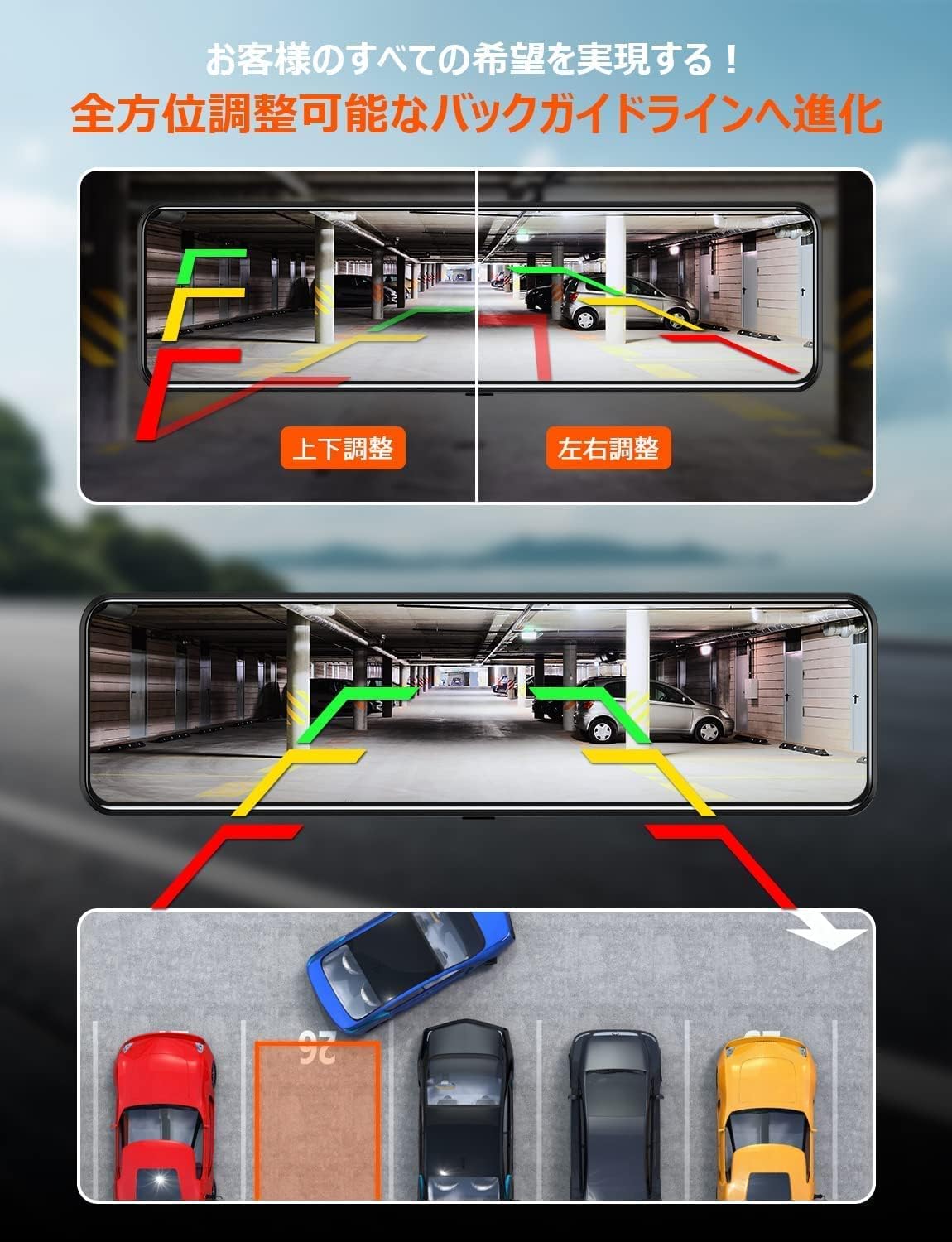
Figure 5.5: Adjustable backup guidelines for precise parking.
5.7 Voice Control
The device supports voice commands for hands-free operation. Refer to the detailed instructions in the manual for a list of supported commands.
6. Maintenance
- Cleaning: Use a soft, dry cloth to clean the screen and camera lenses. Do not use abrasive cleaners or solvents.
- Memory Card: Periodically format the 128GB Micro SD card (at least once a month) to ensure optimal performance and prevent data corruption. Back up any important files before formatting.
- Temperature: Avoid exposing the device to extreme temperatures, as this can affect its performance and lifespan.
- Firmware Updates: Check the official VANBAR website periodically for firmware updates to ensure your device has the latest features and improvements.
7. Troubleshooting
| Problem | Possible Cause | Solution |
|---|---|---|
| Device does not power on. | No power supply; loose connection. | Check power cable connection; ensure vehicle ignition is on. |
| Recording stops or freezes. | Memory card error; card full; low-quality card. | Format the memory card; use the included Class 10 128GB card. |
| Poor video quality. | Dirty lens; protective film still on; incorrect resolution settings. | Clean lenses; remove protective film; check video resolution settings. |
| GPS signal not found. | GPS module not connected; obstructed view of sky. | Ensure GPS module is connected and placed in an open area. |
| BSD/LCA not working. | Feature disabled; sensor obstruction; incorrect settings. | Enable feature in settings; ensure cameras are clean and unobstructed; adjust detection range/speed. |
| Screen flickering. | Power supply issue; faulty unit. | Check power connection; try a different power source; contact support if problem persists. |
8. Specifications
| Feature | Detail |
|---|---|
| Model Name | DC109-5-18-1426 |
| Screen Size | 11 inches |
| Display Type | LCD |
| Video Capture Resolution | Front: 2160p (4K), Rear: 1080p |
| Sensor | IMX415 CMOS Sensor |
| Lens Aperture | F1.4 |
| Field of View | 150-degree wide-angle (Rear Camera) |
| Memory Card | 128GB Micro SD (Class 10, included) |
| Connectivity | Type C |
| Mounting Type | Adhesive |
| Color | Black |
| Item Weight | 1.06 kilograms |
| Package Dimensions | 33.5 x 12 x 7.7 cm |
9. Warranty & Support
9.1 Warranty Information
This VANBAR product comes with a 3-year warranty from the date of purchase. Please retain your proof of purchase for warranty claims. The warranty covers manufacturing defects and malfunctions under normal use. It does not cover damage caused by misuse, accidents, unauthorized modifications, or natural disasters.
9.2 Customer Support
For any questions, technical assistance, or warranty claims, please contact our customer support team. You can find our contact information on the last page of the included instruction manual. We are committed to providing 1000% dedicated support before, during, and after your purchase.
Additionally, if you participate in our promotional activities, you may be eligible for a free in-car mounting bracket for the rear camera or a free extension cable. Please contact us for details.
