
RisoPhy 60% RGB Wireless Mechanical Keyboard
RisoPhy 60% RGB Wireless Mechanical Keyboard User Manual
Model: 60% RGB Wireless Mechanical Keyboard | Brand: RisoPhy
Introduction
This manual provides detailed instructions for the setup, operation, and maintenance of your RisoPhy 60% RGB Wireless Mechanical Keyboard. Designed for versatility and performance, this keyboard offers multiple connectivity options, customizable lighting, and a compact design suitable for various computing environments.
Key Features
- Three-Mode Connectivity: Supports 2.4G wireless, Bluetooth, and wired (Type-C) connections. Connect up to 5 devices simultaneously.
- Customizable RGB Backlighting: Over 20 backlight effects and single-color modes. Adjustable lighting speed and brightness.
- Low-Profile Blue Switches: Provides tactile feedback with a clicky sound, optimized for accuracy and quick response.
- Compact 60% Layout: 68-key design with independent arrow keys, offering more desk space for mouse movement.
- Durable Construction: Features a super-light aluminum alloy panel with a matte-finish texture.
- Programmable Keys: Utilize software to set macros, rebind key functions, and customize lighting (Windows and wired mode only).
- Wide Compatibility: Works with Windows 7/8/10/XP/VISTA/95/98/XP/2000/ME/VISTA, Mac OS, Xbox, Laptop, PC, Gaming Console, phone, and iPad.
- Integrated Volume Knob: Conveniently adjust volume and mute/unmute audio directly from the keyboard.
Package Contents
Please ensure all items are present upon unboxing:
- RisoPhy 60% RGB Wireless Mechanical Keyboard
- USB Type-C Cable
- 2.4G USB Receiver
- User Manual
Setup and Connectivity
Your RisoPhy keyboard supports three connection modes: 2.4G wireless, Bluetooth, and wired (USB Type-C).
1. Wired Mode (USB Type-C)
- Connect the provided USB Type-C cable to the keyboard's Type-C port.
- Connect the other end of the cable to a USB port on your computer.
- The keyboard will automatically switch to wired mode and begin charging.
2. 2.4G Wireless Mode
- Locate the 2.4G USB receiver, typically stored in a compartment on the back of the keyboard.
- Plug the 2.4G USB receiver into an available USB port on your computer.
- On the back of the keyboard, slide the switch to the '2.4G' position.
- The keyboard should automatically connect. If not, press Fn + Q to initiate pairing.

Figure 1: RisoPhy 60% RGB Wireless Mechanical Keyboard with 2.4G USB receiver.
3. Bluetooth Mode
The keyboard supports up to three Bluetooth devices (BT1, BT2, BT3).
- On the back of the keyboard, slide the switch to the 'BT' position.
- Press and hold Fn + E (for BT1), Fn + R (for BT2), or Fn + T (for BT3) for 3-5 seconds until the corresponding key (E, R, or T) flashes rapidly. This indicates pairing mode.
- On your device (PC, Mac, iPad, phone), enable Bluetooth and search for available devices.
- Select 'RisoPhy Keyboard' (or similar name) from the list to connect. The flashing light on the keyboard will become solid once connected.
- To switch between paired Bluetooth devices, press Fn + E/R/T briefly.

Figure 2: The RisoPhy keyboard supports multiple connection modes for various devices.
Video 1: Demonstrates the RisoPhy Wireless Mechanical Keyboard's features, including connectivity options and RGB lighting.
Operating Instructions
RGB Backlighting Control
The keyboard features over 20 preset RGB backlight effects and adjustable settings.
- Change Backlight Mode: Press Fn + Backspace to cycle through different RGB lighting effects.
- Adjust Brightness: Press Fn + Up Arrow to increase brightness, Fn + Down Arrow to decrease brightness.
- Adjust Speed: Press Fn + Left Arrow to slow down the effect, Fn + Right Arrow to speed up the effect.
- Single Color Mode: Specific software (Windows only) allows for selection of any single color.
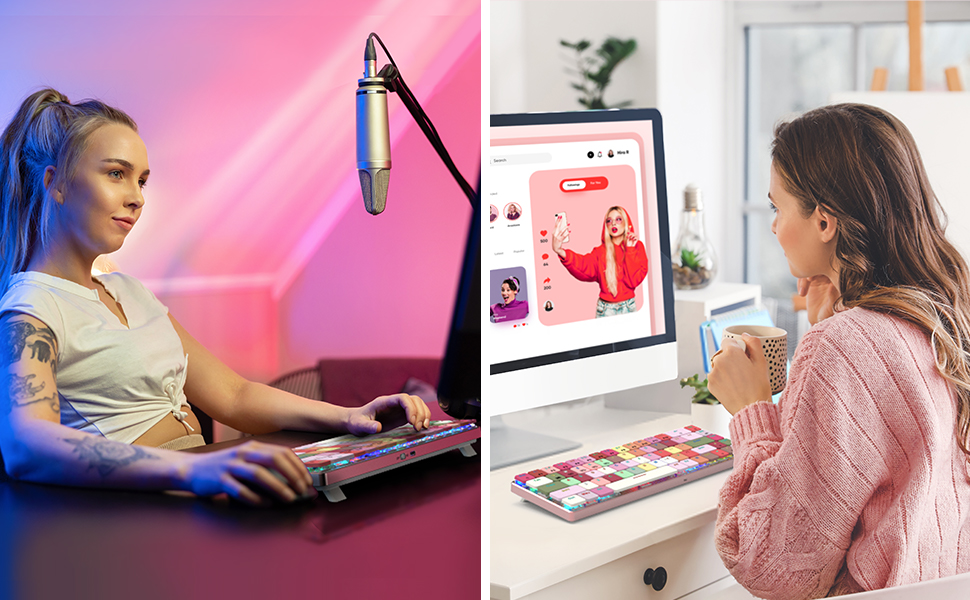
Figure 3: Immersive RGB lighting enhances the typing experience and desktop aesthetics.
Video 2: Demonstrates the RGB lighting effects and typing experience of the keyboard.
Volume Control Knob
The dedicated metal knob on the top right corner provides quick audio control:
- Rotate Clockwise: Increase volume.
- Rotate Counter-clockwise: Decrease volume.
- Press Down: Mute/unmute audio.
Key Functions and Combinations
Many keys have secondary functions accessible via the Fn key. Refer to the keycaps for specific markings.
- Fn + Q/W/E/R/T: Switch between 2.4G wireless (Q) and Bluetooth devices (E, R, T) or wired mode (W).
- Fn + F1-F12: Access multimedia controls and system functions (e.g., volume, play/pause, browser).
- Fn + Win: Lock/unlock the Windows key to prevent accidental presses during gaming.

Figure 4: The keyboard features low-profile blue switches for a comfortable typing experience.
Video 3: Demonstrates the typing sound and feel of the RisoPhy PC430 keyboard, highlighting its linear mechanical red switches.
Software Customization
For advanced customization, including macros, key remapping, and detailed RGB lighting adjustments, dedicated software is available. This software is compatible with Windows operating systems and functions when the keyboard is in wired mode.
- Macro Creation: Assign complex sequences of commands to a single key.
- Key Remapping: Change the function of any key to suit your workflow or gaming style.
- Advanced RGB Control: Fine-tune lighting effects, colors, and patterns beyond the onboard presets.
Please refer to the manufacturer's website for software download and installation instructions.

Figure 5: Customize your keyboard with dedicated software for personalized settings.
Specifications
| Attribute | Value |
|---|---|
| Brand | RisoPhy |
| Model | 60% RGB Wireless Mechanical Keyboard |
| Connectivity Technology | Bluetooth, 2.4G Wireless, USB Type-C Wired |
| Switch Type | Low-Profile Clicky Blue Switch |
| Keyboard Layout | 68 Keys (60% Compact) |
| Backlighting | RGB (20+ modes, 16.8 Million Colors via software) |
| Material | Aluminum, Metal, Polybutylene Terephthalate (PBT Keycaps) |
| Battery | 1 Lithium Polymer battery required (3000mAh) |
| Product Dimensions | 11.42 x 3.66 x 0.79 inches |
| Item Weight | 1.12 pounds |
| Compatible Devices | PC, Laptop, Mac, iPad, Gaming Console, Xbox, Phone |
Maintenance
To ensure the longevity and optimal performance of your RisoPhy keyboard, follow these maintenance guidelines:
- Cleaning: Use a soft, dry cloth to wipe the keyboard surface. For deeper cleaning, use compressed air to remove dust and debris from between the keycaps. Avoid using harsh chemicals or abrasive materials.
- Battery Care: Charge the keyboard using the provided USB Type-C cable. Avoid fully draining the battery frequently to prolong its lifespan.
- Storage: When not in use for extended periods, store the keyboard in a cool, dry place away from direct sunlight and extreme temperatures.
Troubleshooting
If you encounter issues with your keyboard, please try the following solutions:
- Keyboard Not Responding:
- Ensure the keyboard is charged.
- Check the connection mode switch (2.4G, BT, Wired) on the back of the keyboard.
- For 2.4G, ensure the USB receiver is securely plugged in.
- For Bluetooth, ensure your device's Bluetooth is enabled and the keyboard is paired correctly. Try re-pairing if necessary.
- Try connecting the keyboard in wired mode to rule out wireless issues.
- RGB Lights Not Working/Incorrect:
- Ensure the keyboard is powered on.
- Press Fn + Backspace to cycle through modes.
- Adjust brightness using Fn + Up/Down Arrow.
- If using customization software, ensure it is running and settings are applied.
- Keys Not Registering/Double Typing:
- Ensure the keyboard is clean and free of debris under the keycaps.
- If using wireless mode, try moving closer to the receiver/device to reduce interference.
- Test in wired mode to determine if the issue is connectivity-related.
Warranty and Support
RisoPhy offers lifetime product care for your mechanical keyboard. If you experience any issues with your product, you are eligible for a refund or a new replacement. Please contact our customer support team for assistance.
Contact Information: Please refer to the contact details provided on the product packaging or the official RisoPhy website.
Ask a question about this manual
Ask about setup, troubleshooting, compatibility, parts, safety, or missing instructions. Manuals+ will review the question and use this page’s manual context to help answer it.