
1. Introduction
This manual provides essential instructions for the setup, operation, and maintenance of your ASHATA Rino8 Pro Android Smartphone. Please read this guide thoroughly to ensure proper use and to maximize the device's functionality.
2. Package Contents
Verify that all items are present in your product package:
- ASHATA Rino8 Pro Smartphone
- Earphone
- Phone Case
- USB Charging Cable
- Power Adapter (if included, not explicitly listed but common)
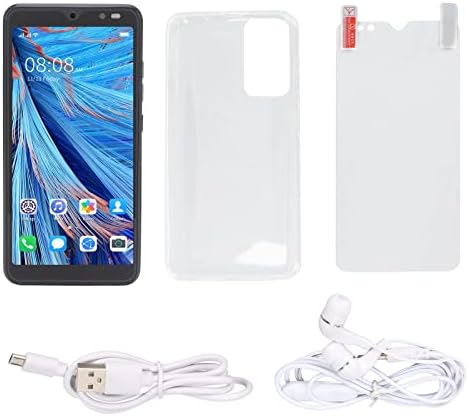
Image: Contents of the ASHATA Rino8 Pro package, including the phone, earphones, phone case, and charging cable.
3. Product Overview
The ASHATA Rino8 Pro is an unlocked Android smartphone designed for ease of use. It features a 5.45-inch HD full screen, a quad-core processor, and dual SIM capabilities.
Key Features:
- Display: 5.45-inch HD Full Screen (854 x 480 resolution)
- Processor: MTK6799 Quad Core CPU
- Memory: 2GB RAM, 32GB ROM (expandable up to 128GB with a Micro SD card)
- Cameras: 2MP Front Camera, 5MP Rear Camera
- Battery: 2200mAh capacity
- Operating System: Android 6
- Connectivity: Dual SIM, Wi-Fi, USB
- Security: Face Recognition
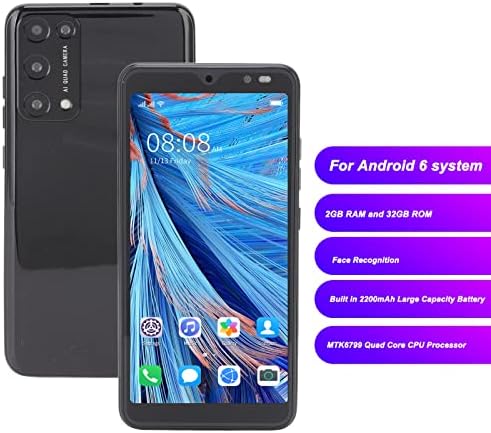
Image: The ASHATA Rino8 Pro phone with callouts indicating its Android 6 system, 2GB RAM, 32GB ROM, Face Recognition, 2200mAh battery, and MTK6799 Quad Core CPU.
4. Setup
4.1 Inserting SIM and Micro SD Cards
- Locate the SIM/Micro SD card tray on the side of the phone.
- Use the provided SIM ejector tool (if applicable) or a small pin to open the tray.
- Carefully place your SIM card(s) and Micro SD card into the designated slots on the tray. Ensure they are correctly oriented.
- Gently push the tray back into the phone until it is flush with the device body.

Image: A close-up view of the phone's side, showing the slots for two SIM cards (SIM1, SIM2) and a Micro SD card (up to 128GB).
4.2 Initial Power On and Setup
- Press and hold the Power button (usually on the right side) until the ASHATA logo appears.
- Follow the on-screen prompts to select your language, connect to a Wi-Fi network, and set up your Google account.
- During setup, you will have the option to configure Face Recognition for quick unlocking.
4.3 Face Recognition Setup
- Navigate to Settings > Security > Face Unlock.
- Follow the on-screen instructions to register your face. Ensure you are in a well-lit area and hold the phone at eye level.
- Once registered, you can unlock your phone by simply looking at the front camera.

Image: A visual representation of the face recognition feature, showing a user's face being scanned by the phone for unlocking.
5. Operating Instructions
5.1 Basic Navigation
- Home Screen: Swipe left or right to access different app pages.
- Notifications: Swipe down from the top of the screen to view notifications and quick settings.
- Recent Apps: Tap the square icon (or swipe up from the bottom, depending on navigation settings) to see recently used applications.
5.2 Making Calls and Sending Messages
- Open the Phone app to make calls. Enter the number or select a contact.
- Open the Messages app to send SMS/MMS.
5.3 Using the Camera
The ASHATA Rino8 Pro features a 2MP front camera and a 5MP rear camera.
- Open the Camera app from your home screen or app drawer.
- Tap the shutter button to take a photo.
- Switch between front and rear cameras using the camera toggle icon.

Image: A visual demonstrating the phone's 2MP front camera and 5MP rear camera capabilities, showing various images captured by the device.
5.4 Connecting to Wi-Fi
- Go to Settings > Wi-Fi.
- Toggle Wi-Fi On.
- Select your desired network from the list and enter the password if prompted.
6. Maintenance
6.1 Battery Charging
Use the provided USB cable and power adapter to charge your phone. Connect the USB cable to the phone's charging port and the adapter to a power outlet. The battery icon on the screen will indicate charging status.

Image: The ASHATA Rino8 Pro screen showing a battery charging indicator at 44.94%, emphasizing its 2200mAh large capacity battery.
6.2 Software Updates
Periodically check for software updates to ensure optimal performance and security. Go to Settings > About phone > System updates.
6.3 Cleaning Your Device
Use a soft, lint-free cloth to clean the screen and body of your phone. Avoid using harsh chemicals or abrasive materials.
6.4 Storage Management
To manage your phone's storage, go to Settings > Storage. You can move files to an inserted Micro SD card to free up internal memory.
7. Troubleshooting
If you encounter issues with your ASHATA Rino8 Pro, refer to the following common solutions:
- Phone Does Not Turn On: Ensure the battery is charged. Connect the phone to its charger and wait a few minutes before attempting to power it on again. If it still doesn't respond, try holding the power button for 10-15 seconds.
- SIM Card Not Recognized: Power off the phone. Re-insert the SIM card(s) carefully, ensuring they are correctly seated in the tray. Power on the phone and check network connectivity. Verify that your SIM card is active with your carrier.
- Slow Performance/Freezing: Close unnecessary background applications. Clear cache from apps (Settings > Apps > [App Name] > Storage > Clear Cache). Consider uninstalling unused apps or moving large files to an SD card to free up internal storage. Restarting the phone can also resolve temporary slowdowns.
- Battery Drains Quickly: Reduce screen brightness. Disable Wi-Fi, Bluetooth, and GPS when not in use. Limit background app refresh. Check battery usage in Settings > Battery to identify power-hungry apps.
- Apps Crashing: Ensure apps are updated to their latest versions. Clear the app's cache or data (Settings > Apps > [App Name] > Storage). If the issue persists, try reinstalling the app.
8. Specifications
| Feature | Specification |
|---|---|
| Model Name | Rino8 Pro |
| Operating System | Android 6 |
| Processor | MTK6799 Quad Core CPU |
| RAM | 2 GB |
| Internal Storage (ROM) | 32 GB |
| Expandable Storage | Up to 128 GB (Micro SD) |
| Screen Size | 5.45 Inches |
| Resolution | 854 x 480 |
| Front Camera | 2 MP |
| Rear Camera | 5 MP |
| Battery Capacity | 2200 Milliamp Hours |
| Connectivity | 2G, 3G Cellular, Wi-Fi, USB |
| SIM Support | Dual SIM |
| Security Features | Face Recognition |
| Dimensions | 9.65 x 6.54 x 3.78 inches (Package) |
| Item Weight | 11.3 ounces |
9. Warranty and Support
For warranty information and customer support, please refer to the documentation provided with your purchase or contact the seller directly. ASHATA is the manufacturer of this product.