
ESR M2
ESR Rebound Series Keyboard Case User Manual
For iPad Air 13-inch (M3/M2) and iPad Pro 12.9-inch (3rd-6th Gen)
Introduction
This manual provides detailed instructions for the proper use and maintenance of your ESR Rebound Series Keyboard Case. Please read this manual thoroughly before using the product to ensure optimal performance and longevity.
Compatibility
This keyboard case is designed for specific iPad models. Please verify your iPad model number before use to ensure compatibility.
- Compatible with: iPad Air 13-inch (M3/M2 2025/2024), iPad Pro 12.9-inch (2022/2021/2020/2018).
- Compatible Model Numbers: A2898, A2899, A2900, A3268, A3269, A3271, A2436, A2437, A2764, A2766, A2378, A2461, A2379, A2462, A2229, A2069, A2232, A2233, A1876, A2014, A1895, A1983.
- Not Compatible with: iPad Pro 13-inch (M4) 2024 (Models: A2925, A2926, A3007).
To check your iPad's model number, locate it on the back of your iPad or go to Settings > General > About.

Image: Detailed compatibility chart for ESR Keyboard Case, illustrating compatible iPad Air 13" and iPad Pro 12.9" models, and incompatible iPad Pro 13" (M4) 2024 models. Instructions for locating the iPad model number are also provided.

Image: A clear warning graphic stating that the keyboard case is not compatible with iPad Pro 13-inch (M4) 2024 models (A2925, A2926, A3007).
Package Contents
The package includes the following items:
- ESR Rebound Series Keyboard Case
- USB-C Charging Cable
- User Manual
Setup Instructions
- Attach your iPad: Align your compatible iPad with the magnetic back panel of the keyboard case. The strong magnets will securely hold your iPad in place.
- Power On: Locate the power switch on the keyboard and slide it to the "On" position. The indicator light will illuminate.
- Pair via Bluetooth:
- On your iPad, go to Settings > Bluetooth.
- Ensure Bluetooth is turned on.
- On the keyboard, press the Connect button (if available, or look for a Bluetooth pairing key combination, e.g., Fn + C). The Bluetooth indicator light will flash.
- Select "ESR Keyboard" (or similar name) from the list of available devices on your iPad.
- Follow any on-screen prompts to complete the pairing process. The indicator light on the keyboard will stop flashing once connected.
- Adjust Viewing Angle: The floating cantilever design allows you to adjust your iPad to the desired viewing angle. Simply open the case and position the iPad.

Image: Demonstrates how to quickly set up the magnetic stand for optimal viewing, showing an iPad floating above the keyboard at an adjustable angle.

Image: Visual representation of the strong magnetic hold, indicating the iPad is securely attached to the keyboard case with 1,500g of holding force.
Operating Instructions
Keyboard Usage
The keyboard features a standard layout with responsive keys for comfortable and accurate typing. It also includes a row of function keys for quick access to iPadOS features.

Image: A user typing on the keyboard, highlighting the smooth and accurate typing experience with laptop-style keys.

Image: A close-up view of the keyboard's top row, illustrating dedicated function keys for various iPadOS shortcuts such as media playback, volume control, and screen lock.
Trackpad Functionality
The precision multi-touch trackpad supports a full range of iPadOS gestures, allowing for efficient navigation, document editing, and web browsing. Multi-touch gestures require iPadOS 14.5 or higher.
- Click: Single tap or press down on the trackpad.
- Scroll: Use two fingers to scroll up, down, left, or right.
- Zoom: Pinch with two fingers to zoom in or out.
- Go Home: Swipe up with three fingers to return to the Home screen.
- Refer to iPadOS documentation for a complete list of supported gestures.
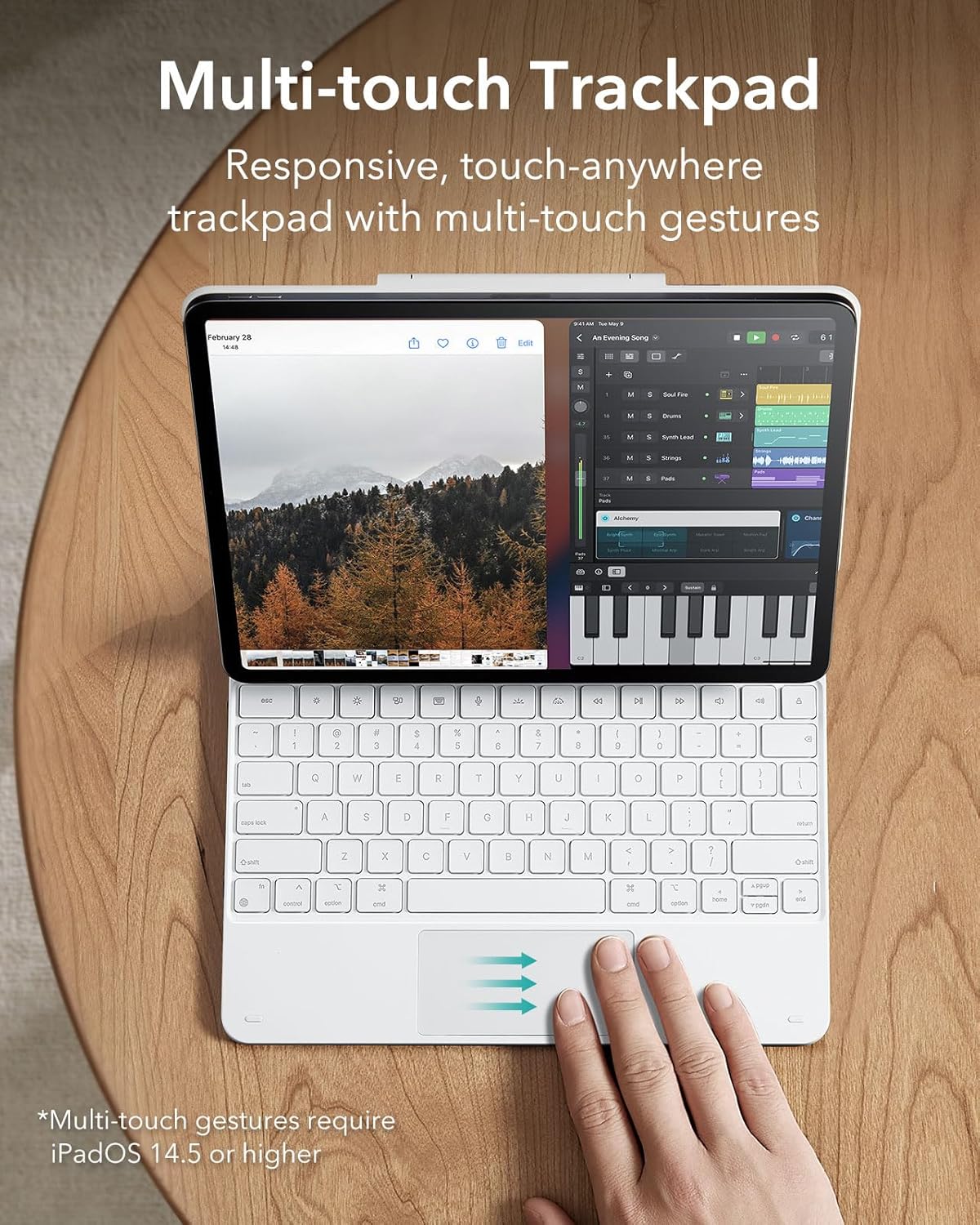
Image: A hand interacting with the multi-touch trackpad, illustrating the responsiveness and ease of use for navigation.

Image: A visual guide to common multi-touch gestures supported by the trackpad, including click, scroll, zoom, and go home.
Backlighting
The keyboard features RGB backlighting with multiple color modes and brightness levels. Use the dedicated backlight keys (often Fn + light icon) to cycle through colors and adjust brightness.

Image: The keyboard with illuminated keys, demonstrating 12 color modes and 3 brightness levels for customizable backlighting.
Charging the Keyboard
Connect the provided USB-C charging cable to the keyboard's charging port and a power source. The charging indicator light will show the charging status. A full charge provides extended usage time.
Maintenance
- Cleaning: Use a soft, damp cloth to wipe the surface of the keyboard case. Avoid harsh chemicals or abrasive materials.
- Storage: When not in use, keep the keyboard case closed to protect both the iPad and the keyboard. Store in a cool, dry place.
- Protection: The case offers 360° protection against drops, bumps, and scratches.

Image: A person holding the closed keyboard case, emphasizing its 360-degree total protection against drops, bumps, and scratches.
Troubleshooting
- Keyboard not connecting:
- Ensure the keyboard is powered on and charged.
- Verify Bluetooth is enabled on your iPad.
- Forget the device in your iPad's Bluetooth settings and attempt to re-pair.
- Restart both your iPad and the keyboard.
- Trackpad not responding:
- Ensure the keyboard is connected via Bluetooth.
- Check iPadOS version (requires 14.5 or higher for full multi-touch gestures).
- Clean the trackpad surface.
- Keys not responding:
- Ensure the keyboard is powered on and connected.
- Check for low battery.
- Restart the keyboard and iPad.
Specifications
| Brand | ESR |
| Model Number | M2 |
| Connectivity Technology | Bluetooth |
| Keyboard Description | Multi Functional |
| Keyboard Backlighting | RGB (12 color modes, 3 brightness levels) |
| Product Dimensions | 11 x 9 x 0.39 inches (27.94 x 22.86 x 0.99 cm) |
| Item Weight | 2.31 pounds (1.05 kg) |
| Manufacturer | Electronic Silk Road Corp |
| Date First Available | May 17, 2022 |
Warranty and Support
ESR provides comprehensive customer support for this product:
- Warranty: 12-month comprehensive warranty.
- Lifetime Support: Access to lifetime support for your product.
- Resources: Detailed setup videos and FAQs are available online.
- Contact: For personalized assistance, please visit the official ESR website or contact customer service through your purchase platform.
Related documentsM2


Ask a question about this manual
Ask about setup, troubleshooting, compatibility, parts, safety, or missing instructions. Manuals+ will review the question and use this page’s manual context to help answer it.