
1. Introduction
This manual provides comprehensive instructions for the DEKCO DC4L 2K Outdoor Security Camera. It covers product features, installation procedures, operational guidelines, maintenance tips, troubleshooting solutions, and detailed technical specifications. Please read this manual thoroughly before using the camera to ensure proper setup and optimal performance.

Image 1.1: DEKCO DC4L Outdoor Security Cameras.
2. Product Overview
The DEKCO DC4L is a wired outdoor security camera designed for robust surveillance. It features 2K resolution, color night vision, and a 180° pan capability to cover wide areas. Key functionalities include dual-band WiFi connectivity, AI human detection, and flexible storage options.
Key Features:
- 2K Ultra-Clear Spotlight Color Night Vision: Captures clear, vibrant color images even in low-light conditions.
- Stable Dual-Band WiFi Connection: Supports both 2.4GHz and 5GHz networks for reliable connectivity.
- Flexible Storage Options: Offers local storage via Micro SD card (8-128GB) and cloud storage services for 24/7 continuous recording.
- Smart AI Human Detection: Advanced algorithms accurately identify human figures, reducing false alarms from other movements.
- 180° Horizontal Pan: Provides a wide 270° viewing angle for comprehensive area coverage.
- IP65 Waterproof Rating: Designed for outdoor use, resistant to dust and water.
- Two-Way Audio: Enables communication through the camera via the mobile application.
- Smart Home Integration: Compatible with Amazon Alexa and Google Home devices.

Image 2.1: Overview of DEKCO DC4L Camera Features.
3. Setup
3.1 Physical Installation
The DEKCO DC4L camera is designed for wall mounting. Ensure the installation location provides a clear view of the desired monitoring area and is within range of your WiFi network and a power source. The camera is wired and requires a continuous power supply; it is not battery-powered or solar-powered.
- Choose a Location: Select a suitable outdoor location for mounting, considering coverage, power access, and WiFi signal strength.
- Mount the Camera: Use the provided mounting hardware to securely attach the camera to a wall. Adjust the bracket to achieve the desired initial angle.
- Connect Power: Connect the camera to a 5V DC power source using the included adapter.

Image 3.1: Camera Installation.

Image 3.2: Wired Camera Installation Overview.
3.2 App Installation and Account Creation
The DEKCO DC4L camera operates with a dedicated mobile application, often referred to as the CloudEdge app. Download the app from your device's app store (iOS or Android) and follow the on-screen instructions to create an account.
3.3 WiFi Connection
The camera supports both 2.4GHz and 5GHz WiFi networks for flexible and stable connectivity.
- Power On: Ensure the camera is powered on and in pairing mode (refer to app instructions for specific indicator lights).
- Add Device: Open the app, select 'Add Device', and follow the prompts to connect your camera to your home WiFi network.
- Select Network: Choose your 2.4GHz or 5GHz WiFi network and enter the password.

Image 3.3: 2.4GHz WiFi Connection.
3.4 Micro SD Card Installation
For local storage, install a Micro SD card (8GB to 128GB, Class 10 or higher recommended) into the designated slot on the camera.
- Locate Slot: Identify the Micro SD card slot on the camera body.
- Insert Card: Gently insert the Micro SD card into the slot until it clicks into place.
- Format Card: Within the app settings, navigate to storage options and format the newly inserted SD card.

Image 3.4: Micro SD Card Installation.
4. Operating Instructions
4.1 Live View
Access the live video feed from your camera through the mobile application.
- Open App: Launch the DEKCO app on your smartphone.
- Select Camera: Tap on the desired camera from your device list to view its live feed.

Image 4.1: Live View on Smartphone.
4.2 Pan Control
The camera offers a 180° horizontal pan function, providing a 270° viewing angle.
- Access Controls: While in live view, use the on-screen controls to pan the camera horizontally.
- Auto Cruise: Enable the 'Auto Cruise' feature in the app settings for the camera to automatically pan across a predefined area at 60-minute intervals.

Image 4.2: 270° Viewing Angle with 180° Horizontal Pan.

Image 4.3: Auto Cruise Functionality.
4.3 Night Vision
The camera features 2K Ultra-Clear Spotlight Color Night Vision, providing clear and detailed images even in complete darkness.
- Automatic Activation: Night vision typically activates automatically in low-light conditions.
- Spotlight Mode: The integrated spotlight can be activated to provide full-color night vision.

Image 4.4: 2K QHD Color Night Vision.
4.4 AI Human Detection and Alerts
The camera uses advanced AI algorithms to accurately detect human figures, minimizing false alarms from other moving objects.
- Enable Detection: In the app's 'Alarm Management' settings, enable 'Motion Detection' and set the sensitivity (Low, Medium, High).
- Receive Alerts: The app will send push notifications to your smartphone when human motion is detected.
- Deterrence: The camera can be configured to activate a spotlight and siren upon detection to deter unwanted activity.

Image 4.5: AI Human Detection for Fewer False Positives.

Image 4.6: Alarm Management Settings.

Image 4.7: Deterrence Features (Spotlight, Push, Siren).
4.5 Recording
The camera supports 24/7 continuous recording and motion-activated recording, with options for local Micro SD card storage or cloud storage.
- Continuous Recording: Records continuously to the Micro SD card or cloud service.
- Event Recording: Records only when motion is detected, saving storage space.
- Playback: Access recorded footage through the app's playback feature, with a timeline for easy navigation.

Image 4.8: 24/7 Continuous Recording and Micro SD Storage.
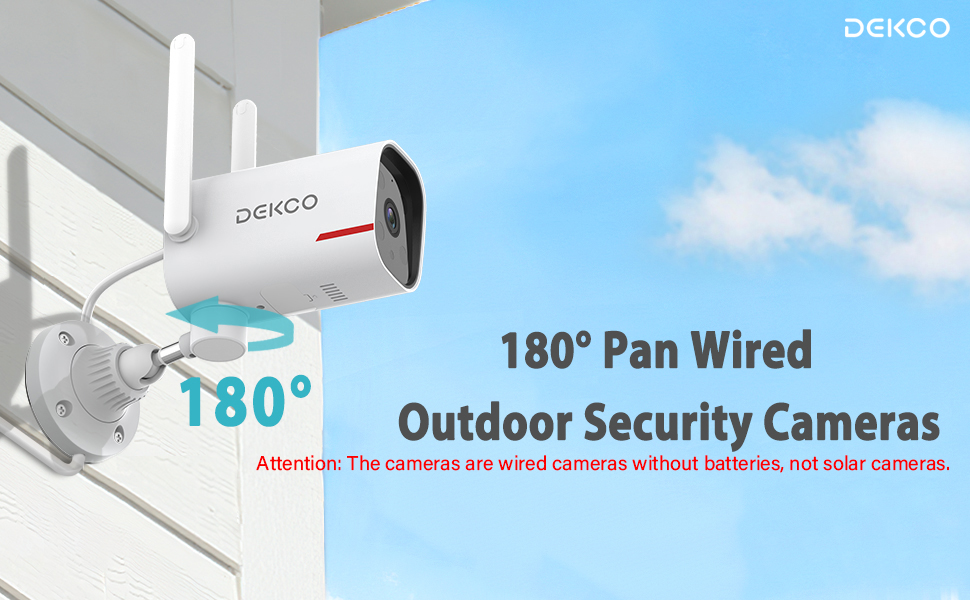
Image 4.9: 24/7 Home Monitoring.
4.6 Two-Way Audio
Utilize the built-in microphone and speaker for two-way communication through the camera.
- Activate Intercom: In the live view, tap the microphone icon to speak through the camera.
- Listen: The camera's microphone will pick up audio from the monitored area.
4.7 Smart Home Integration
The DEKCO DC4L camera is compatible with Amazon Alexa and Google Home smart devices.
- Link Account: Follow the instructions in your Alexa or Google Home app to link your DEKCO account.
- Voice Control: Use voice commands to view the camera feed on compatible smart displays.
4.8 Sharing Camera Access
You can share access to your camera with family members or trusted individuals through the app.
- Access Sharing Settings: In the app, navigate to the camera settings and find the 'Share Device' option.
- Invite Users: Follow the prompts to invite other users to view your camera feed.
4.9 ONVIF/RTSP Support (Advanced Users)
For advanced users, the camera supports ONVIF/RTSP protocols, allowing integration with Network Video Recorders (NVRs) or other surveillance software.
- Enable in App: Enable ONVIF/RTSP functionality within the camera's settings in the mobile app.
- Configure NVR: Refer to your NVR or software documentation for instructions on adding an ONVIF/RTSP camera.
5. Maintenance
5.1 Cleaning
Regular cleaning helps maintain optimal image quality and extends the camera's lifespan.
- Lens: Gently wipe the camera lens with a soft, lint-free cloth. Avoid abrasive cleaners.
- Body: Clean the camera body with a damp cloth to remove dust and dirt.
5.2 Firmware Updates
Periodically check for and install firmware updates through the mobile application to ensure your camera has the latest features and security enhancements.
5.3 SD Card Management
To ensure continuous recording, regularly check the status of your Micro SD card in the app. Format the card periodically or replace it if it becomes corrupted or reaches its end of life.
6. Troubleshooting
If you encounter issues with your DEKCO DC4L camera, refer to the following common troubleshooting steps:
- Camera Offline: Check the power connection and WiFi signal strength. Restart the camera and your router. Ensure the camera is connected to the correct 2.4GHz or 5GHz WiFi network.
- SD Card Not Recognized: Ensure the SD card is correctly inserted and formatted within the app. Try a different compatible SD card if the issue persists.
- Poor Image Quality: Clean the camera lens. Check your network connection speed.
- False Alarms: Adjust the AI Human Detection sensitivity settings in the app.
- Pink View: If the camera displays a pink image, try restarting the camera. If the issue persists, contact customer support as it may indicate a hardware fault.
- Pan Control Not Working: Ensure the camera has a stable network connection. For ONVIF/RTSP users, ensure the camera firmware is up to date, as this can resolve compatibility issues.
If these steps do not resolve your issue, please contact DEKCO customer support for further assistance.
7. Specifications
| Feature | Specification |
|---|---|
| Model Name | DC4L |
| Mounting Type | Wall Mount |
| Video Capture Resolution | 2K |
| Number of Items (in pack) | 1 (for this model variant) |
| Included Components | Adapter |
| Wireless Communication Technology | Wi-Fi (2.4GHz & 5GHz) |
| Form Factor | Dome |
| Viewing Angle | 270 Degrees (180° Pan) |
| Night Vision Range | 32 Feet |
| Frame Rate | 30 fps |
| Material | Metal |
| Voltage | 5 Volts (DC) |
| Product Dimensions (L x W x H) | 20.5 x 9.98 x 9.98 cm |
| Item Weight | 1.99 kg |
| Type of Bulb | Infrared |
| Special Features | Night Vision, AI Human Detection, Two-Way Audio |
| Indoor/Outdoor Usage | Outdoor |
| Power Source | Corded Electric |
| Compatible Devices | Smartphone (Android, iPhone), Amazon Alexa, Google Home |
8. Warranty
The DEKCO DC4L camera comes with a 1-year warranty from the date of purchase. Please retain your proof of purchase for warranty claims. The warranty covers manufacturing defects and malfunctions under normal use. It does not cover damage caused by misuse, accidents, unauthorized modifications, or natural disasters.
9. Support
For technical assistance, product inquiries, or warranty claims, please contact DEKCO customer support. Refer to the contact information provided with your product packaging or visit the official DEKCO website for support resources.


