
Introduction
The Technical Pro UHFBAR is a portable, rechargeable sound bar PA system designed for clear audio broadcasting in various settings. It features UHF wireless microphone technology and Bluetooth connectivity, making it suitable for meetings, training sessions, seminars, and other events requiring amplified sound.
What's in the Box
- Technical Pro UHFBAR Rechargeable Sound Bar PA System
- UHF Microphones (Handheld and Lapel)
- Remote Control
- Charging Cable
- Auxiliary Cable

Image: The retail packaging for the Technical Pro UHFBAR system, showing the sound bar, handheld microphone, and lapel microphone transmitter.
Setup
1. Charging the Sound Bar
Before initial use, fully charge the UHFBAR sound bar. Connect the provided charging cable to the sound bar's charging port and to a power source. The charging indicator will show the charging status.
2. Powering On/Off
Press and hold the power button on the sound bar to turn it on or off. A display on the front grille will indicate the current mode.

Image: Front view of the UHFBAR sound bar, showing the speaker grille and the digital display indicating "BLUE" for Bluetooth mode.
3. Connecting Audio Sources
The UHFBAR supports Bluetooth, USB, and Aux (1/8") audio inputs.
- Bluetooth: Turn on the sound bar. The unit will automatically enter Bluetooth pairing mode or can be switched to Bluetooth mode using the mode button. On your device, search for "UHFBAR" and connect.
- USB: Insert a USB drive containing audio files into the USB port. The sound bar will automatically switch to USB mode and begin playback.
- Aux (1/8"): Connect an external audio device using a 1/8" auxiliary cable to the Aux input port. Switch the sound bar to Aux mode.
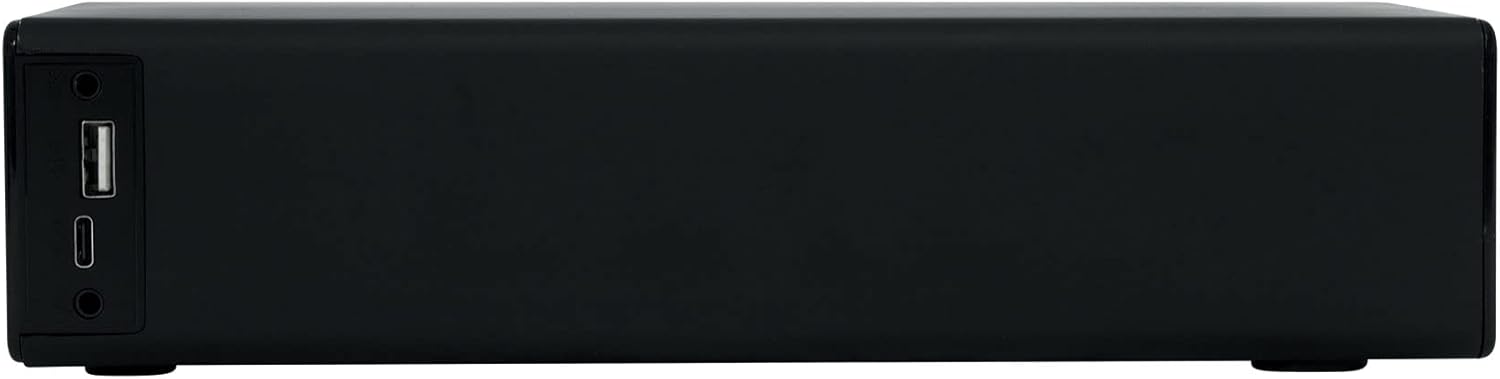
Image: Side view of the UHFBAR sound bar, highlighting the USB port, Aux input, and other connection points.
4. Setting Up UHF Microphones
The system includes both a handheld and a lapel microphone with a wireless transmitter.
- Power On Transmitter: Slide the ON/OFF switch on the wireless transmitter to the "ON" position.
- Frequency Selection:
- Press and hold the SET button for 3 seconds to enter frequency adjustment mode.
- Press the SET button repeatedly to cycle through available frequencies.
- Once the desired frequency is displayed, wait a few seconds for it to lock, or press and hold the Power and SET buttons simultaneously for 3 seconds to lock the frequency.
- Volume Adjustment: Use the VOL knob on the transmitter to adjust the microphone's input gain.
- Ensure the sound bar is powered on and the microphone is within the operational range (>75 feet).

Image: The UHF wireless transmitter for the lapel microphone, showing the ON/OFF switch, frequency display, and instructions for frequency adjustment.
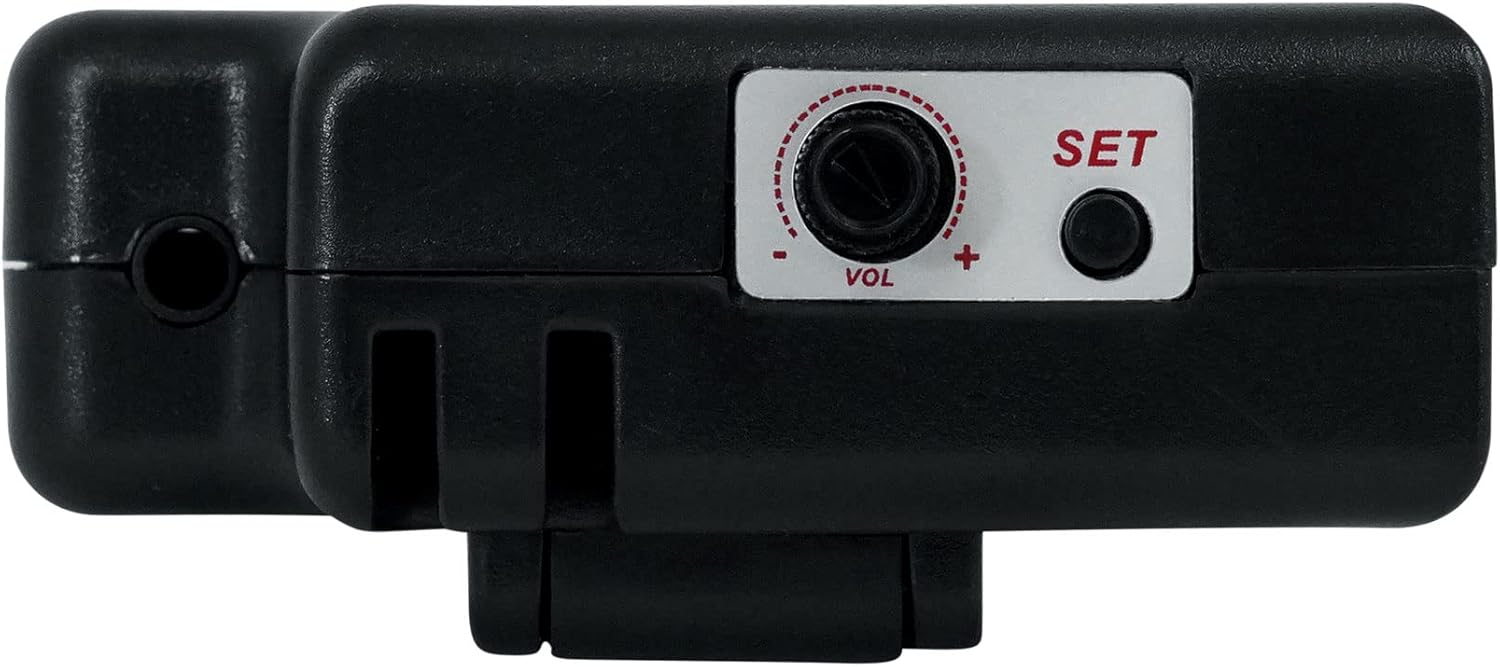
Image: A close-up view of the UHF wireless transmitter, detailing the volume control knob and the SET button for frequency selection.
Operating Instructions
- Volume Control: Use the volume controls on the sound bar or the remote control to adjust the overall output volume.
- Mode Selection: Press the "Mode" button on the sound bar or remote to cycle through Bluetooth, USB, and Aux input modes.
- Microphone Usage: Speak clearly into the handheld or lapel microphone. Adjust the microphone's gain using the VOL knob on the transmitter for optimal sound without distortion.
- Silence Circuit: The system features a silence circuit that automatically cuts static noise when microphones are off or out of range.
- Auto Mute Circuit: An auto mute circuit reduces popping noise for a smoother audio experience.
Maintenance
- Cleaning: Wipe the sound bar and microphones with a soft, dry cloth. Do not use liquid cleaners or abrasive materials.
- Battery Care: To prolong battery life, avoid fully discharging the unit frequently. Recharge the battery regularly, even if not in use for extended periods. Store in a cool, dry place.
- Storage: When not in use, store the system in a dry environment away from direct sunlight and extreme temperatures.
Troubleshooting
| Problem | Possible Cause | Solution |
|---|---|---|
| No sound from sound bar. |
|
|
| Microphone not working. |
|
|
| Bluetooth pairing issues. |
|
|
Specifications
| Feature | Detail |
|---|---|
| Model Number | UHFBAR |
| Output Wattage | 500 Watts |
| Connectivity Technology | Bluetooth 5.0 |
| Audio Inputs | Bluetooth, USB, Aux (1/8") |
| UHF Frequency Band (Lapel Mic) | 542.3MHz - 572.0MHz |
| UHF Frequency Band (Handheld Mic) | 512.3MHz - 542.0MHz |
| Maximum Deviation Range | ±45kHz |
| Microphone Transducer Type | Dynamic |
| Microphone Polar Pattern | Unidirectional |
| Service Area (Microphone) | >75 feet |
| Built-in Rechargeable Battery | 7.4V/2200mAh |
| Item Dimensions (L x W x H) | 10 x 6 x 4 inches |
| Item Weight | 4 Pounds |
| Enclosure Material | Metal |
Warranty Information
The Technical Pro UHFBAR PA System comes with a 1-Year Warranty from the date of purchase. This warranty covers manufacturing defects and malfunctions under normal use. Please retain your proof of purchase for warranty claims. For detailed warranty terms and conditions, refer to the documentation included with your product or contact Technical Pro customer support.
Customer Support
For further assistance, technical support, or service inquiries regarding your Technical Pro UHFBAR system, please visit the official Technical Pro website or contact their customer service department. Contact information can typically be found on the manufacturer's website or in the product packaging.
You can also visit the Technical Pro Store on Amazon for more product information.