
iClever KP10
iClever Number Pad (Model KP10) User Manual
This manual provides detailed instructions for the setup, operation, maintenance, and troubleshooting of your iClever Aluminum Wireless Number Pad.
Product Overview
The iClever KP10 is an aluminum wireless number pad designed for enhanced data entry and productivity across multiple devices. It features a slim, durable build and supports dual-device connectivity via Bluetooth.
Key Features
- Smarter, Faster Input: 34 essential keys including calculator, PgUp, PgDn, Insert, and more for efficient data handling.
- Dual-Device, Wide Compatibility: Connects to 2 devices and is compatible with Windows, Mac, iOS, Android, and Chrome OS, suitable for laptops, tablets, and phones.
- Stable & Ultra-Slim Build: Constructed with a stainless steel base, ABS top cover, and scissor switches for durability and a lifespan of over 5 million keystrokes.
- USB-C Fast Recharge: A 1-hour charge provides up to 100 hours of use.
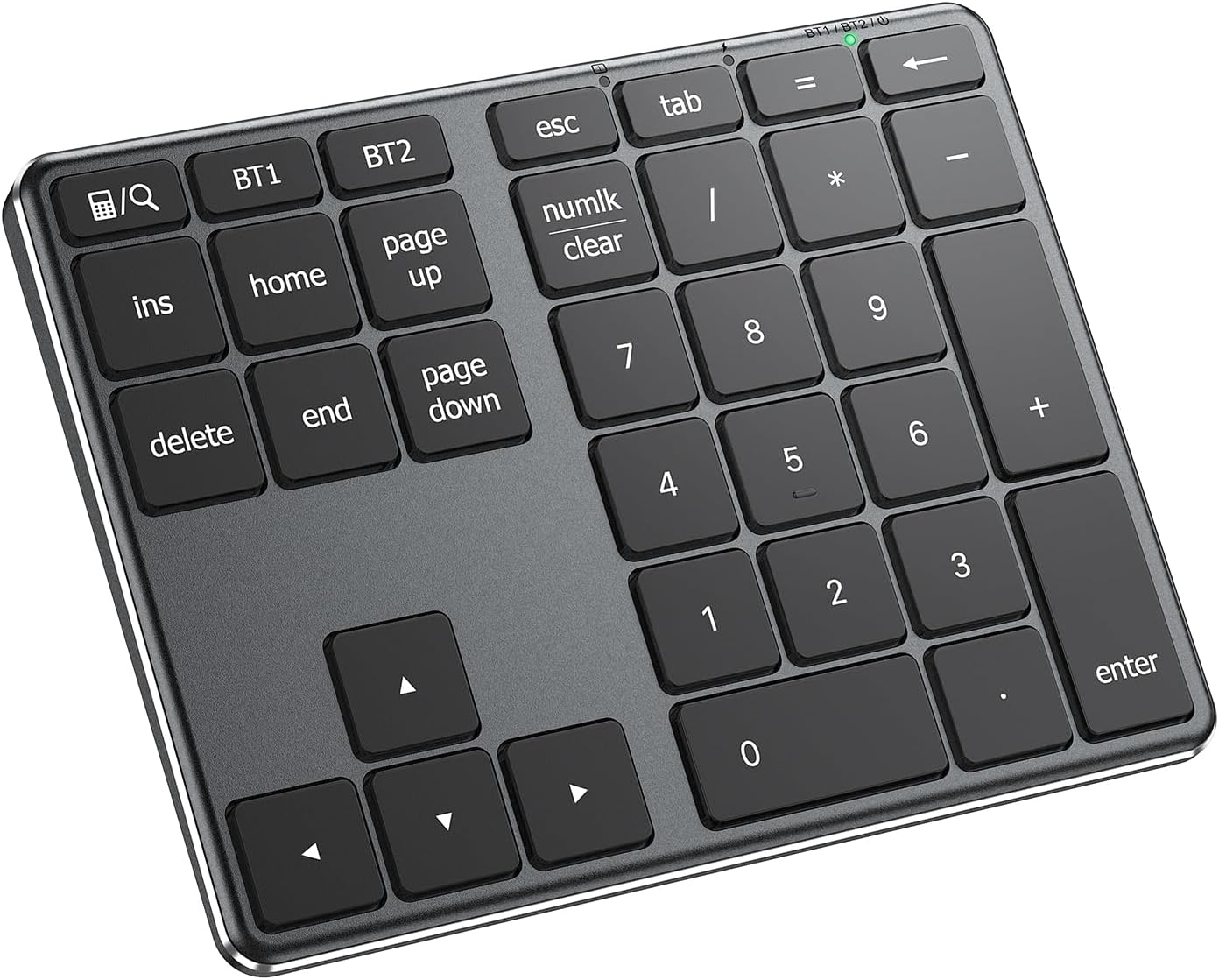
A top-down view of the iClever KP10 Aluminum Wireless Number Pad, showcasing its sleek black design and full 34-key layout.
Package Contents
The following items are included in your iClever Number Pad package:
- iClever KP10 Number Pad
- USB-C Charge Cable
- User Manual
Specifications
| Feature | Detail |
|---|---|
| Product Dimensions | 5.75 x 4.45 x 0.51 inches (5.74"L x 4.44"W x 0.51"H) |
| Item Weight | 7.7 ounces |
| Manufacturer | iClever |
| ASIN | B0B1CWJCS5 |
| Item Model Number | KP10 |
| Date First Available | May 16, 2022 |
| Brand | iClever |
| Compatible Devices | PC, Laptop, iMac, Macbook, Tablet, Smartphone, iPhone, iPad |
| Connectivity Technology | Bluetooth |
| Keyboard Description | Bluetooth Keyboard, Scissor Switch, Portable Size |
| Recommended Uses For Product | Office |
| Special Feature | Laptop typing experience, USB-C Charge, Multi-OS, Aluminum solid build |
| Color | Black |
| Style | Contemporary |
| Material | Acrylonitrile Butadiene Styrene, Metal |
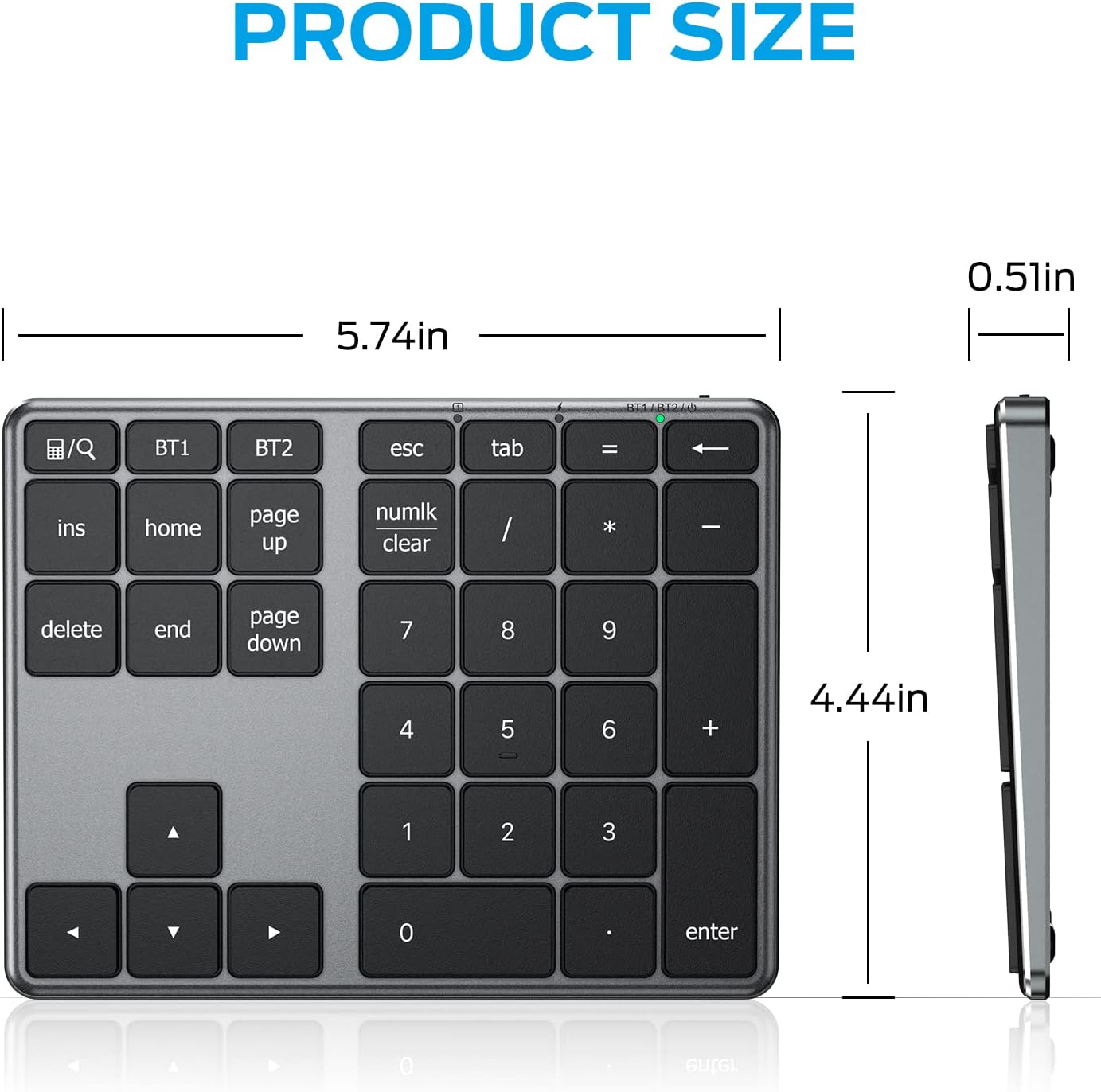
A diagram illustrating the compact dimensions of the iClever KP10 Number Pad, measuring 5.74 inches in length, 4.44 inches in width, and 0.51 inches in height.
Setup
Charging the Number Pad
Before initial use, fully charge the number pad. Connect the provided USB-C charging cable to the number pad's USB-C port and to a power source (e.g., computer USB port or a charger with voltage below 5V). The charging indicator will be red while charging and turn green when fully charged.

A visual representation of the iClever KP10 Number Pad being charged via its USB-C port, alongside indicators showing 1 hour charge time for 100 hours working or 30 days standby.
Pairing with Devices (Bluetooth)
The iClever KP10 supports connection to two devices simultaneously. Follow these steps to pair:
- Turn on the number pad using the power switch.
- Press and hold either the BT1 or BT2 key for 3-5 seconds until the corresponding indicator light flashes rapidly, indicating pairing mode.
- On your device (laptop, tablet, smartphone), enable Bluetooth and search for available devices.
- Select "iClever KP10" (or similar name) from the list of found devices to complete the pairing process.
- Repeat for a second device using the other BT key.

An illustration demonstrating the iClever KP10 Number Pad's ability to connect to two devices simultaneously, such as a laptop and a tablet, via Bluetooth 5.1 technology.
Operation
Basic Key Functions
The iClever KP10 features a standard numeric keypad layout with additional function keys for enhanced productivity.

A detailed view of the 34-key numeric keypad layout of the iClever KP10, highlighting the arrangement of number keys, operators, and special function keys like Numlk, Page Up/Down, Insert, and Delete.
Special Key Functions
- Calculator Key (🔍/Q): On Windows, this key functions as a calculator shortcut. On macOS/iOS, it functions as a search shortcut.
- Numlk Key (Numlk/Clear): On Windows, this key functions as Number Lock, enabling or disabling the numeric keypad. On macOS, it functions as the Clear key. The Numlk indicator light may deactivate after 6 seconds of non-use as a battery-saving feature, but Numlk remains active until pressed again.
- PgUp, PgDn, Ins, Home, End: These keys provide quick navigation and editing functions.
- Arrow Keys: Dedicated arrow keys for navigation.

A diagram illustrating the dedicated shortcut keys on the iClever KP10 Number Pad, including Search/Calculator, Tab, Home, End, and Numlk/Clear keys, designed for quick access to common functions.
Switching Between Devices
To switch between paired devices, simply press the BT1 or BT2 key corresponding to the desired device. The number pad will automatically connect to the selected device.

An image depicting the iClever KP10 Number Pad's capability to support two connected devices, shown with an iPad and a laptop, allowing seamless switching between them.
Maintenance
Cleaning
To clean the number pad, use a soft, dry cloth. For stubborn dirt, a slightly damp cloth with mild soap can be used, ensuring no liquid enters the device. Avoid abrasive cleaners or solvents.
Battery Care
To prolong battery life, avoid fully discharging the number pad frequently. Recharge the device when the battery indicator is low. Always use a charger with a voltage below 5V or a computer USB port for charging to prevent damage.
Troubleshooting
Calculator Key or Numlk Key Not Working
The calculator key functions as "Calculator" on Windows and "Search" on macOS/iOS. The Numlk key functions as "Number lock" on Windows and "Clear" on macOS. Ensure your operating system is correctly recognized by the number pad.
Keyboard Gets Delayed Frequently / Input Repeats
Lag and repeat problems are typically caused by signal interference. Consider the following troubleshooting steps:
- Verify the iClever is connected to the built-in Bluetooth of your device, not an external Bluetooth adapter.
- Ensure the number pad and your device are in close proximity.
- Move away from metal objects and other sources of wireless signal interference (e.g., cordless phones, wireless speakers, Wi-Fi routers, computer power supplies).
- Disconnect other wireless accessories temporarily to check for interference.
- Charge the iClever number pad for at least one hour.
- Test the number pad on another device to isolate the issue.
Note: Input smoothness may be affected by multiple wireless accessories connected to the device, during the first few seconds after switching devices or waking them up, or if the PC case is placed under a desk, blocking the signal.
Charging Indicator / Charging Issues
The charging indicator remains red while charging and turns green when fully charged. If the number pad does not charge, ensure you are using a charger with a voltage below 5V or a computer USB port. Higher voltage chargers may cause the keyboard to shut down.
Cannot Operate Computer by USB Cable
The USB cable provided is for charging purposes only. It cannot be used to operate your device or for data transfer.
Warranty and Support
Your iClever Number Pad comes with a 12-month hassle-free warranty. For any product-related inquiries or support, please contact iClever customer service. Lifetime responsive customer support is available to assist you.
Additional resources, including a Troubleshooting Guide and User Manual in PDF format, are available for download:
Related documentsKP10


Ask a question about this manual
Ask about setup, troubleshooting, compatibility, parts, safety, or missing instructions. Manuals+ will review the question and use this page’s manual context to help answer it.