
Roinvou 11-13 Mirror Link (1+32G)
Roinvou 9 Inch Touch Screen Radio User Manual
Model: 11-13 Mirror Link (1+32G) for 2011-2013 Hyundai Elantra
Introduction
This manual provides comprehensive instructions for the installation, operation, and maintenance of your Roinvou 9 Inch Touch Screen Radio. This advanced car stereo system is designed for 2011-2013 Hyundai Elantra models, featuring Android 13, 1GB RAM, 32GB ROM, GPS navigation, Bluetooth, Wi-Fi, and mirror link capabilities. Please read this manual thoroughly before use to ensure proper functionality and safety.
Safety Information
- Ensure the vehicle's ignition is off and the battery is disconnected before beginning installation to prevent electrical short circuits.
- Professional installation is recommended for optimal performance and safety.
- Do not operate the device in a manner that distracts you from driving. Always prioritize road safety.
- Avoid exposing the unit to extreme temperatures, direct sunlight for prolonged periods, or excessive moisture.
- Use only specified accessories and parts. Unauthorized modifications may void the warranty and pose safety risks.
Package Contents
Verify that all items listed below are included in your package:
- Roinvou Car Stereo for Hyundai Elantra
- Power Cable
- RCA Cable
- GPS Antenna
- Backup Camera
- Rear Camera Input Cable
- Dual USB Cable
- Installation Tool & Accessories
Setup and Installation
Follow these steps for proper installation of your Roinvou car stereo system.
1. Pre-Installation Overview
Before starting, familiarize yourself with the components and the vehicle's dashboard layout. The new unit is designed to seamlessly integrate into your 2011-2013 Hyundai Elantra.

Figure 1: Comparison of the dashboard before and after the Roinvou car radio installation, showing the integrated 9-inch touch screen.
2. Wiring Connections
Carefully connect the provided cables to the corresponding ports on the car stereo and your vehicle's wiring harness. Refer to the wiring diagram for detailed connections.

Figure 2: Detailed wiring diagram illustrating connections for the backup camera, USB, and main power harness. Ensure all connections are secure.
3. Steering Wheel Control (SWC) Setup
The unit supports steering wheel controls for convenience. The setup varies depending on whether your vehicle has a CANBUS decoder.
- Without CANBUS Decoder: Connect the plugs or steering wheel control wires (Key1/Key2) in the power cable to the corresponding port or wire of your original car. Then, go to "SteeringWheel Key" manual match in the system settings to activate the button function.
- With CANBUS Decoder: Connect the CANBUS before powering on the machine. Follow this path: Apps > Car Settings > Factory Settings (8888) > Protocol Settings. Choose the correct Canbus Brand Name and Car's Style to ensure SWC works properly. Select the brand of the CANBUS decoder and the matching model and year according to your vehicle's actual situation.

Figure 3: Visual representation of the steering wheel control interface within the system settings, showing options for volume, navigation, and other functions.
4. GPS and Radio Antenna Connection
Connect the GPS antenna for navigation functionality and the radio antenna for FM reception.

Figure 4: Illustration of the GPS antenna and radio antenna connections to the back of the head unit.
Operating Instructions
1. System Overview (Android 13)
The Roinvou car radio operates on Android 13 with 1GB RAM and 32GB ROM, providing a smooth user experience. It supports 1080P video playback, split-screen multitasking, and features a dual USB interface for external devices. The system includes a file manager and time setting options. Multiple EQ sound options are available for a customized audio experience.

Figure 5: Displays the sleek 2.5D screen design and various user interface layouts for different functions like music playback, Bluetooth calls, and radio.
2. Phone Mirror Link
Mirror Link allows you to synchronize your smartphone's screen with the car stereo's display. This feature is highly convenient for using your phone's navigation or other applications directly on the larger screen.
- Connection: Connect via WiFi hotspot or your phone's original USB cable.
- Android Devices: Supports bidirectional control, allowing you to control your phone from the car stereo screen and vice-versa.
- iOS Devices: Supports unidirectional control (phone screen mirrored to car stereo, but control is primarily from the phone).
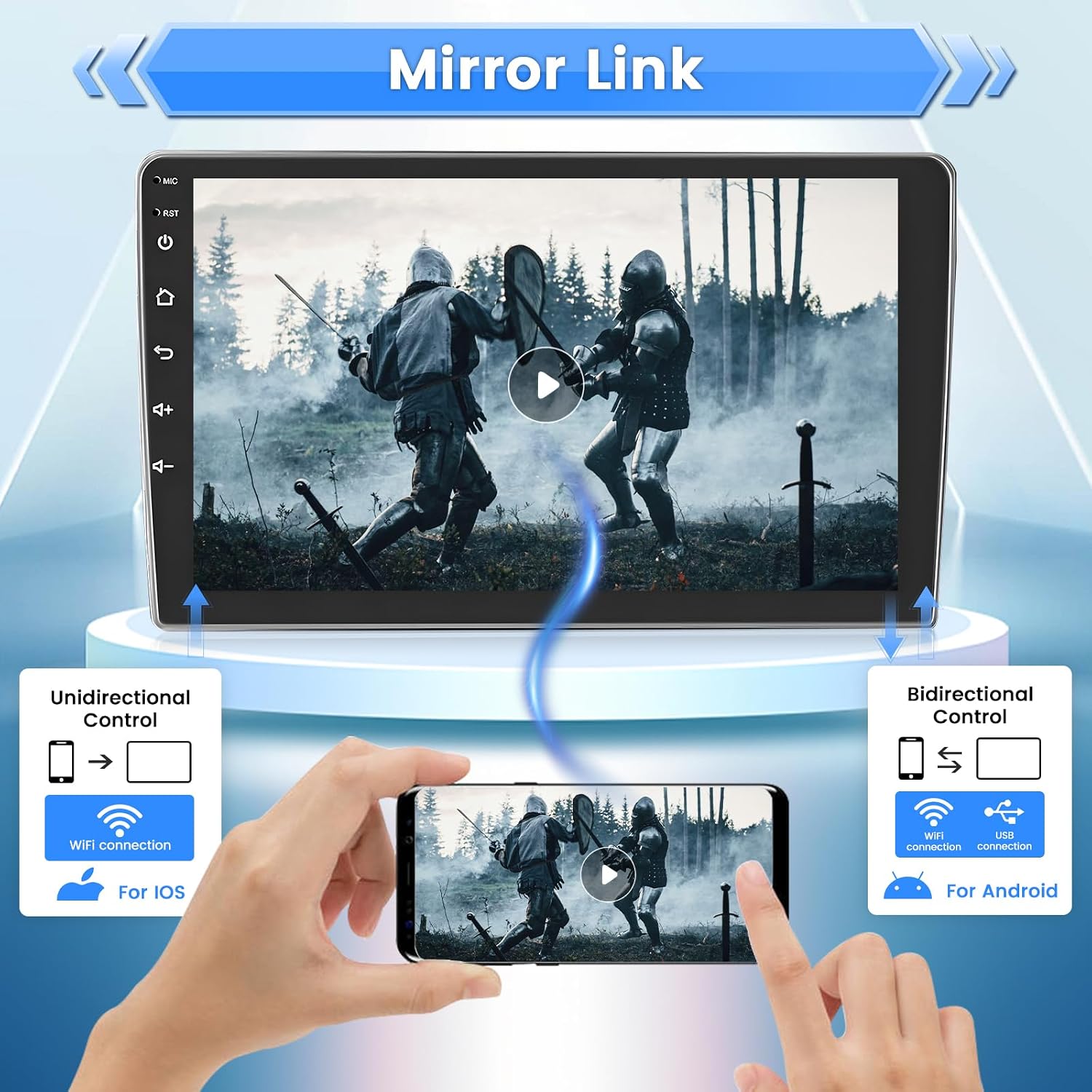
Figure 6: Illustrates the Mirror Link feature, showing how iOS devices offer unidirectional control via WiFi, while Android devices support bidirectional control via WiFi or USB.
3. GPS Navigation and WiFi Hotspot
The unit has a built-in GPS module for navigation. You can use pre-installed navigation software or download others from the Play Store.
- Offline Maps: Use navigation software like Waze with free offline maps.
- Online Maps & Apps: Connect to a WiFi hotspot (e.g., from your phone) to use online maps and download applications such as YouTube, TikTok, and Spotify from the Play Store.

Figure 7: Shows the integration of WiFi and GPS navigation, with various app icons indicating access to online content and mapping services.
4. FM Radio Receiver and Bluetooth
Enjoy stable FM radio reception and seamless Bluetooth connectivity.
- FM Radio: Features 18 preset stations and supports manual, semi-automatic, and fully automatic channel search. Provides high-quality broadcasting for news, weather, and real-time road conditions.
- Bluetooth: Built-in microphone supports hands-free calling, music playback, voice functions, and contact synchronization.

Figure 8: Depicts the Bluetooth chip and its capabilities, including hands-free calling and wireless music streaming from connected devices.
5. Rear View Camera Support
The system automatically displays the reversing image when the car is put into reverse gear, enhancing parking safety. The included backup camera provides HD image quality, is waterproof, and offers a 170° wide-angle view with night vision capabilities.

Figure 9: Shows the rear view camera in action, providing a wide-angle perspective for safe parking maneuvers, highlighting its HD, waterproof, wide-angle, and night vision features.
Maintenance
To ensure the longevity and optimal performance of your Roinvou car stereo, follow these maintenance guidelines:
- Cleaning: Use a soft, dry cloth to clean the screen and exterior. For stubborn smudges, slightly dampen the cloth with water or a screen-safe cleaner. Avoid abrasive materials or harsh chemicals.
- Software Updates: Periodically check for system software updates to ensure you have the latest features and bug fixes. Updates can typically be found in the system settings under "About device" or "System updates" when connected to Wi-Fi.
- Environmental Conditions: While designed for automotive use, avoid prolonged exposure to extreme heat or cold, which can affect electronic components.
- Cable Connections: Occasionally check all cable connections to ensure they are secure and free from damage.
Troubleshooting
This section addresses common issues you might encounter with your Roinvou car stereo. If the problem persists, please contact customer support.
| Problem | Possible Cause | Solution |
|---|---|---|
| No power/Unit does not turn on. | Loose power connection, blown fuse, vehicle battery issue. | Check power cable connections. Inspect vehicle fuses. Ensure vehicle battery is charged. |
| No sound or static from speakers. | Speaker wire issues, incorrect audio settings, unit malfunction. | Verify speaker wire connections. Check audio output settings and EQ. If static persists, professional inspection may be needed. |
| GPS not acquiring signal or inaccurate. | GPS antenna not properly connected or obstructed. | Ensure GPS antenna is securely connected and placed in an unobstructed location (e.g., dashboard). |
| Mirror Link not connecting or unstable. | Incorrect WiFi/USB connection, phone compatibility, app issues. | Ensure strong WiFi signal or use original USB cable. Check phone settings for mirroring permissions. Some Samsung phones may have restrictions. |
| Screen glare/difficult to see in sunlight. | Environmental lighting conditions, screen brightness settings. | Adjust screen brightness and contrast settings in the display menu. Consider anti-glare screen protectors if available. |
| Backup camera not displaying. | Camera connection issue, reverse trigger wire not connected. | Check the rear camera input cable and ensure the reverse trigger wire is correctly connected to the vehicle's reverse light circuit. |
Specifications
| Feature | Detail |
|---|---|
| Model Name | Roinvou 9 Inch Touch Screen Radio |
| Operating System | Android 13 |
| Memory (RAM + ROM) | 1GB RAM + 32GB ROM |
| Screen Size | 9 Inches (23 cm diagonal) |
| Product Dimensions | 14.57 x 5.71 x 11.81 inches |
| Item Weight | 3.56 pounds |
| Connectivity Technology | Bluetooth, USB, Wi-Fi |
| Special Features | Touchscreen, FM Radio, Mirror Link, GPS Navigation, EQ Settings, SWC (Steering Wheel Control) |
| Audio Output Mode | Stereo |
| Mounting Type | Dashboard Mount |
| Compatible Vehicle Service Type | Car (specifically 2011-2013 Hyundai Elantra) |
Warranty Information
Roinvou products typically come with a one-year warranty. For specific warranty terms and conditions, please refer to the warranty card included with your product or contact Roinvou customer support directly. Keep your proof of purchase for warranty claims.
Customer Support
If you have any questions, encounter difficulties during installation or operation, or require technical assistance, please contact Roinvou customer service. Our professional technical team is ready to assist you.
- Email: roinvouservices@163.com
- Online Support: You can also reach out through the Amazon platform by clicking on the seller name "Roinvou" on the product page and then selecting "Ask a question."

Figure 10: Visual guide on how to contact customer support via Amazon, showing the steps to find the seller and ask a question, along with the direct email address.
Related documents11-13 Mirror Link (1+32G)


Ask a question about this manual
Ask about setup, troubleshooting, compatibility, parts, safety, or missing instructions. Manuals+ will review the question and use this page’s manual context to help answer it.