
UPULTRA E27 Smart Security Camera
UPULTRA E27 Smart Security Camera
Instruction Manual
Model: E27 Smart Security Camera (2-Pack)
Introduction
Thank you for choosing the UPULTRA E27 Smart Security Camera. This device offers advanced surveillance features, including 1080P Full HD video, 360-degree pan and tilt functionality, motion detection with real-time alerts, two-way audio communication, and versatile night vision modes. Designed for easy installation into a standard E27 light bulb socket, it provides comprehensive monitoring for your home or office.
This manual will guide you through the installation, operation, and maintenance of your security camera to ensure optimal performance and security.

Image: The UPULTRA E27 Smart Security Camera and its accompanying mobile application interface.
Setup
Package Contents
- UPULTRA E27 Smart Security Camera(s)
- E27 Bulb Base (if included with your package)
- Instruction Manual
Installation
The UPULTRA E27 Smart Security Camera is designed for quick and easy installation, similar to replacing a standard light bulb. It can be installed using a normal E27 bulb base (110V~240V).
- Ensure the power to the light socket is turned off before installation.
- Carefully screw the camera into a standard E27 light bulb socket.
- Turn on the power to the light socket. The camera will power on and initiate its startup sequence.

Image: Simple screw-in installation of the camera into an E27 socket.
App Connection
To access and control your camera, you need to download and set up the companion mobile application.
- Scan the QR code provided in the manual or on the camera itself to download the recommended app (e.g., YI IoT app).
- Open the app and follow the on-screen instructions to create an account or log in.
- Select 'Add Device' or a similar option within the app.
- When prompted, use your smartphone to scan the QR code displayed on the camera device. Ensure the camera is powered on and close to your Wi-Fi router for initial setup.
- Follow the voice prompts from the camera and the app to complete the Wi-Fi connection and pairing process.
- Once connected, you can name your camera and begin adjusting its settings.
Video: Demonstrates the unboxing, installation, and app setup process for the light bulb camera. It shows how to screw in the camera, scan the QR code for app download, and connect the camera to Wi-Fi, including voice prompts from the device.
Video: Explains how the security camera functions with your phone, covering app features, pan/tilt control, and night vision capabilities.
Operating Instructions
Pan & Tilt Control
The camera features a 355-degree horizontal pan and a 95-degree vertical tilt, allowing you to monitor almost every corner of your space without blind spots. Use the directional controls within the mobile app to remotely adjust the camera's viewing angle.
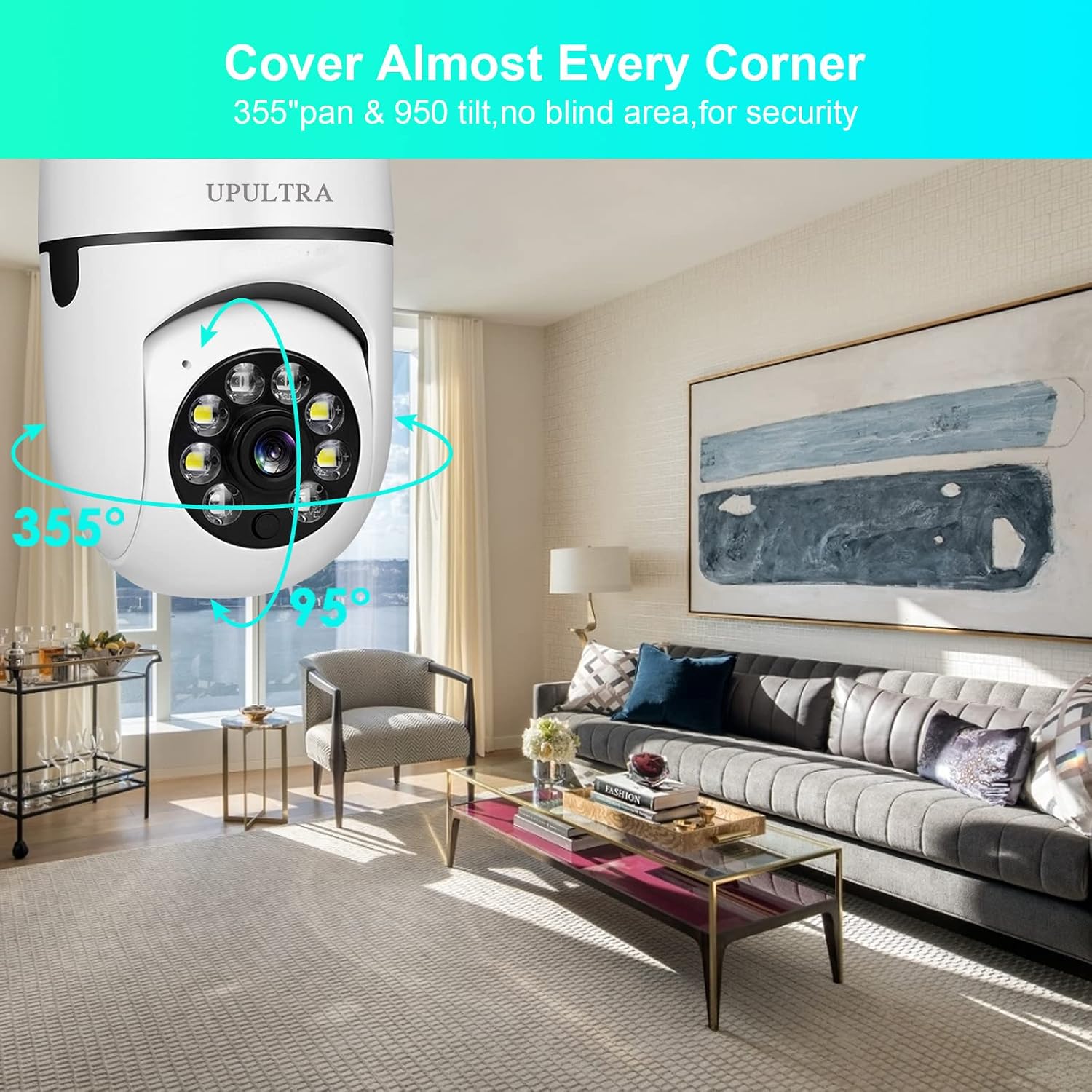
Image: Demonstrates the camera's extensive pan and tilt range.
Motion Detection & Real-time Alerts
Equipped with a highly sensitive motion sensor, the camera detects movement and automatically records the event. You will receive real-time notifications on your mobile device when motion is detected, allowing you to stay informed about activities in the monitored area.

Image: Motion detection and alert functionality.
Video: A short clip demonstrating the camera's motion detection and tracking capabilities, highlighting how it follows movement. Useful for understanding sensitivity settings.
Two-Way Audio
The built-in microphone and speaker enable two-way audio communication. You can listen to what's happening around the camera and speak through the camera using your mobile app, allowing for interaction with visitors or deterring intruders.
Night Vision
The camera supports both infrared (black and white) and full-color night vision modes. Even in complete darkness, you can view clear images, ensuring round-the-clock surveillance.

Image: Illustrates the difference between infrared and full-color night vision.
Spotlight Function
The camera includes a spotlight function that can be controlled via the app. You can turn it on, off, or set it to an auto mode, which can be useful for illuminating an area or as a deterrent.
Storage Options
Recorded footage can be stored locally on a micro SD card (not included) or via cloud service (subscription may be required). The app provides options to manage and review your recordings.

Image: Storage options for recorded video.
Maintenance
- Cleaning: Gently wipe the camera lens and body with a soft, dry cloth. Avoid using harsh chemicals or abrasive cleaners.
- Firmware Updates: Periodically check the mobile app for available firmware updates. Keeping your camera's firmware up-to-date ensures optimal performance, security, and access to new features.
- SD Card Management: If using a micro SD card, regularly back up important footage and format the card to maintain recording efficiency.
Troubleshooting
Common Issues and Solutions:
- Camera Offline:
- Ensure the camera is properly powered and the light socket is active.
- Check your Wi-Fi connection and router.
- Restart the camera by turning off and on the power to the light socket.
- If issues persist, try resetting the camera using the reset button (refer to the detailed camera view image for location).
- Poor Image Quality:
- Ensure the camera lens is clean and free from dust or smudges.
- Check your internet connection speed. A stable and fast connection is crucial for 1080P streaming.
- Adjust video quality settings within the app if your network bandwidth is limited.
- Motion Detection Not Working/Too Sensitive:
- Verify motion detection is enabled in the app settings.
- Adjust the motion detection sensitivity level in the app to reduce false alarms or improve detection.
- Ensure the camera's field of view is clear of obstructions that might trigger false alerts (e.g., tree branches, reflections).
- Two-Way Audio Issues:
- Check microphone and speaker settings in the app.
- Ensure your mobile device's volume is up.
- Minimize background noise for clearer communication.

Image: Key components of the camera, including the reset button and SD card slot.
Specifications
| Feature | Specification |
|---|---|
| Video Capture Resolution | 1080p |
| Connectivity Technology | Wireless (Wi-Fi) |
| Power Source | Corded Electric (E27 Bulb Socket, 110V~240V) |
| Field Of View | 360 Degrees (355° Pan, 95° Tilt) |
| Special Features | 2 Way Audio, Night Vision (Color & Infrared), Motion Sensor, PTZ Technology, HD Resolution, Spotlight |
| Indoor/Outdoor Usage | Outdoor (covered), Indoor |
| Storage | TF Card (Micro SD) & Cloud Service |
| Mounting Type | Ceiling Mount / Screw In |
| Item Weight | 1.04 pounds |
Warranty and Support
UPULTRA is committed to providing high-quality products and excellent customer service. We offer lifetime technical support for your E27 Smart Security Camera. If you encounter any issues or have questions regarding your product, please do not hesitate to contact our support team.
For assistance, please refer to the contact information provided on the product packaging or the official UPULTRA website.
Ask a question about this manual
Ask about setup, troubleshooting, compatibility, parts, safety, or missing instructions. Manuals+ will review the question and use this page’s manual context to help answer it.