
1. Product Overview
The Elgato HD60 X is an external capture card designed for streaming and recording gameplay from consoles to your PC or Mac. It supports high-fidelity video passthrough and capture, ensuring your content looks professional.
The Elgato Chat Link Pro is an audio adapter that allows you to capture voice chat and gameplay audio from your console, integrating it seamlessly into your streams or recordings.

Image 1.1: Elgato HD60 X Capture Card and Chat Link Pro Audio Adapter.
2. What's in the Box
Your Elgato HD60 X and Chat Link Pro package includes the following items:
- Elgato HD60 X Capture Card
- Elgato Chat Link Pro Audio Adapter
- USB 3.0 C-to-A Cable
- HDMI 2.0 Cable
- Quick Start Guide

Image 2.1: Diagram showing the contents included in the product packaging.
3. System Requirements
To ensure optimal performance, your computer should meet or exceed the following specifications:
- Operating System: Windows 10 (64-bit), macOS 10.13 or later
- CPU: 6th generation Intel Core i5 (i5-6xxx) / AMD Ryzen 7 (or better)
- GPU: NVIDIA GeForce GTX 10xx (or better)
- RAM: 4 GB RAM
- Port: Built-in USB 3.0 port
- Connectivity: Internet connection
4. Setup Guide
4.1. Elgato HD60 X Connection
- Connect your gaming console's HDMI output (e.g., PS5, PS4/Pro, Xbox Series X/S, Xbox One X/S) to the HDMI IN port on the Elgato HD60 X.
- Connect the HDMI OUT port on the Elgato HD60 X to your TV or monitor using the provided HDMI 2.0 cable.
- Connect the Elgato HD60 X to your PC or Mac using the provided USB 3.0 C-to-A cable. This connection powers the device and transfers data.

Image 4.1: Close-up of the Elgato HD60 X showing its input and output ports for console and display connections.
4.2. Elgato Chat Link Pro Connection
- Plug the 3.5mm jack of the Chat Link Pro into your gaming controller's headset port (e.g., PS5, PS4, Nintendo Switch).
- Connect your gaming headset to the headset input on the Chat Link Pro.
- Connect the Chat Link Pro's output to the audio input on your Elgato Game Capture device (e.g., the 3.5mm 'IN' port on the HD60 X).

Image 4.2: The Elgato Chat Link Pro connected to a gaming controller and headset for audio capture.
4.3. Software Installation (OBS Studio Example)
- Download and install OBS Studio (or your preferred broadcast software) on your PC or Mac.
- Launch OBS Studio. In the 'Sources' panel, click the '+' icon to add a new source.
- Select 'Video Capture Device' from the list. Create a new source and name it (e.g., "Console Gameplay").
- In the device properties, select 'Game Capture HD60 X' from the 'Device' dropdown menu.
- Configure the desired resolution and frame rate (e.g., 1080p60 or 4K30).
- For audio, add another 'Audio Input Capture' source and select the Elgato HD60 X or your Chat Link Pro audio input.
5. Operating Instructions
5.1. Recording and Streaming with OBS Studio
- Once your HD60 X is set up in OBS, your console's video feed will appear in the OBS preview window.
- Adjust the size and position of the video source as needed.
- In the 'Audio Mixer' panel, monitor and adjust the audio levels for your game, chat, and microphone to ensure balanced sound.
- Click 'Start Streaming' or 'Start Recording' in the 'Controls' panel to begin your broadcast or capture session.
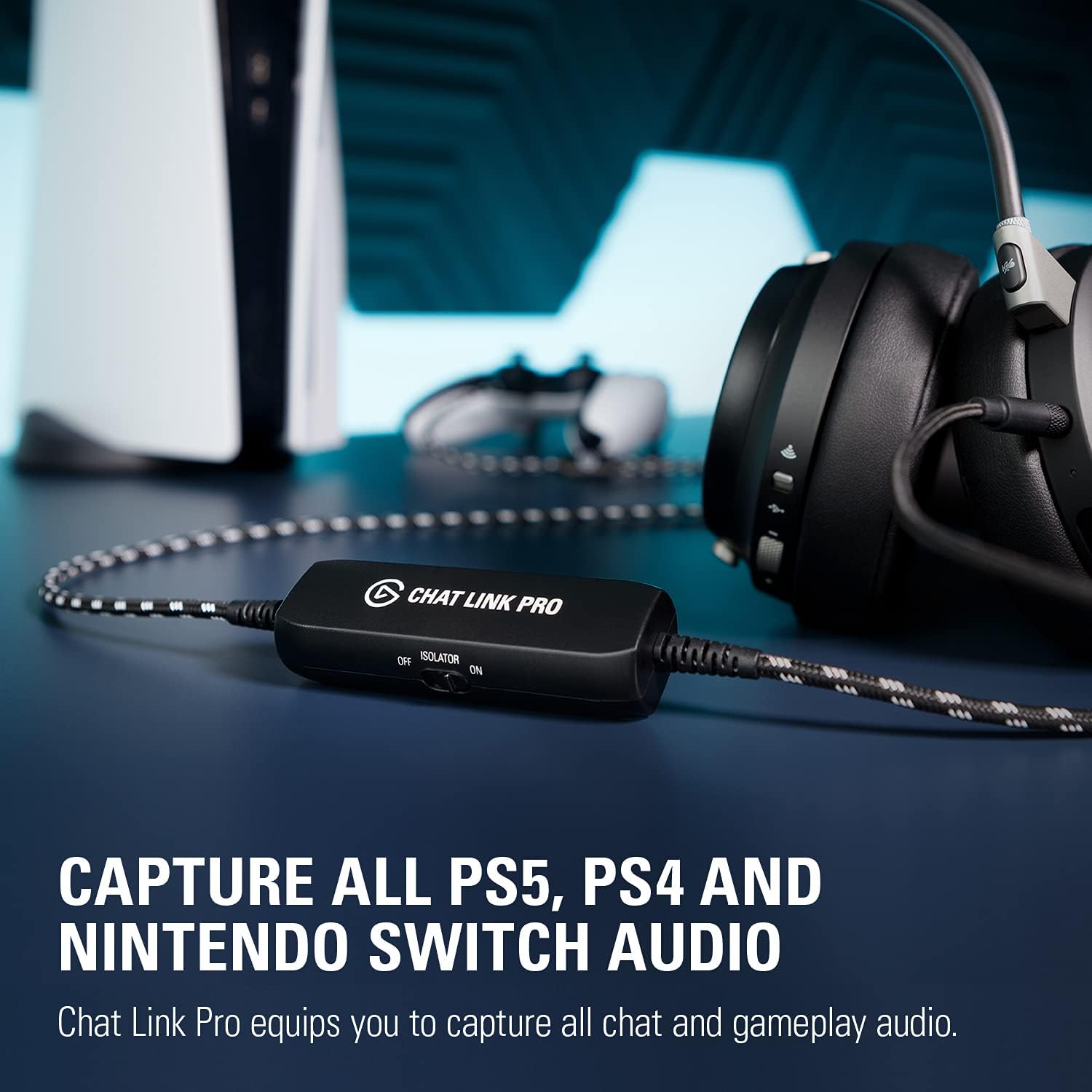
Image 5.1: A gaming setup demonstrating the use of Elgato HD60 X for capturing console gameplay.
5.2. Audio Capture with Chat Link Pro
- The Chat Link Pro captures all audio from your console, including game sound and voice chat.
- Use the 'ISOLATOR' switch on the Chat Link Pro to reduce buzzing or interference if you experience any. Set it to 'ON' if buzzing occurs.
- Adjust your headset and microphone volumes directly on your headset or console settings.

Image 5.2: The Elgato Chat Link Pro connected to a PlayStation controller, ready for audio capture.
6. Specifications
6.1. Elgato HD60 X
- Input: HDMI (unencrypted)
- Output: HDMI (lag-free passthrough) up to 2160p60, 1440p120, 1080p240, VRR, HDR
- Capture Resolutions: 2160p30, 1440p60, 1080p60, 1080p30, 1080i, 720p60, 576p, 480p
- HDR: 10-bit for passthrough and capture (1080p60) (HDR capture is currently Windows only)
- Dimensions: 112 x 72 x 18 mm / 4.4 x 2.8 x 0.7 in
- Weight: 91 g / 3.2 oz
6.2. Elgato Chat Link Pro
- Compatibility: PS5, PS4, Nintendo Switch
- Function: Captures voice chat and gameplay sound
- Connection: Plugs directly into controller
- Cable: Extra long braided cable for durability
- Audio Quality: Line isolator and gold-plated connectors for optimum sound quality
7. Troubleshooting
7.1. No Signal or Black Screen
- Verify all HDMI connections are secure and correctly plugged into the 'IN' and 'OUT' ports of the HD60 X.
- Ensure your console's output resolution is supported by the HD60 X. Try lowering the console's resolution if issues persist.
- Disable HDCP (High-bandwidth Digital Content Protection) on your console settings. This is often required for capture devices.
- Confirm the HD60 X is powered and properly connected to your computer via the USB 3.0 cable.
7.2. No Audio or Distorted Audio
- Check all Chat Link Pro connections: to the controller, your headset, and the audio input of your capture device.
- Toggle the 'ISOLATOR' switch on the Chat Link Pro. If you hear buzzing, try switching it to 'ON'.
- Verify audio input settings in your streaming software (e.g., OBS Studio). Ensure the correct audio device is selected and not muted.
- Check your console's audio output settings to ensure audio is being sent to the correct output.
7.3. Lag or Performance Issues
- Ensure your computer meets or exceeds the minimum system requirements listed in Section 3.
- Use the provided high-quality USB 3.0 C-to-A cable. Lower quality cables can cause data transfer issues.
- Close any unnecessary applications running on your computer to free up system resources.
- Update your graphics card drivers and the Elgato HD60 X firmware/drivers to the latest versions.
8. Maintenance
The Elgato HD60 X and Chat Link Pro are designed for durability and require minimal maintenance.
- Keep both devices clean and free from dust using a soft, dry cloth.
- Avoid exposing the devices to extreme temperatures, direct sunlight, or high humidity.
- Handle all cables and connectors with care to prevent bending or damage.
9. Warranty and Support
The Elgato HD60 X and Chat Link Pro come with a 3-year warranty.
For technical support, troubleshooting assistance, or to access the latest drivers and firmware updates, please visit the official Elgato support website. You can find detailed FAQs and contact customer service there.


