
1. Introduction
The TECBOT M1 is an advanced 4-in-1 intelligent cleaning robot designed to vacuum, sweep, and mop, featuring an automatic self-rinse function for the mop pad. Equipped with LDS and SLAM navigation systems, it intelligently plans cleaning paths and offers remote control via a mobile application. This manual provides essential information for setting up, operating, and maintaining your TECBOT M1 robot.
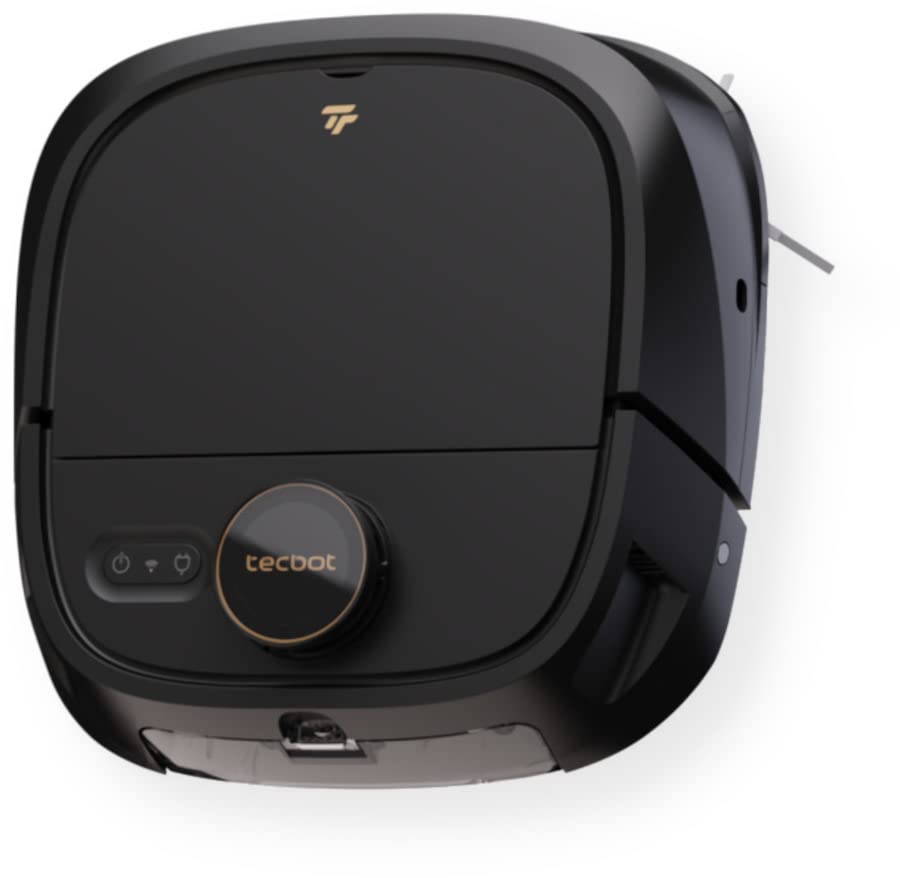
Image 1.1: Front view of the TECBOT M1 4-in-1 Intelligent Vacuum-Mop Cleaning Robot. The robot is black with a circular LiDAR sensor on top and a sleek, low-profile design.
2. Important Safety Instructions
Before using the TECBOT M1, please read and follow all safety instructions to prevent injury or damage. Keep this manual for future reference.
- Do not allow children to operate the robot. Supervise children and pets when the robot is operating.
- Use only the original power adapter and charging dock provided by TECBOT.
- Ensure the robot is placed on a stable surface. Avoid operating near stairs or elevated areas without proper barriers.
- Do not expose the robot or its battery to water or other liquids.
- Keep hair, loose clothing, fingers, and all body parts away from openings and moving parts.
- Do not pick up flammable or combustible materials, such as gasoline, or use in areas where they may be present.
- Turn off the robot and unplug the charging dock before cleaning or performing maintenance.
- Do not operate the robot in extremely hot or cold environments.
3. Package Contents
Verify that all components are present in the package:
- TECBOT M1 Robot Vacuum-Mop
- Charging Dock
- Power Adapter
- Water Tank (0.42L capacity)
- Wastewater Tank (0.32L capacity)
- Dust Bin (0.5L capacity)
- Roller Mop (7.4" x 2.1")
- V-shape Main Brush (6.7" x 1.8")
- Side Brushes
- User Manual
4. Product Overview
Familiarize yourself with the main components of your TECBOT M1 robot.
4.1 Robot Top View

Image 4.1: Top view of the TECBOT M1 robot. Visible components include the LiDAR navigation sensor (circular dome), power/clean button, and a small indicator light.
4.2 Robot Side View
The side of the robot features obstacle sensors and the exhaust vent.
4.3 Robot Bottom View
The underside of the robot includes the main brush, side brushes, driving wheels, and cliff sensors.
4.4 Charging Dock
The charging dock provides power to the robot and serves as its home base.
5. Setup
5.1 Charging Dock Placement
- Place the charging dock against a wall in an open area, ensuring at least 0.5 meters (1.6 feet) of clear space on both sides and 1.5 meters (4.9 feet) in front.
- Connect the power adapter to the charging dock and plug it into a power outlet.
- Ensure the charging dock is placed on a hard, level surface.
5.2 Initial Charging
Before first use, fully charge the robot. Place the robot onto the charging dock, ensuring the charging contacts align. The robot will indicate charging status. A full charge takes approximately 2.5 hours.
5.3 App Connection
The TECBOT M1 can be controlled via a mobile application. Follow these steps to connect:
- Download the TECBOT app from your mobile device's app store.
- Register an account and log in.
- Follow the in-app instructions to add your TECBOT M1 device. This typically involves connecting the robot to your home Wi-Fi network.
- Once connected, you can control the robot remotely, view cleaning maps, and set schedules.
6. Operating Instructions
The TECBOT M1 utilizes LDS and SLAM navigation for efficient cleaning.
6.1 Starting/Pausing/Returning to Dock
- Start Cleaning: Press the power button on the robot or use the "Start Cleaning" option in the app.
- Pause Cleaning: Press the power button again or use the "Pause" option in the app.
- Return to Dock: Press and hold the power button for a few seconds, or use the "Return to Dock" option in the app.
6.2 Cleaning Modes
The robot offers 4 cleaning modes and 3 surface settings:
- Automatic Mode: The robot intelligently plans its cleaning path for the entire area.
- Sweep Mode: Focuses on dry debris collection.
- Mop Mode: Engages the mopping function for wet cleaning.
- Heavy Mop Mode: Provides a more intensive mopping action for stubborn stains.
Surface settings include: Balcony, Marble Floor, and Wooden Floor. Select the appropriate setting via the app for optimized cleaning.
6.3 App Control Features
The TECBOT app provides comprehensive control and monitoring:
- Real-time Mapping: View the robot's cleaning path and mapped areas in real-time.
- Zone Cleaning: Define specific areas for the robot to clean.
- Forbidden Zones: Set virtual boundaries to prevent the robot from entering certain areas.
- Scheduling: Set cleaning schedules for automated operation.
- Cleaning History: Review past cleaning sessions.
7. Maintenance
Regular maintenance ensures optimal performance and extends the lifespan of your TECBOT M1.
7.1 Automatic Self-Rinse
The TECBOT M1 features an automated self-rinse function for the mop pad. The robot will return to its dock to clean the mop pad as needed during a mopping cycle, ensuring it always cleans with a fresh pad.
7.2 Dust Bin and Filter Cleaning
- Open the top cover of the robot and remove the dust bin.
- Empty the dust bin after each use.
- Remove the filter from the dust bin and tap it gently to remove debris. Rinse the filter with water if necessary, but ensure it is completely dry before reinserting.
- Replace the filter every 3-6 months, depending on usage.
7.3 Water and Wastewater Tanks
- Empty the wastewater tank after each mopping session to prevent odors and bacterial growth.
- Refill the clean water tank with fresh water before each mopping session.
- Clean both tanks regularly with mild detergent and water. Allow them to air dry completely.
7.4 Main Brush and Side Brushes
- Remove the main brush cover and lift out the V-shape main brush. Use the cleaning tool (if provided) to remove tangled hair and debris.
- Carefully pull off the side brushes. Remove any hair or debris wrapped around them. Reattach securely.
- Inspect brushes weekly and replace them every 6-12 months, or when visibly worn.
7.5 Sensors and Charging Contacts
- Wipe the cliff sensors, wall sensors, and charging contacts on both the robot and the charging dock with a clean, dry cloth.
- Ensure no dust or debris obstructs the LiDAR sensor on top of the robot.
8. Troubleshooting
Refer to the following table for common issues and their solutions:
| Problem | Possible Cause | Solution |
|---|---|---|
| Robot does not start. | Low battery; Power switch off; Robot stuck. | Charge the robot; Ensure power switch is on; Clear obstructions. |
| Robot cannot find charging dock. | Dock obstructed; Dock unplugged; Robot too far. | Clear area around dock; Plug in dock; Manually place robot near dock. |
| Poor cleaning performance. | Dust bin full; Brushes tangled; Filter clogged. | Empty dust bin; Clean main and side brushes; Clean/replace filter. |
| Mop pad not rinsing or dirty. | Water tank empty; Wastewater tank full; Self-rinse mechanism blocked. | Refill clean water tank; Empty wastewater tank; Check self-rinse nozzles for blockages. |
| App connection issues. | Incorrect Wi-Fi password; Robot out of Wi-Fi range; Router issues. | Verify Wi-Fi credentials; Move robot closer to router; Restart router and robot. |
9. Specifications
| Feature | Detail |
|---|---|
| Model | M1 |
| Brand | TECBOT |
| Suction Power | 4000Pa |
| Battery Capacity | 5200mAh (Lithium Ion) |
| Battery Life (Max) | 3 Hours |
| Charging Time | 2.5 Hours |
| Single Charge Max Coverage | 1600 ft² |
| Clean Water Tank Capacity | 0.42L |
| Wastewater Tank Capacity | 0.32L |
| Dust Bin Capacity | 0.5L |
| Noise Level (Vacuuming) | 56-65 dB |
| Noise Level (Mopping) | 38 dB |
| Obstacle Crossing Ability | 0.04" |
| Dimensions (L x W x H) | 13.8" x 13.8" x 4.7" |
| Weight | 11.3 lb |
| Navigation System | LDS and SLAM |
| Control Type | App Control, Remote Control |
| Compatible Devices | Amazon Echo |
10. Warranty and Support
For warranty information, please refer to the warranty card included with your product or visit the official TECBOT website. For technical support, troubleshooting assistance beyond this manual, or to order replacement parts, please contact TECBOT customer service through their official channels.


