
TECBOT M1
TECBOT M1 Intelligent Vacuum-Mop Cleaning Robot User Manual
Model: M1
Product Overview
The TECBOT M1 is a 4-in-1 intelligent vacuum-mop cleaning robot designed to provide comprehensive floor cleaning. It features powerful 4000Pa suction, a 2.5-hour running time, and an automatic self-rinse function for the mop pad. Equipped with LDS and SLAM navigation systems, it intelligently plans cleaning paths for efficient coverage. The M1 supports remote APP control, allowing users to manage cleaning tasks, set forbidden zones, and view cleaning tracks from anywhere.
This robot combines sweeping, vacuuming, mopping, and automatic mop washing into a single device, making it suitable for various floor types, including hard floors and carpets.

Figure 1: Top view of the TECBOT M1 Intelligent Vacuum-Mop Cleaning Robot, showing the LDS sensor tower and control buttons.
Key Features
- Powerful Suction & Battery: Equipped with a 5200mAh battery capacity and 4000Pa hurricane suction for thorough cleaning.
- Advanced Navigation: Utilizes SLAM Algorithm for full-house multi-room recognition and dynamic path planning, optimizing cleaning efficiency.
- Automated Self-Rinse: Automatically rinses the mop pad as needed, ensuring it remains clean throughout the mopping process.
- Multiple Cleaning Modes: Offers 4 cleaning modes (Automatic, Sweep, Mop, Heavy Mop) and 3 surface settings (Balcony, Marble Floor, Wooden Floor) for versatile cleaning.
- Smart APP Control: Connects to Wi-Fi for remote control via a dedicated application, allowing visual cleaning, setting forbidden zones, and real-time tracking.
Setup Guide
1. Unboxing and Initial Placement
- Carefully remove the TECBOT M1 and all accessories from the packaging.
- Choose a suitable location for the charging dock. Ensure it is placed against a wall, with at least 0.5 meters (1.6 feet) of clear space on either side and 1.5 meters (4.9 feet) in front. Avoid areas with direct sunlight or strong Wi-Fi interference.
- Connect the power adapter to the charging dock and plug it into a power outlet. Ensure the indicator light on the charging dock illuminates.
2. Charging the Robot
- Place the TECBOT M1 onto the charging dock, ensuring the charging contacts on the robot align with those on the dock. The robot will automatically begin charging.
- Allow the robot to fully charge before its first use. A full charge takes approximately 2.5 hours. The indicator light on the robot will change to solid white when fully charged.
3. Installing Side Brushes and Roller Mop
- Turn the robot upside down.
- Attach the side brushes by pressing them onto their respective posts until they click into place.
- Ensure the roller mop is securely installed in its compartment.

Figure 2: Front-top view of the TECBOT M1, highlighting the front bumper and side brush placement.
4. Filling Water Tanks
- Locate the clean water tank (0.42L capacity) and wastewater tank (0.32L capacity).
- Fill the clean water tank with clean tap water. Do not add detergents or cleaning solutions unless specifically designed for robot vacuums and approved by TECBOT.
- Ensure both tanks are properly inserted into the robot.

Figure 3: Internal view of the TECBOT M1 illustrating the water flow path for the self-rinse function, showing the clean water being dispensed and dirty water being collected.
5. APP Connection (Optional but Recommended)
- Download the TECBOT APP from your mobile device's app store.
- Follow the in-app instructions to connect your TECBOT M1 to your home Wi-Fi network. This enables remote control, scheduling, and advanced mapping features.
Operating Instructions
1. Starting a Cleaning Cycle
- Manual Start: Press the power button on the robot once to start an automatic cleaning cycle.
- APP Start: Open the TECBOT APP, select your device, and tap "Start Cleaning" to initiate a cycle. You can also choose specific cleaning modes (Automatic, Sweep, Mop, Heavy Mop) and surface settings (Balcony, Marble Floor, Wooden Floor) via the APP.
2. Pausing and Resuming
- During a cleaning cycle, press the power button on the robot or the "Pause" button in the APP to pause cleaning.
- Press the power button or "Resume" in the APP again to continue cleaning.
3. Returning to Charging Dock
- Press the "Home" button on the robot or the "Recharge" button in the APP to send the robot back to its charging dock.
- The robot will automatically return to the dock when its battery is low or when a cleaning cycle is complete.
4. Using Advanced APP Features
- Map Management: The APP allows the robot to create and save maps of your home. You can edit maps, merge/split rooms, and name areas.
- Forbidden Zones: Set virtual walls or no-go zones on the map to prevent the robot from entering specific areas.
- Scheduled Cleaning: Set up daily or weekly cleaning schedules for automated operation.
- Spot Cleaning: Direct the robot to clean a specific small area intensively.
- Cleaning History: View past cleaning records, including cleaned area and duration.
Maintenance
Regular maintenance ensures optimal performance and extends the lifespan of your TECBOT M1. Always power off the robot before performing any maintenance.
1. Emptying Dust Bin and Cleaning Filter
- Press the dust bin release button and remove the dust bin (0.5L capacity).
- Empty the dust and debris into a trash can.
- Remove the filter and tap it gently to remove dust. The filter can be rinsed with water, but ensure it is completely dry before reinserting.
- Wipe the inside of the dust bin with a dry cloth.
- Reinsert the filter and dust bin.
2. Cleaning Water Tanks
- After each mopping cycle, empty any remaining clean water and dispose of the wastewater from the respective tanks.
- Rinse both tanks with clean water and allow them to air dry completely before reinserting.
3. Cleaning Roller Mop and Side Brushes
- Remove the roller mop (7.4" x 2.1") and clean any hair or debris tangled around it. You may use the cleaning tool provided.
- Remove the side brushes and clean any hair or debris. If brushes are bent, soak them in warm water for a few minutes to reshape.
- Reinstall the roller mop and side brushes.
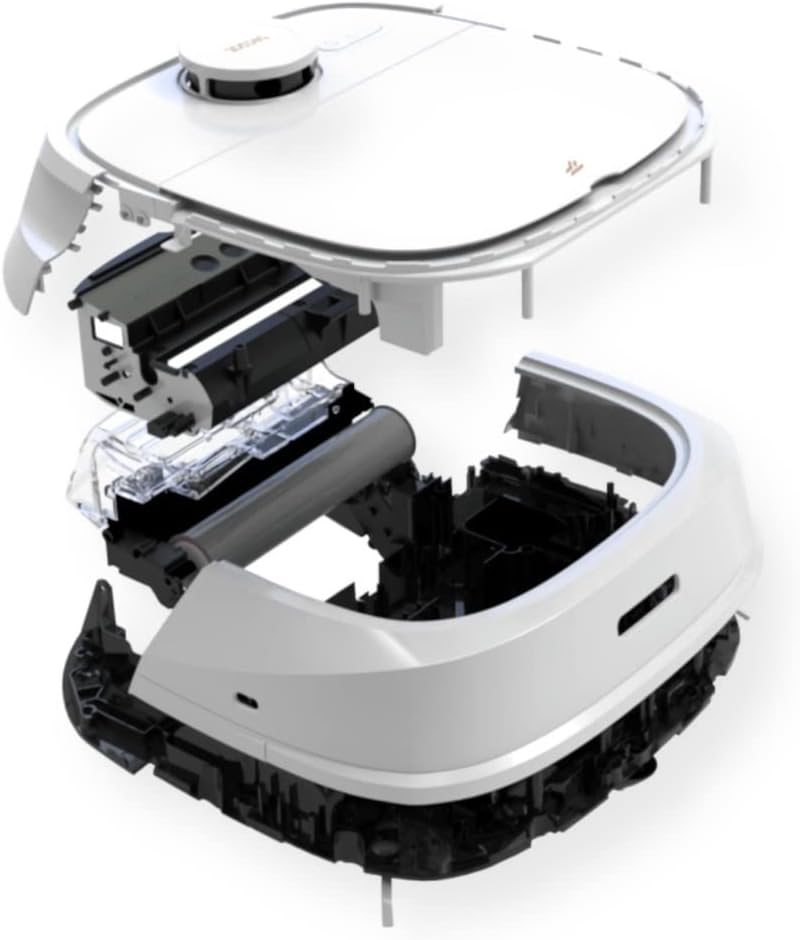
Figure 4: Exploded view of the TECBOT M1, showing the removable components such as the dustbin, water tanks, and roller mop for maintenance.
4. Cleaning Sensors and Charging Contacts
- Wipe all sensors (cliff sensors, wall sensors, LDS sensor window) and charging contacts on both the robot and the charging dock with a clean, dry cloth.
- Ensure no dust or debris obstructs the sensors.
Troubleshooting
| Problem | Possible Cause | Solution |
|---|---|---|
| Robot does not turn on or charge. | Battery depleted; charging contacts dirty; power adapter not connected. | Ensure robot is properly docked. Clean charging contacts. Check power connection to charging dock. |
| Robot gets stuck frequently. | Obstacles (cables, rugs); cliff sensors dirty. | Clear obstacles from cleaning path. Clean cliff sensors. Use forbidden zones in APP. |
| Poor cleaning performance. | Dust bin full; filter clogged; brushes tangled. | Empty dust bin. Clean or replace filter. Clean main brush and side brushes. |
| Mop function not working. | Water tank empty; mop pad dirty or not installed correctly. | Fill clean water tank. Clean or replace mop pad. Ensure mop pad is securely attached. |
| Cannot connect to APP. | Incorrect Wi-Fi password; robot too far from router; 5GHz Wi-Fi network. | Ensure correct 2.4GHz Wi-Fi password. Move robot closer to router. Reset Wi-Fi on robot and try again. |
Specifications
| Feature | Detail |
|---|---|
| Brand | TECBOT |
| Model Number | M1 |
| Product Dimensions | 13.8"L x 13.8"W x 4.6"H |
| Overall Weight | 11.3 lb |
| Suction Power | 4000Pa |
| Battery Capacity | 5200 mAh |
| Battery Life (Running Time) | Up to 3 Hours |
| Charging Time | 2.5 hours |
| Clean Water Tank Capacity | 0.42L |
| Wastewater Tank Capacity | 0.32L |
| Dust Bin Capacity | 0.5L |
| Noise Level (Vacuuming) | 56-65 dB |
| Noise Level (Mopping) | 38 dB |
| Obstacle Crossing Ability | 0.04" |
| Single Charge Max Coverage | 1600 ft2 |
| Compatible Devices | Amazon Echo |
| UPC | 785249837944 |
Warranty and Support
Information regarding specific warranty terms and customer support contact details for the TECBOT M1 is not provided in the available product data. Please refer to the product packaging, the official TECBOT website, or your purchase receipt for detailed warranty information and customer service contacts.
For general inquiries or technical assistance, you may visit the official TECBOT store on Amazon: TECBOT Store.
Related documentsM1


Ask a question about this manual
Ask about setup, troubleshooting, compatibility, parts, safety, or missing instructions. Manuals+ will review the question and use this page’s manual context to help answer it.