
ALLIMITY RC2000E01
ALLIMITY RC2000E01 Replacement Remote Control
Model: RC2000E01 | Brand: ALLIMITY
Introduction
This manual provides instructions for the ALLIMITY RC2000E01 Replacement Remote Control, designed for a wide range of TCL and Thomson television models. This remote is a direct replacement, offering full functionality without the need for complex programming. Simply insert batteries, and it is ready for use.
The RC2000E01 is compatible with numerous models, ensuring seamless operation with your existing television. Please refer to the 'Specifications' section for a detailed list of compatible devices.

Angled view of the ALLIMITY RC2000E01 remote control, showing its ergonomic design.
Setup
To begin using your ALLIMITY RC2000E01 remote control, follow these simple steps for battery installation:
- Step 1: Open Battery Compartment
Locate the battery compartment cover on the back of the remote control. Gently slide or press the latch to open the cover. - Step 2: Insert Batteries
Insert two AAA alkaline batteries (not included) into the compartment. Ensure the positive (+) and negative (-) terminals of the batteries align correctly with the markings inside the compartment. - Step 3: Close Battery Compartment
Replace the battery compartment cover by sliding it back into place until it clicks securely. - Step 4: Test Functionality
Point the remote control towards your television and press the Power button. The television should respond. If not, verify battery orientation and ensure the batteries are fresh.
Operating Instructions
The ALLIMITY RC2000E01 remote control provides access to all standard functions of your TCL or Thomson television. Below is a guide to the main buttons and their uses.
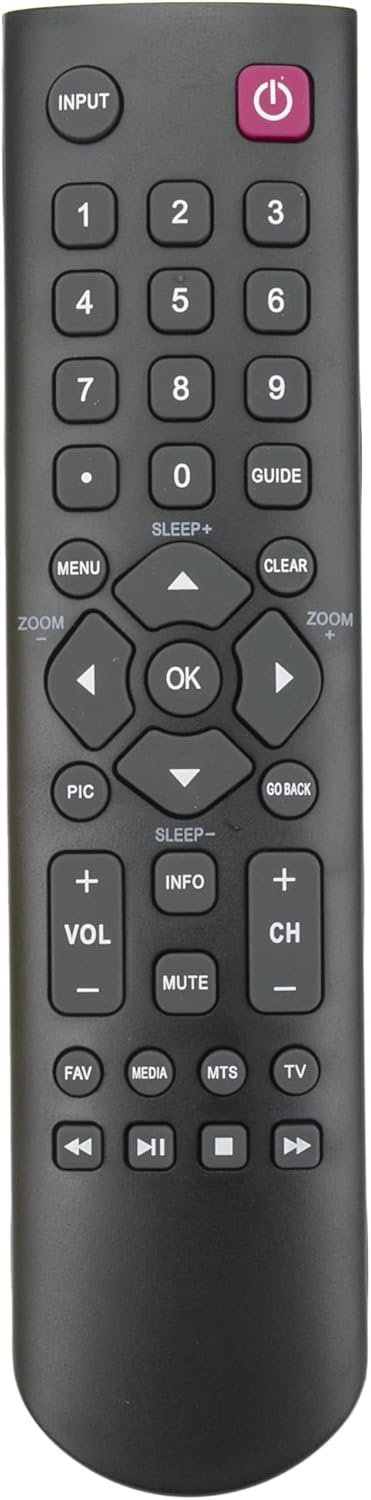
Front view of the ALLIMITY RC2000E01 remote control, highlighting all functional buttons.
- Power Button (Red, Top Right): Turns the television on or off.
- INPUT Button (Top Left): Cycles through available input sources (HDMI, AV, etc.).
- Number Buttons (0-9): Directly select channels or input numerical values.
- GUIDE Button: Accesses the electronic program guide (if supported by your TV).
- MENU Button: Opens the television's main menu for settings adjustments.
- CLEAR Button: Clears on-screen displays or cancels selections.
- Navigation Pad (Up, Down, Left, Right, OK): Used to navigate menus and confirm selections.
- PIC Button: Adjusts picture settings (e.g., brightness, contrast).
- GO BACK Button: Returns to the previous menu or channel.
- VOL +/- Buttons: Adjusts the volume level.
- CH +/- Buttons: Changes the television channel.
- MUTE Button: Mutes or unmutes the television audio.
- INFO Button: Displays information about the current program or input.
- FAV Button: Accesses favorite channels list.
- MEDIA Button: Opens the media player or smart TV functions.
- MTS Button: Selects Multi-channel Television Sound options (e.g., stereo, SAP).
- TV Button: Switches to TV mode.
- Playback Controls (Rewind, Play/Pause, Stop, Fast Forward): Controls media playback for compatible media sources.
Maintenance
- Battery Replacement: Replace batteries when the remote's range decreases or it becomes unresponsive. Always replace both batteries at the same time with new alkaline batteries.
- Cleaning: Wipe the remote control with a soft, dry cloth. Do not use liquid cleaners or abrasive materials, as these can damage the remote's surface or internal components.
- Storage: Store the remote in a cool, dry place away from direct sunlight and extreme temperatures when not in use for extended periods.
Troubleshooting
- Remote Not Responding:
- Check battery orientation. Ensure positive (+) and negative (-) terminals are correctly aligned.
- Replace old batteries with new ones. Weak batteries are a common cause of remote control issues.
- Ensure there is a clear line of sight between the remote control and the television's infrared sensor. Obstructions can block the signal.
- Specific Buttons Not Working:
- Clean the remote control, especially around the unresponsive buttons, to remove any dirt or debris that might be interfering with button presses.
- If only certain buttons are not working, and battery replacement does not help, the remote may be damaged and require replacement.
- Television Not Turning On/Off:
- Confirm the remote is compatible with your specific TV model. Refer to the compatibility list in this manual.
- Try manually turning the TV on/off using its physical buttons to ensure the TV itself is functioning correctly.
Specifications
| Attribute | Detail |
| Brand | ALLIMITY |
| Model Name | RC2000E01 |
| Connectivity Technology | Infrared (IR) |
| Number of Buttons | 40 |
| Maximum Range | 10 meters (approximately 33 feet) |
| Battery Description | Alkaline (2 x AAA, not included) |
| Compatible Devices | D2900, 40D2900F, 28D2900F, 22D2900F, 32D2900F, L32B2600, 04TCLPDM0323, 19HT4253, RC2000E01, 24FS4246CW, 24FT5253, 26HU5253, 28HA3203, 32HA3103, 32HS5246C, 32HZ5233, 32HS5246, 32HW3323, 32HW3324, 39FU3253, 40FT4253, 40FS3246, 40FW3323, 48FU4243, 55FU4243, 55FA3203, 55FZ3234, 22FS5246C, 24HU5253, 24FW4325, 26HS3246, 32FS3246C, 32HS2246C, 32HT4253, 32HS2040C, 32HU2253, 32hu3253c, 39HZ4233, 40FW3253, 40FU3253, 42FU4253, 48FZ3234, 55FT5643, L24E4105F, 19HS5246C, 24FT4253, 24FU5253C-G, 26HU5253W, 32FA3103, 32HS2244, 32HT2253, 32FS5246, 32HT5453, 32HW3325G, 39FU3253C, 40FT5453, 40FS5246, 42FS4246C, 48FU4243C, 55FA3205, 55FZ3235, 22HS4246CW, 24FS4246C, 26HS4246CW, 26HS6246, 32FZ5233, 32HS4246CW, 32HU5253, 32HS4244, 32HU5244, 32HU5253, 43C, 40FT2253, 40FA3205, 40FU3255-G, 46FT5453, 22HS4246-C, 24HU5253W, 26HS4246C, 26HS4244, 32FU5253, 32HS4246C, 32HU3253, 32HS3246, 32HU5243, 39FU5253W, 40FS5246C, 40FA3113, 40FU3253C, 42FU2253, 50FU3253, 55FZ3233, L32D3300 |
Warranty and Support
As a replacement remote control, this product typically does not come with an extended manufacturer's warranty. Please refer to your retailer or point of purchase for any specific return policies or limited warranties offered by the seller.
For technical support or further assistance, please contact the seller directly through your purchase platform. Ensure you have your order details available for faster service.
Ask a question about this manual
Ask about setup, troubleshooting, compatibility, parts, safety, or missing instructions. Manuals+ will review the question and use this page’s manual context to help answer it.