
1. Introduction
This manual provides detailed instructions for the setup, operation, and maintenance of your Kinhank Mini PC Game Box, Super Console X PC Chili. This device features a dual operating system, combining the productivity of Windows 11 Pro with the extensive gaming library of Batocera 33. Please read this manual thoroughly before using the product to ensure optimal performance and longevity.
2. Package Contents
Verify that all items listed below are included in your package. If any items are missing or damaged, please contact customer support.
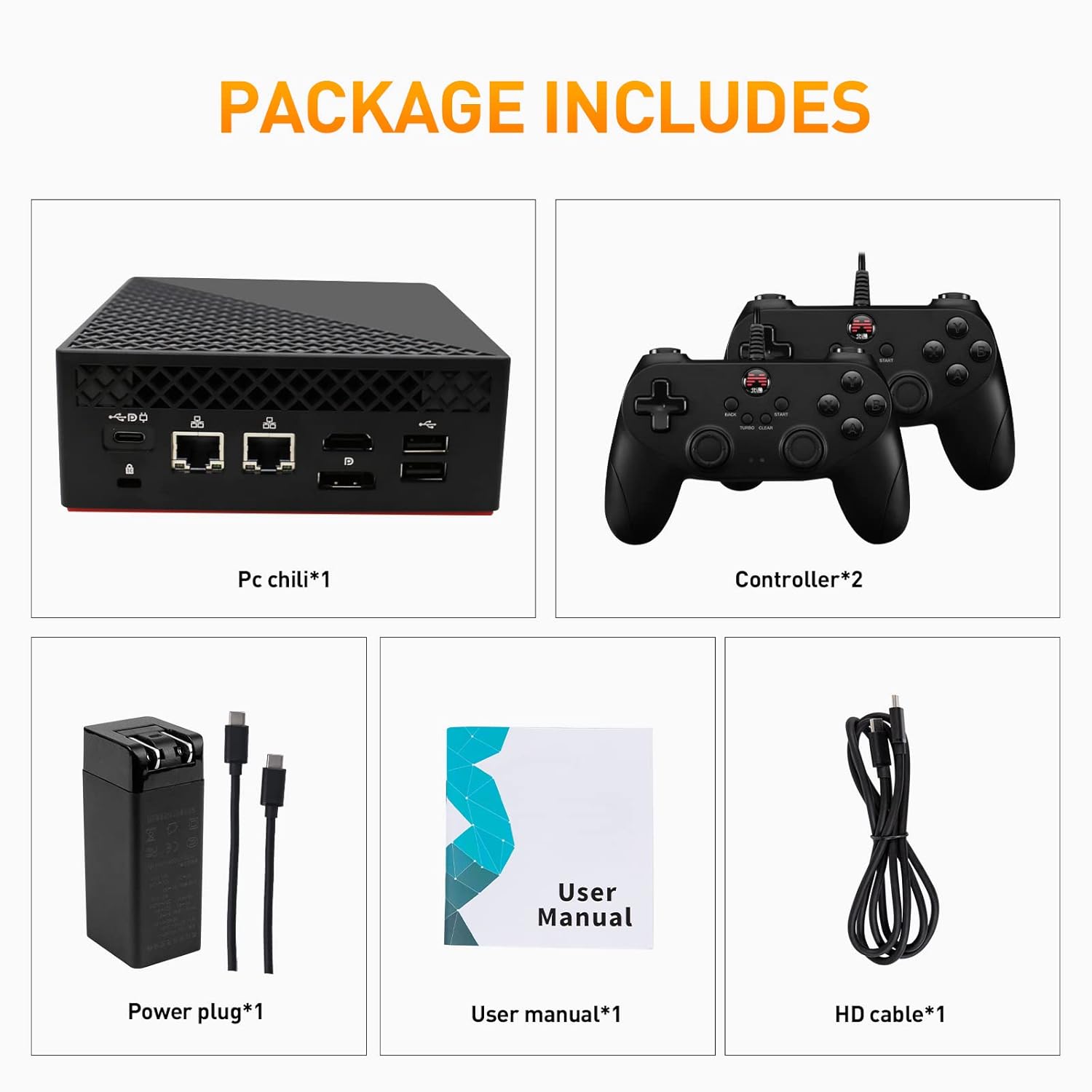
Image: Contents of the Super Console X PC Chili package. It shows the mini PC unit, two game controllers, a power adapter with cables, a user manual, and an HD cable.
- Kinhank Mini PC Game Box (Super Console X PC Chili) x 1
- Game Controllers x 2
- Power Adapter x 1
- User Manual x 1
- HD Cable x 1
3. Product Overview
Familiarize yourself with the various ports and components of your Mini PC Game Box.
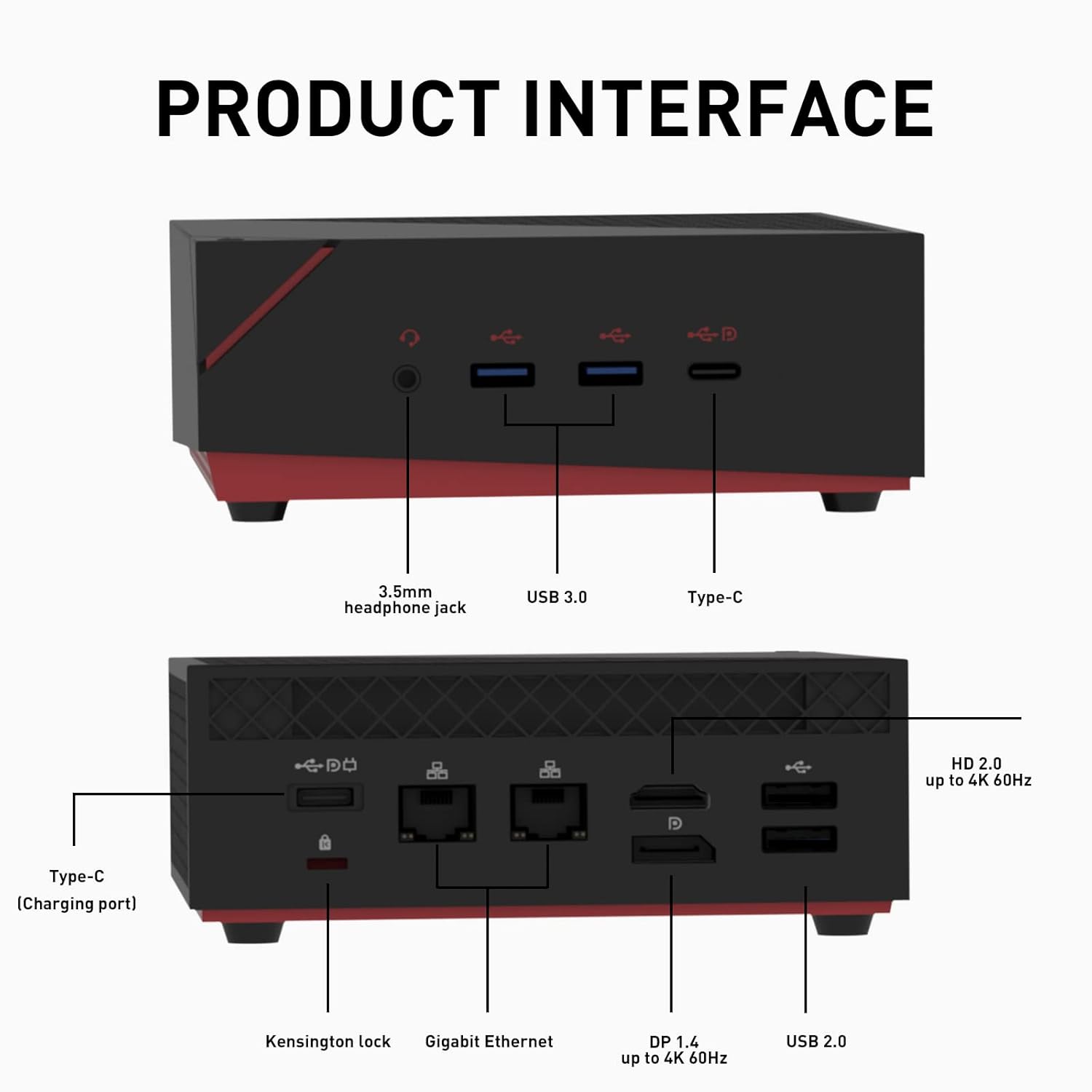
Image: Detailed diagram of the Mini PC's front and rear interfaces. The front includes a 3.5mm headphone jack, USB 3.0 ports, and a Type-C port. The rear features a Kensington lock, Gigabit Ethernet ports, DP 1.4, HD 2.0, and USB 2.0 ports, along with a Type-C charging port.
Front Panel:
- 3.5mm Headphone Jack: For audio output to headphones or external speakers.
- USB 3.0 Ports: High-speed data transfer for peripherals.
- Type-C Port: Multi-functional port for data or display.
Rear Panel:
- Kensington Lock Slot: For securing the device.
- Gigabit Ethernet Ports: For wired network connection.
- DP 1.4 Port: DisplayPort for video output, up to 4K 60Hz.
- HD 2.0 Port: HDMI port for video output, up to 4K 60Hz.
- USB 2.0 Ports: For connecting peripherals.
- Type-C (Charging Port): For power input to the device.
4. Setup Instructions
- Connect to Display: Connect the Mini PC to your monitor or TV using the provided HD cable (or a DisplayPort cable) to either the HD 2.0 or DP 1.4 port.
- Connect Peripherals: Plug in your keyboard, mouse, and the included game controllers into the available USB ports.
- Connect Power: Connect the power adapter to the Type-C charging port on the rear of the Mini PC, then plug the adapter into a power outlet.
- Power On: Press the power button located on the device. The system will boot up.
- Initial System Selection: Upon first boot, you may be prompted to select between Windows 11 Pro and Batocera 33. Follow the on-screen instructions.
5. Operating Instructions
Your Kinhank Mini PC Game Box features a dual operating system for versatile use.
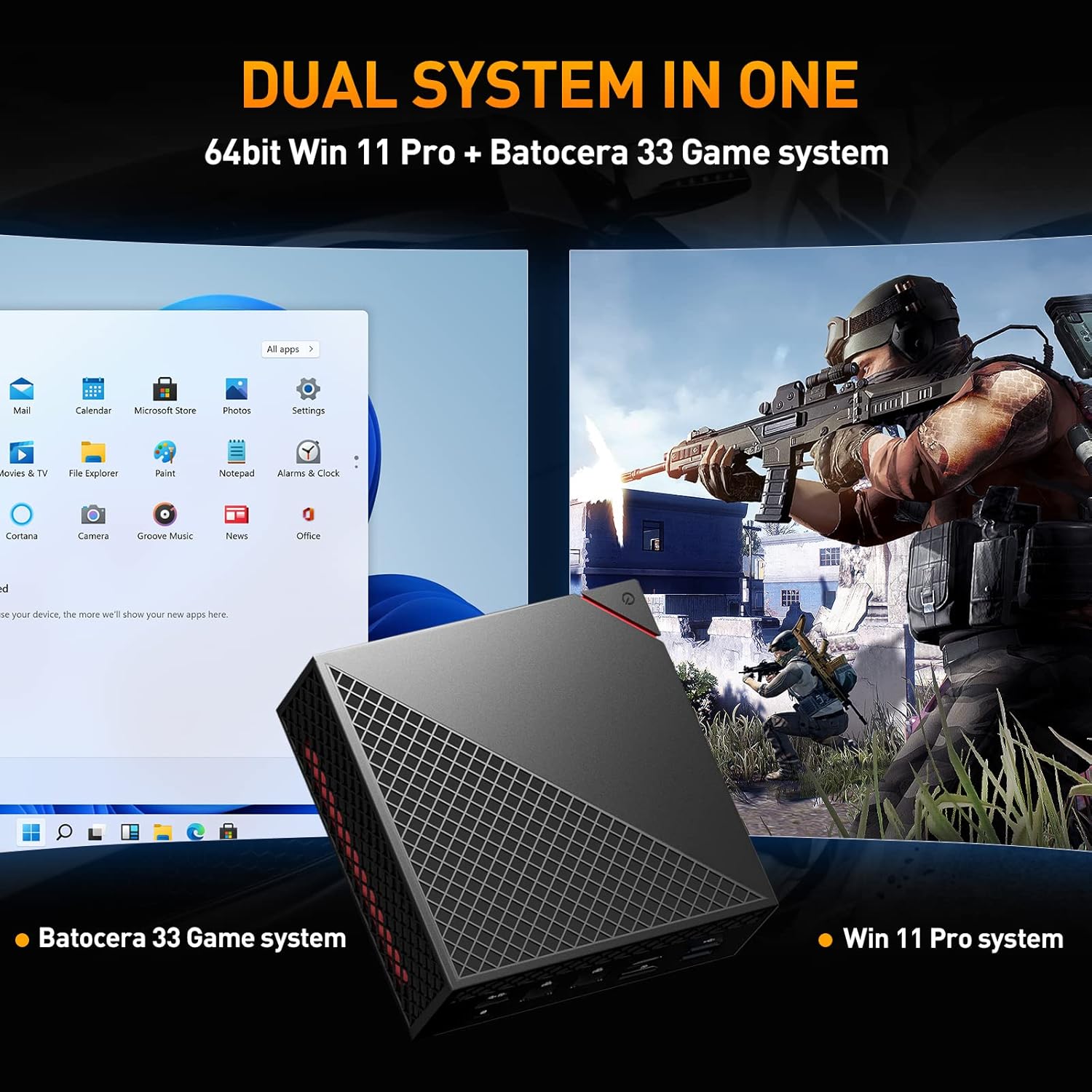
Image: The Mini PC displaying a split screen, showing the Windows 11 Pro desktop on the left and a game running on the Batocera 33 system on the right, illustrating the dual system functionality.
Switching Between Systems:
To switch between Windows 11 Pro and Batocera 33, you typically need to restart the device and select the desired operating system from the boot menu. Specific instructions for accessing the boot menu may vary; consult the on-screen prompts during startup or refer to the system's BIOS/UEFI settings.
Using Windows 11 Pro:
- Desktop Environment: Navigate using a mouse and keyboard as you would with any standard Windows PC.
- Applications: Install and run Windows-compatible software for productivity, browsing, or other PC tasks.
- Updates: Ensure Windows is kept up-to-date for security and performance.
Using Batocera 33:
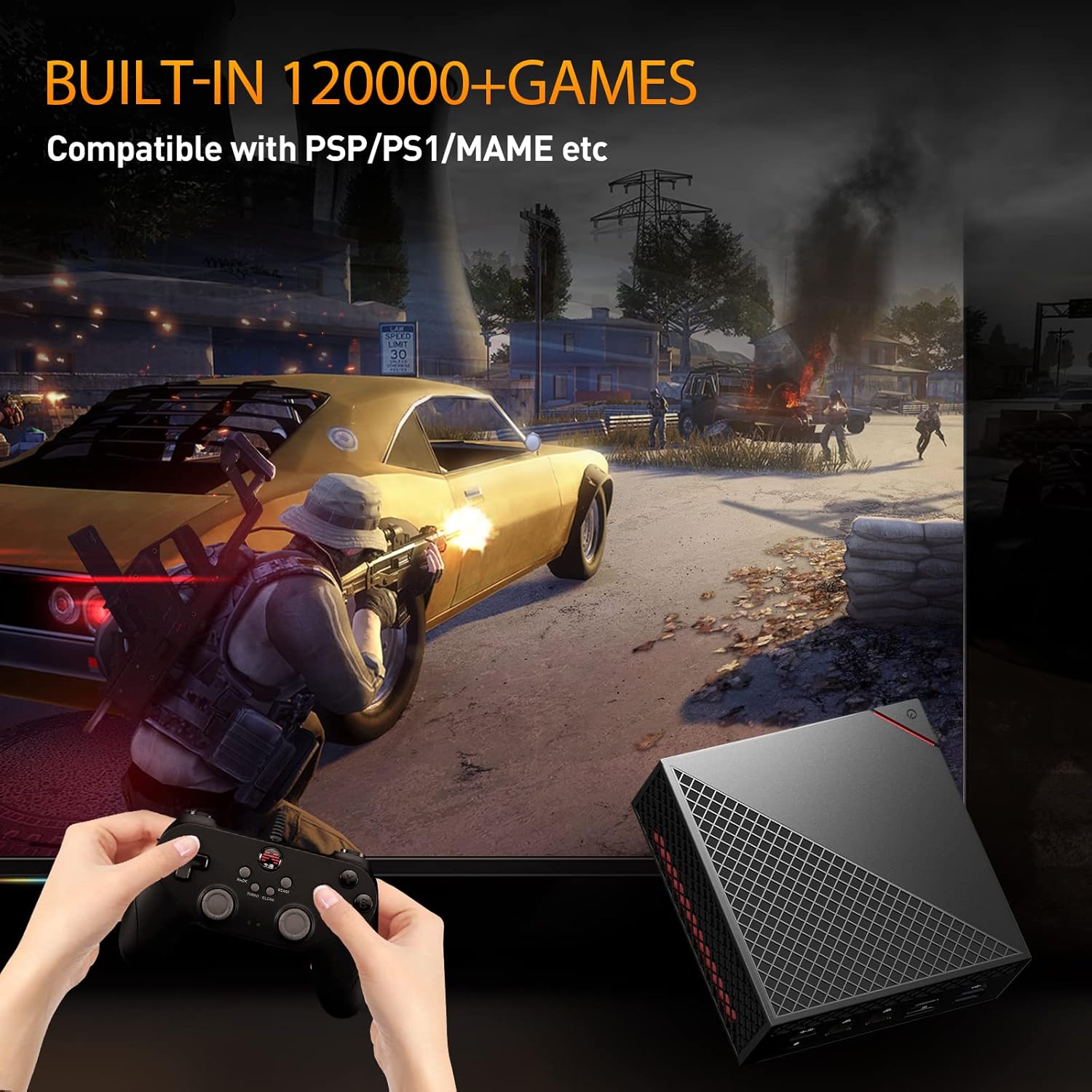
Image: A user playing a game on the Batocera 33 system using a gamepad, with the Mini PC visible in the foreground.
- Game Selection: Use the included game controllers to navigate the Batocera interface and select games from the pre-installed library.
- Emulator Support: Batocera 33 supports a wide range of emulators for various classic gaming platforms.
- Saving Progress: Follow the in-game or emulator-specific instructions for saving game progress.
- Adding Games: For advanced users, Batocera allows adding new game ROMs. Refer to the Batocera documentation for detailed instructions on this process.
6. Key Features
The Super Console X PC Chili is designed with powerful components for both gaming and productivity.
Image: A close-up of the AMD Ryzen 5 4500U processor chip, highlighting its presence in the device.
- Processor: AMD Ryzen 5 4500U, 7nm process with 6 cores and 6 threads, up to 4.0GHz.
- Graphics: Radeon Graphics, high frequency Vega 6, up to 1.5GHz.
- RAM: Pre-installed 16GB DDR4 2666MHz, dual channel 8GB x 2.
- Storage: M.2 NVME PCI-E 256G SSD (read: 3000MB/s, write: 2100MB/s) and 2TB 2.5inch SATA3 HDD (Fast Transmission: 6GB/S).
- Display Output: HD+DP+Type-C three-screen output, supporting up to 4K resolution.
- Operating System: Dual system with 64bit Windows 11 Pro and Batocera 33 game system.
- Wireless Connectivity: Intel AX200 Wi-Fi 6 (2.4GHz, 5GHz 160Mhz, Max 2.4Gbps) and Bluetooth 5.2.
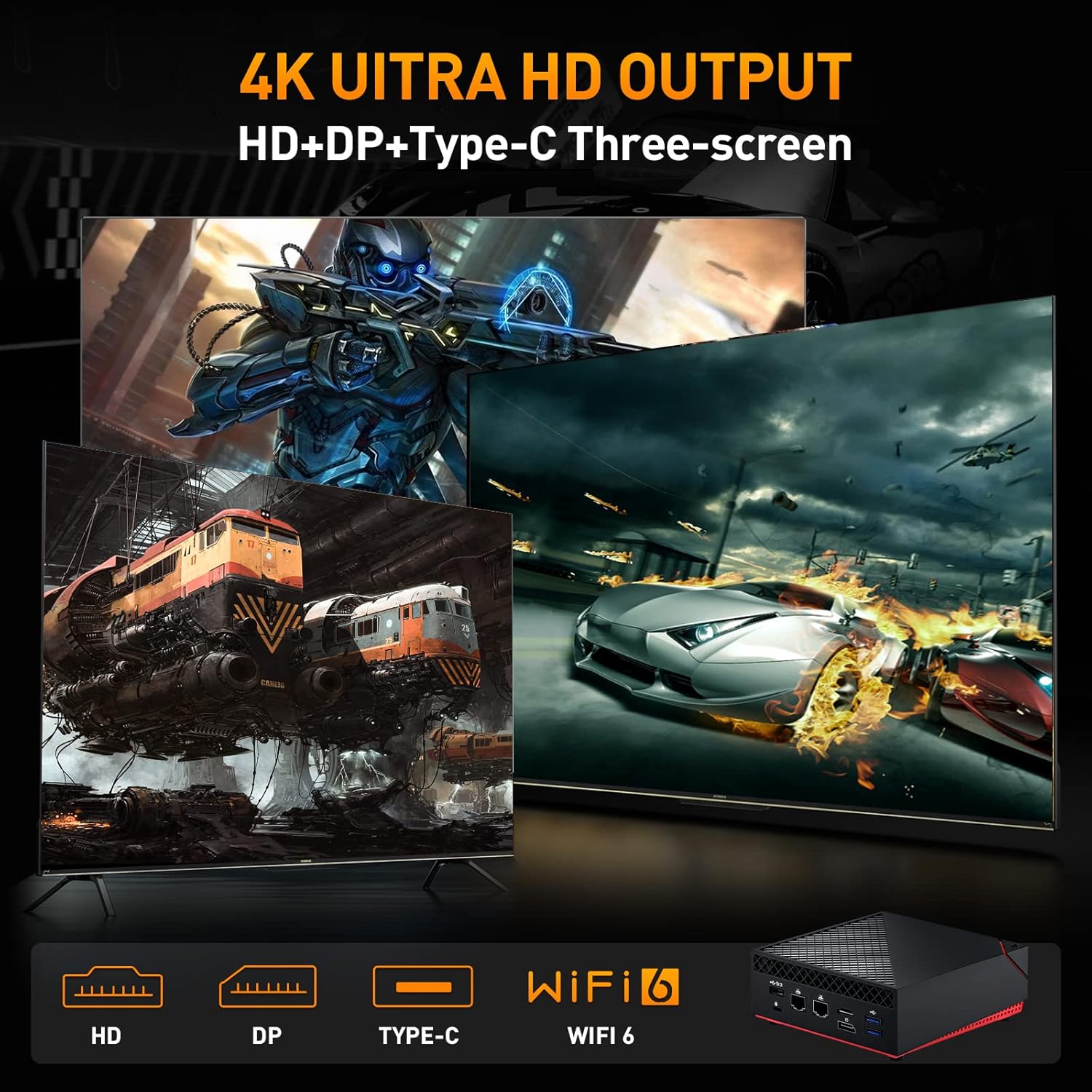
Image: A visual representation of the Mini PC's ability to output to three screens simultaneously at 4K resolution via HD, DP, and Type-C ports, also highlighting Wi-Fi 6 capability.
7. Maintenance
- Cleaning: Use a soft, dry cloth to clean the exterior of the device. Avoid liquid cleaners.
- Ventilation: Ensure the ventilation openings are not blocked to prevent overheating. Do not place the device in enclosed spaces.
- Software Updates: Regularly update Windows 11 Pro and Batocera 33 to ensure optimal performance, security, and compatibility.
- Data Backup: Periodically back up important data from your Windows system.
- Storage: Store the device in a cool, dry place away from direct sunlight and extreme temperatures.
8. Troubleshooting
No Power:
- Ensure the power adapter is securely connected to the device and a working power outlet.
- Verify the power outlet is functional by plugging in another device.
No Display:
- Check that the HD or DP cable is securely connected to both the Mini PC and the display.
- Ensure the display is powered on and set to the correct input source.
- Try a different HD or DP cable or another display if possible.
System Not Booting Correctly:
- Restart the device. If prompted, try selecting the other operating system.
- If issues persist, consult the system recovery options for Windows or Batocera documentation for advanced troubleshooting.
Game Controller Not Responding:
- Ensure the controller is properly connected to a USB port.
- Test the controller on another device or try a different USB port.
- In Batocera, check controller configuration settings.
9. Specifications
Detailed technical specifications for the Kinhank Mini PC Game Box Super Console X PC Chili.
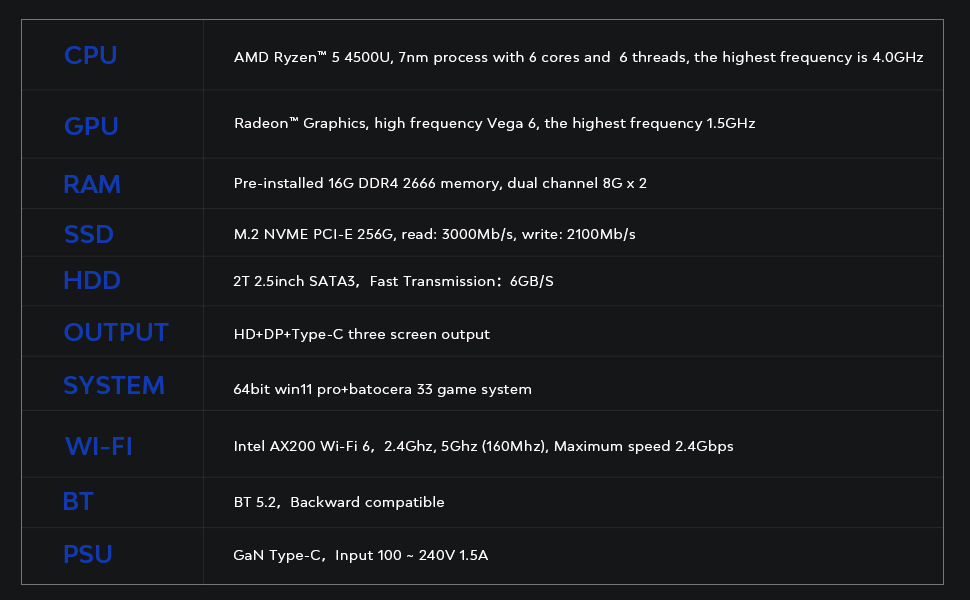
Image: A table outlining the key technical specifications of the Mini PC, including CPU, GPU, RAM, SSD, HDD, Output, System, Wi-Fi, BT, and PSU details.
| Component | Detail |
|---|---|
| CPU | AMD Ryzen™ 5 4500U, 7nm process with 6 cores and 6 threads, highest frequency 4.0GHz |
| GPU | Radeon™ Graphics, high frequency Vega 6, highest frequency 1.5GHz |
| RAM | Pre-installed 16G DDR4 2666 memory, dual channel 8G x 2 |
| SSD | M.2 NVME PCI-E 256G, read: 3000MB/s, write: 2100MB/s |
| HDD | 2T 2.5inch SATA3, Fast Transmission: 6GB/S |
| Output | HD+DP+Type-C three screen output |
| System | 64bit Windows 11 Pro + Batocera 33 game system |
| Wi-Fi | Intel AX200 Wi-Fi 6, 2.4GHz, 5GHz (160Mhz), Maximum speed 2.4Gbps |
| BT | BT 5.2, Backward compatible |
| PSU | GaN Type-C, Input 100 ~ 240V 1.5A |
10. Warranty and Support
Kinhank products are designed for reliability and performance. For specific warranty details, please refer to the warranty card included in your package or visit the official Kinhank website. If you encounter any issues or require technical assistance, please contact Kinhank customer support through their official channels.
Please retain your proof of purchase for warranty claims.