Introduction
Thank you for choosing the Technical Pro PLIT12 Portable Bluetooth Party Speaker. This speaker is designed to deliver powerful audio with dynamic LED lighting, offering a versatile solution for various events. It features Bluetooth connectivity, multiple input options, and a built-in rechargeable battery for portability. This manual provides essential information for the safe and efficient operation of your device.
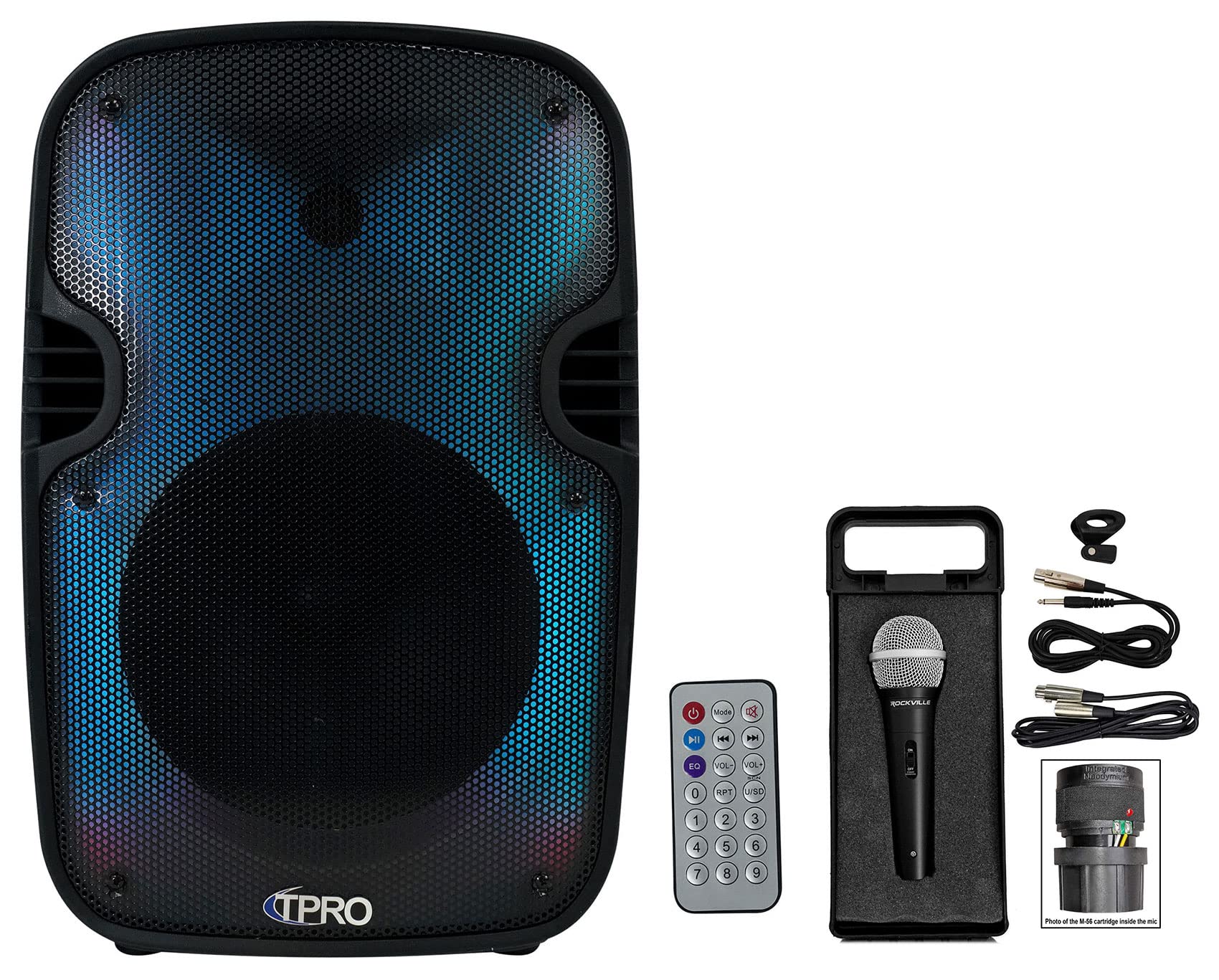
Figure 1: Front view of the Technical Pro PLIT12 speaker with included remote control.
Setup
1. Unboxing and Initial Charge
Carefully remove all components from the packaging. Ensure the following items are present:
- Technical Pro PLIT12 Speaker
- Wireless Remote Control
- Wired Microphone (Rockville RMC-XLR)
- Microphone Cables (XLR to 1/4" and XLR to XLR)
- Power Adapter
- User Manual

Figure 2: The Technical Pro PLIT12 speaker in its retail packaging.
Before initial use, fully charge the built-in rechargeable battery for 8-10 hours. Connect the power adapter to the speaker's DC input and plug it into a power outlet. The charging indicator light will show the charging status.
2. Powering On/Off
Locate the POWER switch on the rear control panel. Flip the switch to the ON position to power on the speaker. Flip it to OFF to power off.
3. Microphone Connection
Connect the included wired microphone to the MIC.IN 1/4'' input on the rear control panel. Adjust the MIC VOL knob to control the microphone's volume.

Figure 3: The Rockville RMC-XLR microphone and its accompanying cables.

Figure 4: Detailed view of the speaker's rear control panel, showing various inputs and controls.
Operating Instructions
1. Bluetooth Pairing
To connect a Bluetooth device:
- Power on the speaker. The LCD screen will display the current mode.
- Press the MODE button on the control panel or remote until "BLUE" appears on the LCD screen, indicating Bluetooth mode.
- On your smartphone or other Bluetooth device, enable Bluetooth and search for available devices.
- Select "TPRO PLIT12" from the list of devices.
- Once paired, the speaker will emit a confirmation tone, and you can begin playing audio wirelessly.
True Wireless Stereo (TWS): For a stereo sound experience, two PLIT12 speakers can be connected wirelessly. Ensure both speakers are in Bluetooth mode. On one speaker, press and hold the TWS button (if available) or follow specific instructions for TWS pairing. Once connected, one speaker will act as the master (left channel) and the other as the slave (right channel).
2. USB/TF Card Playback
Insert a USB flash drive or TF (microSD) card (up to 64GB) containing .mp3 files into the respective slot on the rear control panel. The speaker will automatically switch to USB/TF mode and begin playing music. Use the playback controls on the speaker or remote to navigate tracks and adjust volume.
3. FM Radio
Press the MODE button to select FM Radio mode. Use the playback controls to scan for and select radio stations.
4. AUX Input
Connect an external audio device (e.g., MP3 player, laptop) to the AUX IN port using a 3.5mm audio cable. Press the MODE button to select AUX mode.
5. LED Lighting Modes
The speaker features a GLOW WALL with burning mode and a RUNNING LED RING. Use the LED MODE button on the control panel or remote to cycle through various lighting effects. There is also an LED Power Switch to turn the lights on or off independently.
6. Audio Controls
Adjust the following knobs on the rear control panel to fine-tune your audio:
- VOLUME: Master volume control for all audio sources.
- BASS: Adjusts the low-frequency output.
- TREBLE: Adjusts the high-frequency output.
- ECHO: Adds an echo effect to the microphone input.
- MIC VOL: Adjusts the volume of the connected microphone.

Figure 5: Overview of the speaker's rear control panel, highlighting input and output options.

Figure 6: Side view of the PLIT12 speaker, showing the integrated pull-up handle for easy transport.

Figure 7: Close-up of the durable built-in wheels for convenient mobility.
Maintenance
1. Battery Care
To maximize battery life, fully charge the speaker after each use and avoid completely draining the battery frequently. If storing the speaker for an extended period, charge it to approximately 50% every few months.
2. Cleaning
Wipe the speaker's exterior with a soft, dry cloth. Do not use abrasive cleaners, waxes, or solvents. Ensure no liquids enter the speaker's openings.
3. Storage
Store the speaker in a cool, dry place away from direct sunlight and extreme temperatures. Protect it from dust and moisture.
Troubleshooting
| Problem | Possible Cause | Solution |
|---|---|---|
| Speaker does not power on. | Battery is depleted. Power switch is off. | Charge the battery. Ensure the POWER switch is in the ON position. |
| No sound output. | Volume is too low. Incorrect input mode selected. Audio cable not connected properly. | Increase the VOLUME knob. Press the MODE button to select the correct input. Check all cable connections. |
| Bluetooth device cannot pair. | Speaker not in Bluetooth mode. Device too far. Bluetooth on device is off. | Ensure speaker is in Bluetooth mode. Move device closer (within 30 feet). Enable Bluetooth on your device. |
| LED lights are not working. | LED Power Switch is off. | Flip the LED Power Switch to the ON position. |
| Microphone not working. | Microphone not connected. MIC VOL is too low. | Ensure microphone is securely plugged into MIC.IN. Increase the MIC VOL knob. |
Specifications
- Model: PLIT12
- Peak Power: 2000 Watts
- Woofer: 12'' LED Woofer
- Inputs: USB flash drive, FM Radio, AUX, Bluetooth, 1/4'' Microphone
- USB Card Maximum Size: 64GB
- Supported Audio Files: .mp3
- Bluetooth Compatibility: A2DP & AVRCP stereo Bluetooth devices
- Bluetooth Range: 30 Feet
- Impedance: 3 ohms
- Sensitivity: 80 ±2dB (1W@1M)
- Frequency Response: 80Hz - 18KHz
- Battery: Built-in rechargeable
- Features: LED GLOW WALL (burning mode & running LED ring), TWS (True Wireless Stereo), Integrated pull-up trolley & built-in wheels, LCD screen with playback controls, Repeat function on USB/TF inputs
- Item Weight: 12.1 pounds
- Package Dimensions: 23 x 13 x 10 inches
- Connectivity Technology: Bluetooth, Aux
- Power Source: Battery Powered
Warranty Information
For detailed warranty information regarding your Technical Pro PLIT12 speaker, please refer to the warranty card included with your product or visit the official Technical Pro website. Warranty terms and conditions may vary.
Customer Support
If you encounter any issues or have questions not covered in this manual, please contact Technical Pro customer support. Contact information can typically be found on the manufacturer's website or on the product packaging.


