
Introduction
The OnePlus Nord N20 5G is an Android smartphone designed for everyday use, offering 5G connectivity, a vibrant AMOLED display, and a versatile camera system. This manual provides detailed instructions on setting up, operating, and maintaining your device to ensure optimal performance and longevity.
What's in the Box
Upon unboxing your OnePlus Nord N20 5G, you will find the following items:
- OnePlus Nord N20 5G Smartphone
- Charger Adapter (33W Fast Charging)
- Type-C Cable
- Welcome Start Guide
- SIM Tray Ejector
Physical Overview
Familiarize yourself with the physical components of your OnePlus Nord N20 5G:
- Display: The device features a 6.43-inch AMOLED display.
- Power Button: Located on the right side of the device.
- Volume Rocker: Located on the left side of the device.
- SIM/SD Card Slot: Located on the left side, accessible with the SIM tray ejector.
- USB-C Port: Located at the bottom for charging and data transfer.
- 3.5mm Audio Jack: Located at the bottom for wired headphones.
- Speakers: Located at the bottom of the device.
- Microphone: Located at the top of the device.
- In-Display Fingerprint Sensor: Integrated into the display for secure unlocking.
- Rear Camera System: Features a triple camera setup on the back.
- Front-Facing Camera: Located on the display for selfies and video calls.
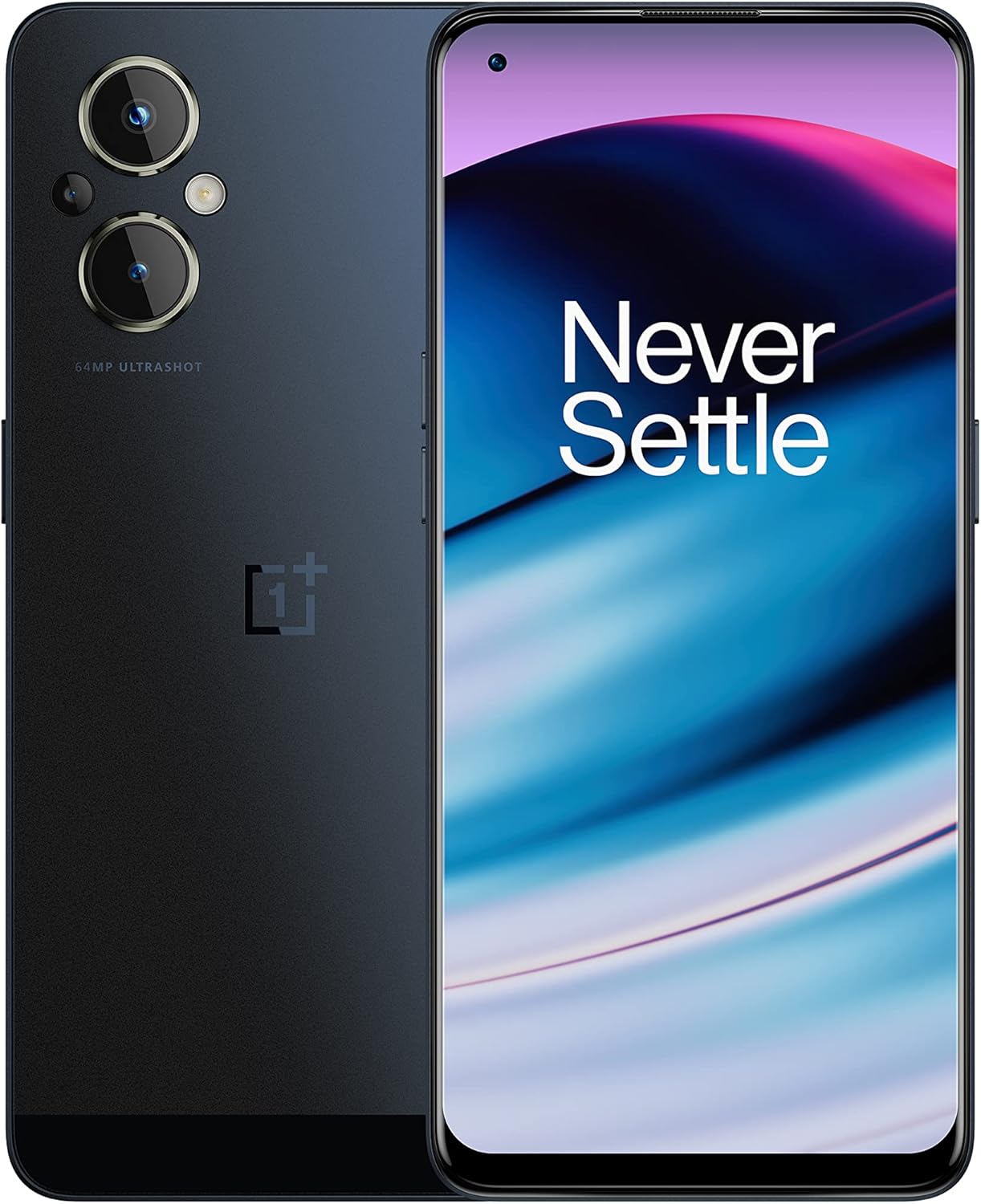
Figure 1: Front and back view of the OnePlus Nord N20 5G, showcasing the display and rear camera module.

Figure 2: Front view of the OnePlus Nord N20 5G, highlighting the AMOLED display.
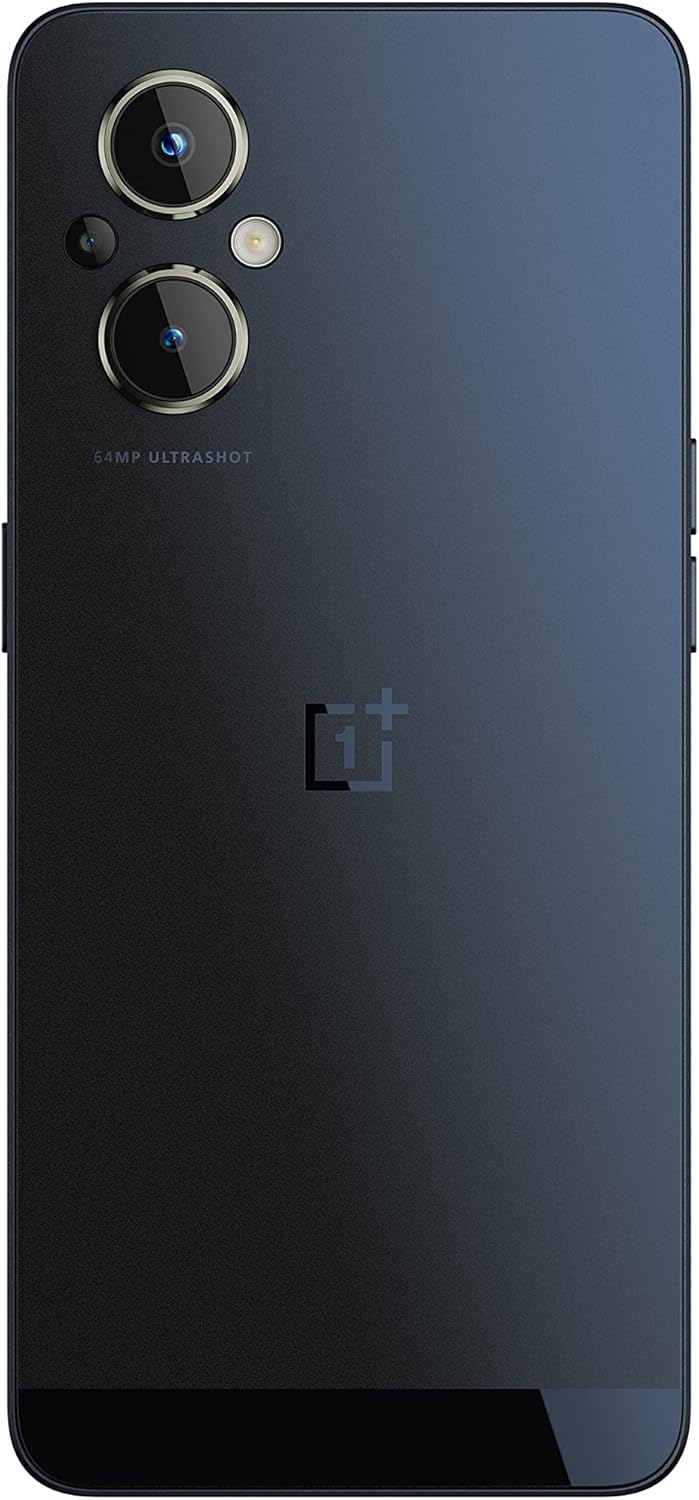
Figure 3: Back view of the OnePlus Nord N20 5G, showing the triple camera system.

Figure 4: Side view of the OnePlus Nord N20 5G, illustrating the slim profile.
Setup
1. Inserting SIM and SD Card
- Locate the SIM tray on the left side of the device.
- Insert the SIM tray ejector tool into the small hole next to the tray and push gently until the tray pops out.
- Place your Nano-SIM card(s) and/or microSD card (for storage expansion up to 512GB) into the designated slots on the tray.
- Carefully reinsert the tray into the device until it is flush with the side.
2. Initial Power On and Setup
- Press and hold the Power button on the right side until the OnePlus logo appears.
- Follow the on-screen prompts to select your language, connect to a Wi-Fi network, and set up your Google account.
- Configure the in-display fingerprint sensor for secure and convenient unlocking.
3. Charging the Device
The OnePlus Nord N20 5G supports 33W fast charging. Use the provided charger adapter and Type-C cable to charge your device. A full charge can be achieved in approximately one hour.
Operating Your Device
Display and Interaction
The 6.43-inch FHD+ AMOLED display offers vibrant colors and sharp details. The display has a 60Hz refresh rate, providing a smooth visual experience for daily tasks.
Fingerprint Sensor
The in-display fingerprint sensor allows for quick and secure unlocking of your device. Simply place your registered finger on the designated area of the screen to unlock.
Performance
Powered by the Qualcomm Snapdragon 695 5G processor and 6GB of RAM, the Nord N20 5G is designed to handle multitasking and various applications efficiently. The device also features a RAM expansion capability, allowing you to allocate up to an additional 5GB of storage as virtual RAM for enhanced performance, particularly during graphic-intensive tasks.
Storage
The device comes with 128GB of internal storage, which can be expanded up to 512GB using a microSD card.
Operating System
The OnePlus Nord N20 5G runs on OxygenOS, based on Android 12, providing a clean and customizable user experience.
Camera Features
The OnePlus Nord N20 5G is equipped with a versatile camera system:
- Rear Triple Camera System:
- 64MP Primary Sensor: Captures detailed photos in various lighting conditions.
- 2MP Macro Lens: Designed for close-up shots.
- 2MP Monochrome Lens: Enhances black and white photography.
- Front-Facing Camera: A 16MP sensor for high-quality selfies and video calls.
Specifications
| Feature | Specification |
|---|---|
| Model Name | Nord N20 |
| Item Model Number | CPH2459 |
| Display Size | 6.43 Inches |
| Display Technology | AMOLED |
| Resolution | 1080*2400 (FHD+), 409 ppi |
| Processor | Qualcomm Snapdragon 695 5G |
| RAM | 6 GB (expandable via RAM expansion) |
| Internal Storage | 128 GB (expandable up to 512GB) |
| Rear Camera | 64MP Primary, 2MP Macro, 2MP Monochrome |
| Front Camera | 16MP |
| Battery Capacity | 4500 mAh |
| Charging | 33W Fast Charging |
| Operating System | OxygenOS (based on Android 12) |
| Connectivity | 5G, Bluetooth 5.1, USB-C, Wi-Fi |
| Audio Jack | 3.5 mm |
| Color | Blue Smoke |
| Item Weight | 0.176 ounces |
Maintenance
Battery Care
The 4500mAh battery provides extended usage. To maximize battery life, avoid extreme temperatures, use the provided charger, and consider enabling battery saver modes when needed.
Software Updates
Regularly check for and install software updates to ensure your device has the latest features, security patches, and performance improvements. Updates are typically delivered over-the-air (OTA).
Cleaning Your Device
Use a soft, lint-free cloth to clean the screen and body of your phone. Avoid using harsh chemicals or abrasive materials that could damage the finish.
Troubleshooting
If you encounter issues with your device, consider the following basic troubleshooting steps:
- Device Unresponsive: Press and hold the Power button for about 10-15 seconds to force a restart.
- App Issues: Try clearing the cache and data for the problematic app in Settings > Apps. If the issue persists, reinstall the app.
- Connectivity Problems: Toggle Wi-Fi or Bluetooth off and on. For cellular issues, restart your device or check your SIM card.
- Slow Performance: Close unused apps, clear cache, and ensure sufficient storage space. Consider reducing RAM expansion if not needed for specific tasks.
- Fingerprint Sensor Not Working: Ensure your finger is clean and dry. Re-register your fingerprint if necessary.
For more complex issues, refer to the official OnePlus support website or contact customer service.
Warranty and Support
For information regarding your product's warranty, please refer to the warranty card included in your product packaging or visit the official OnePlus support website. The website also provides access to FAQs, software downloads, and contact information for customer support.