
OBSBOT MEET 2
OBSBOT Meet 2-4K Webcam User Manual
Model: MEET 2
Introduction
Welcome to the OBSBOT Meet 2-4K Webcam user manual. This guide provides detailed instructions for setting up, operating, and maintaining your OBSBOT Meet 2 webcam. Featuring a 1/2" sensor, AI framing, autofocus, and gesture control, the Meet 2 delivers stunning 4K clarity for all your streaming, meeting, and gaming needs.
1. Setup
1.1 What's in the Box
- OBSBOT Meet 2 Webcam
- USB-C to USB-A Adapter
- USB-C Cable
- Privacy Cover
- Magnetic Mount
- User Manual (this document)
- Warranty Card
1.2 Physical Connection
The OBSBOT Meet 2 webcam is designed for plug-and-play simplicity.
- Attach the magnetic mount to the bottom of the webcam.
- Place the webcam securely on top of your monitor or laptop screen using the magnetic mount.
- Connect the provided USB-C cable to the webcam and then to an available USB port on your computer. Use the USB-C to USB-A adapter if your computer only has USB-A ports.
- The webcam will be automatically recognized by your operating system.

1.3 Software Installation (OBSBOT Center)
For advanced features and personalized settings, download and install the OBSBOT Center software from the official OBSBOT website. This software allows for deep feature exploration and fine-tuning of your webcam's performance.

Video 1: How to Use OBSBOT Meet 2 4K AI Webcam. This video demonstrates the setup and basic usage of the OBSBOT Meet 2 webcam.
2. Operating the OBSBOT Meet 2-4K Webcam
2.1 Key Features
- 4K Clarity: Experience UHD 4K resolution with a 1/2" CMOS sensor for clear, bright images.
- AI Framing & Autofocus: The AI algorithm automatically adjusts composition and focus to keep you centered.
- Dynamic Gesture Control: Control AI framing and zoom with simple hand gestures.
- HDR Auto Light Correction: Optimizes light balance, correcting backlighting and glare.
- Dual Omni-directional Noise-Canceling Mics: Capture clear audio by reducing ambient noise.
- Portable Design: Lightweight and compact for easy transport.
2.2 AI Framing and Autofocus
The webcam's AI framing feature ensures you are always in the center of the frame, even if you move. The autofocus system keeps your image sharp and clear.
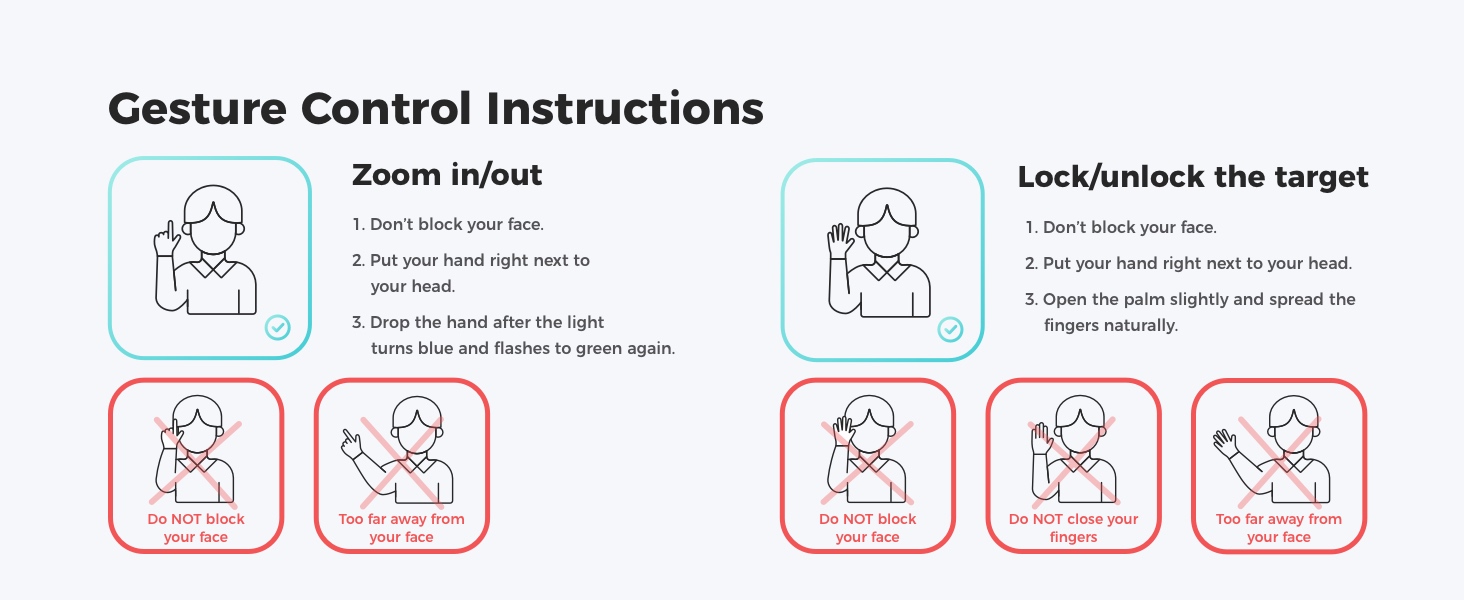

2.3 Gesture Control
Control your webcam with simple hand gestures.
- AI Framing On/Off: Make an "L" gesture (
 ) in front of the webcam.
 - Zoom In/Out: Make a thumbs-up gesture (
 ) in front of the webcam.

2.4 Beauty Mode
Utilize the "Magical Beauty Mode" within the OBSBOT Center software to adjust beauty parameters, including retouching, face, body, and makeup settings, to enhance your appearance during video calls or streams.
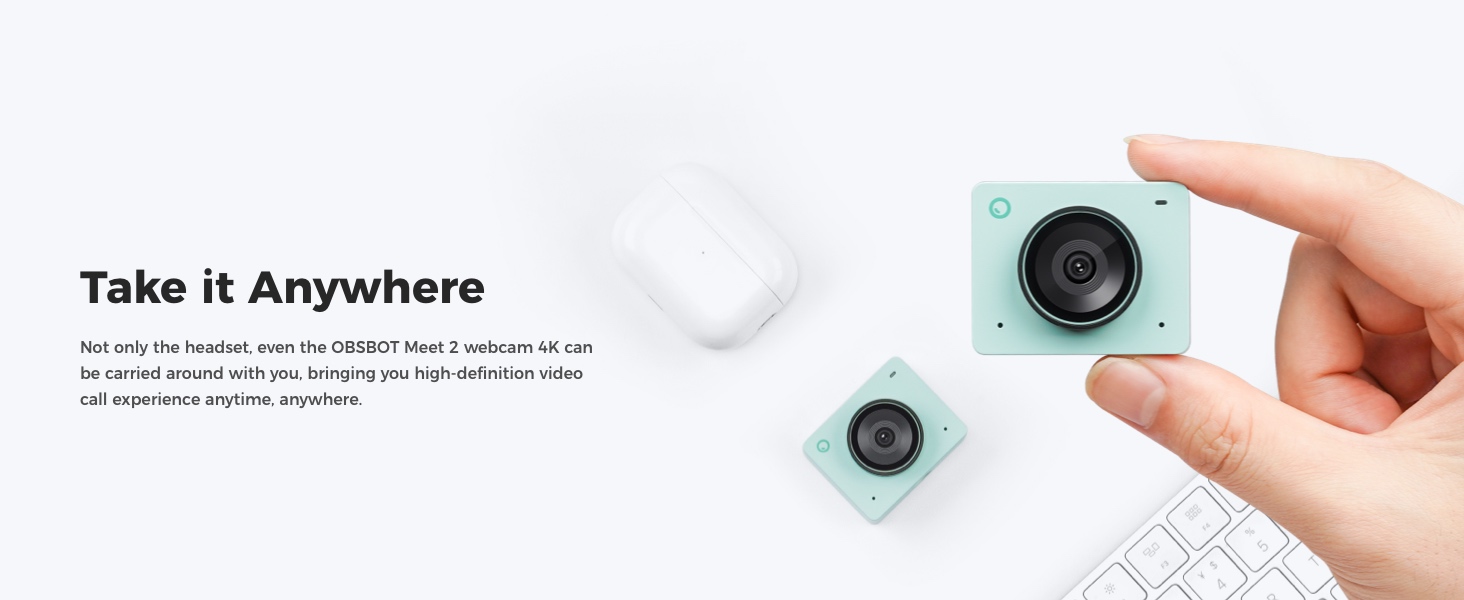
2.5 Portrait-Horizontal Quick Switch
Easily switch the webcam's orientation between portrait and horizontal modes to adapt to different streaming or recording scenarios. This feature is managed through the OBSBOT Center software.

2.6 Audio Quality
The dual omni-directional noise-canceling microphones capture clear sound and reduce background noise, ensuring your voice is heard distinctly.

2.7 Adaptability and Extensibility
The OBSBOT Meet 2 webcam integrates seamlessly into various workflows, supporting OSC, API, Stream Deck, and Global Hotkey for enhanced control and interactive possibilities.


Video 2: OBSBOT Meet 2 Miniature Body, Huge Quality. This video highlights the compact design and high-quality features of the OBSBOT Meet 2.
3. Maintenance
3.1 Using the Privacy Cover
To protect your privacy when the webcam is not in use, attach the provided magnetic privacy cover over the lens.

3.2 Cleaning
Gently wipe the webcam lens and body with a soft, dry cloth. Avoid using harsh chemicals or abrasive materials that could damage the device.
4. Troubleshooting
If you encounter issues with your OBSBOT Meet 2 webcam, please refer to the official Troubleshooting Guide (PDF) for detailed solutions.
- Webcam not detected: Ensure the USB-C cable is securely connected to both the webcam and your computer. Try a different USB port or cable.
- Poor image quality: Check your lighting conditions. Ensure the lens is clean and free of obstructions. Adjust settings in the OBSBOT Center software.
- Audio issues: Verify that the OBSBOT Meet 2 is selected as the audio input device in your computer's sound settings and your video conferencing application.
5. Specifications
| Feature | Detail |
|---|---|
| Brand | OBSBOT |
| Model Number | MEET 2 |
| Video Capture Resolution | 4K@30FPS, 1080P@60FPS |
| Photo Sensor Technology | CMOS (1/2-inch sensor size) |
| Maximum Aperture | 1.8 f_stop |
| Focus Type | Auto Focus |
| Digital Zoom | 4x |
| Connectivity Technology | USB |
| Item Weight | 40.5 g |
| Compatible Devices | Personal Computer, Laptop, Stream Deck. System Requirements: Windows® 10 or later & MacOS 11 or later, CPU: 7th Gen Intel® Core i5 Processors or later, RAM: 8GB. |
| Special Features | AI Framing, Auto Focus, Gesture Control, HDR, Dual Microphone, Lightweight, Plug and Play |
6. Warranty
The OBSBOT Meet 2-4K Webcam comes with a 1 Year Warranty. Please refer to the included Warranty Card for full terms and conditions.
7. Support
For further assistance, software updates, and detailed guides, please visit the official OBSBOT website. You can also find additional resources and community support through the OBSBOT Center application.
Additional documents: User Manual (PDF)
Related documentsMEET 2


Ask a question about this manual
Ask about setup, troubleshooting, compatibility, parts, safety, or missing instructions. Manuals+ will review the question and use this page’s manual context to help answer it.