
1. Introduction
This manual provides detailed instructions for the ORICO 40Gbps NVMe SSD Enclosure, Model M234. This enclosure is designed to house M.2 NVMe M-Key or M+B Key SSDs (2280 size) and connect them to various devices via high-speed USB-C interfaces, including Thunderbolt 3/4 and USB 3.x.
Package Contents
Verify that all items are present in your package:
- 1 x M.2 SSD Enclosure
- 1 x 2-in-1 USB Cable (USB-C to USB-C/USB-A)
- 1 x Thermal Pad
- 2 x Rubber Fasteners
- 1 x Cooling Vest
- 1 x Screwdriver

Image: Contents of the ORICO 40Gbps NVMe SSD Enclosure package.
2. Setup and Installation
Follow these steps to install your M.2 NVMe SSD into the enclosure.
Supported SSD Types
The enclosure supports M.2 PCIe NVMe M-Key SSDs or NVMe M+B Key SSDs with a 2280 form factor. M.2 SATA SSDs are not supported.
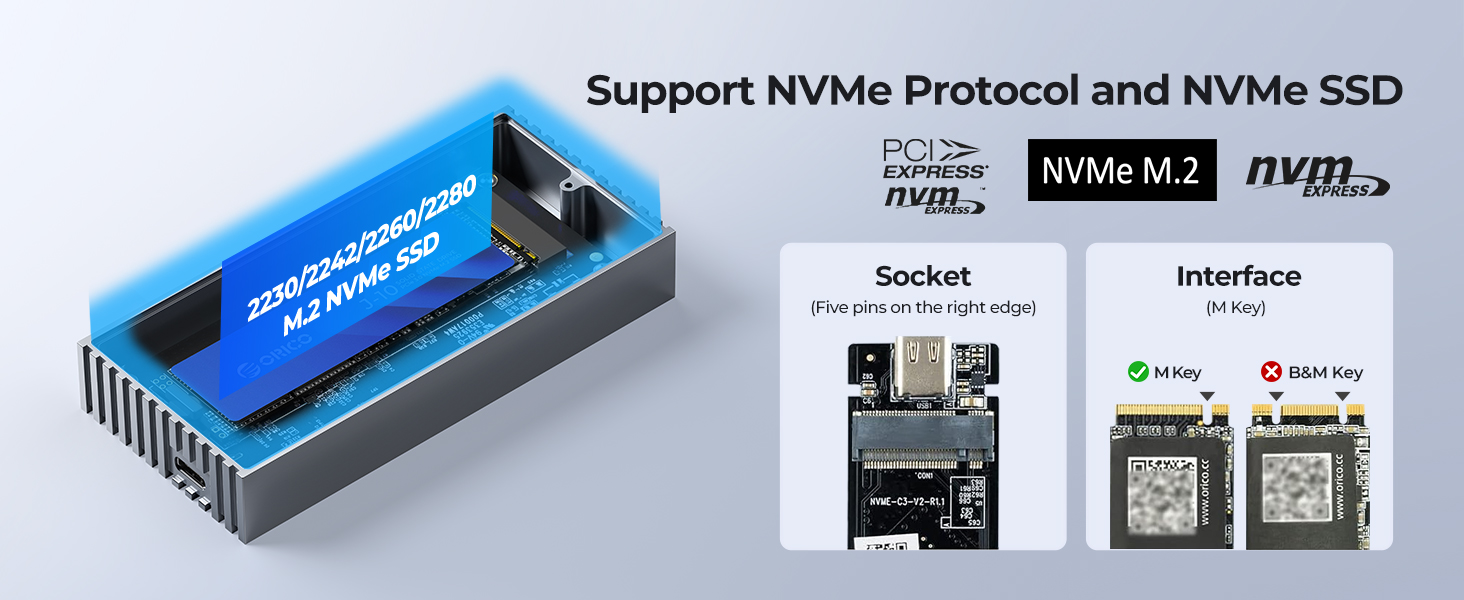
Image: Supported M.2 NVMe SSD interfaces (M-Key and M+B Key) and a note on SATA incompatibility.
Installation Steps
- Open the Enclosure: Carefully slide open the enclosure to access the internal M.2 slot.
- Attach Thermal Pad: Apply the provided silicone thermal pad to the top surface of your NVMe SSD. Ensure it covers the main chip areas for optimal heat transfer.
- Insert SSD: Gently insert your NVMe SSD into the M.2 slot at an angle. Push down the other end until it is flat.
- Secure SSD: Use one of the rubber fasteners to secure the SSD in place. This eliminates the need for screws.
- Attach Cooling Vest: Place the aluminum alloy cooling vest over the SSD, ensuring it makes good contact with the thermal pad.
- Close Enclosure: Slide the enclosure cover back into place until it is securely closed.

Image: Applying the thermal pad to the NVMe SSD.

Image: Inserting the NVMe SSD into the enclosure.

Image: Securing the NVMe SSD with a rubber fastener.

Image: Attaching the cooling vest to the SSD.
3. Operating Instructions
Connect your ORICO NVMe SSD Enclosure to your device and begin data transfer.
Connecting to a Device
Use the included 2-in-1 USB cable to connect the enclosure to your computer, laptop, game console, or other compatible device. The cable features both USB-C to USB-C (40Gbps) and USB-C to USB-A (10Gbps) connections.

Image: The versatile 2-in-1 USB cable for connecting the enclosure.

Image: Enclosure connected to a laptop, demonstrating data transfer capabilities.
Compatibility
The enclosure is compatible with a wide range of operating systems and devices:
- Operating Systems: Windows, Mac OS, Linux.
- Host Devices: Computers, Laptops, Smartphones, Gaming Consoles, Tablets.
- Interfaces: Thunderbolt 4, Thunderbolt 3, USB 4.0, USB 3.2, USB 3.1, USB 3.0.
For optimal 40Gbps performance, ensure your device supports USB4.0 or Thunderbolt 3/4 interfaces. Backward compatibility with older USB standards will result in lower transfer speeds.

Image: Universal compatibility with various devices, operating systems, and interfaces.
Data Transfer
Once connected, the enclosure functions as an external drive. You may need to initialize and format the SSD through your operating system's disk management utility before first use. An LED indicator on the enclosure monitors its working status.
The enclosure supports UASP acceleration protocol and Trim/SMART functions for improved SSD speed and data protection. It also features a 10-minute smart sleep function to prolong SSD life.
4. Maintenance
Proper maintenance ensures the longevity and performance of your ORICO NVMe SSD Enclosure.
Heat Dissipation
The enclosure is designed with an aluminum alloy cooling vest, silicone thermal pad, and a striped aluminum shell to efficiently dissipate heat generated by the NVMe SSD during operation. This design helps maintain optimal operating temperatures.

Image: Components of the cooling system for the enclosure.

Image: Heat dissipation efficiency comparison graph.
General Care
- Keep the enclosure clean and free from dust.
- Avoid exposing the device to extreme temperatures or humidity.
- Handle with care to prevent physical damage.
5. Troubleshooting
Refer to these common issues and solutions if you encounter problems.
SSD Not Recognized
- Ensure the SSD is correctly installed and secured within the enclosure.
- Verify that the SSD is an M.2 NVMe M-Key or M+B Key (2280 size). M.2 SATA SSDs are not compatible.
- Check the USB cable connection to both the enclosure and your device. Try a different USB port or cable.
- For new SSDs, ensure they are initialized and formatted through your operating system's disk management utility.
Slow Transfer Speeds
- Confirm that your device's USB port supports 40Gbps (USB4.0 or Thunderbolt 3/4). Connecting to older USB 3.0/3.1/3.2 ports will result in lower speeds.
- Ensure your SSD is capable of high transfer speeds.
- Avoid transferring many small files simultaneously, as this can reduce overall speed.
Compatibility Notes
ORICO does not recommend using the following SSDs due to potential compatibility issues:
- WD Black SN750
- Samsung 970 EVO Plus SSD
- SN850
Compatibility issues may also occur with other non-mainstream SSDs. Refer to the ORICO 40Gbps M.2 NVMe Enclosure Test Report for specific SSD performance data.

Image: ORICO 40Gbps M.2 NVMe Enclosure Test Report for various SSDs.
6. Specifications
| Model | M234 |
| Material | Aluminum |
| Interface | USB-C (40Gbps) |
| Compatible SSD | M.2 NVMe M-Key / M+B Key (2280) |
| Max Capacity | 4 TB |
| Data Transfer Rate | Up to 3100 MB/s (Read), 2700 MB/s (Write) |
| Compatible OS | Windows, Mac OS, Linux |
| Dimensions (LxWxH) | 4.21 x 1.97 x 0.67 inches |
| Item Weight | 6.7 ounces |
7. Warranty and Support
For warranty information or technical support, please refer to the official ORICO website or contact your retailer. Keep your purchase receipt for warranty claims.


