
Product Overview
Experience everything that TV has to offer with this 42-inch LED smart TV from RCA. The built-in Roku app lets you control the TV directly through your smartphone for great control and ease of use. You can also cast photos, videos, music and more directly from your compatible mobile device right onto the television, letting you share the best of entertainment with everyone in the room.
Key Features
- Smart Platform: Roku TV
- Resolution: 1080p Full HD
- Refresh Rate: 60Hz
- Aspect Ratio: 16:9
- Response Time: 8ms
- Connectivity: 2x HDMI, VGA, RF, YPbPr, AV Audio/Video, Coaxial, PC Audio
What's Included
- RCA 42" Smart LED TV
- TV Stand (2 pieces)
Setup Guide
1. Attaching the Stand
Carefully place the TV screen-down on a soft, clean surface to prevent scratches. Align the stand pieces with the screw holes on the bottom of the TV. Secure the stands using the provided screws. Ensure the stand is firmly attached before placing the TV upright.
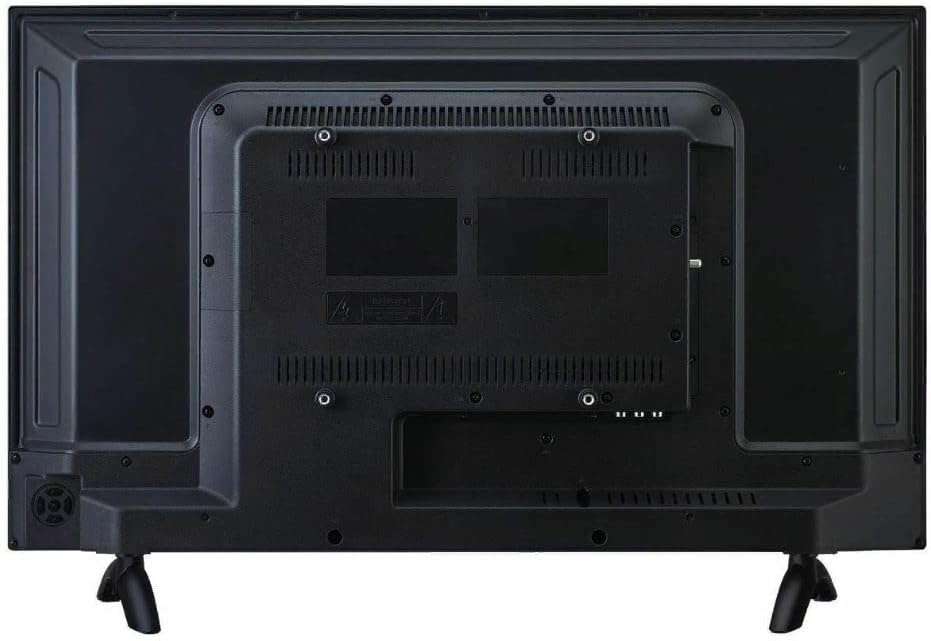
Figure 1: Rear view of the TV, illustrating the stand attachment points and various input ports.
2. Connecting Peripherals
Connect your external devices such as cable boxes, Blu-ray players, or gaming consoles to the appropriate input ports on the back of the TV. The TV features 2 HDMI ports, VGA, RF, YPbPr, AV Audio/Video, Coaxial, and PC Audio inputs.
3. Powering On and Initial Setup
Plug the power cord into the TV and then into a wall outlet. Press the power button on the TV or the remote control. Follow the on-screen instructions to complete the initial setup, including network connection for Smart TV features and channel scanning.
Operating Instructions
Navigating the Roku TV Interface
The RCA Smart LED TV uses the Roku TV platform for easy access to streaming services and inputs. Use the remote control's directional pad to navigate through the home screen menu. Select options by pressing the OK button.

Figure 2: The Roku TV home screen, showing navigation options and streaming channel icons.
Using Streaming Channels
From the home screen, select your desired streaming channel (e.g., Netflix, Hulu). Ensure your TV is connected to the internet. You may need to log in to your accounts for each service.
Casting Content
The built-in Roku app allows casting of photos, videos, and music from compatible mobile devices directly to the TV. Ensure your mobile device and TV are on the same Wi-Fi network. Use the casting feature within your mobile app to select the RCA Roku TV as the playback device.
Maintenance and Care
Cleaning the Screen
To clean the TV screen, gently wipe it with a soft, dry, lint-free cloth. For stubborn marks, lightly dampen the cloth with water or a screen-cleaning solution specifically designed for electronics. Avoid using harsh chemicals, abrasive cleaners, or direct spraying onto the screen.
General Care
- Keep the TV away from direct sunlight and heat sources.
- Ensure proper ventilation around the TV to prevent overheating.
- Do not block the ventilation openings on the back of the TV.
- Unplug the TV from the power outlet during lightning storms or when it will be unused for extended periods.
Troubleshooting
No Power
- Check if the power cord is securely plugged into both the TV and the wall outlet.
- Verify that the wall outlet is functioning by plugging in another device.
- Try pressing the power button on the TV itself, not just the remote.
No Picture / Poor Picture Quality
- Ensure the correct input source is selected (e.g., HDMI 1, AV).
- Check all cable connections between the TV and external devices.
- Adjust picture settings (brightness, contrast, color) in the TV's menu.
- If using an antenna, check antenna connection and try rescanning channels.
No Sound / Poor Sound Quality
- Increase the volume on both the TV and any connected external audio devices.
- Check audio cable connections.
- Ensure the TV is not muted.
- If using external speakers, ensure they are powered on and correctly connected.
Remote Control Not Working
- Replace the batteries in the remote control.
- Ensure there are no obstructions between the remote and the TV's IR sensor.
- Point the remote directly at the TV.
Technical Specifications
| Feature | Specification |
|---|---|
| Model Number | RTR4262-CA |
| Screen Size | 42 Inches (107 cm diagonal) |
| Display Technology | LED |
| Resolution | 1080p Full HD |
| Refresh Rate | 60 Hz |
| Aspect Ratio | 16:9 |
| Response Time | 8ms |
| Smart Platform | Roku TV |
| Connectivity | 2x HDMI, VGA, RF, YPbPr, AV Audio/Video, Coaxial, PC Audio |
| Product Dimensions (W x D x H) | 37.64 x 7.2 x 23.23 inches |
| Item Weight | 13.7 Pounds |
| Speaker Type | Built-In |
| First Available Date | May 11, 2022 |
Warranty and Support
For warranty information and technical support, please refer to the documentation included with your purchase or visit the official RCA support website. Keep your proof of purchase for warranty claims.
Online Support: Visit the RCA Store on Amazon


