
1. Introduction
This manual provides essential information for the installation, operation, and maintenance of your SAPLOS Radeon HD 6570 Graphics Card. Please read this manual thoroughly before installing and using the product to ensure proper functionality and longevity.

Image 1.1: The SAPLOS Radeon HD 6570 Graphics Card shown with its product packaging.
2. Key Features
The SAPLOS Radeon HD 6570 Graphics Card is designed to enhance your computer's display performance with the following features:
- 1GB GDDR3 64-bit Memory: Equipped with 1GB of GDDR3 memory and a 64-bit memory interface, providing a maximum memory clock of 1334 MHz.
- AMD HD 6000 Series Chipset: Powered by an AMD HD 6000 series chipset with 480 stream processors.
- Dual HDMI Output: Features two HDMI output ports, supporting multiple screen displays with a maximum resolution of 1920 x 1080 pixels. One audio output is also supported.
- Low Power Consumption: Operates with a 60W power draw, eliminating the need for an external power supply.
- Low Profile Design: Suitable for small form factor cases with available PCIe slots.
- DirectX 11 Support: Compatible with DirectX 11 for graphics rendering.
- Operating System Compatibility: Supports Windows 7, 8, and 10. Driver versions include Catalyst 15.7.1 or Crimson 16.2.1 Beta.

Image 2.1: Key specifications of the graphics card, including memory size, bus width, and clock speed.

Image 2.2: The dual HDMI output ports on the graphics card, enabling multi-monitor setups.
3. Setup and Installation
Follow these steps to properly install your SAPLOS Radeon HD 6570 Graphics Card into your computer system.
3.1. System Requirements
- PCI Express x16 slot available.
- Compatible operating system (Windows 7, 8, or 10).
- Sufficient power supply (60W minimum recommended for the card itself, ensure overall system PSU capacity is adequate).
- Monitor(s) with HDMI input.
3.2. Physical Installation
- Power Off and Unplug: Completely shut down your computer and disconnect the power cable from the wall outlet.
- Open Computer Case: Remove the side panel of your computer case to access the motherboard.
- Locate PCIe Slot: Identify an available PCI Express x16 slot on your motherboard.
- Remove Slot Cover: Remove the metal slot cover from the back of the computer case corresponding to the chosen PCIe slot.
- Insert Graphics Card: Carefully align the graphics card with the PCIe slot and press down firmly until it is securely seated. Ensure the retention clip (if present) locks into place.
- Secure Card: Use a screw to fasten the graphics card's mounting bracket to the computer case.
- Close Case: Replace the computer case side panel.
- Connect Cables: Reconnect the power cable to your computer and connect your monitor(s) to the HDMI ports on the graphics card.

Image 3.1: The physical dimensions of the graphics card, including the standard and low-profile brackets, for compatibility assessment.
3.3. Driver Installation
- Power On: Turn on your computer. The system may boot with a basic display driver.
- Download Drivers: Visit the official SAPLOS or AMD website to download the appropriate drivers for the Radeon HD 6570. The recommended driver versions are Catalyst 15.7.1 or Crimson 16.2.1 Beta.
- Install Drivers: Run the downloaded driver installer and follow the on-screen instructions. A system restart may be required after installation.
- Verify Installation: After restarting, verify the driver installation through your operating system's Device Manager.
4. Operating the Graphics Card
Once installed, the graphics card will automatically handle display output. Here are some common operational aspects:
4.1. Multi-Monitor Setup
The SAPLOS Radeon HD 6570 supports dual monitor displays via its two HDMI ports. To configure a multi-monitor setup:
- Connect both monitors to the HDMI ports on the graphics card.
- Boot your computer.
- Right-click on your desktop and select 'Display settings' (Windows 10) or 'Screen resolution' (Windows 7/8).
- From the display settings, you can detect, arrange, and extend or duplicate your displays as needed.

Image 4.1: An example of a dual monitor setup, demonstrating the card's capability to drive multiple displays for increased productivity.
4.2. Typical Use Cases
This graphics card is suitable for various applications:
- Office Work: Enhances display performance for everyday office tasks.
- Video Playback: Capable of playing 2K resolution videos.
- Video and Photo Editing: Provides sufficient performance for basic video and photo editing tasks.
- Coding and Development: Supports multiple displays for coding environments.
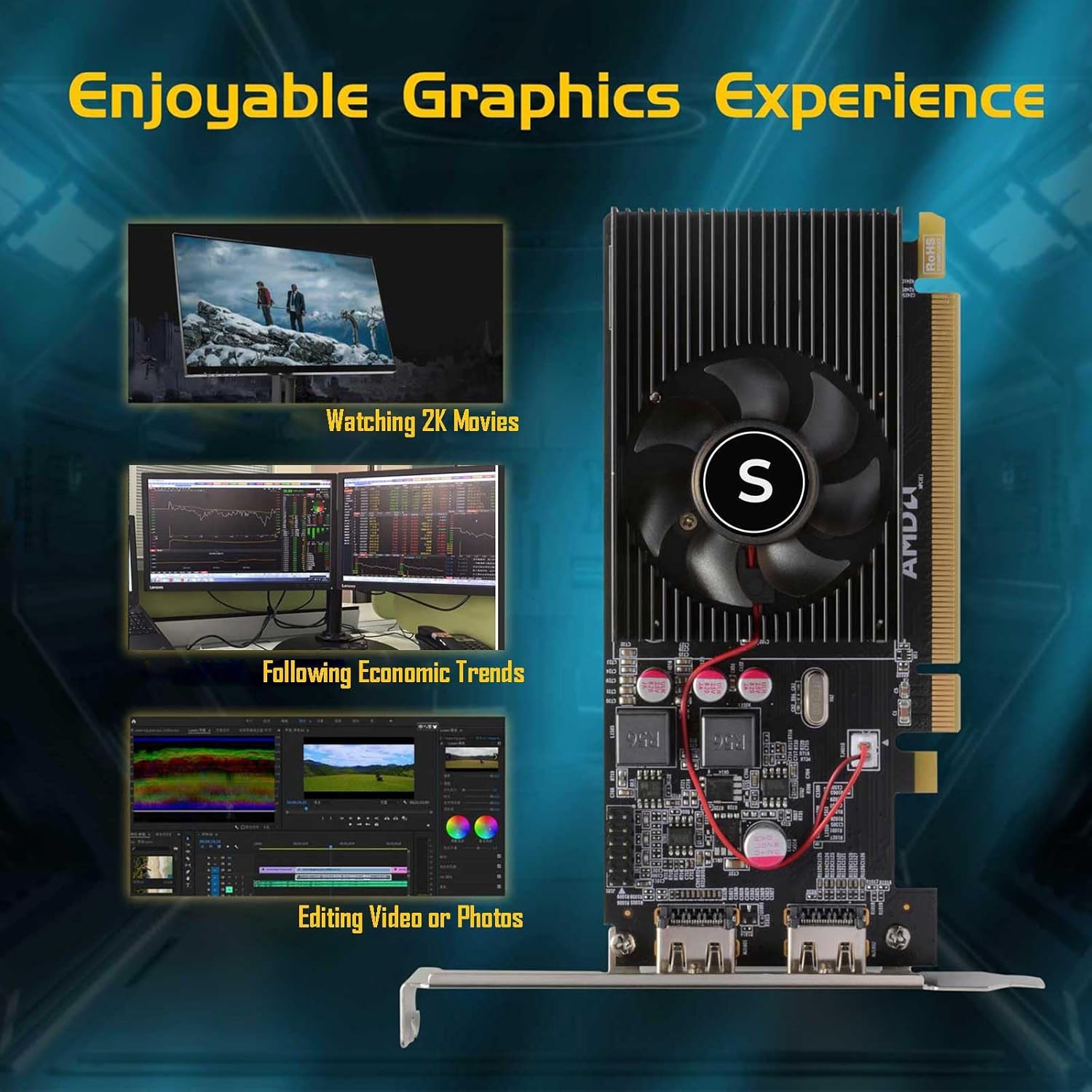
Image 4.2: Visual representation of the graphics card's applications, including multimedia consumption and creative work.

Video Editing

Coding
5. Maintenance
Proper maintenance ensures the longevity and optimal performance of your graphics card.
5.1. Cleaning
- Dust Removal: Periodically clean dust from the graphics card's heatsink and fan using compressed air. Ensure the computer is powered off and unplugged before cleaning.
- Fan Inspection: Check the fan for any obstructions or signs of wear.

Image 5.1: The cooling system of the graphics card, showing the fan and heatsink designed for efficient heat dissipation.
5.2. Driver Updates
While the card's driver support is discontinued for the latest operating systems, ensure you are using the recommended driver versions (Catalyst 15.7.1 or Crimson 16.2.1 Beta) for optimal compatibility with Windows 7, 8, and 10.
6. Troubleshooting
If you encounter issues with your graphics card, refer to the following common problems and solutions:
- No Display Output:
- Ensure the graphics card is fully seated in the PCIe slot.
- Verify that the monitor cables are securely connected to both the graphics card and the monitor.
- Check if your monitor is set to the correct input source (HDMI).
- Test with a different monitor or cable if possible.
- Driver Installation Issues:
- Download drivers only from the official SAPLOS or AMD website.
- Ensure you have uninstalled any previous graphics drivers before installing new ones.
- Confirm your operating system is compatible with the specified driver versions (Windows 7, 8, 10).
- System Instability/Crashes:
- Ensure your power supply unit (PSU) provides sufficient wattage for your entire system, including the graphics card.
- Check for proper airflow within your computer case to prevent overheating.
- Verify that the graphics card fan is spinning correctly.
- Poor Performance:
- Ensure the correct drivers are installed and up to date (within the supported versions).
- Check for background applications consuming system resources.
- Confirm that your system meets the minimum requirements for the applications you are running.
7. Specifications
Detailed technical specifications for the SAPLOS Radeon HD 6570 Graphics Card:

Image 7.1: A software utility displaying comprehensive technical details of the Radeon HD 6570, including GPU, memory, and driver information.
| Feature | Detail |
|---|---|
| Graphics Coprocessor | AMD Radeon HD 6570 |
| Graphics RAM Size | 1 GB GDDR3 |
| Memory Interface | 64-bit |
| GPU Clock Speed | 650 MHz |
| Memory Clock Speed | 1334 MHz (effective) |
| Stream Processors | 480 |
| Video Output Interface | 2 x HDMI |
| Maximum Resolution | 1920 x 1080 pixels |
| PCI Express Standard | PCI Express x16 |
| Power Consumption | 60W (No external power required) |
| DirectX Support | DirectX 11 |
| Product Dimensions | 6.3 x 4.7 x 0.8 inches (16 x 12 x 2 cm) |
| Item Weight | 4.5 ounces (127.5 g) |
| Manufacturer | SAPLOS |
| Item Model Number | Radeon HD 6570 |
| Date First Available | May 11, 2022 |
8. Warranty and Support
For warranty information and technical support, please refer to the documentation included with your purchase or visit the official SAPLOS website. Keep your proof of purchase for warranty claims.