
Product Overview
The ProtoArc EM11 Ergonomic Wireless Mouse is designed for enhanced comfort and productivity, featuring a vertical design that promotes a natural hand and wrist position. It offers versatile connectivity options, adjustable DPI, and customizable RGB lighting.

Image: The ProtoArc EM11 Ergonomic Wireless Mouse in black, showcasing its unique vertical design and RGB lighting strip. This design aims to provide a natural and relaxed wrist position, reducing strain compared to a regular mouse.
What's in the Box
- Wireless mouse
- USB receiver
- Type-C charging cable
- User Manual

Image: Contents of the ProtoArc EM11 package, including the ergonomic vertical mouse, a USB receiver, a Type-C charging cable, and the user manual.
Setup
Measuring for Hand Fit
The dimensions of the ProtoArc EM11 Ergonomic Mouse are 5.42 x 2.93 x 2.67 inches (137.72 x 74.32 x 67.72 mm). For optimal comfort, it is recommended to measure your hand size prior to use. This mouse is generally suitable for medium-sized hands.

Image: A diagram illustrating hand size measurements (Small, Medium, Large) to determine suitability for the ergonomic mouse. The ProtoArc EM11 is recommended for medium hands.
Power On/Off
Locate the ON/OFF slider switch on the bottom of the mouse. Slide it to the "ON" position to power on the device. An LED indicator will illuminate.

Image: Close-up of the bottom of the ProtoArc EM11 mouse, showing the ON/OFF switch and the mode selection button. The red light indicates the mouse is powered on.
2.4G USB Receiver Connection
- Remove the USB receiver from its storage slot on the bottom of the mouse.
- Plug the USB receiver into an available USB port on your computer.
- The mouse should automatically connect. If not, press the mode switch button on the bottom of the mouse until the indicator for the 2.4G receiver (usually marked with a 'III' or similar) is active.

Image: The ProtoArc EM11 mouse connected to a laptop via its 2.4G USB receiver, demonstrating its plug-and-play functionality.
Bluetooth Connection (BT1 / BT2)
- Power on the mouse.
- Press the mode switch button on the bottom of the mouse to select either BT1 or BT2. The corresponding indicator light will blink rapidly, indicating pairing mode.
- On your device (PC, iPad, Mac, Windows, Android), go to Bluetooth settings and search for "ProtoArc EM11".
- Select the mouse to pair. The indicator light on the mouse will stop blinking once successfully connected.
- To pair a second Bluetooth device, repeat steps 2-4, selecting the other BT channel (BT2 if you used BT1, or vice-versa).
Video: A demonstration of connecting the ProtoArc EM11 mouse to multiple devices using its Bluetooth functionality. The video shows switching between a laptop and a foldable smartphone, highlighting the ease of multi-device pairing.
Operating Instructions
Basic Mouse Functions
- Left Click: Standard selection and activation.
- Right Click: Accesses context menus.
- Scroll Wheel: Scrolls through documents and web pages. The scroll wheel is also clickable for middle-click functionality.

Image: Close-up of the scroll wheel and light button on the ProtoArc EM11 mouse. The scroll wheel has a textured surface for improved grip and tactile feedback.
Forward/Backward Buttons
The mouse features convenient forward and backward buttons located near the thumb rest. These buttons allow for easy navigation through web pages and documents. Note: Side buttons may not function with Mac OS.
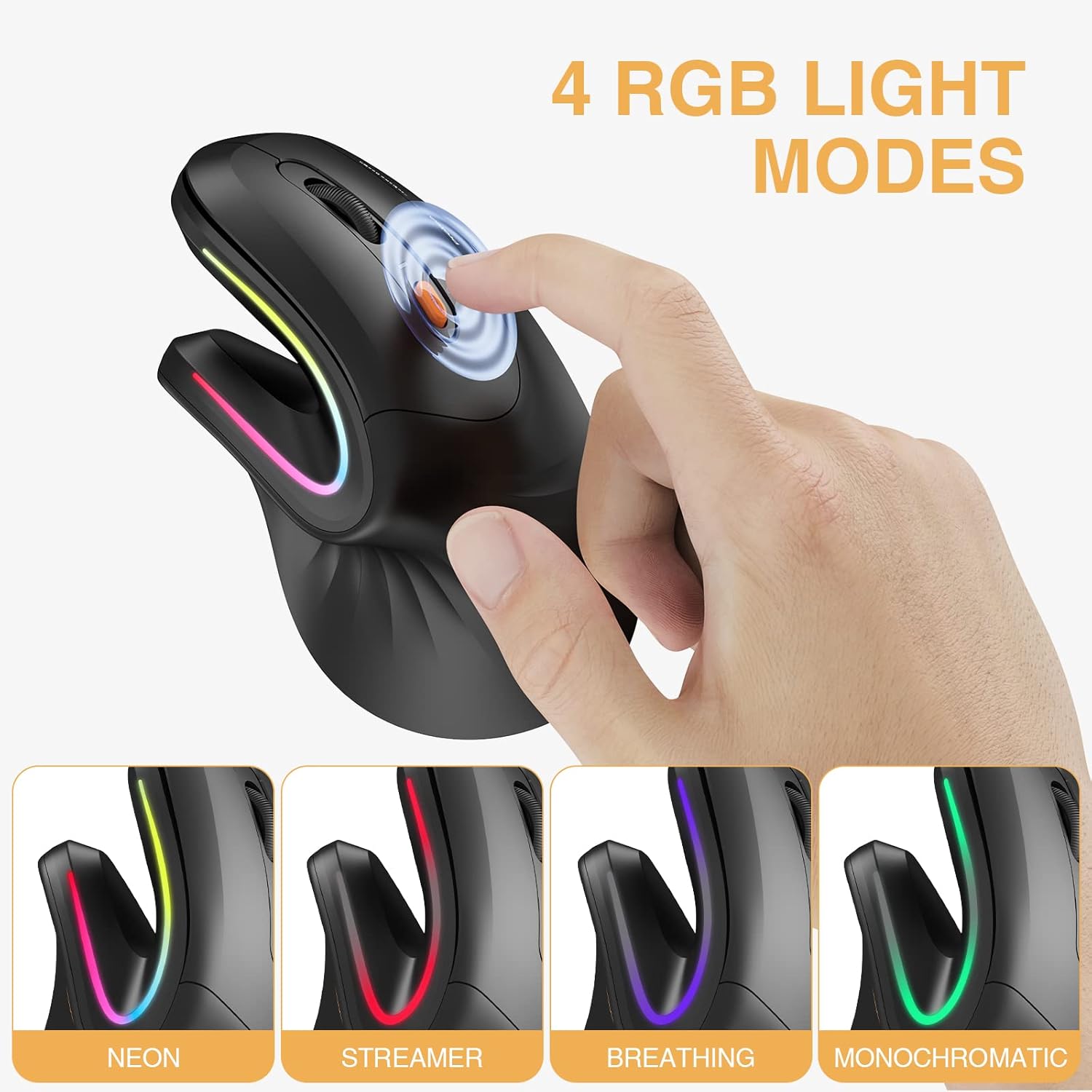
Image: The ProtoArc EM11 mouse highlighting the forward and backward thumb buttons, designed for easy web browsing. The image shows the mouse in use next to a laptop displaying web pages.
RGB Lighting Modes
The ProtoArc EM11 offers 4 different RGB lighting effects. Press the light button on the top of the mouse to cycle through the modes:
- Neon
- Streamer
- Breathing
- Monochromatic
To turn off the RGB backlighting, long-press the light button for 3 seconds. This helps conserve battery power.

Image: The ProtoArc EM11 mouse displaying its four RGB lighting modes: Neon, Streamer, Breathing, and Monochromatic. A finger is shown pressing the light button to cycle through the effects.
Adjustable DPI Settings
The mouse has 3 adjustable DPI (Dots Per Inch) levels: 1000, 1600, and 2400. DPI controls the sensitivity of the mouse cursor. Press the DPI button on the bottom of the mouse to cycle through the settings.
- 1000 DPI: Indicated by one blink of the LED indicator.
- 1600 DPI: Indicated by two blinks of the LED indicator.
- 2400 DPI: Indicated by three blinks of the LED indicator.
Image: The bottom of the ProtoArc EM11 mouse showing the DPI button and the ON/OFF switch. The DPI button allows users to adjust cursor sensitivity between 1000, 1600, and 2400 DPI.
Charging and Battery
The ProtoArc EM11 is equipped with a built-in 930mAh Li-ion rechargeable battery. It can be charged using the included Type-C cable.
Charging Instructions
- Connect the Type-C end of the charging cable to the mouse's charging port (located at the front).
- Connect the USB-A end of the charging cable to a power source (e.g., computer USB port, USB wall adapter).
- The low battery indicator will flash red when charging is needed.
- The mouse can be used while charging.
Power Saving Mode
To conserve battery, the mouse will automatically enter sleep mode after 5 minutes of inactivity. Simply move the mouse to wake it up.

Image: The ProtoArc EM11 mouse connected to a laptop via its Type-C charging cable, illustrating the recharging process for its 930mAh battery.
Maintenance
To ensure optimal performance and longevity of your ProtoArc EM11 mouse, follow these maintenance guidelines:
- Cleaning: Use a soft, dry cloth to wipe the surface of the mouse. Avoid using harsh chemicals or abrasive materials.
- Storage: When not in use, store the mouse in a cool, dry place away from direct sunlight and extreme temperatures.
- Battery Care: Avoid fully discharging the battery frequently. Charge the mouse when the low battery indicator flashes.
Troubleshooting
Mouse Not Responding
- Ensure the mouse is powered on.
- Check battery level and charge if necessary.
- For 2.4G connection, ensure the USB receiver is securely plugged into the computer.
- For Bluetooth connection, verify the correct BT channel (BT1/BT2) is selected and the mouse is paired correctly in your device's Bluetooth settings.
- Try restarting your computer or device.
Cursor Movement Issues
- Adjust the DPI settings using the DPI button on the bottom of the mouse.
- Ensure the mouse is used on a clean, flat surface. Avoid highly reflective or uneven surfaces.
Specifications
| Feature | Detail |
|---|---|
| Model | EM11 |
| Connectivity | 2.4G USB, Bluetooth 4.0 (BT1, BT2) |
| DPI Levels | 1000 / 1600 / 2400 |
| Battery Capacity | 930mAh Li-ion |
| Charging Port | Type-C |
| RGB Lighting | 4 Modes (Neon, Streamer, Breathing, Monochromatic) |
| Dimensions | 5.42 x 2.93 x 2.67 inches (137.72 x 74.32 x 67.72 mm) |
| Weight | 7.4 ounces |
| Compatibility | Windows 8/10+, Mac OS X 10.12+, Android 4.3+ |
Warranty and Support
For warranty information, technical support, or any inquiries regarding your ProtoArc EM11 Ergonomic Wireless Mouse, please refer to the official ProtoArc website or contact their customer service directly. Contact details are typically provided in the included user manual or on the product packaging.


