
1. Introduction
The HyperX DuoCast is a versatile USB condenser microphone designed for clear audio capture across various applications, including gaming, streaming, podcasting, and voiceovers. It features customizable RGB lighting, multiple polar patterns, and convenient controls for an optimized user experience.

Image 1.1: Front view of the HyperX DuoCast microphone with its integrated stand and RGB light ring.
2. Package Contents
Verify that all items are present in the package:
- HyperX DuoCast USB Condenser Microphone
- USB Type-C to Type-A Cable
- Quick Start Guide

Image 2.1: Contents of the HyperX DuoCast retail package, including the microphone, USB cable, and documentation.
3. Setup Instructions
3.1 Connecting the Microphone
- Connect the USB Type-C end of the provided cable to the USB-C port on the back of the HyperX DuoCast microphone.
- Connect the USB Type-A end of the cable to an available USB port on your PC, PS5, PS4, or Mac.
- The microphone will automatically be detected by your operating system.
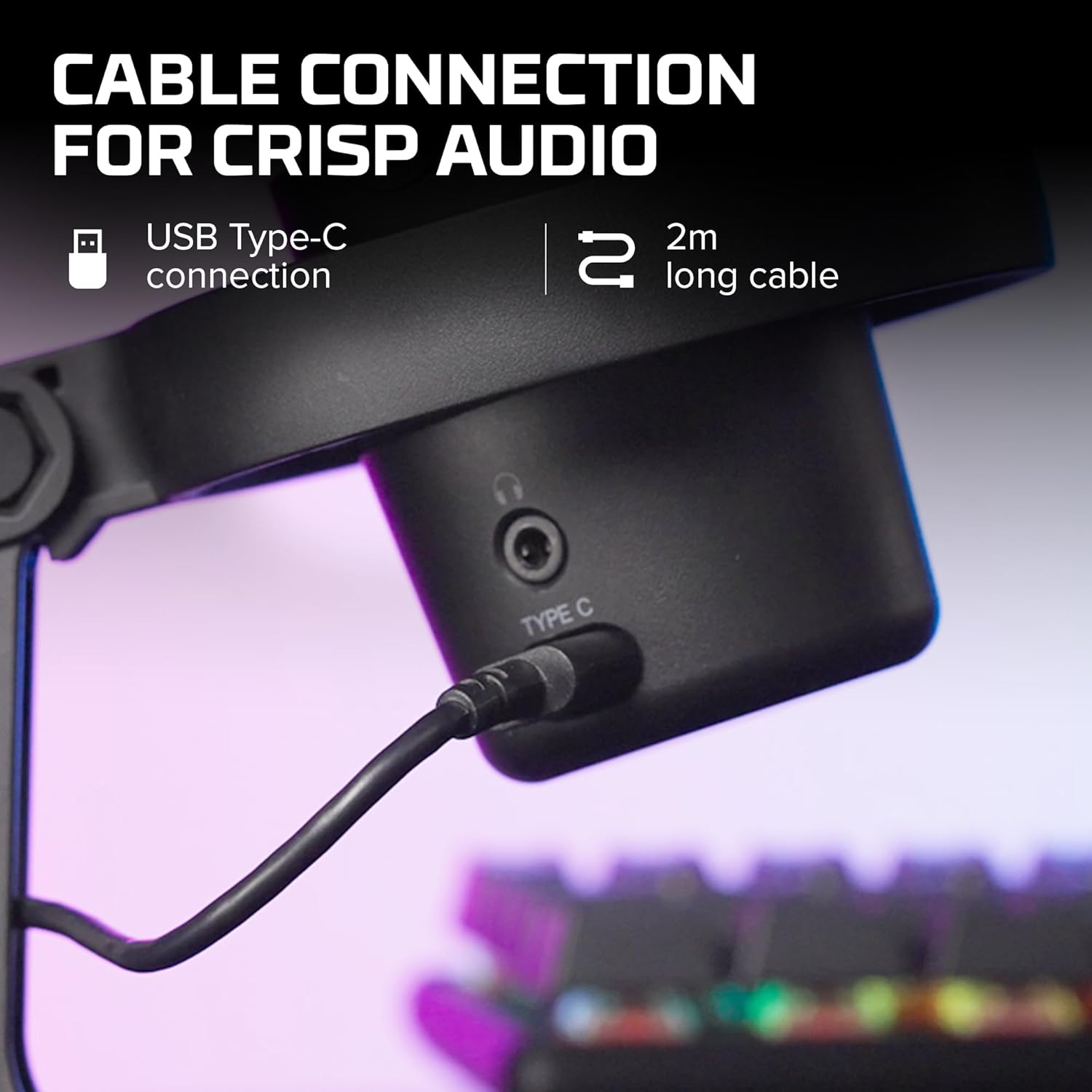
Image 3.1: Close-up view of the USB Type-C connection port on the HyperX DuoCast microphone.
3.2 Positioning the Microphone
The DuoCast features a low-profile shock mount to reduce unwanted vibrations. For optimal audio quality, position the microphone directly in front of you, approximately 6-12 inches (15-30 cm) from your mouth.

Image 3.2: HyperX DuoCast microphone positioned on a boom arm for optimal recording, with a user wearing headphones.
3.3 Software Installation (Optional)
For advanced customization of RGB lighting and other settings, download and install the HyperX NGENUITY Software from the official HyperX website. This software is compatible with Windows operating systems.

Image 3.3: User customizing the RGB lighting of the HyperX DuoCast microphone using the HyperX NGENUITY software interface on a computer screen.
4. Operating the Microphone
4.1 Polar Patterns
The DuoCast offers two selectable polar patterns: Cardioid and Omnidirectional. Switch between these patterns using the button located on the microphone.
- Cardioid: Ideal for single-person recording, such as streaming, podcasts, and voiceovers. It captures sound primarily from the front, reducing background noise.
- Omnidirectional: Suitable for multi-person recordings, conference calls, or capturing ambient sounds, as it picks up sound equally from all directions.

Image 4.1: Diagram illustrating the Cardioid and Omnidirectional polar patterns and their recommended use cases.
4.2 Tap-to-Mute Sensor
The microphone features a convenient tap-to-mute sensor on the top. Tapping the top of the microphone will instantly mute or unmute your audio. The RGB light ring will change color to indicate the mute status.

Image 4.2: Close-up of the microphone's top showing the tap-to-mute sensor and the gain control knob.
4.3 Gain Control Adjustment
Adjust the microphone's input sensitivity (gain) using the control knob located on the microphone. Rotate the knob to increase or decrease the gain to achieve optimal audio levels and prevent distortion.
4.4 RGB Lighting
The DuoCast features a customizable RGB light ring with two zones. The lighting can be personalized using the HyperX NGENUITY Software (Windows only) to match your setup or preference.
4.5 Headphone Output
A 3.5mm headphone jack is integrated into the microphone for direct monitoring of your audio output. Connect your headphones to this port to hear your voice in real-time.
5. Maintenance
To ensure the longevity and optimal performance of your HyperX DuoCast microphone, follow these maintenance guidelines:
- Cleaning: Use a soft, dry cloth to clean the microphone's exterior. Avoid using harsh chemicals, solvents, or abrasive materials.
- Storage: When not in use, store the microphone in a clean, dry environment away from extreme temperatures and humidity.
- Handling: Handle the microphone with care. Avoid dropping it or subjecting it to strong impacts, which can damage internal components.
6. Troubleshooting
If you encounter issues with your HyperX DuoCast microphone, refer to the following common solutions:
| Problem | Possible Cause | Solution |
|---|---|---|
| No audio input | Microphone not connected properly Incorrect input device selected Microphone muted | Ensure USB cable is securely connected. Verify the DuoCast is selected as the default input device in your system settings. Tap the top of the microphone to unmute. |
| Low audio volume | Gain setting too low System input volume too low | Adjust the gain control knob on the microphone. Increase the microphone input volume in your system's sound settings. |
| Distorted audio | Gain setting too high Microphone too close to sound source | Decrease the gain control knob on the microphone. Move the microphone further away from the sound source. |
| Excessive background noise | Incorrect polar pattern selected High gain setting | Switch to Cardioid polar pattern for single-person use. Reduce the gain setting. Ensure you are in a quiet environment. |
| RGB lighting not working | Software issue USB connection problem | Ensure HyperX NGENUITY Software is installed and updated (Windows only). Reconnect the USB cable. |
7. Specifications
| Feature | Detail |
|---|---|
| Microphone Type | USB Condenser |
| Polar Patterns | Cardioid, Omnidirectional |
| Audio Sensitivity | 6 Decibels |
| Signal-to-Noise Ratio | 70 dB |
| Frequency Response | 20 Hz - 20 kHz |
| Recording Resolution | 24-bit/96kHz |
| Connectivity | USB (Type-C to Type-A) |
| Compatible Devices | PC, PS5, PS4, Mac |
| Special Features | Customizable RGB Light Ring, Tap-to-Mute Sensor, Gain Control, Low-profile Shock Mount, Internal Pop Filter, 3.5mm Headphone Output |
| Dimensions (L x W x H) | 5.5 x 9.3 x 5 inches (140 x 236 x 127 mm) |
| Item Weight | 8.6 ounces (243.2 grams) |
| Model Number | 4P5E2AA |

Image 7.1: Diagram showing the physical dimensions (width, height, depth) and weight of the HyperX DuoCast microphone.
8. Warranty and Support
For warranty information and technical support, please visit the official HyperX website or contact HyperX customer service. Keep your proof of purchase for warranty claims.
Online Support: www.hyperx.com/support


