
Introduction
This manual provides detailed instructions for the setup, operation, and maintenance of your A-Tech W-709 2.4GHz Wireless Optical Mouse. Please read this manual thoroughly before using the product to ensure proper functionality and to prevent damage.
Product Overview
The A-Tech W-709 is a 2.4GHz wireless optical mouse designed for reliable and efficient performance. It features a comfortable design and is compatible with various operating systems. This product is made from high-quality materials, ensuring practical performance and effectiveness.
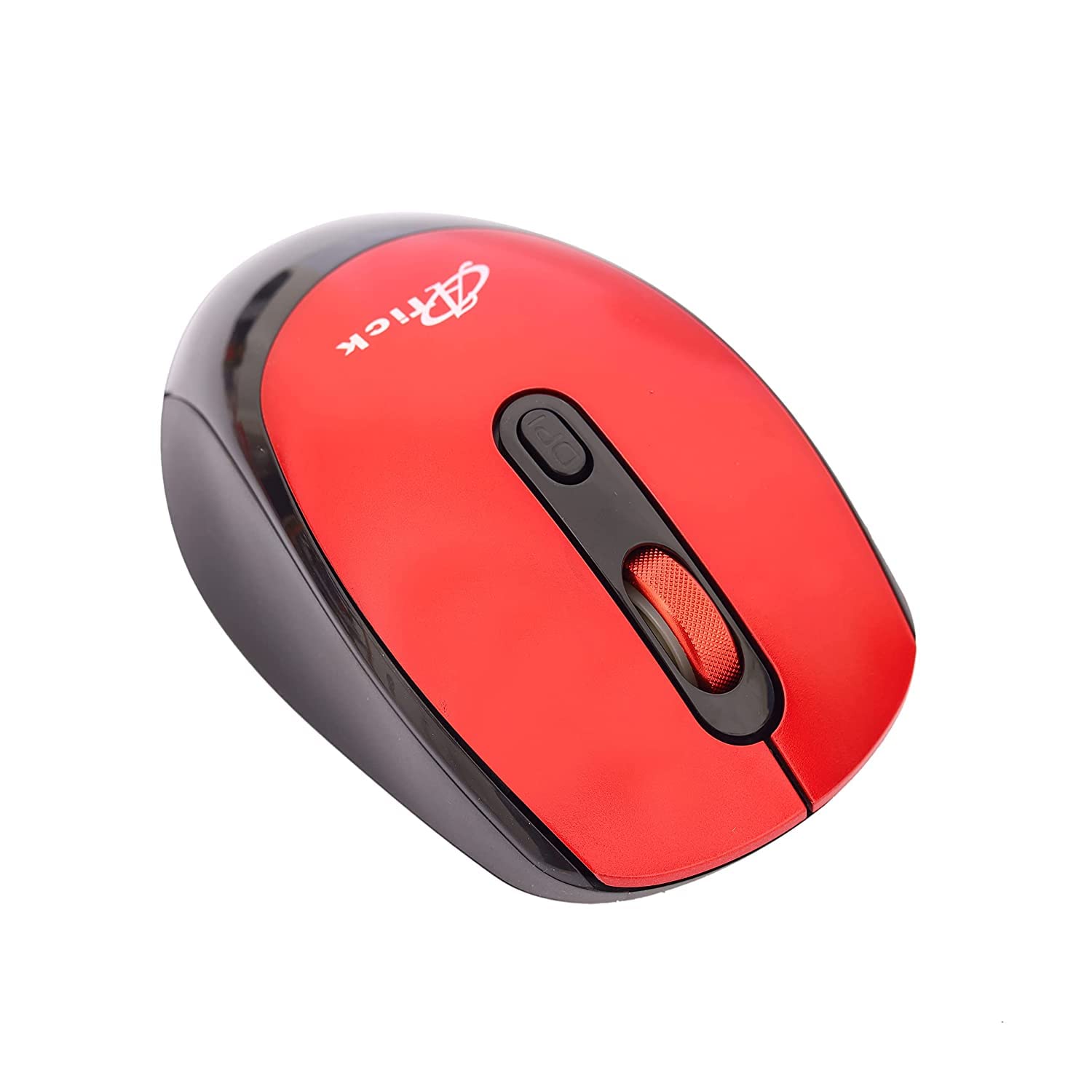
Image 1: Top view of the A-Tech W-709 Wireless Optical Mouse, showcasing its red and black design with the scroll wheel and DPI button.

Image 2: Angled view of the A-Tech W-709 Wireless Optical Mouse, highlighting its ergonomic shape and color.
Setup Instructions
- Charge Mouse (if applicable): If your mouse has a built-in rechargeable battery, connect it to a USB power source using the provided charging cable (if included) until fully charged.
- Connect USB Receiver: Locate the USB receiver, typically stored within a dedicated slot on the mouse. Plug the USB receiver into an available USB port on your computer or laptop.
- Power On: Turn on the mouse using the power switch, typically located on the underside.
- Driver Installation: Your operating system should automatically detect and install the necessary drivers. This process may take a few moments. No manual driver installation is typically required.
- Test Functionality: Move the mouse and click the buttons to ensure it is working correctly.
Operating Instructions
- Left Button: Primary click function, used for selecting items, opening files, and executing commands.
- Right Button: Secondary click function, typically used to open context menus.
- Scroll Wheel: Scroll up or down through documents and web pages. The scroll wheel can also function as a middle button when pressed.
- DPI Button: Press this button to cycle through different DPI (Dots Per Inch) sensitivity settings. This allows you to adjust cursor speed to your preference.
- Wireless Range: The mouse operates wirelessly within a range of approximately 10 meters (33 feet) from the USB receiver. Performance may vary based on environmental factors.
Maintenance
- Cleaning: Use a soft, dry cloth to clean the mouse. For stubborn dirt, a slightly damp cloth can be used, but ensure no moisture enters the internal components. Do not use harsh chemicals or abrasive cleaners.
- Storage: When not in use for extended periods, turn off the mouse to conserve battery life. Store the USB receiver in its designated slot on the mouse to prevent loss.
- Environmental Conditions: Avoid exposing the mouse to extreme temperatures, direct sunlight, or high humidity.
Troubleshooting
| Problem | Solution |
|---|---|
| Mouse not responding |
|
| Erratic cursor movement |
|
| Wireless connection issues |
|
Specifications
- Brand Name: A-Tech (Note: Some listings may refer to it as 'Generic')
- Model: W-709
- Connectivity Technology: Wireless (2.4GHz)
- Movement Detection: Optical
- Compatible Devices: Personal Computer, Laptop
- Operating System Compatibility: Linux, Windows XP (and newer versions)
- Style: Modern
- Hardware Platform: PC, Laptop
- Batteries Required: No (Features a built-in power source or rechargeable battery)
- Manufacturer: A-Tech
Warranty and Support
For warranty information and technical support, please refer to the documentation provided with your purchase or contact the manufacturer directly. Keep your proof of purchase for any warranty claims.


