
Introduction
Thank you for choosing the Chesto Full HD Beamer. This projector is designed to transform your living space into a cinematic experience with its 9500 lumen brightness and native 1920x1080P resolution, supporting 4K signal input. It features an eye-friendly optical system, built-in speakers, and wireless smartphone connectivity for seamless streaming.
This manual provides detailed instructions for setting up, operating, and maintaining your Chesto Full HD Beamer to ensure optimal performance and longevity.
Package Contents
Please check the box for the following items:
- 1x Chesto Full HD Beamer
- 1x Remote Control
- 1x Instruction Manual (this document)
- 1x HDMI Cable
- 1x Power Cable
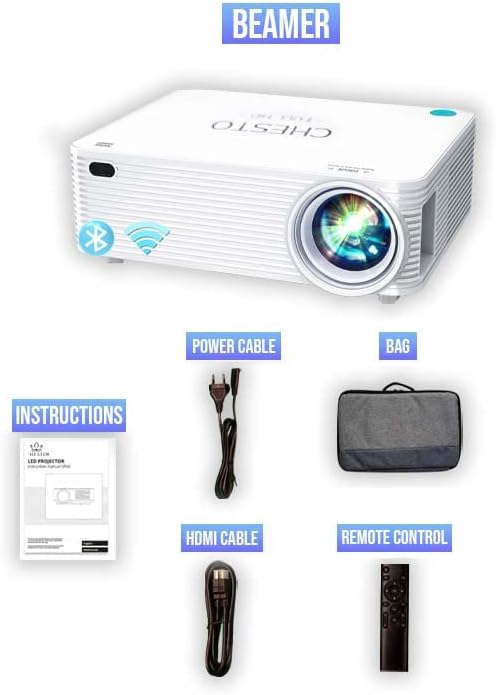
Figure 1: Included accessories with the Chesto Beamer. The image displays the projector, power cable, HDMI cable, remote control, and the instruction manual.
Setup
- Placement: Position the projector on a stable, flat surface or mount it to the ceiling. Ensure there is adequate ventilation around the projector.
- Power Connection: Connect the power cable to the projector's power input and then plug it into a power outlet.
- Initial Power On: Press the power button on the projector or the remote control to turn on the device.
- Focus Adjustment: Rotate the focus ring on the projector lens until the projected image is clear and sharp.
- Keystone Correction: If the image appears trapezoidal, use the 4-point correction function (refer to the 'Image Adjustment' section) to square the image.
Operating Instructions
Power On/Off
- To power on, press the power button on the projector or the remote control.
- To power off, press the power button again. Confirm shutdown if prompted.
Menu Navigation
Use the arrow keys on the remote control or the projector's control panel to navigate through the on-screen menu. Press the 'OK' button to select an option.
Connectivity
Wireless Smartphone Streaming
The Chesto Beamer supports wireless streaming from your smartphone (both Android and iOS devices). Ensure your smartphone and the projector are connected to the same Wi-Fi network.
- Select the 'Screen Mirroring' or 'Wireless Display' option from the projector's main menu.
- On your smartphone, enable screen mirroring (e.g., 'Smart View' on Android, 'Screen Mirroring' on iOS).
- Select the projector's name from the list of available devices on your smartphone.
- The smartphone screen will now be projected wirelessly.
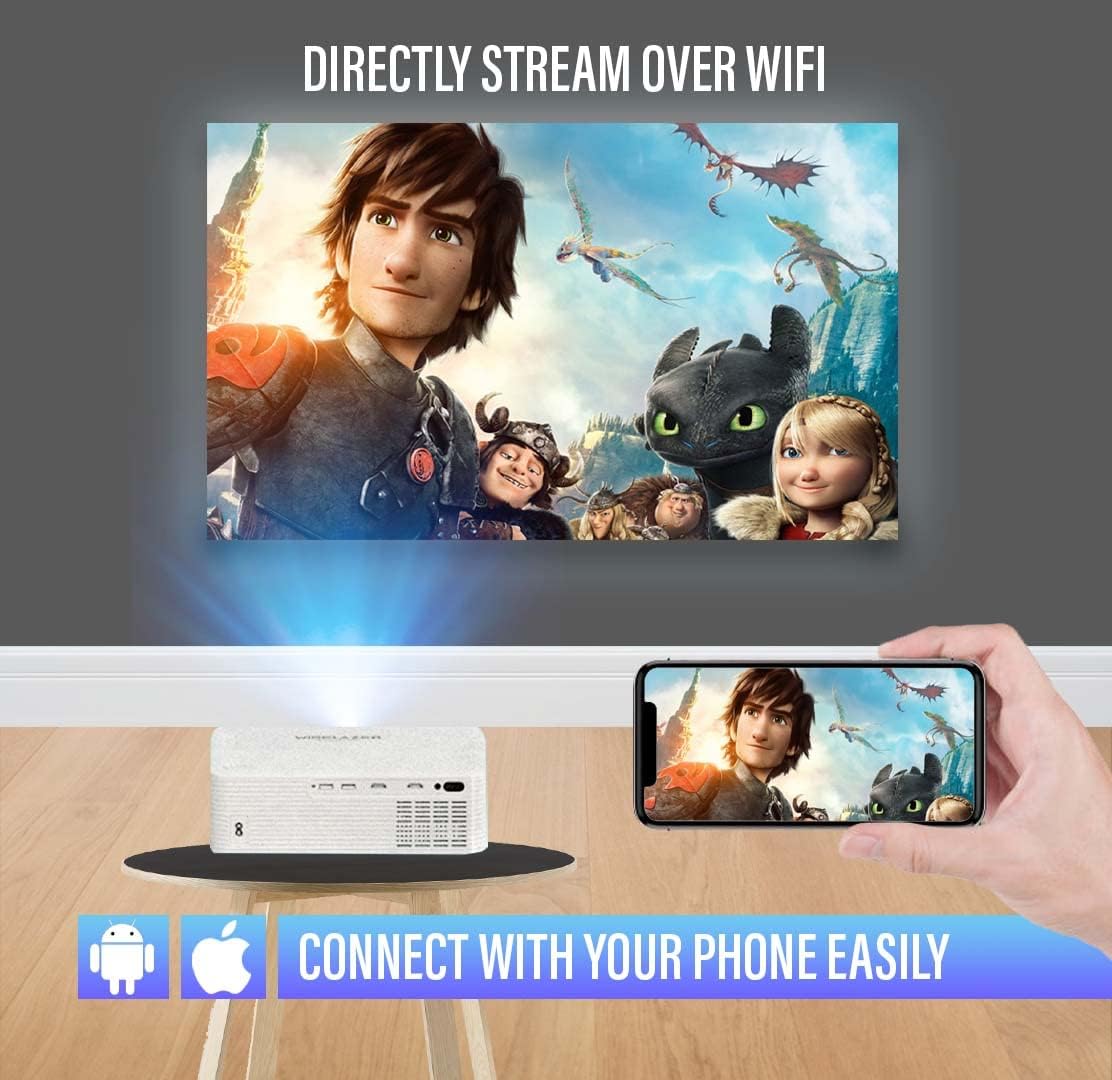
Figure 2: Wireless streaming from a smartphone to the projector. The image illustrates a phone connected to the projector via Wi-Fi, displaying a movie on a large screen.
Wired Connections
The projector offers multiple input ports for various devices:
- HDMI (2 ports): Connect Blu-ray players, gaming consoles, laptops, TV sticks, and other HDMI-enabled devices.
- USB (2 ports): Connect USB drives for media playback or external devices.
- 3.5mm Audio Jack (1 port): Connect external speakers or headphones.
- AV Audio: Connect older devices using an AV cable.
- VGA: Connect computers or laptops with a VGA output.

Figure 3: Connectivity options for the Chesto Beamer. The image displays the projector and icons representing various compatible devices and input ports.
Bluetooth Function
Connect your Chesto Beamer wirelessly to Bluetooth audio devices such as headphones or external speakers for an enhanced audio experience.
- Ensure your Bluetooth audio device is in pairing mode.
- On the projector, navigate to the Bluetooth settings in the menu.
- Select 'Scan for devices' and choose your audio device from the list to pair.

Figure 4: Bluetooth connectivity for audio devices. The image shows the projector wirelessly connected to headphones and earbuds via Bluetooth.
Image Adjustment
Focus
Adjust the focus ring on the projector lens to achieve a sharp image. The Chesto Beamer features a precise focus lens system ensuring 100% sharp focus from the center to the edges, which is also eye-friendly for prolonged viewing.
4-Point Keystone Correction
If the projected image is distorted (e.g., wider at the top or bottom), use the 4-point keystone correction feature to manually adjust each corner of the image until it forms a perfect rectangle.

Figure 5: Adjusting the screen with 4-point correction. The image shows a projected movie scene being adjusted at its corners to achieve a rectangular shape, with a remote control highlighting the adjustment buttons.
Image Quality
The Chesto Beamer provides a true native resolution of 1920x1080P, offering significantly more detail than 1080x720P projectors and supporting 4K signal input for unparalleled visual performance.

Figure 6: Resolution comparison. The image visually compares the superior clarity of Chesto's 1920x1080 resolution with 4K Ultra HD support against a lower 1080x720 resolution.

Figure 7: Clear and sharp image projection. The image displays a high-quality, sharp movie projection on a large screen in a living room environment.
Maintenance
Cleaning the Lens
Use a soft, lint-free cloth specifically designed for optical lenses to gently wipe the projector lens. Do not use abrasive cleaners or excessive force, as this may scratch the lens.
Cleaning the Projector Body
Wipe the exterior of the projector with a soft, dry cloth. For stubborn dirt, slightly dampen the cloth with water, then wipe dry immediately. Avoid using chemical cleaners.
Ventilation
Ensure the projector's ventilation openings are clear of dust and obstructions to prevent overheating. The Chesto Beamer is designed to be dustproof, but regular checks are recommended.
Troubleshooting
No Image Displayed
- Check if the projector is powered on.
- Ensure the input source is correctly selected (e.g., HDMI1, USB, Screen Mirroring).
- Verify that the video cable (HDMI, VGA) is securely connected to both the projector and the source device.
- If using wireless streaming, ensure both devices are on the same Wi-Fi network and mirroring is active.
Blurred Image
- Adjust the focus ring on the projector lens.
- Use the 4-point keystone correction to square the image if it's distorted.
- Ensure the projection distance is within the recommended range.
No Sound
- Check the volume settings on both the projector and the source device.
- If using external speakers, ensure they are properly connected and powered on.
- If using Bluetooth audio, ensure the device is paired and connected.
- Verify that the audio output setting on the source device is correct.
Remote Control Not Working
- Replace the batteries in the remote control.
- Ensure there are no obstructions between the remote control and the projector's IR receiver.
Specifications
| Brand | Chesto |
| Model | B09ZYGJTGD |
| Native Resolution | 1920 x 1080 (Full HD) |
| Maximum Screen Resolution | Full HD (4K signal input supported) |
| Brightness | 9500 Lumens |
| Contrast Ratio | 13,000:1 |
| Lamp Life | 32,000 hours |
| Connectivity Technology | HDMI (x2), USB (x2), 3.5mm Audio Jack (x1), AV, VGA, Wi-Fi, Bluetooth |
| Built-in Speaker | 5W |
| Form Factor | Portable |
| Recommended Applications | Home Cinema |
| Special Features | Built-in Wi-Fi, Bluetooth, 4-point keystone correction, Eye-friendly optical system |
Warranty and Support
Specific warranty information is not provided in the product details. Please refer to the retailer's return policy or contact Chesto customer support for warranty details and technical assistance.
For further support, please visit the official Chesto website or contact your point of purchase.


