
Introduction
This manual provides detailed instructions for the setup, operation, maintenance, and troubleshooting of your Glisogo C11 Mini WiFi Bluetooth Projector. Please read this manual thoroughly before using the projector to ensure optimal performance and longevity.

Image: The Glisogo C11 Mini WiFi Bluetooth Projector, showcasing its compact design and projection capabilities with an astronaut on a distant planet.
Product Overview
Key Features
- Native 720P resolution with support for 1080P video input.
- 5000 lumens brightness and 2000:1 contrast ratio for clear images.
- Integrated 2.4G WiFi for seamless screen mirroring from iOS and Android devices.
- Bluetooth 5.0 connectivity for external audio devices like speakers and headphones.
- Multiple connectivity options including HDMI, USB, and AV for various devices.
- Portable design with an adjustable projection size from 40 to 120 inches.
Package Contents
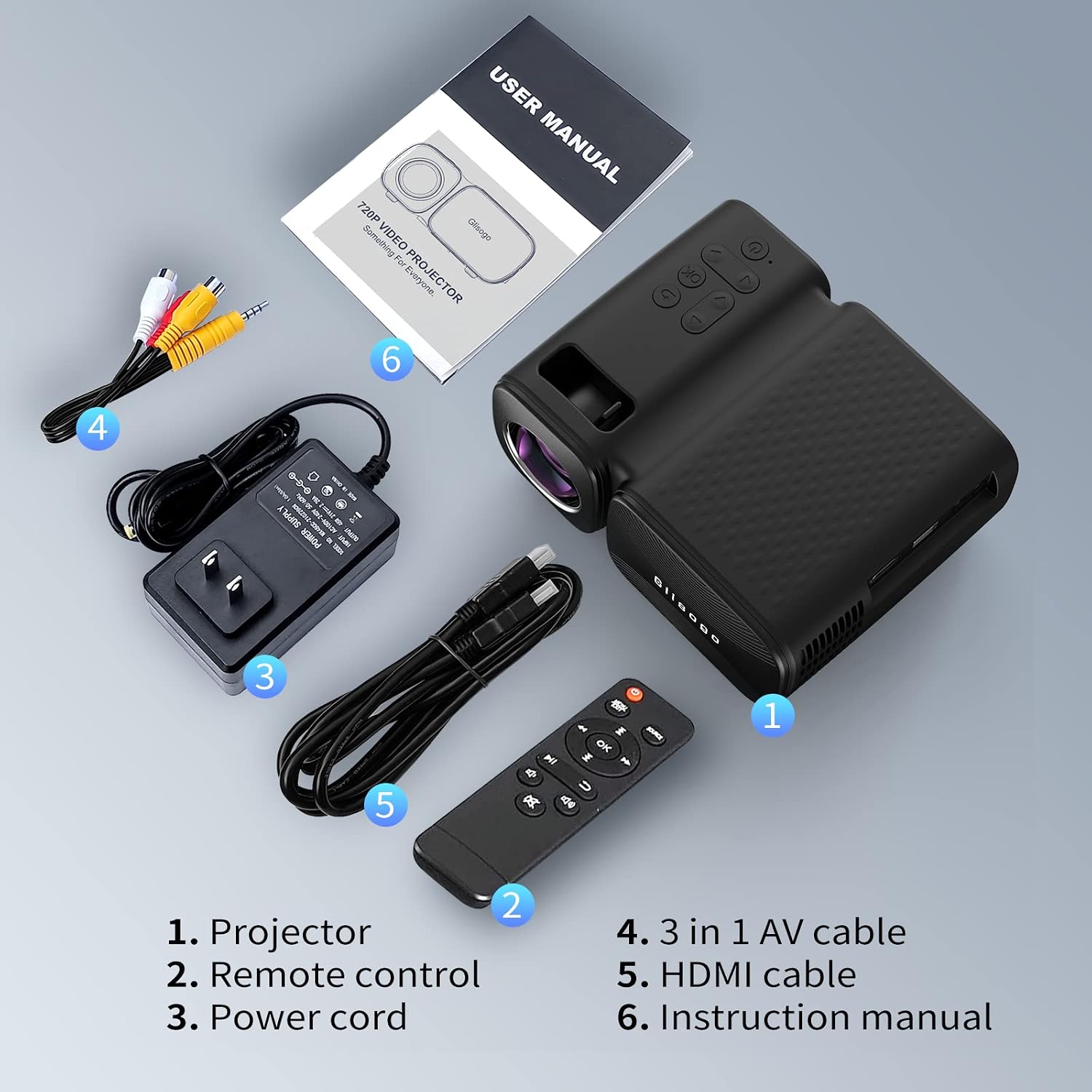
Image: All items included in the Glisogo C11 projector package. The image displays the projector, remote control, power cord, 3-in-1 AV cable, HDMI cable, and the instruction manual.
- Glisogo C11 Projector
- Remote Control
- Power Cord
- 3-in-1 AV Cable
- HDMI Cable
- User Manual (this document)
Setup
1. Placement and Power Connection
- Place the projector on a stable, flat surface.
- Connect the power cord to the projector's power input and then to a power outlet.
- For optimal viewing, ensure the room is dimly lit.

Image: Diagram illustrating the adjustable projection distance and screen size for the Glisogo C11 projector. It shows that a distance of 3.67 to 10.63 feet can produce a screen size from 40 to 120 inches.
The ideal projection distance ranges from 3.67 feet to 10.63 feet, yielding screen sizes from 40 to 120 inches. The recommended viewing distance for a 60-80 inch screen is approximately 5.5 to 6.5 feet.
2. Focus Adjustment
Turn on the projector. Adjust the focus ring on the lens until the projected image is clear and sharp.
Operating Instructions
1. Power On/Off
- Press the power button on the projector or the remote control to turn it on.
- Press the power button again to turn it off.
2. Connecting to WiFi and Screen Mirroring

Image: Illustration of the Glisogo C11 projector wirelessly connected via 2.4G WiFi to an iPad, iPhone, and MacBook for screen mirroring.
- Navigate to the WiFi settings on the projector's menu.
- Select your home WiFi network and enter the password.
- Once connected, select the "Screen Mirroring" option.
- On your iOS or Android device, enable screen mirroring/casting and select the projector from the list of available devices.
3. Bluetooth Audio Connection

Image: The Glisogo C11 projector connected via Bluetooth 5.0 to headphones and a portable speaker, projecting a music video onto a screen.
- Go to the Bluetooth settings on the projector.
- Enable Bluetooth and scan for devices.
- Select your Bluetooth speaker or headphones from the list to pair.
4. Connecting External Devices (HDMI, USB, AV)

Image: A diagram showing the Glisogo C11 projector's compatibility with various devices via HDMI (laptop, TV box, Xbox, TV Stick), USB (U Disk, Hard Disk), and AV (TV), as well as earphone/headset/speaker connections.
- HDMI: Connect your laptop, TV box, gaming console (PS4/PS5, Xbox), or TV stick using the provided HDMI cable. Select the HDMI input source on the projector.
- USB: Insert a USB flash drive or external hard disk into the USB port. The projector will typically prompt you to browse media files.
- AV: Use the 3-in-1 AV cable to connect older devices like DVD players. Select the AV input source.
Maintenance
- Lens Cleaning: Gently wipe the projector lens with a soft, lint-free cloth. Avoid abrasive materials or harsh chemicals.
- Dust Removal: Regularly clean the projector's vents to prevent dust buildup, which can affect performance and lifespan. Use a soft brush or compressed air.
- Storage: When not in use for extended periods, store the projector in a cool, dry place, away from direct sunlight and extreme temperatures.
Troubleshooting
| Problem | Possible Cause | Solution |
|---|---|---|
| No image projected | Power not connected, incorrect input source, lens cap on. | Ensure power is connected, select the correct input source (HDMI, USB, AV), remove lens cap. |
| Blurred image | Focus not adjusted, projector too close/far. | Adjust the focus ring. Ensure projector is within recommended projection distance. |
| No sound | Volume too low, external audio device not connected, incorrect audio output. | Increase projector volume. Connect Bluetooth speaker/headphones or check HDMI audio settings. |
| WiFi/Screen Mirroring not working | Incorrect WiFi password, device not on same network, firewall issues. | Verify WiFi password. Ensure projector and device are on the same 2.4G WiFi network. Restart devices. |
| Remote control not responding | Dead batteries, obstruction, remote out of range. | Replace batteries. Ensure no obstructions between remote and projector. Point remote directly at the projector's IR receiver. |
Specifications
| Feature | Detail |
|---|---|
| Brand | Glisogo |
| Model Number | C11 |
| Native Resolution | 1280 x 720 pixels |
| Max Supported Resolution | 1080p Full HD |
| Brightness | 5000 Lumens |
| Contrast Ratio | 2000:1 |
| Connectivity Technology | Bluetooth 5.0, Wi-Fi (2.4G), HDMI, USB, AV |
| Product Dimensions | 16.5 x 12.5 x 6.6 cm |
| Item Weight | 1.04 Kilograms |
| Display Type | LED |
| Form Factor | Portable |
| Mounting Type | Tabletop Mount |
Warranty and Support
The Glisogo C11 Mini WiFi Bluetooth Projector comes with a 6-month money-back guarantee and a 3-year repair warranty. Glisogo also provides lifetime professional technical support for all customers. For any inquiries or assistance, please contact Glisogo customer service through the official channels.