
Introduction
Thank you for choosing the Dyplay 120W 2.1 Channel Soundbar. This manual provides essential information for setting up, operating, and maintaining your soundbar. Please read these instructions carefully before use and retain them for future reference.
What's in the Box
Carefully unpack all components and ensure all items are present.

Image: The soundbar package includes the Dyplay Soundbar, remote controller, power adapter, AAA batteries, HDMI cable, optical cable, 3.5mm audio cable, RCA to 3.5mm cable, and user manual.
- Dyplay Soundbar
- Remote Controller
- Power Adapter
- AAA Batteries (for remote)
- HDMI Cable
- Optical Cable
- 3.5mm Audio Cable
- RCA to 3.5mm Cable
- User Manual
Product Overview
Soundbar Controls and Ports

Image: Rear panel connections of the soundbar, including USB, AUX, Optical, DC IN, TF card slot, and HDMI ARC port. Also shows side panel controls: ON/OFF, Audio Source, Volume Down/Previous, Volume Up/Next.
- USB Port: For USB drive playback.
- AUX Port: For analog audio input from devices with a 3.5mm jack.
- Optical Port: For digital audio input from TVs or other devices.
- DC IN: Power input port.
- TF Card Slot: For TF card playback.
- HDMI ARC Port: For digital audio input from TVs supporting HDMI ARC.
- LED Indicator: Displays current mode and status.
- ON/OFF Button: Power control.
- Audio Source Button: Cycles through input modes.
- Volume - / Previous Button: Decreases volume or skips to previous track.
- Volume + / Next Button: Increases volume or skips to next track.
Remote Control Functions

Image: The remote control for the Dyplay Soundbar, featuring buttons for power, equalizer modes, mute, volume adjustment, track control, and direct input selection for USB, TF, Line In, Optical, HDMI ARC, and Bluetooth.
- Power Button: Turns the soundbar on or off.
- EQ Button: Cycles through equalizer modes (Movie, Music, News, Game).
- Mute Button: Mutes or unmutes the sound. Long-press to turn off the LED indicator.
- Volume +/- Buttons: Adjusts the volume level.
- Playback Controls (Previous/Play-Pause/Next): Controls media playback in compatible modes.
- Input Selection Buttons: Direct access to USB, TF, LINE IN (AUX), OPT (Optical), HDMI ARC, and Bluetooth input modes.
Setup
Placement
The soundbar can be placed on a flat surface in front of your TV or wall-mounted (mounting bracket not included).

Image: Demonstrates two installation options: placing the soundbar on a TV cabinet or mounting it on the wall below the television.
Connecting to Your TV
The soundbar offers multiple connection options. Choose the method that best suits your TV and desired audio quality.
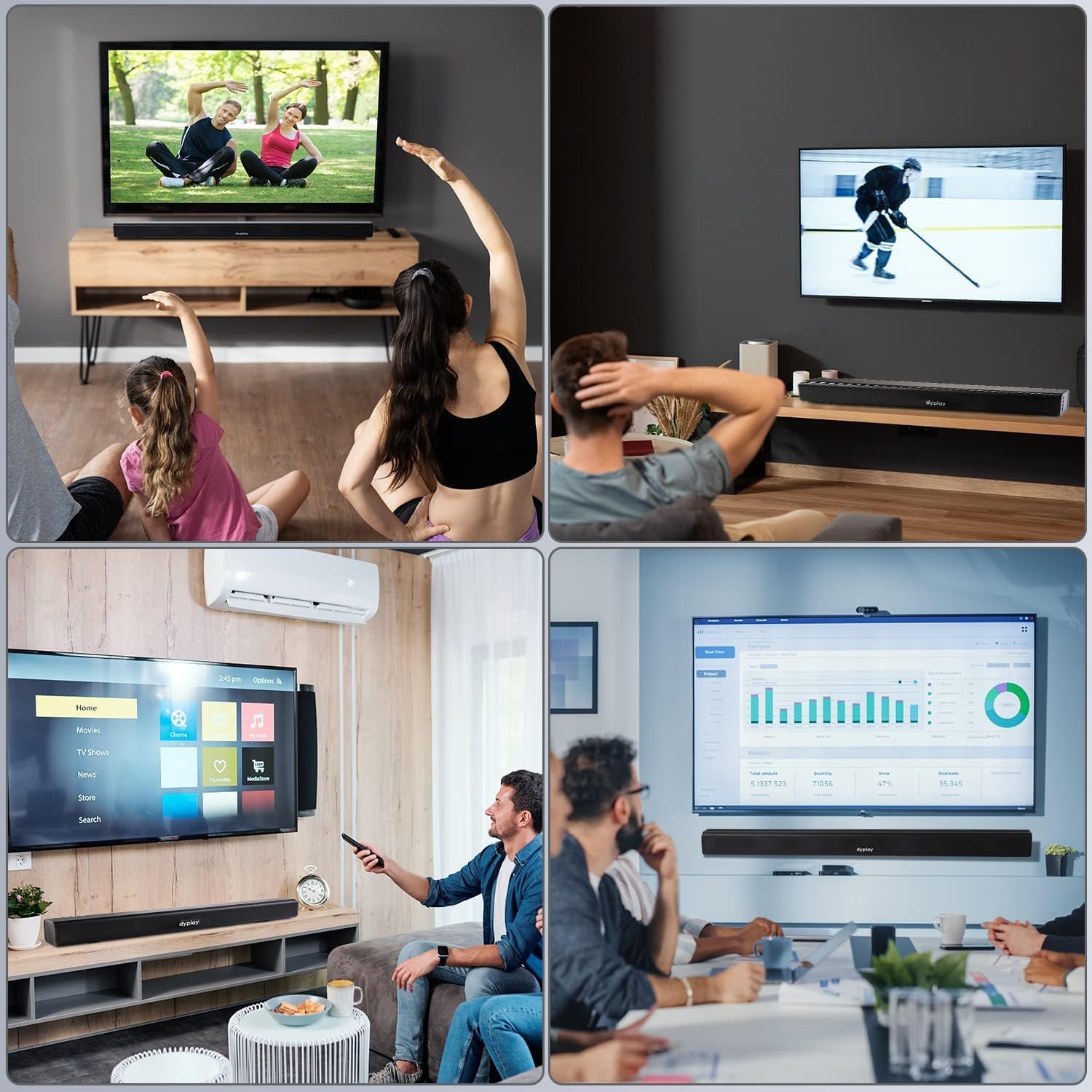
Image: Step-by-step guide for connecting the soundbar to a TV. It illustrates connecting an HDMI/Optical cable, pressing the corresponding input button on the soundbar or remote, and observing the LED indicator for the selected mode.
- HDMI ARC Connection:
- Connect one end of the HDMI cable to the HDMI ARC port on your TV and the other end to the HDMI ARC port on the soundbar.
- On your TV, navigate to the audio settings and ensure the audio output is set to HDMI ARC and the format is PCM.
- Press the 'HDMI ARC' button on the soundbar remote or the 'Audio Source' button on the soundbar until the LED indicator shows Light Blue.
- Optical Connection:
- Connect one end of the optical cable to the Optical OUT port on your TV and the other end to the OPTICAL port on the soundbar.
- On your TV, navigate to the audio settings and ensure the audio output is set to Optical and the format is PCM.
- Press the 'OPT' button on the soundbar remote or the 'Audio Source' button on the soundbar until the LED indicator shows Green.
- AUX (Line In) Connection:
- Connect one end of the 3.5mm audio cable to the AUX OUT port on your device (e.g., TV, smartphone) and the other end to the AUX port on the soundbar.
- Press the 'LINE IN' button on the soundbar remote or the 'Audio Source' button on the soundbar until the LED indicator shows White.
TV Audio Settings for HDMI ARC / Optical
When connecting via HDMI ARC or Optical, it is crucial to adjust your TV's audio output settings. The default TV speaker is often the TV's internal speaker. To ensure sound output through the soundbar, follow these general steps:
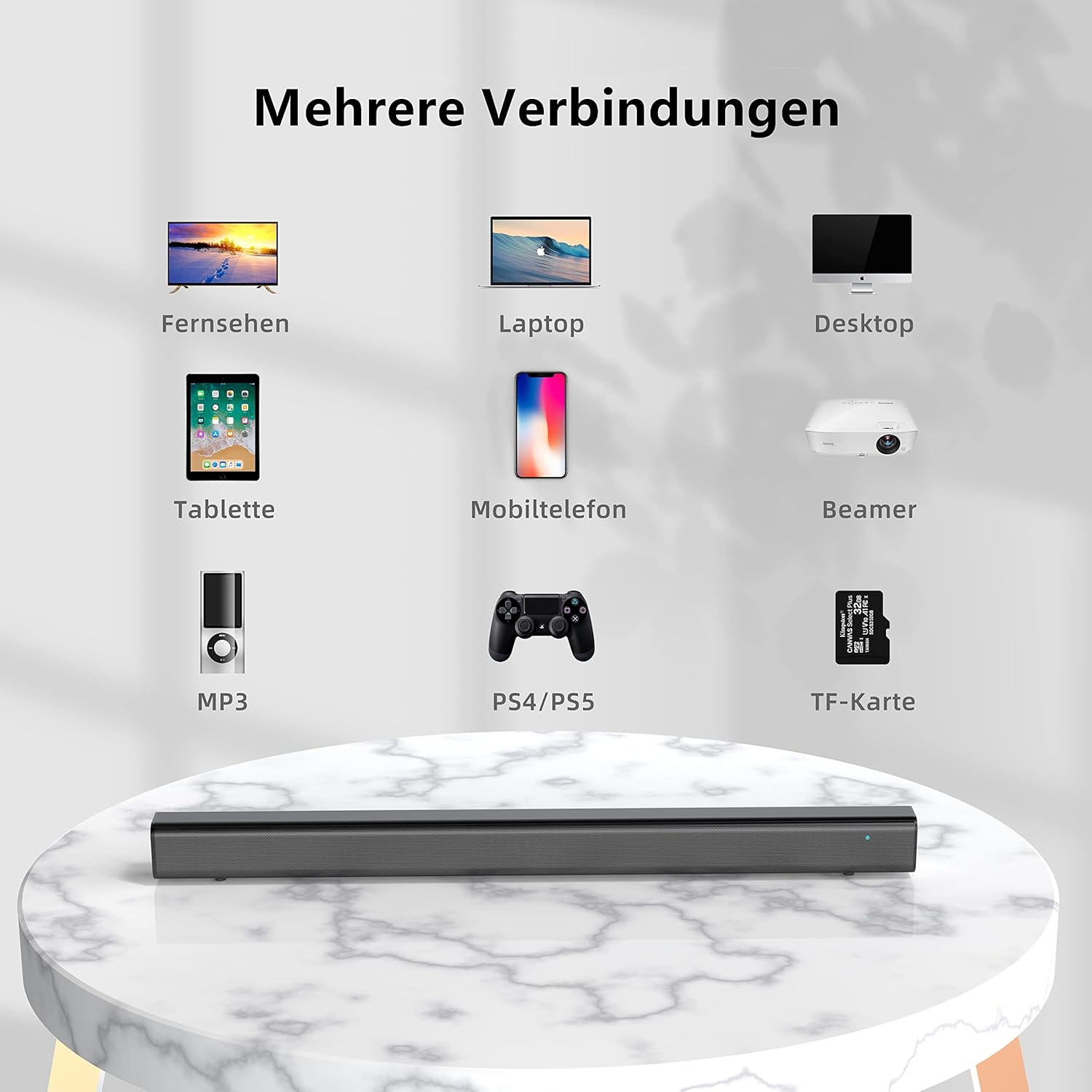
Image: Illustrates typical TV audio settings menus. For HDMI ARC, select 'HDMI(ARC)' for speakers and 'PCM' for digital output. For Optical, select 'OPTICAL PORT' for speakers and 'PCM' for digital output.
- Go to your TV's Settings menu.
- Navigate to Sound or Audio Output settings.
- Select the appropriate output: HDMI (ARC) or Optical Port.
- Set the Digital Audio Output Format to PCM (Pulse Code Modulation). Avoid Bitstream or Dolby Digital settings, as they may not be compatible with the soundbar's processing.
Operating Instructions
Power On/Off
Press the Power button on the remote control or the ON/OFF button on the soundbar to turn it on or off.
Selecting Input Mode
Press the corresponding input button on the remote control (USB, TF, LINE IN, OPT, HDMI ARC, Bluetooth) or repeatedly press the Audio Source button on the soundbar to cycle through available input modes.
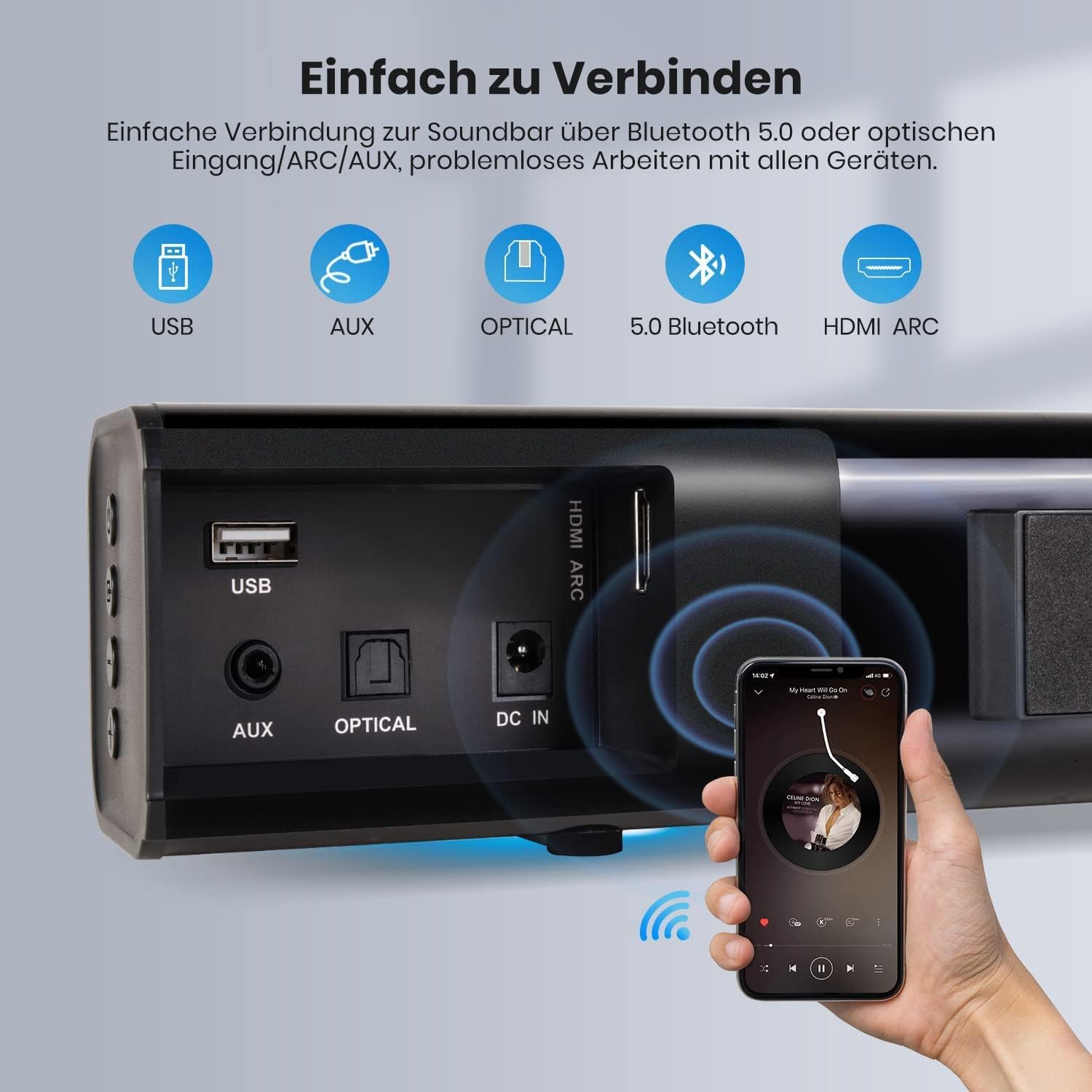
Image: Illustrates the soundbar's versatile connectivity options, including USB, AUX, Optical, Bluetooth 5.0, and HDMI ARC, demonstrating easy connection to various devices like smartphones.
Bluetooth Pairing
- Turn on the soundbar.
- Press the Bluetooth button on the remote or the Audio Source button on the soundbar until the LED indicator shows Blue.
- Enable Bluetooth on your device (e.g., smartphone, tablet) and search for "Dyplay Soundbar".
- Select "Dyplay Soundbar" to pair. Once connected, the LED indicator will remain blue.
Volume Adjustment
Use the Volume +/- buttons on the remote control or the soundbar to adjust the volume.
Equalizer (EQ) Modes
The soundbar features an integrated Digital Signal Processor (DSP) and offers four equalizer modes to optimize audio for different content. Press the EQ button on the remote control to cycle through the modes:
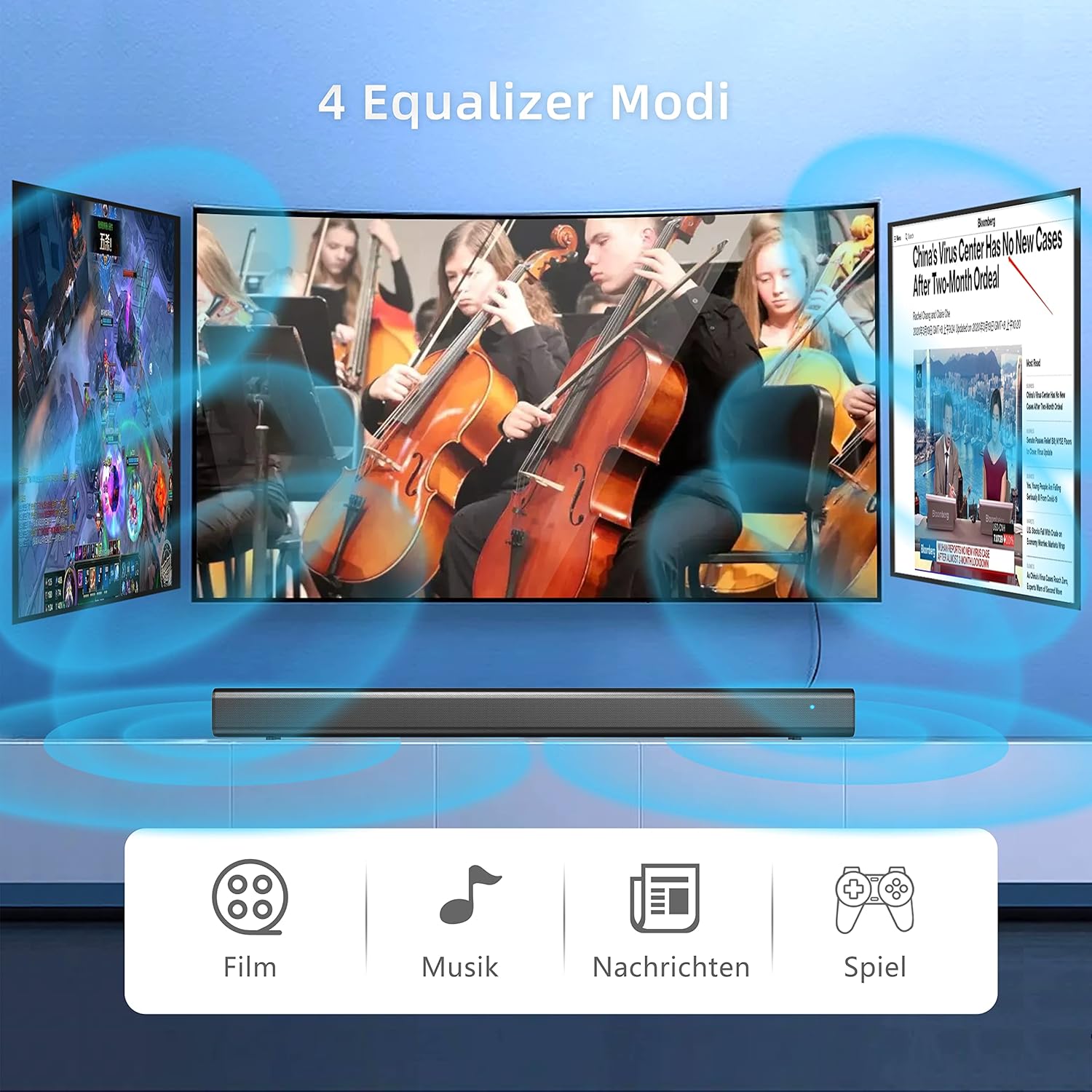
Image: The soundbar offers four distinct equalizer modes: Movie, Music, News, and Game, each designed to enhance specific audio content.
- Movie Mode: Enhances cinematic sound effects.
- Music Mode: Optimizes audio for music playback.
- News Mode: Clarifies dialogue for news and speech.
- Game Mode: Provides immersive audio for gaming.
LED Indicator Status
The LED indicator on the soundbar displays the current operational status:
- Standby: Red
- Bluetooth: Blue
- SD Card (TF): Purple
- Optical: Green
- AUX: White
- USB: Yellow
- HDMI ARC: Light Blue
To turn off the LED indicator, long-press the Mute button on the remote control.
Maintenance
To ensure the longevity and optimal performance of your soundbar, follow these maintenance guidelines:
- Cleaning: Use a soft, dry cloth to clean the surface of the soundbar. Do not use liquid cleaners or abrasive materials.
- Ventilation: Ensure the soundbar has adequate ventilation. Do not block any ventilation openings.
- Environment: Avoid exposing the soundbar to extreme temperatures, humidity, or direct sunlight. Keep it away from sources of heat and moisture.
- Power: Disconnect the power adapter from the wall outlet if the soundbar will not be used for an extended period.
Troubleshooting
If you encounter issues with your Dyplay Soundbar, please refer to the following troubleshooting steps:
No Sound in Optical/HDMI ARC Mode
- Check TV Audio Output: If connecting the TV via Optical or HDMI, first set the TV's audio output to Optical or HDMI.
- Set Digital Output to PCM: Ensure your TV's digital audio output format is set to PCM.
- Match Soundbar Input: After connecting, ensure the soundbar's input mode matches the TV's output mode (e.g., if TV is set to Optical, soundbar must be in Optical mode).
- Cable Check: Verify that the optical or HDMI cable is securely connected to both the TV and the soundbar.
- HDMI ARC Recommendation: For optimal audio quality, HDMI (ARC) is generally recommended over Optical.
Volume Not Loud Enough
- Adjust Multiple Volumes: Increase the volume on the soundbar, your TV/smartphone, and any connected streaming devices (e.g., Fire Stick/Roku Stick).
- Check EQ Mode: If the sound is distorted or unclear, press the EQ button on the remote control to cycle through modes (Movie, Music, News, Game) and find the most suitable setting.
- Maximum Output: The soundbar has a maximum decibel output of approximately 110 dB.
LED Indicator Light
- Turning Off: To turn off the LED indicator light, long-press the Mute button on the remote control.
- Status Indication: Refer to the "LED Indicator Status" section for a list of light colors and their corresponding modes.
Specifications
| Brand | Dyplay |
| Model Number | 1379 |
| Speaker Type | Soundbar |
| Surround Sound Channel Configuration | 2.1 |
| Maximum Speaker Output Power | 120 Watts |
| Power Source | Corded Electric |
| Connectivity Technology | Auxiliary, Bluetooth, HDMI, USB |
| Wireless Communication Technology | Bluetooth |
| Product Dimensions (L x W x H) | 86 x 9.5 x 11 cm (approximately 33.8 x 3.7 x 4.3 inches) |
| Item Weight | 1 Kilogram |
| Color | Black |
| Recommended Product Use | For Television |
| Software Updates Guaranteed Until | Information not available |
Warranty and Support
Your Dyplay Soundbar comes with the following:
- 2 Years Free Replacement: In case of product defects or malfunctions within two years of purchase.
- Lifetime Technical Support: Assistance for any technical questions or issues you may encounter.
For any questions or support needs, please contact Dyplay customer service via Amazon.