
1. Product Overview
The VIZIO SmartCast Universal Remote Control (Model: XRT140R) is designed as a direct replacement for VIZIO Smart TVs. This infrared (IR) remote provides seamless control over your television's functions, including navigation, volume, channel selection, and quick access to popular streaming applications. Its ergonomic design ensures comfortable handling and intuitive operation.

Image: Front and back view of the VIZIO SmartCast Universal Remote Control, highlighting its sleek black design and ergonomic grip.
2. Key Features
- Quick Launch App Channels: Dedicated buttons for VUDU, NETFLIX, HNEWS, XUMO, Hulu, and Redbox for instant access.
- WatchFree Button: Enjoy hundreds of free streaming channels for movies, TV shows, and sports with a single click. No fees, subscriptions, or logins required.
- VIZIO SmartCast Home: Direct access to all your favorite apps and free channels via a dedicated SmartCast home button.
- Ergonomic Design: Features a rounded back and conveniently located buttons for comfortable and quick navigation.
- Preprogrammed: No setup or programming required. Simply insert batteries and the remote is ready to use.
- Infrared (IR) Control: Operates via infrared signal, requiring a direct line of sight to the TV's IR sensor.

Image: Close-up of the VIZIO remote highlighting the "WatchFree" button, which provides access to numerous free streaming channels.
3. Setup Guide
3.1. Battery Installation
The VIZIO SmartCast Universal Remote Control requires two (2) AAA batteries for operation. Batteries are not included with the remote.
- Locate the battery compartment on the back of the remote control.
- Slide the battery cover downwards to open the compartment.
- Insert two AAA batteries, ensuring the positive (+) and negative (-) ends align correctly with the indicators inside the compartment.
- Slide the battery cover back into place until it clicks securely.
3.2. Initial Connection
This remote control is preprogrammed for VIZIO TVs and does not require any setup or programming. Once batteries are installed, it is ready for immediate use with your VIZIO television.
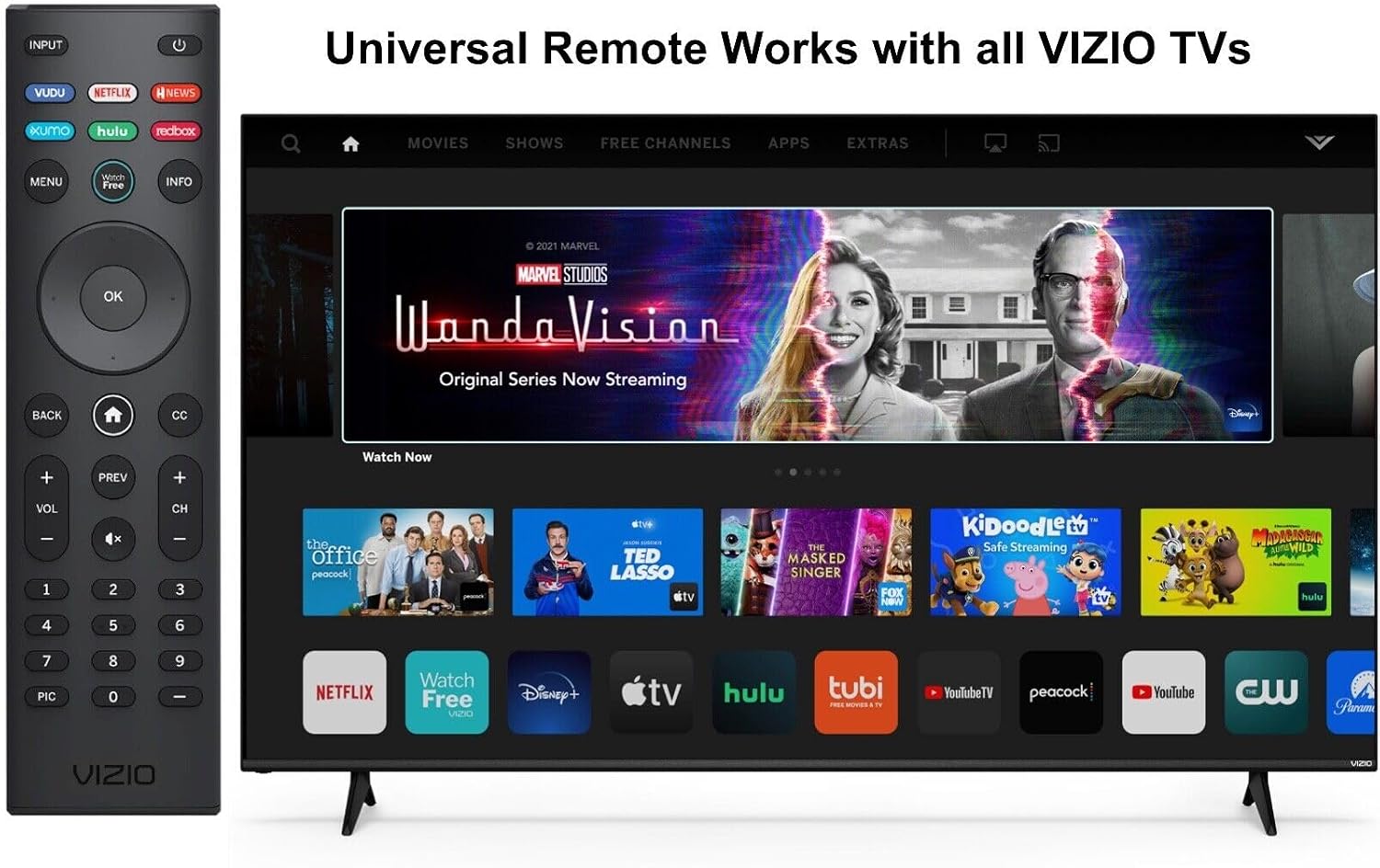
Image: The VIZIO remote positioned next to a VIZIO Smart TV, illustrating its universal compatibility and immediate functionality upon battery insertion.
4. Operating Instructions
The VIZIO SmartCast Universal Remote Control operates using an infrared (IR) signal. For proper functionality, ensure a direct line of sight between the remote and the TV's IR sensor. Obstacles can interfere with the signal.

Image: Instructional diagram emphasizing the need to point the remote directly at the TV's infrared (IR) sensor for optimal performance. The remote typically operates within a range of 10 to 30 feet.
4.1. Button Functions
Refer to the diagram below for a detailed overview of each button's function:

Image: Comprehensive diagram illustrating the layout and specific functions of each button on the VIZIO SmartCast Universal Remote Control.
- Power Button (⏻): Turns the television ON or OFF.
- Input: Changes the currently displayed input source.
- Quick Launch App Buttons (VUDU, NETFLIX, HNEWS, XUMO, Hulu, Redbox): Direct access to respective streaming applications.
- Menu: Displays the settings menu.
- WatchFree: Accesses WatchFree channels (Note: May not be available in all regions, e.g., Canada).
- Info: Displays the info window.
- Navigation Buttons (Up, Down, Left, Right, OK): Navigate on-screen menus and select highlighted content.
- Back: Goes to the previous on-screen menu.
- Home Button (⌂): Launches VIZIO SmartCast Home.
- CC (Closed Caption): Enables or disables closed captions. Long press to open Accessibility menu for captions, talkback, speech rate, and zoom mode.
- Volume Up/Down (VOL +/-): Increases or decreases the loudness of the audio.
- Mute (🔇): Turns the audio ON or OFF.
- Prev: Returns to the last viewed channel.
- Channel Up/Down (CH +/-): Changes the channel.
- Number Pad (0-9): Manually enters a channel number.
- Pic: Cycles through different picture setting modes. Long press to enable/disable talk back feature.
- Dash (-): Used with the number pad to manually enter a digital sub-channel (e.g., 18-4 or 18-5).

Image: The VIZIO remote showcasing its quick launch app buttons at the top, providing fast access to popular streaming services.
5. Troubleshooting
If your remote control is not functioning as expected, please follow these troubleshooting steps. Since the remote is preprogrammed, most issues can be resolved with a simple reset or battery check.

Image: The VIZIO remote alongside a list of common troubleshooting steps to resolve functionality issues.
5.1. Reset the Remote
- Remove the batteries from the remote.
- Press every button on the remote at least once to release any stuck buttons and clear residual power.
- Reinsert the batteries and test the remote.
5.2. Reset the TV
- Unplug the TV from the power outlet.
- Hold the TV's physical power button for 15 seconds to drain excess power.
- Plug the TV back in and turn it on.
- Test the remote again.
5.3. Try Fresh Batteries
If the remote still doesn't work after performing the above steps, replace the batteries with new ones and test again. Low battery power is a common cause of remote control issues.
Important Note: This is an Infrared (IR) remote control. It requires a direct line of sight to the TV’s IR sensor for proper functionality. Ensure there are no obstacles between the remote control and the TV sensor. This remote is not Bluetooth and does not require pairing.
6. Specifications
| Attribute | Detail |
|---|---|
| Brand | VIZIO |
| Model Number | XRT140R |
| Product Dimensions | 6 x 1.5 x 0.5 inches |
| Item Weight | 2.08 ounces |
| Color | Black |
| Max Number of Supported Devices | 1 (Television) |
| Compatible Devices | Television (All VIZIO TVs) |
| Special Feature | Ergonomic |
| Connectivity Technology | Infrared (IR) |
| Batteries Required | 2 AAA batteries (not included) |
7. Maintenance
To ensure the longevity and optimal performance of your VIZIO SmartCast Universal Remote Control, follow these simple maintenance guidelines:
- Cleaning: Wipe the remote regularly with a soft, dry cloth to remove dust and fingerprints. For stubborn dirt, slightly dampen the cloth with water or a mild, non-abrasive cleaner. Avoid using harsh chemicals or abrasive materials.
- Battery Care: If the remote will not be used for an extended period, remove the batteries to prevent leakage, which can damage the remote's internal components.
- Storage: Store the remote in a cool, dry place away from direct sunlight, extreme temperatures, and high humidity.
- Avoid Drops: While designed to be durable, repeated drops can damage the remote. Handle with care.
8. Warranty and Support
Specific warranty information for this VIZIO SmartCast Universal Remote Control (Model: XRT140R) was not provided in the product data. For detailed warranty terms, product support, or to inquire about replacement parts, please refer to the official VIZIO website or contact VIZIO customer service directly.
You may find additional support resources, FAQs, and contact information on the VIZIO support page: