
Alpine ILX-507
Alpine iLX-507 Multimedia Receiver User Manual
Model: ILX-507
Introduction
This manual provides comprehensive instructions for the installation, operation, and maintenance of your Alpine iLX-507 7" Multimedia Receiver. Please read this manual thoroughly before using the product to ensure proper and safe operation. Keep this manual for future reference.
The Alpine iLX-507 is a state-of-the-art digital multimedia receiver designed to enhance your in-car entertainment and connectivity. It features a 7-inch capacitive touchscreen display and offers seamless integration with modern smartphones through wireless Apple CarPlay and wireless Android Auto.
Setup and Installation
Proper installation is crucial for optimal performance and safety. It is recommended that installation be performed by a qualified professional.
Unboxing and Component Check
Before beginning installation, verify that all components are present in the packaging:
- Alpine iLX-507 Multimedia Receiver Unit
- Wiring Harness
- GPS Antenna
- Microphone
- Mounting Hardware
- User Manual (this document)
Wiring Connections
Connect the wiring harness to the vehicle's power, ground, speaker, and accessory wires according to the wiring diagram provided with the unit. Ensure all connections are secure and properly insulated to prevent short circuits.
The iLX-507 supports various inputs and outputs, including USB for media playback and smartphone connectivity, and HDMI for external video sources.

Figure 1: Front view of the Alpine iLX-507 multimedia receiver displaying the radio interface with frequency selection and current song information.
Initial Power-On and Basic Settings
After installation, turn on your vehicle's ignition to power the unit. The initial setup wizard will guide you through basic configurations such as language, time, and region settings. Ensure the GPS antenna is positioned correctly for accurate time synchronization and navigation assistance.
Operating Instructions
Touchscreen Interface Navigation
The iLX-507 features a responsive 7-inch capacitive touchscreen. Navigate through menus and select functions by tapping icons. Swipe gestures may be used for scrolling lists or changing screens.
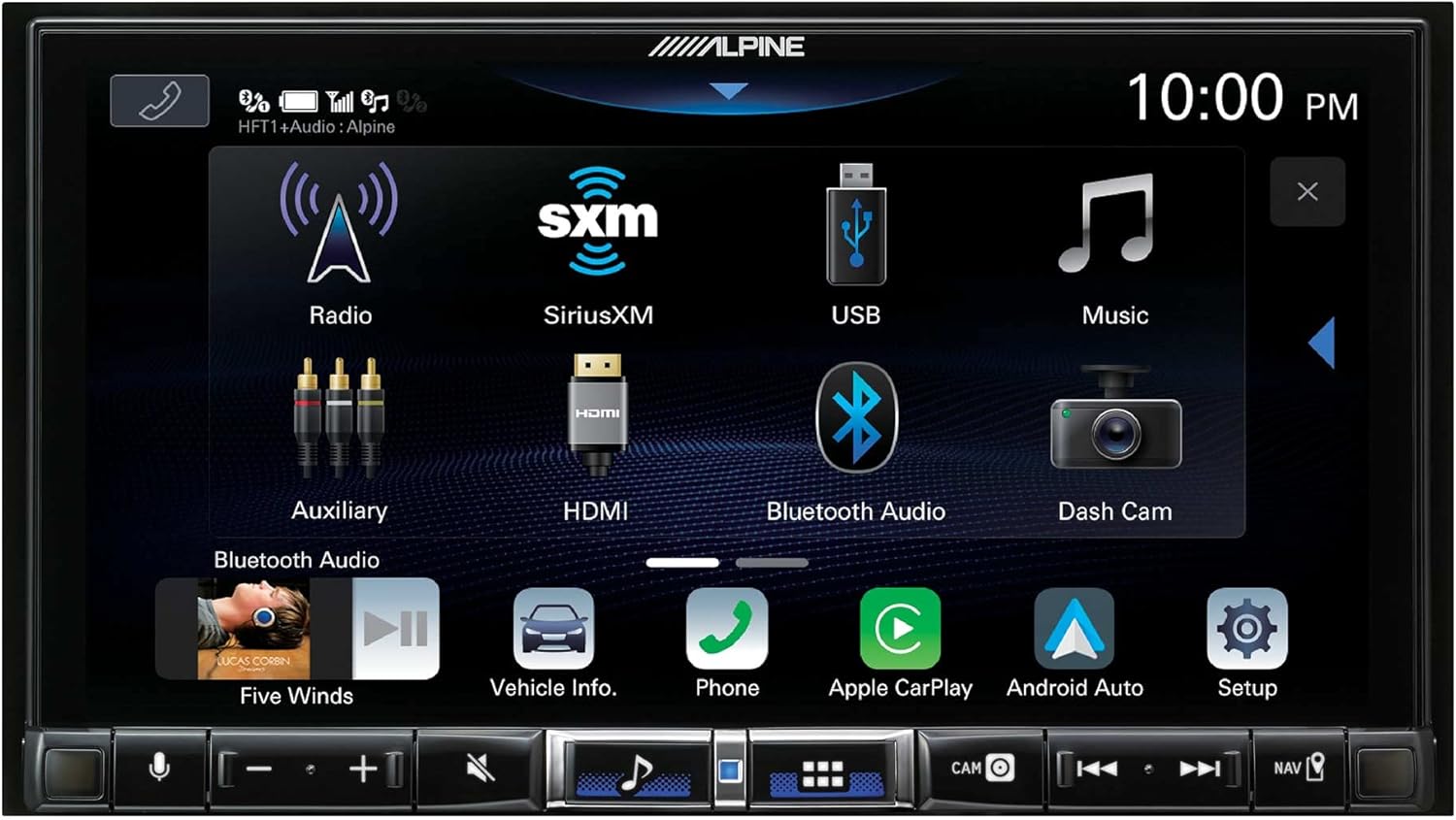
Figure 2: The main menu screen of the iLX-507, showing icons for Radio, SiriusXM, USB, Music, Auxiliary, HDMI, Bluetooth Audio, Dash Cam, Vehicle Info, Phone, Apple CarPlay, and Android Auto.
Wireless Apple CarPlay and Android Auto
The iLX-507 supports both wired and wireless Apple CarPlay and Android Auto. To connect wirelessly, ensure Bluetooth is enabled on your smartphone and pair it with the receiver. Once paired, select the respective CarPlay or Android Auto icon on the receiver's screen to initiate the connection.
- Apple CarPlay: Access navigation, make calls, send and receive messages, and listen to music directly from your iPhone.
- Android Auto: Utilize Google Maps, make calls, send messages, and control music from your Android device.

Figure 3: A visual comparison demonstrating the user interfaces for both Apple CarPlay and Android Auto as displayed on the Alpine iLX-507 screen.
Bluetooth Hands-Free Calling and Audio Streaming
Pair your smartphone via Bluetooth for hands-free calling and wireless audio streaming. Access your phone's contact list, dial numbers, and manage calls directly from the receiver's screen. Stream music from your device's library or supported apps like Pandora, Spotify, and Tidal.
Audio Settings and Equalizer
The iLX-507 offers extensive audio customization options. Access the audio settings menu to adjust bass, treble, balance, fader, and subwoofer levels. Utilize the built-in equalizer for precise sound tuning to match your preferences and vehicle acoustics.

Figure 4: The audio settings screen of the Alpine iLX-507, showing options for MediaXpander, battery voltage display, sound presets, bass/treble adjustments, and time correction settings.
Maintenance
Cleaning the Display
To clean the capacitive touchscreen, gently wipe it with a soft, lint-free cloth. For stubborn smudges, dampen the cloth slightly with water or a screen-safe cleaner. Avoid using abrasive materials or harsh chemicals, as these can damage the screen coating.
Software Updates
Alpine periodically releases software updates to improve performance, add features, or address issues. Check the official Alpine website for the latest firmware updates for your iLX-507 model. Follow the provided instructions carefully when performing updates, typically involving a USB drive.
Troubleshooting
This section addresses common issues you might encounter with your Alpine iLX-507. For problems not listed here, please contact Alpine customer support.
| Problem | Possible Cause | Solution |
|---|---|---|
| Unit does not power on. | Incorrect wiring, blown fuse, vehicle ignition off. | Check power and ground connections. Inspect vehicle fuses. Ensure ignition is on. |
| No audio output. | Speaker wires disconnected, volume too low, mute activated, incorrect source selected. | Verify speaker connections. Increase volume. Check mute status. Select correct audio source. |
| Wireless CarPlay/Android Auto not connecting. | Bluetooth off on phone/unit, phone not paired, interference. | Ensure Bluetooth is on and paired. Forget device on both ends and re-pair. Move phone closer to unit. |
| Touchscreen unresponsive. | Temporary software glitch, extreme temperature. | Restart the unit (turn vehicle off and on). Allow unit to reach normal operating temperature. |
Specifications
| Feature | Detail |
|---|---|
| Model Number | ILX-507 |
| Display | 7" Capacitive Touchscreen |
| Connectivity | Wireless Apple CarPlay, Wireless Android Auto, Bluetooth, USB, HDMI |
| Audio Output Mode | Stereo, Mono |
| Surround Sound Channel Configuration | 5.1 or 7.1 |
| Dimensions (Product) | 12 x 12 x 12 inches |
| Weight (Item) | 5 pounds |
| Date First Available | March 18, 2022 |
Warranty and Support
For warranty information, please refer to the warranty card included with your product or visit the official Alpine website. Alpine provides customer support for technical assistance, troubleshooting, and service inquiries.
For the most up-to-date support resources, including FAQs and contact information, please visit the Alpine Support Page.
Related documentsILX-507


Ask a question about this manual
Ask about setup, troubleshooting, compatibility, parts, safety, or missing instructions. Manuals+ will review the question and use this page’s manual context to help answer it.