
Vonztek BT786H-DG
Vonztek Wireless Headset User Manual
Model: BT786H-DG
Product Overview
The Vonztek Wireless Headset (Model: BT786H-DG) is designed for clear communication and versatile connectivity. It features advanced ENC Noise Reduction Technology for calls, multipoint connectivity, and a comfortable, lightweight design. This headset is suitable for various applications including PC, laptop, smartphone, tablet, meetings, and online classes.

Image: The Vonztek Wireless Headset in charcoal grey, featuring an adjustable headband and a rotatable microphone. A USB dongle is also visible, indicating wireless connectivity options.
What's Included
- Wireless Headset (Vonztek BT786H-DG)
- Type-C Charging Cable
- USB Audio Dongle
- User Manual (this document)
Key Features
- ENC Noise Reduction Technology: Filters out up to 99.6% of background noise for ultra-clear calls.
- Individual Mute Button: Allows for effortless muting to protect privacy during calls.
- Bluetooth V5.0 & Multipoint Connectivity: Ensures broad compatibility and simultaneous connection to two devices (e.g., PC and smartphone).
- Long Battery Life: Up to 26 hours of talk time and 210 hours of standby time on a 2-hour charge.
- Extended Connection Range: Approximately 33 feet (10 meters) for freedom of movement.
- Comfortable Design: Ultralight at 120g (4.5oz) with soft breathable earpads and an adjustable leather headband.
- 270° Rotatable Microphone: Allows for optimal microphone positioning and can be worn on either side.
- USB Dongle: Provides stable, low-latency connection for devices without built-in Bluetooth.

Image: Detailed view of the headset highlighting key features such as volume controls, light indicator, noise cancellation mic, mute button, micro-USB charging port, and multi-functional key. Insets show the adjustable headband, soft leatherette earpads, and 270° rotatable mic.

Image: Illustration demonstrating the headset's multipoint connectivity, allowing simultaneous connection to both a Bluetooth V5.0 device (like a smartphone or tablet) and a device via the USB Audio Dongle (like a computer).
Setup and Initial Use
Charging the Headset
Before first use, fully charge the headset. A full charge takes approximately 2 hours.
- Connect the provided Type-C charging cable to the headset's charging port.
- Connect the other end of the cable to a USB power source (e.g., computer USB port, USB wall adapter).
- The LED indicator on the headset will show charging status (refer to the LED indicator section for details).
Video: This video demonstrates the charging process and initial setup of the Vonztek Bluetooth Headset. It shows how to connect the charging cable and highlights the LED indicator for charging status. The video also covers basic pairing steps for PC use.
Connecting via Bluetooth (for devices with Bluetooth)
- Ensure the headset is charged and powered off.
- Press and hold the Multi-Functional Key on the headset until the LED indicator flashes blue and red, indicating pairing mode.
- On your device (smartphone, tablet, laptop), enable Bluetooth and search for available devices.
- Select "BT786H-DG" from the list of found devices to pair.
- Once connected, the LED indicator will show a steady blue light.
Connecting via USB Dongle (for devices without Bluetooth or for enhanced stability)
- Power on the headset.
- Plug the USB Audio Dongle into an available USB port on your computer or laptop.
- The dongle's LED will flash blue, then turn solid blue once paired with the headset.
- On your computer, ensure "BT-68 DONGLE" is selected as the input and output audio device in your sound settings.

Image: Diagram illustrating how to connect the USB Audio Dongle to a laptop and pair it with the headset. Steps for turning on the headset, plugging in the dongle, observing the blue light flash, and confirming pairing are shown.
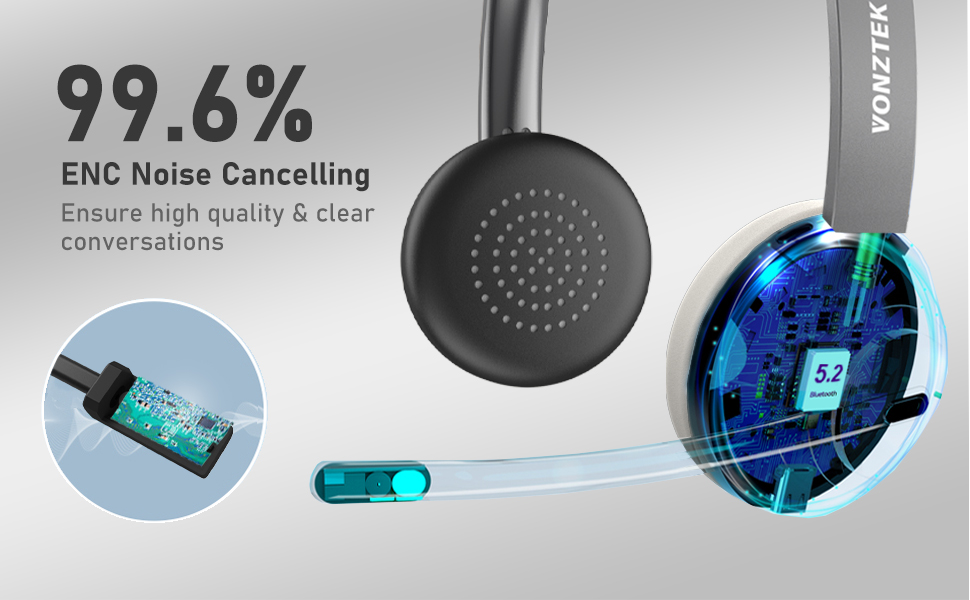
Image: Flowchart detailing PC connection settings for both Bluetooth and USB Dongle connections. It also provides guidance for setting up the headset in communication applications like Skype, Zoom, or Microsoft Teams.
Operating Instructions
Basic Controls
- Power On/Off: Press and hold the Multi-Functional Key for approximately 3 seconds.
- Volume Up/Down: Use the '+' and '-' buttons located on the earcup.
- Play/Pause/Answer Call/End Call: Short press the Multi-Functional Key.
- Reject Call: Long press the Multi-Functional Key for 3 seconds.
- Mute/Unmute Microphone: Use the dedicated Mute Button on the microphone boom. A red light on the microphone indicates it is muted.
Microphone Adjustment
The microphone is 270° rotatable, allowing you to position it optimally for voice capture or to wear the headset on either the left or right ear. Adjust the boom arm to bring the microphone close to your mouth for the clearest audio.
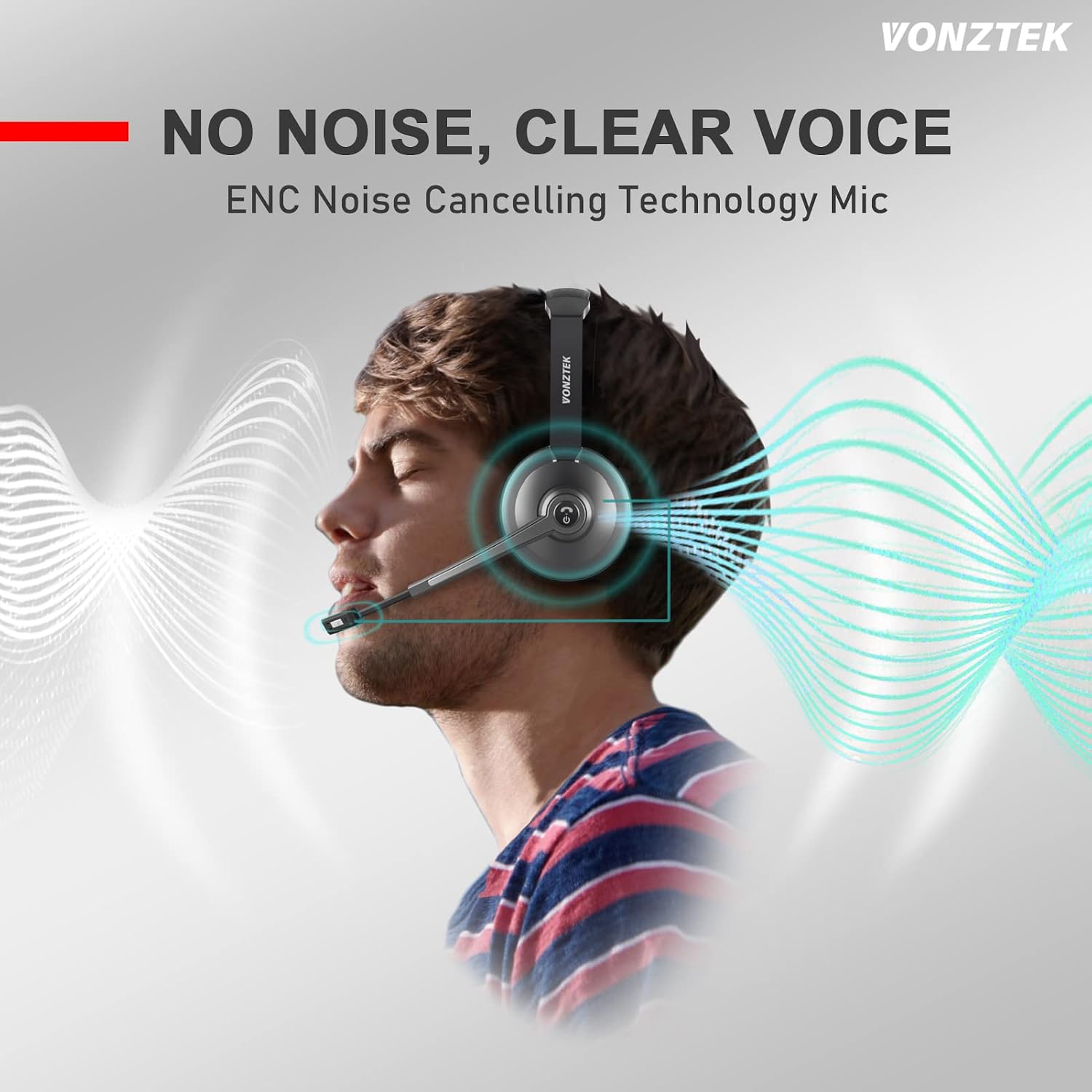
Image: Illustration of a person wearing the Vonztek headset, emphasizing the ENC Noise Cancelling Technology of the microphone for clear voice transmission by filtering out background noise.
Maintenance and Care
- Cleaning: Wipe the headset with a soft, dry cloth. Avoid using harsh chemicals or abrasive materials.
- Storage: Store the headset in a cool, dry place away from direct sunlight and extreme temperatures.
- Battery Care: To prolong battery life, avoid fully discharging the headset frequently. Charge it regularly, even if not in constant use.
- Handling: Do not bend or twist the headset excessively. Handle the microphone boom gently when adjusting.
Troubleshooting
| Problem | Possible Cause | Solution |
|---|---|---|
| Headset does not power on. | Low battery. | Charge the headset fully. |
| Cannot pair with device. | Headset not in pairing mode; device Bluetooth off; too far from device. | Ensure headset is in pairing mode (flashing blue/red LED). Turn on device Bluetooth. Move headset closer to device (within 33ft). |
| No audio or poor audio quality. | Incorrect audio output selected; low volume; interference. | Check device sound settings to ensure headset is selected as output. Increase headset and device volume. Move away from other wireless devices. |
| Microphone not working. | Microphone muted; incorrect input selected; microphone boom not positioned correctly. | Press the Mute Button to unmute (red light off). Check device sound settings for correct microphone input. Adjust microphone boom closer to mouth. |
| Headset disconnects frequently. | Out of range; low battery; interference. | Stay within 33ft range. Charge headset. Reduce interference from other devices. |
Safety Information: Please adjust your computer or cell phone's volume when you still can't hear clearly even if you've reached the highest volume on your wireless headset.
Specifications
| Feature | Detail |
|---|---|
| Model Name | BT786H-DG |
| Brand | Vonztek |
| Connectivity Technology | Bluetooth V5.0 |
| Wireless Range | Up to 33 feet (10 meters) |
| Battery Life (Talk Time) | Up to 26 hours |
| Battery Life (Standby Time) | Up to 210 hours |
| Charging Time | Approximately 2 hours |
| Microphone | ENC Noise Canceling, 270° Rotatable |
| Weight | 120g (4.5 ounces) |
| Earpiece Shape | On-Ear |
| Material | Faux Leather, Stainless Steel, Aluminum, Plastic (ABS) |
| Headphones Jack | USB (via dongle) |
| UPC | 731905390339 |
Warranty and Support
Vonztek offers a 30-day money-back service and a free replacement warranty for this product. For any technical questions or support needs, please contact Vonztek customer service.
Contact information for customer service is typically found in the included user manual or on the official Vonztek website. Vonztek aims to provide 24-hour customer service.
Related documentsBT786H-DG


Ask a question about this manual
Ask about setup, troubleshooting, compatibility, parts, safety, or missing instructions. Manuals+ will review the question and use this page’s manual context to help answer it.