1. Product Overview
The CarlinKit A1 is a versatile dongle designed to transform your wired Android car system into a wireless CarPlay and Android Auto experience. It allows for seamless integration of your smartphone's features onto your car's display, enhancing navigation, communication, and entertainment.
Key features include:
- Wireless CarPlay functionality for iOS devices (iOS 6+ required).
- Wireless Android Auto functionality for Android devices (Android 9.0+ required, some Android 11.0+).
- Wired Mirror Link for both iPhone and Android phones.
- Built-in AutoKit APK for easy setup and management.
- Plug and Play operation for quick connectivity.

Image: Overview of the CarlinKit A1 dongle and its supported features including Wireless CarPlay, Wireless Android Auto, and Screen Mirroring.
2. Before You Begin: Compatibility Check
Ensure your car's head unit runs on Android System Version 6 or above. This dongle is specifically designed for cars with an existing Android infotainment system.
2.1. How to Check Your Car's Android System Version
- On your car's screen, click on the "Settings" icon.
- Navigate to "About the device" or "About phone" or "System Information".
- Look for "Android version" to confirm it is 6.0 or higher.
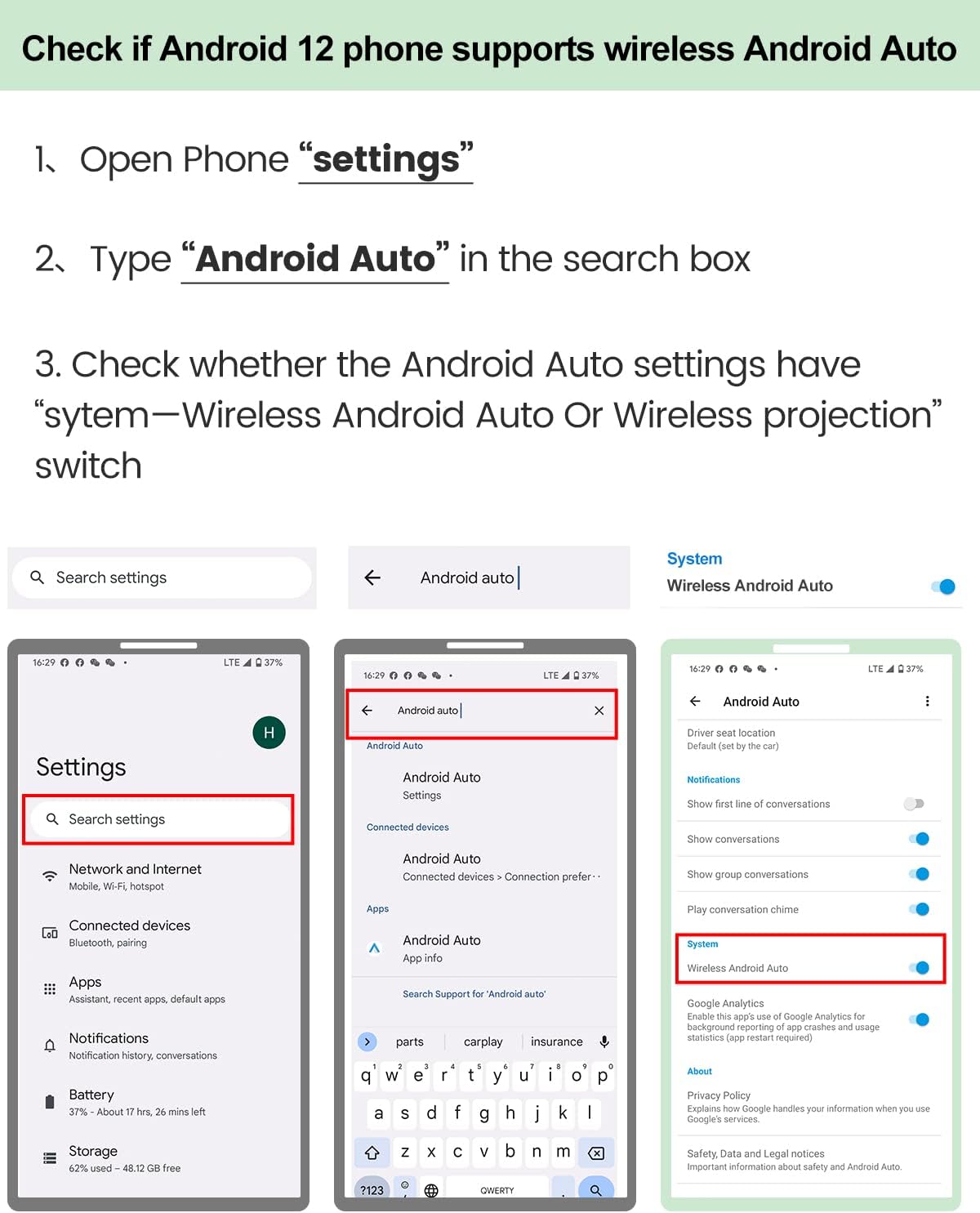
Image: Steps to check the Android version on your car's head unit, showing navigation to settings and device information.
For a visual guide, please watch the video below:
Video: A demonstration on how to check if your car's infotainment system has an Android operating system.
3. Setup and Installation
3.1. Installing the AutoKit APK
The AutoKit application is essential for the dongle's operation. If not pre-installed, you will need to download and install it on your car's Android head unit.
- Ensure your car's head unit is connected to the internet (Wi-Fi or mobile hotspot).
- Open the car's web browser (e.g., Chrome).
- Enter the following URL in the address bar:
121.40.123.198:8080/autokit/ - Download the latest AutoKit APK file.
- After the download is complete, open the downloaded file (usually from the notifications or downloads folder) and follow the on-screen prompts to install the application. You may need to allow installation from unknown sources in your car's Android settings.
For a visual guide on APK installation, refer to the video below:
Video: A demonstration of installing the AutoKit APK on an Android car head unit.
3.2. Connecting the CarlinKit A1 Dongle
- Plug the CarlinKit A1 dongle into a USB port on your car's Android head unit.
- Once connected, open the AutoKit APK on your car's screen. The application should detect the dongle.

Image: The CarlinKit A1 dongle with its USB connector.
4. Operating Instructions
4.1. Wireless Apple CarPlay Connection
- Open the AutoKit APK on your car's machine.
- Ensure the CarlinKit A1 product is inserted into the USB port of your car and wait for it to transmit the signal.
- On your iPhone (iOS 6+), turn on both Wi-Fi and Bluetooth.
- Connect your iPhone's Bluetooth to the Bluetooth signal displayed on the car's screen (this will typically be the dongle's name).
- After successful pairing, wait a few moments, and wireless CarPlay will activate.

Image: Visual guide for connecting Wireless CarPlay, showing the AutoKit app, phone Wi-Fi/Bluetooth, and the CarPlay interface.
4.2. Wireless Android Auto Connection
- Open the AutoKit APK on your car's machine.
- Ensure the CarlinKit A1 product is inserted into the USB port of your car and wait for it to transmit the signal.
- On your Android phone (Android 9.0+), turn on both Wi-Fi and Bluetooth.
- Connect your Android phone's Bluetooth to the Bluetooth signal displayed on the car's screen (this will typically be the dongle's name).
- After successful pairing, wait a few moments, and the wireless Android Auto connection will work.

Image: Visual guide for connecting Wireless Android Auto, showing the AutoKit app, phone Wi-Fi/Bluetooth, and the Android Auto interface.
4.3. Wired Apple Mirror Connection
- Open the AutoKit APK on the car machine.
- Insert the CarlinKit A1 product into the USB port.
- Click the "gear" icon (settings) on the upper left of the AutoKit app.
- Scroll down and select "Mirror" in the Apple mode settings.
- Plug your iPhone into the CarlinKit A1 dongle using a data cable (MFI certified recommended). The mirror connection will then be established.

Image: Steps for wired mirror connection, showing settings within the AutoKit app for both iOS and Android mirroring.
4.4. Wired Android Mirror Connection
- Open the AutoKit APK on the car machine.
- Insert the CarlinKit A1 product into the USB port.
- On your Android phone, go to "Settings" -> "About phone".
- Tap "Build number" five times to enable "Developer options".
- In "Developer options", enable "USB debugging".
- Plug your Android phone into the CarlinKit A1 dongle using a data cable. The mirror connection will then be established.

Image: An example of wired screen mirroring in action, displaying a phone's screen on the car's head unit.
5. Troubleshooting
- Connection Issues (Wireless): If the wireless connection is unstable or fails to connect, ensure both Wi-Fi and Bluetooth are enabled on your phone and properly paired with the dongle. Try restarting both your phone and the car's head unit. Ensure the AutoKit APK is the latest version.
- No Audio/Audio Delay: Check your car's audio source settings. If using Bluetooth for audio, ensure it's selected. Some users report better audio stability by connecting the phone directly to the car's Bluetooth for audio, while the dongle handles CarPlay/Android Auto.
- Dongle Not Recognized: Ensure the CarlinKit A1 dongle is securely plugged into a functional USB port on your car's Android head unit. Try a different USB port if available. Verify that the AutoKit APK is correctly installed and open.
- Mirroring Not Working: For wired mirroring, ensure you are using a high-quality, MFI-certified data cable for iPhones. For Android, confirm that USB debugging is enabled in Developer Options.
- App Crashes/Freezes: Ensure your car's Android system meets the minimum version requirement (Android 6+). Clear the cache of the AutoKit app or reinstall it if issues persist.
6. Specifications
| Feature | Detail |
|---|---|
| Model Name | A1 (CPC200-CCPA) |
| Compatible Devices | Car (Android System 6+), Android Phone (9.0+), iPhone (iOS 6+) |
| Connectivity Technology | Bluetooth, Wi-Fi |
| Bluetooth Frequency | 2412-2472MHz |
| Wi-Fi Frequency | 5150-5250MHz, 5725-5850MHz |
| Item Weight | 3.2 ounces |
| Package Dimensions | 9.29 x 4.49 x 1.61 inches |
| Color | Black |
7. Warranty and Support
CarlinKit is committed to providing high-quality products and excellent customer service.
- 1 Month: For product-related problems within one month of purchase, you may contact customer service for replacement or a fast refund (non-artificial damage).
- 1 Year: A one-year free after-sale guarantee service is provided.
- 24 Hours: If you encounter product problems, please feel free to contact CarlinKit customer service. They aim to reply within 24 hours.
For support, please contact CarlinKit via your order details or directly at support@carlinkit.com.


