
1. Introduction
Thank you for choosing the Marea Smartwatch B58010/4. This manual provides essential information for the proper setup, operation, and maintenance of your device. Please read it carefully to ensure optimal performance and longevity of your smartwatch.
2. Setup
2.1 Initial Charging
Before first use, fully charge your Marea Smartwatch. Connect the charging cable to the watch's charging port and a compatible USB power source. The watch display will indicate charging status.
2.2 Pairing with Your Smartphone
To unlock the full potential of your smartwatch, pair it with your Android smartphone via Bluetooth. Download the official Marea Smartwatch application from your phone's app store.
- Ensure Bluetooth is enabled on your smartphone.
- Open the Marea Smartwatch app and follow the on-screen instructions to add a new device.
- Select 'B58010/4' from the list of available devices.
- Confirm the pairing request on both your phone and the smartwatch.
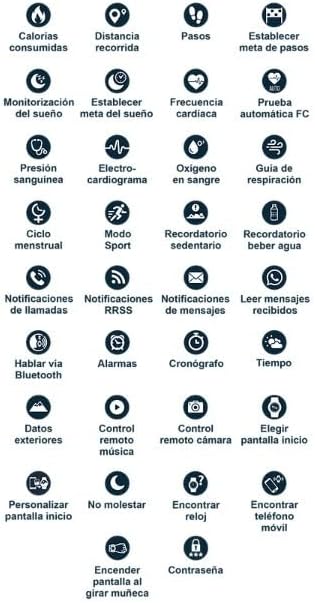
Image: The Marea Smartwatch B58010/4, showcasing its sleek design and digital display on a user's wrist.
3. Operating Instructions
3.1 Basic Navigation
The Marea Smartwatch B58010/4 features a 1.75-inch capacitive touchscreen. Swipe left, right, up, or down to navigate through menus and functions. Tap to select items. The side button typically serves as a power button or a return-to-home function.
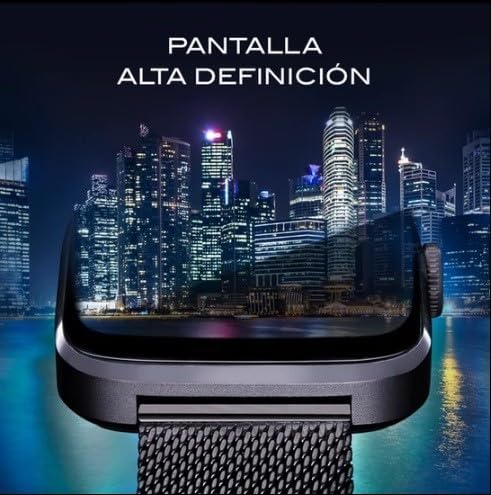
Image: The smartwatch display showcasing its high-definition capabilities with a vibrant city skyline background.
3.2 Key Features and Functions
Your smartwatch offers a wide range of functionalities. Below is an overview of the main icons and their corresponding features:
Image: A comprehensive visual guide to the smartwatch's various functions, represented by distinct icons. These include health tracking, communication, utility, and customization options.
- Health Monitoring: Track consumed calories, distance covered, steps taken, and set daily step goals. Monitor sleep patterns, heart rate, blood pressure, perform electrocardiograms (ECG), measure blood oxygen levels, and utilize a respiration guide. It also includes menstrual cycle tracking.
- Fitness & Activity: Engage Sport Mode for various activities and receive sedentary reminders to encourage movement.
- Communication: Receive notifications for calls, social media (RRSS), and messages. You can also read received messages directly on the watch and engage in calls via Bluetooth.
- Utilities: Set alarms, use the chronograph (stopwatch) and timer functions, check outdoor data (weather), control music playback on your phone remotely, and use the watch as a remote camera shutter.
- Personalization & Convenience: Choose and customize your home screen, activate 'Do Not Disturb' mode, use 'Find Watch' and 'Find Phone' features, and enable the screen to turn on automatically when you raise your wrist. For security, you can set a password.
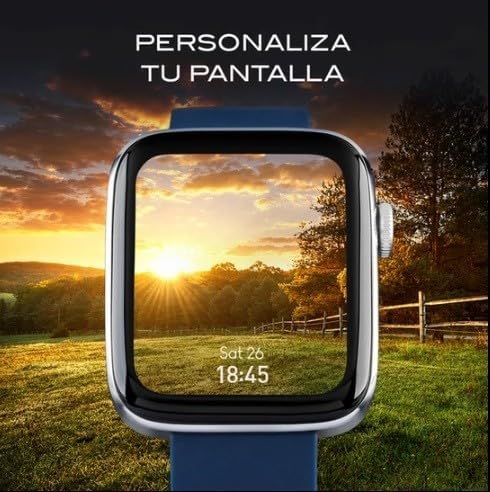
Image: The smartwatch screen showing a personalized watch face with a scenic sunset, demonstrating customization options.
3.3 Bluetooth Calling
With your smartwatch paired to your phone, you can make and receive calls directly from your wrist. When a call comes in, the watch will display the caller ID, and you can answer or reject the call using the touchscreen. To make a call, access the phone function on your watch and select a contact or dial a number.

Image: The smartwatch displaying an incoming call, with options to answer or decline, highlighting its Bluetooth calling capability.
3.4 Security and Passcode
For enhanced security, you can set an unlock code for your smartwatch. This prevents unauthorized access to your personal data and settings.

Image: The smartwatch screen showing a numeric keypad for entering an unlock code, emphasizing the device's security features.
4. Maintenance
4.1 Cleaning Your Smartwatch
To maintain the appearance and functionality of your smartwatch, regularly clean it with a soft, dry, lint-free cloth. Avoid using harsh chemicals, abrasive materials, or aerosol sprays, as these can damage the device.
4.2 Water Resistance
The Marea Smartwatch B58010/4 is water-resistant up to 1 meter. This means it can withstand splashes, rain, and brief immersion in shallow water. However, it is not suitable for swimming, diving, or exposure to high-pressure water or hot water (e.g., showers, saunas), as this may compromise the water seals.
4.3 Battery Care
To prolong battery life, avoid exposing the watch to extreme temperatures. Charge the device regularly, but avoid leaving it fully charged or completely depleted for extended periods.
5. Troubleshooting
If you encounter issues with your Marea Smartwatch B58010/4, please refer to the following common solutions:
- Device Not Turning On: Ensure the watch is fully charged. Connect it to the charger for at least 30 minutes.
- Pairing Issues: Check that Bluetooth is active on your smartphone and the smartwatch. Restart both devices and try pairing again. Ensure the Marea Smartwatch app is up to date.
- Inaccurate Readings: Ensure the watch is worn snugly on your wrist, but not too tight. Clean the sensors on the back of the watch.
- Notifications Not Appearing: Verify that notification permissions are granted to the Marea Smartwatch app in your phone's settings. Check that 'Do Not Disturb' mode is not active on the watch.
- Touchscreen Unresponsive: Restart the smartwatch. If the issue persists, ensure the screen is clean and dry.
For persistent problems, consult the official Marea support resources or contact customer service.
6. Specifications
Below are the technical specifications for the Marea Smartwatch B58010/4:
| Feature | Specification |
|---|---|
| Model Number | B58010/4 |
| Operating System | Wear OS |
| Display Size | 1.75 Inches |
| Display Type | Capacitive Touchscreen |
| Connectivity Technology | Bluetooth |
| Wireless Communication Standard | Bluetooth |
| Compatible Devices | Smartphone (Android models) |
| Special Features | Calculator, Chronograph |
| Battery Cell Composition | Silver Oxide |
| Water Resistance Level | Waterproof (up to 1 Meter depth) |
| Case Material | Metal, Plastic |
| Strap Material Type | Silicone |
| GPS Functionality | No integrated GPS for navigation, but compatible with satellite navigation systems. |
| Dimensions (Package) | 23.8 x 7.6 x 3.2 cm; 180 g |
| Target Audience | Unisex Adult |
7. Warranty Information
The Marea Smartwatch B58010/4 comes with a Limited Warranty. Please refer to the warranty card included with your product or visit the official Marea website for detailed terms and conditions regarding coverage, duration, and service procedures.
8. Support
For further assistance, technical support, or inquiries not covered in this manual, please visit the official Marea support website or contact their customer service department. Keep your product's model number (B58010/4) and purchase information readily available when seeking support.


