
Introduction
This manual provides comprehensive instructions for the Deltaco Gaming DK430 Mechanical Mini Gaming Keyboard. It covers setup, operation, maintenance, and troubleshooting to ensure optimal performance and longevity of your device. The DK430 features a compact 60% US layout, RGB lighting, and responsive red mechanical switches. The spacebar is designed to register presses consistently, regardless of where it is pressed.

Image 1: Top-down view of the Deltaco Gaming DK430 Mechanical Mini Gaming Keyboard, showcasing its compact 60% layout and vibrant RGB backlighting.
Package Contents
Verify that all items are present in the package:
- Deltaco Gaming DK430 Mechanical Mini Gaming Keyboard
- 1.5m USB-MicroB to USB-A Cable
- User Manual (this document)
Setup Instructions
Connect the Keyboard: Locate the USB port on the back of the DK430 keyboard. Insert the smaller end of the provided USB cable into this port.

Image 2: Close-up view of the USB port on the Deltaco Gaming DK430 keyboard, with the cable being inserted.
Connect to Computer: Insert the standard USB-A end of the cable into an available USB port on your computer (PC or laptop).
Driver Installation: The keyboard is plug-and-play. Your operating system will automatically detect and install the necessary drivers. No additional software installation is required for basic functionality and RGB control.
Placement: Position the keyboard comfortably on your desk. The compact 60% layout is designed to save space while providing essential keys.
Operating Instructions
Keyboard Layout and Keys
The DK430 features a 60% US layout with 62 keys. Due to its compact design, some functions are accessed via the Function (FN) key combination.
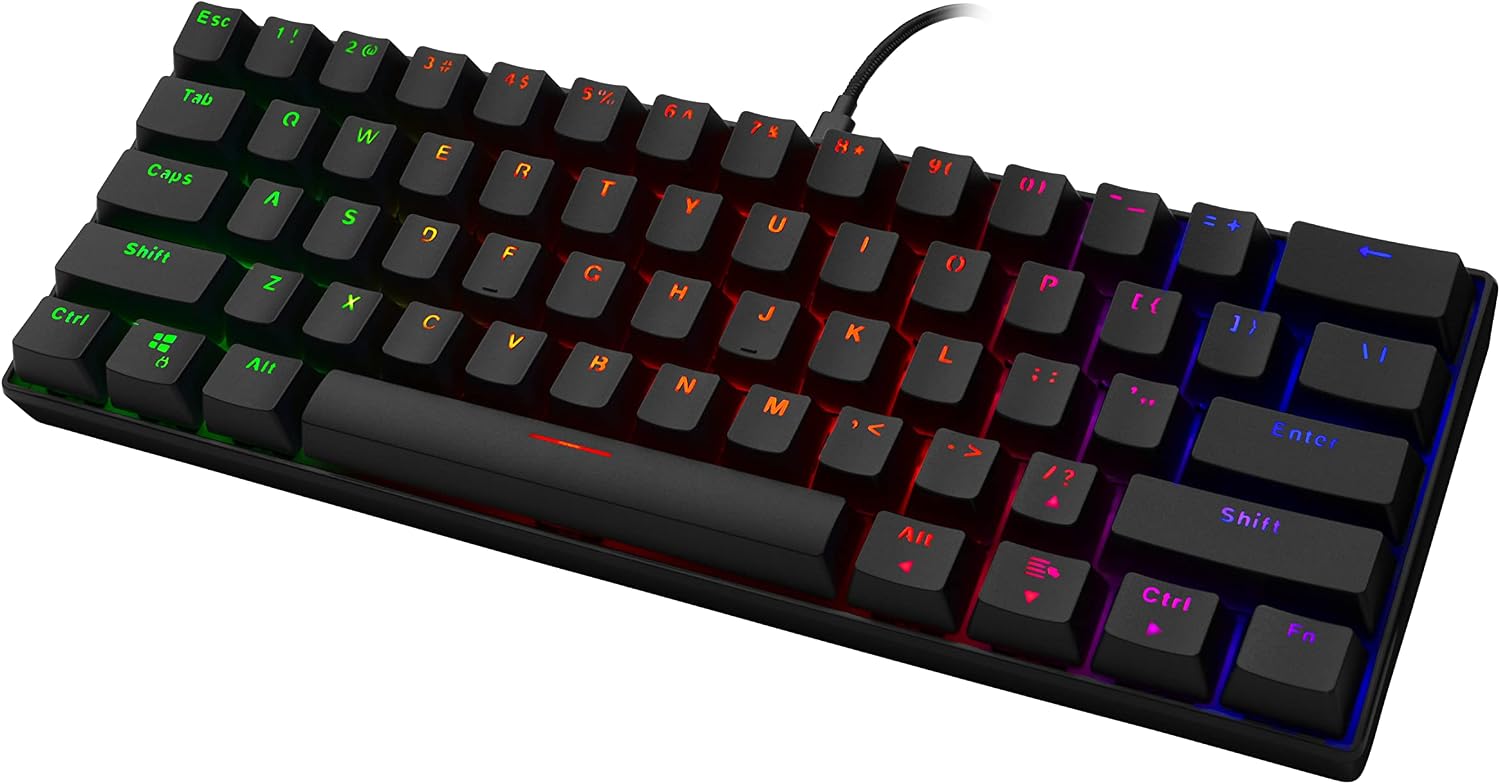
Image 3: Angled view of the Deltaco Gaming DK430 Mechanical Mini Gaming Keyboard, highlighting its compact form factor and keycap design.
RGB Lighting Control
The keyboard offers 19 distinct RGB lighting modes. You can customize the lighting effects directly from the keyboard without additional software.
- Change Lighting Mode: Press FN + . (period key) to cycle through the 19 available lighting modes.
- Adjust Lighting Speed: Press FN + Left Arrow Key to decrease lighting speed, and FN + Right Arrow Key to increase lighting speed. When the minimum or maximum speed is reached, the Caps Lock and Windows keys will flash as an indicator.
- Adjust Lighting Brightness: Press FN + Down Arrow Key to decrease brightness, and FN + Up Arrow Key to increase brightness. When the minimum or maximum brightness is reached, the Caps Lock and Windows keys will flash as an indicator.
- Change Lighting Color: For modes that support multiple colors, the color may change automatically with the mode, or you might be able to cycle through colors within a mode using FN + Enter (common for some keyboards, but not explicitly stated for this model).
The keyboard features Red RGB mechanical switches, providing a smooth and linear keystroke experience with a 45g ± 10g actuation force.
Maintenance and Care
- Cleaning: Use a soft, dry cloth to wipe the surface of the keyboard. For dust and debris between keycaps, use compressed air. Avoid using liquid cleaners directly on the keyboard.
- Keycap Removal: The DK430 features double injection keycaps. If you need to remove keycaps for deeper cleaning, use a keycap puller to avoid damage.
- Cable Care: Avoid bending or twisting the USB cable excessively to prevent internal damage.
- Storage: When not in use for extended periods, store the keyboard in a clean, dry environment away from direct sunlight and extreme temperatures.
Troubleshooting
| Problem | Possible Cause | Solution |
|---|---|---|
| Keyboard is not responding. | Loose USB connection, faulty USB port, driver issue. |
|
| RGB lighting is not working or stuck. | Lighting mode issue, power issue. |
|
| Certain keys are not registering. | Debris under keycap, faulty switch. |
|
Specifications
| Model Name | DK430 Mini Mechanical Gaming Keyboard |
| Brand | DELTACO Gaming |
| Number of Keys | 62 |
| Layout | US 60% |
| Switch Type | Red RGB Mechanical Switches |
| Actuation Force | 45g ± 10g |
| Keycaps | Double Injection |
| Connectivity | Wired USB (1.5m USB-MicroB to USB-A Cable) |
| Lifespan | 50 million keystrokes |
| Dimensions (L x W x H) | 290 x 100 x 30 mm - 42 mm |
| Weight | Approx. 600g |
| Compatible Devices | Laptop, PC |
| Special Features | RGB Backlit, N-Key Rollover |
Warranty and Support
The Deltaco Gaming DK430 Mechanical Mini Gaming Keyboard comes with a 5-year warranty, ensuring peace of mind regarding its quality and durability. For technical support, warranty claims, or further assistance, please contact your retailer or visit the official Deltaco Gaming website.

Image 4: Overview image of the DK430 keyboard, detailing key features such as US layout, N-key rollover, double injection keycaps, 60% layout, content red switches, 16 million colors RGB, and a 5-year warranty.
Please retain your proof of purchase for warranty purposes.


