
1. Introduction
The DELTACO GAMING DK440 is a 65% wireless gaming keyboard designed for advanced players who require ample mouse space. It features red mechanical keys from Kailh with laser-engraved symbols on the front side of the keycaps. This keyboard offers versatile connectivity options and customizable RGB lighting.
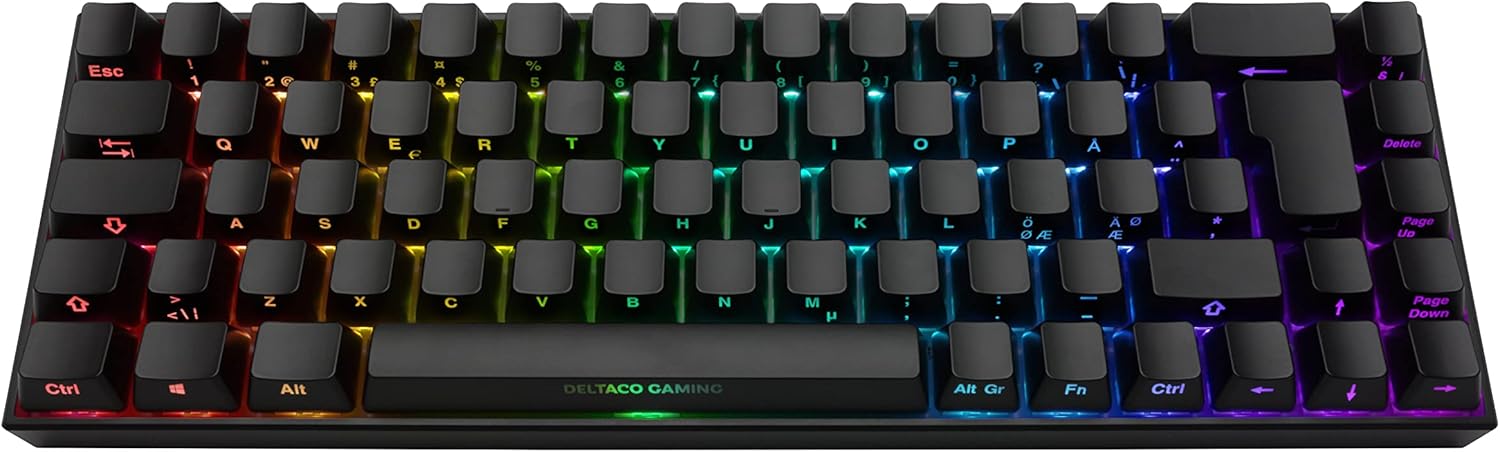
Image 1.1: Top view of the DELTACO GAMING DK440 keyboard showcasing its RGB lighting.
2. Key Features
- 65% Layout: Compact design with 68 keys, providing more desk space for mouse movement.
- 3-in-1 Connectivity: Supports wireless 2.4GHz via USB dongle, Bluetooth 5.0, and wired USB-C connection.
- Kailh Red Linear Mechanical Switches: High-quality switches offering speed, accuracy, and performance with quiet feedback.
- Customizable RGB Lighting: Advanced RGB illumination with 16.8 million colors, fully customizable via dedicated Windows software to match your style and environment.
- Long Battery Life: Equipped with a 2000mAh rechargeable battery, providing up to 20 hours of active use with RGB lighting on, and up to 100 hours with RGB lighting off.
- N-Key Rollover & Anti-Ghosting: Ensures all key presses are registered accurately, even during intense gaming sessions.
- Durable Keycaps: ABS keycaps with laser-engraved symbols on the front side for enhanced durability and unique aesthetics.

Image 2.1: Angled view of the keyboard highlighting its compact 65% layout and RGB lighting.
3. Setup and First Use
3.1 Charging the Keyboard
Before first use, it is recommended to fully charge the keyboard. Connect the included USB-C cable to the keyboard's USB-C port and the other end to a USB-A port on your computer or a compatible USB wall adapter. A full charge typically takes approximately 4-5 hours.

Image 3.1: Close-up of the USB-C charging port on the keyboard.
3.2 Connecting the Keyboard
The DK440 offers three connection methods:
- 2.4GHz Wireless (USB Dongle):
- Locate the 2.4GHz USB receiver, usually stored in a compartment on the underside of the keyboard.
- Plug the USB receiver into an available USB-A port on your computer.
- Ensure the power switch on the bottom of the keyboard is set to the 2.4GHz wireless mode (indicated by a Wi-Fi symbol).
- The keyboard should automatically connect.
- Bluetooth 5.0:
- Ensure the power switch on the bottom of the keyboard is set to Bluetooth mode (indicated by a Bluetooth symbol).
- On your device (PC, tablet, etc.), enable Bluetooth and search for new devices.
- Select "DELTACO GAMING DK440" from the list of available devices to pair.
- Wired (USB-C):
- Connect the included USB-C cable to the keyboard's USB-C port.
- Connect the USB-A end of the cable to an available USB-A port on your computer.
- The keyboard will function in wired mode and charge simultaneously.

Image 3.2: Underside of the keyboard, showing the power switch and icons for 2.4GHz wireless, Bluetooth, and wired modes.
4. Operating Instructions
4.1 Software Customization
The DELTACO GAMING DK440 comes with dedicated Windows software that allows for extensive customization. This software enables you to:
- Customize key assignments and create macros.
- Adjust RGB lighting effects, brightness, and color (16.8 million colors).
- Create and manage multiple profiles for different games or applications.
Please refer to the DELTACO Gaming website for the latest software download and installation instructions.
4.2 RGB Lighting Control
While the primary method for RGB customization is through the Windows software, the keyboard's advanced RGB illumination can be adapted to your preferences. Use the software to select from various lighting modes, adjust brightness, and choose specific colors to match your setup.

Image 4.1: Close-up view of the keyboard keys demonstrating customizable RGB lighting.
5. Maintenance
5.1 Cleaning
- Disconnect the keyboard from all power sources before cleaning.
- Use a soft, dry cloth to wipe down the surface of the keyboard.
- For stubborn dirt, a slightly damp cloth with mild soap can be used, ensuring no liquid enters the keyboard.
- Use compressed air to remove dust and debris from between the keycaps.
5.2 Battery Care
- Avoid fully discharging the battery frequently to prolong its lifespan.
- Store the keyboard in a cool, dry place if not used for extended periods.
- Charge the keyboard regularly, even if not in constant use, to maintain battery health.
6. Troubleshooting
- Keyboard not responding:
- Ensure the keyboard is charged.
- Check the power switch on the bottom of the keyboard and ensure it's set to the correct connection mode (2.4GHz, Bluetooth, or wired).
- For 2.4GHz, ensure the USB dongle is securely plugged into your computer.
- For Bluetooth, ensure Bluetooth is enabled on your device and the keyboard is paired. Try re-pairing if necessary.
- For wired, ensure the USB-C cable is securely connected to both the keyboard and the computer.
- Try connecting to a different USB port on your computer.
- RGB lighting not working or behaving unexpectedly:
- Ensure the keyboard battery has sufficient charge.
- Check the settings within the DELTACO Gaming software.
- Restart the keyboard by turning it off and on again.
- Keys not registering or ghosting:
- The keyboard features N-Key Rollover and anti-ghosting, so this should be rare.
- Ensure no debris is lodged under the keycap.
- Try updating the keyboard firmware via the DELTACO Gaming software if available.
7. Specifications
| Feature | Detail |
|---|---|
| Model Name | DK440 Gaming Keyboard |
| Model Number | GAM-100-UK |
| Layout | 65% (68 Keys), QWERTY, UK Layout |
| Switches | Kailh Red Linear Mechanical Switches |
| Actuation Force | 45 ± 10 gf |
| Guide Path | 1.8 ± 0.3 mm |
| Keycaps | ABS with laser engraved symbols on front side |
| Key Stroke Life | ≥ 80 million |
| Backlight | RGB with Software Customization (16.8 million colors) |
| Anti-Ghosting | N-Key Rollover |
| Connectivity | 2.4GHz USB Receiver, Bluetooth 5.0, USB-C Wired |
| Cable Length | Approx. 1.8 meters (USB-C to USB-A) |
| Battery Capacity | 2000mAh |
| Battery Life (Active Use) | Up to 20 hours (RGB ON), Up to 100 hours (RGB OFF) |
| Charging Time | Approx. 4-5 hours |
| Compatible OS | Windows 7, Windows 10 (PC, Laptop) |
| Material | Plastic |
| Package Dimensions | 42.1 x 17.8 x 7.4 cm |
| Package Weight | 960 g |
8. Warranty and Support
For warranty information, technical support, or to download the latest software and drivers for your DELTACO GAMING DK440 keyboard, please visit the official DELTACO Gaming website or contact their customer support directly.
Official Website: www.deltacogaming.com
Manufacturer: Deltaco AB, Glasfibergatan 8, 125 45 Älvsjö, Sweden
